Workspace Management
A workspace is the container that holds all of your studies in Cygnus. Workspace files use the .cygnus extension and store your complete application state, including all studies, their parameters, and any generated records.
Creating a New Workspace
Creating a new workspace discards the current workspace and starts fresh. If you have unsaved changes, Cygnus prompts you to save before proceeding.
Using the Menu
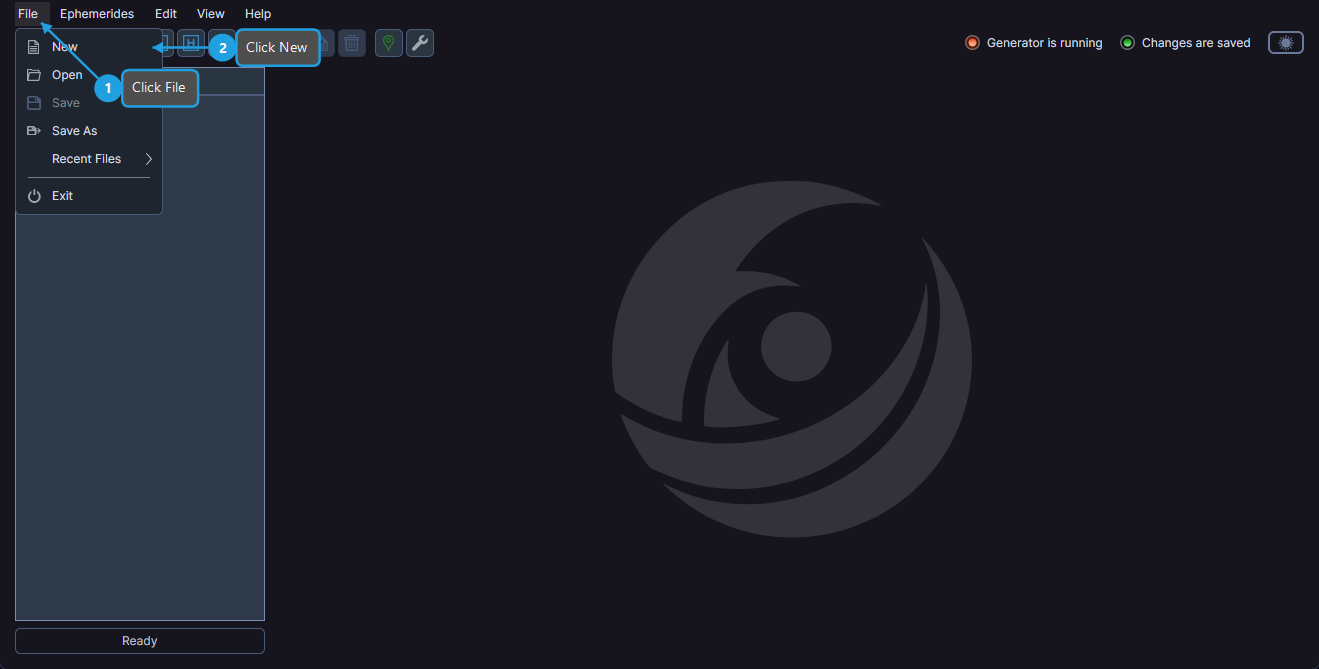
- Click File on the menu bar.
- Click New in the File menu.
Using the Toolbar
- Click the New Workspace toolbar button.
Using a Keyboard Shortcut
- Press Ctrl+N (or Cmd+N on macOS).
Opening a Workspace
You can open a previously saved .cygnus workspace file to restore all its studies and data.
Using the Menu
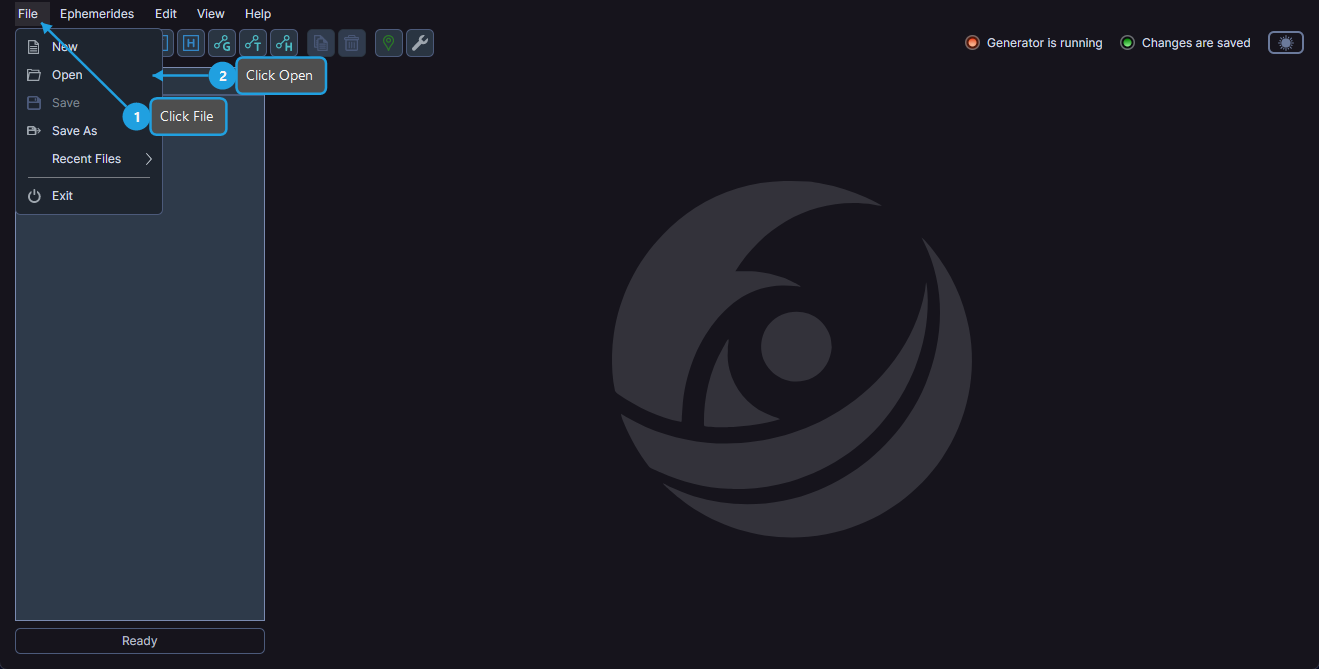
- Click File on the menu bar.
- Click Open in the File menu.
- Select a .cygnus file in the file dialog.
Using the Toolbar
- Click the Open Workspace toolbar button.
- Select a .cygnus file in the file dialog.
Using a Keyboard Shortcut
- Press Ctrl+O (or Cmd+O on macOS).
- Select a .cygnus file in the file dialog.
Opening a Recent Workspace
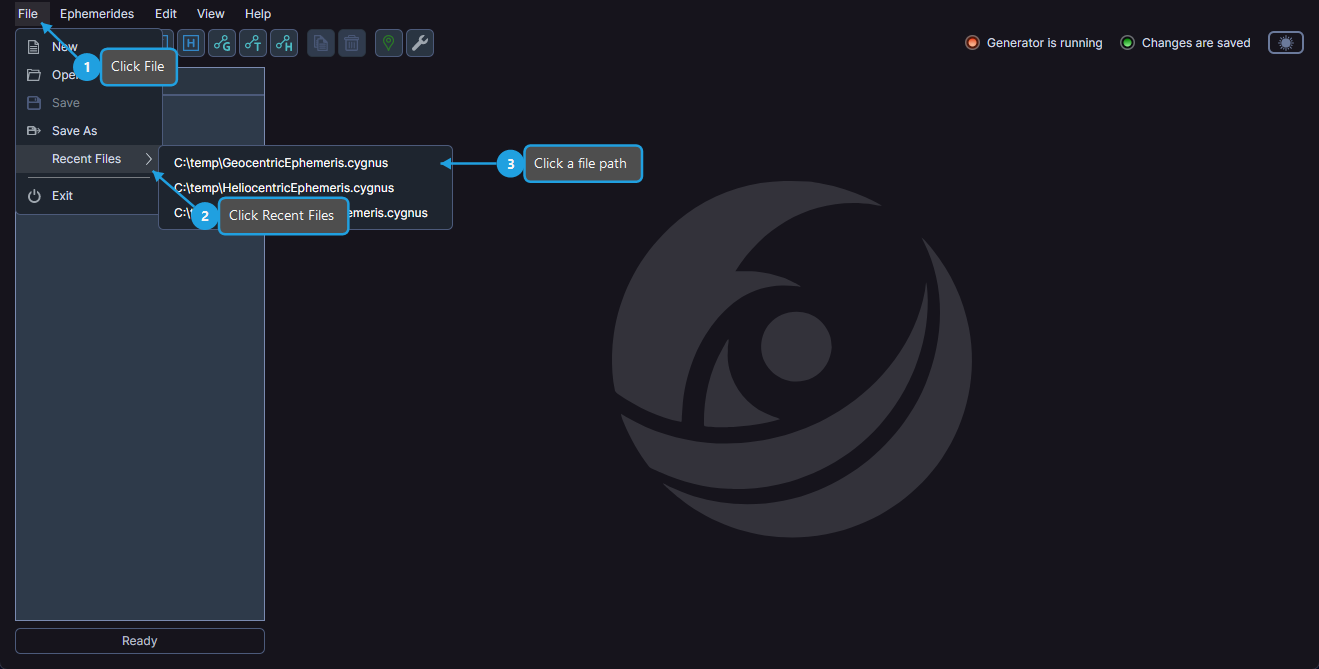
Cygnus keeps a list of recently opened workspaces for quick access.
- Click File on the menu bar.
- Click Recent Files in the File menu.
- Click the desired file path in the Recent Files submenu.
Saving a Workspace
Saving preserves all studies, parameters, and generated records in the current workspace.
Using the Menu
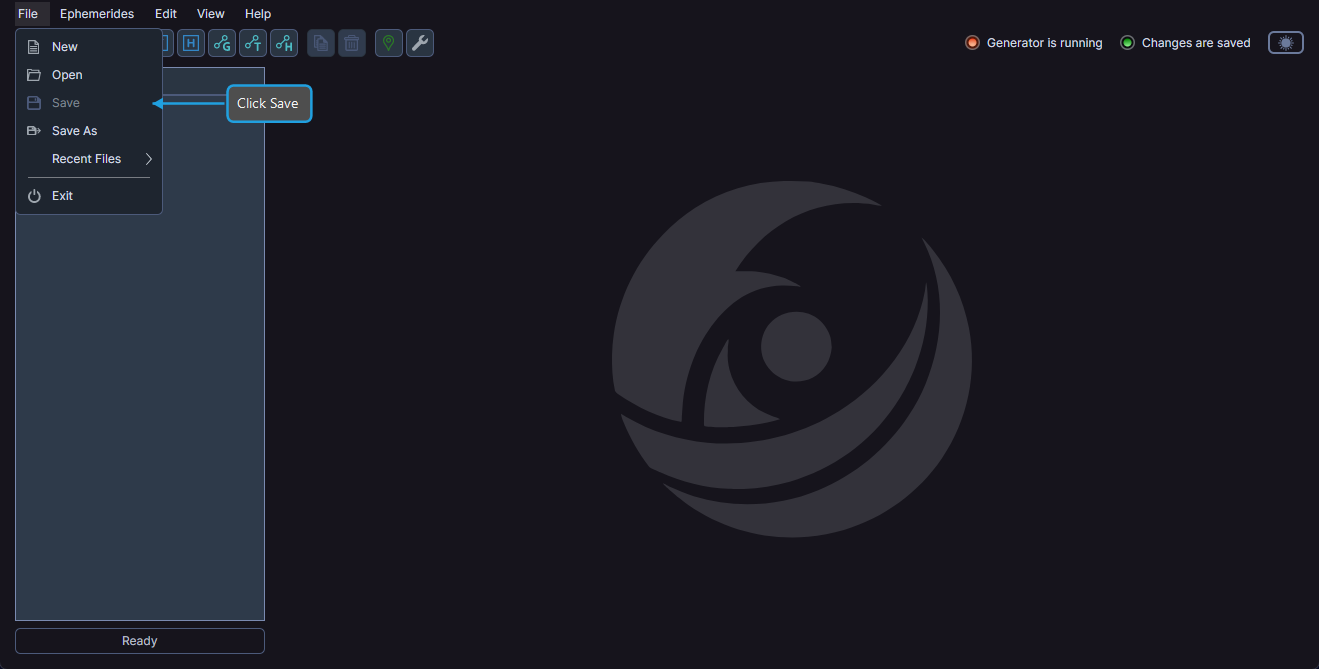
- Click File on the menu bar.
- Click Save in the File menu.
Using the Toolbar
- Click the Save Workspace toolbar button.
Using a Keyboard Shortcut
- Press Ctrl+S (or Cmd+S on macOS).
If the workspace has never been saved before, a save dialog appears so you can choose a location and filename.
Saving a Workspace to a New File
To save the current workspace to a different location or with a different name, use Save As.
- Click File on the menu bar.
- Click Save As in the File menu.
- Choose a location and filename in the save dialog.
The status indicators in the upper-right area of the toolbar show whether your workspace has unsaved changes.