Main Window
The main window is the primary interface for Cygnus. When you launch the application, the main window appears with all the controls you need to create, configure, and generate ephemerides.
Window Layout
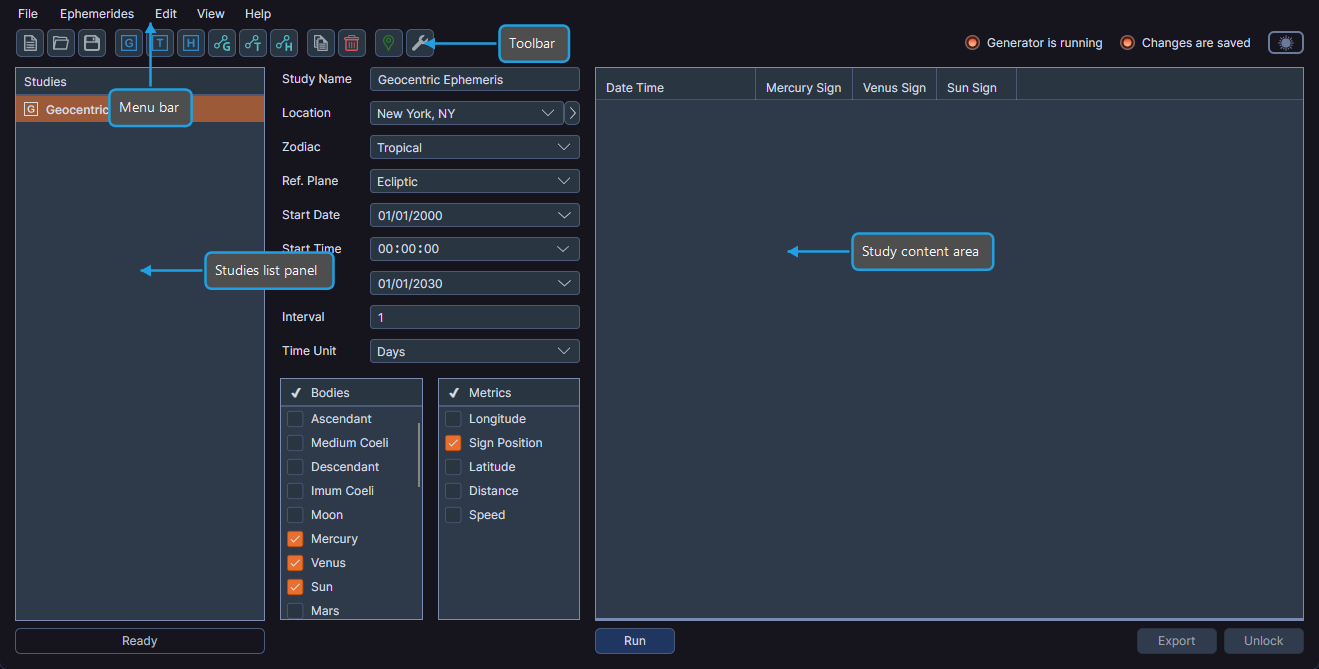
The main window contains several key areas:
- Menu Bar -- Provides access to all application commands organized under File, Edit, Ephemerides, View, and Help menus.
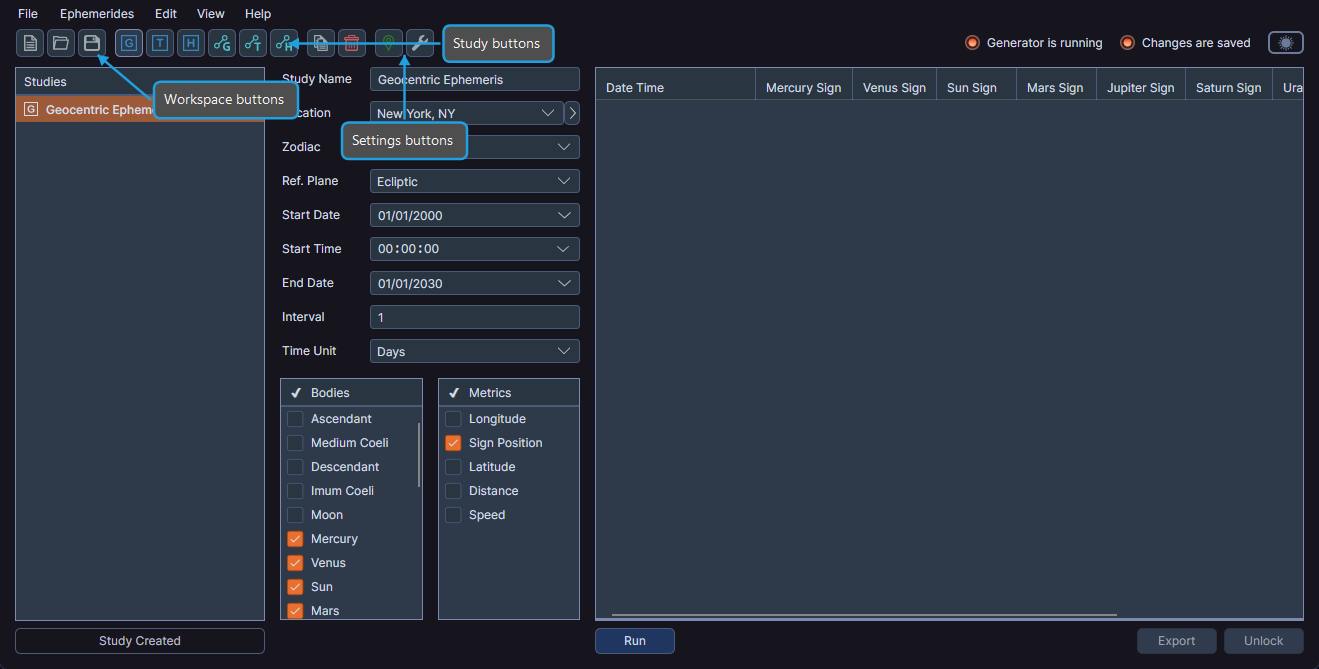
- Toolbar -- Contains buttons for frequently used actions such as creating a new workspace, opening and saving workspaces, creating studies, managing default settings, and editing locations. The toolbar also includes the theme switch toggle and status indicators.
- Studies List Panel -- Lists all studies in the current workspace on the left side of the window. Each study shows a type-specific icon and its name. The activity bar appears at the bottom of this panel.
- Study Content Area -- Displays the selected study's configuration panel and ephemeris table on the right side of the window.
Launching Cygnus
- Launch the Cygnus application to display the main window.
When Cygnus opens, you see an empty workspace ready for you to create your first study.
Navigating the Application
Use the menu bar to access all available commands, or use the toolbar for quick access to common actions. The keyboard shortcuts provide an additional way to perform workspace operations.
To begin working with ephemerides, create a study using the Ephemerides menu or the toolbar buttons, then configure its parameters in the study content area.
You can rearrange studies in the studies list by dragging them to a new position. See Studies List for details.