Activate a License
Follow these steps to activate your application license after purchase.
Have your Registered Name and Activation Code on hand — both were delivered to you in an email when you purchased. Each product has its own activation code.
-
Download and install the R7.Activator application.
-
Start the R7.Activator application.
-
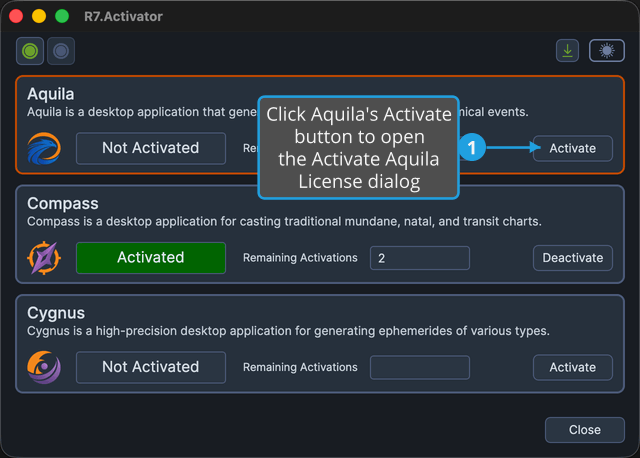
Find the panel for the product you are activating. R7.Activator lists Aquila, Compass, and Cygnus, each on its own panel.
-
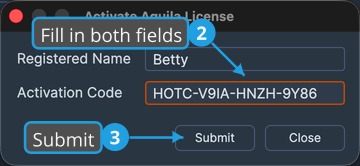
Click the Activate button on that product's panel. The Activate <Product> License dialog opens.
-
Enter your Registered Name and Activation Code.
-
Click the Submit button.
A panel shows Activate only when that product is not yet activated on this computer. If it shows Deactivate instead, the product is already activated here.
After Activating
When activation succeeds, the product's panel updates:
- The status changes to Activated.
- Remaining Activations fills in, showing how many further computers you can still activate the product on.
- The action button becomes Deactivate.
Your license covers up to three computers. Use Deactivate to release an activation so it can be used on another machine.
If activation fails, a message reports the reason and the product stays Not Activated. R7.Activator keeps the values you entered, so re-open the dialog, correct the registered name or activation code, and submit again.
More Information
For full R7.Activator documentation — including deactivating licenses, resetting every activation, and the menu bar and toolbar commands — see the R7.Activator documentation.