Body Presets
Body presets let you save common combinations of celestial body selections and apply them to any study with a few clicks. Ephy stores presets per application and makes them available across all studies and workspaces.
Applying a Body Preset
To apply a saved body preset:
- Right-click in the body list to open the context menu.
- Hover over Presets to expand the preset submenu.
- Click a preset name to apply it.
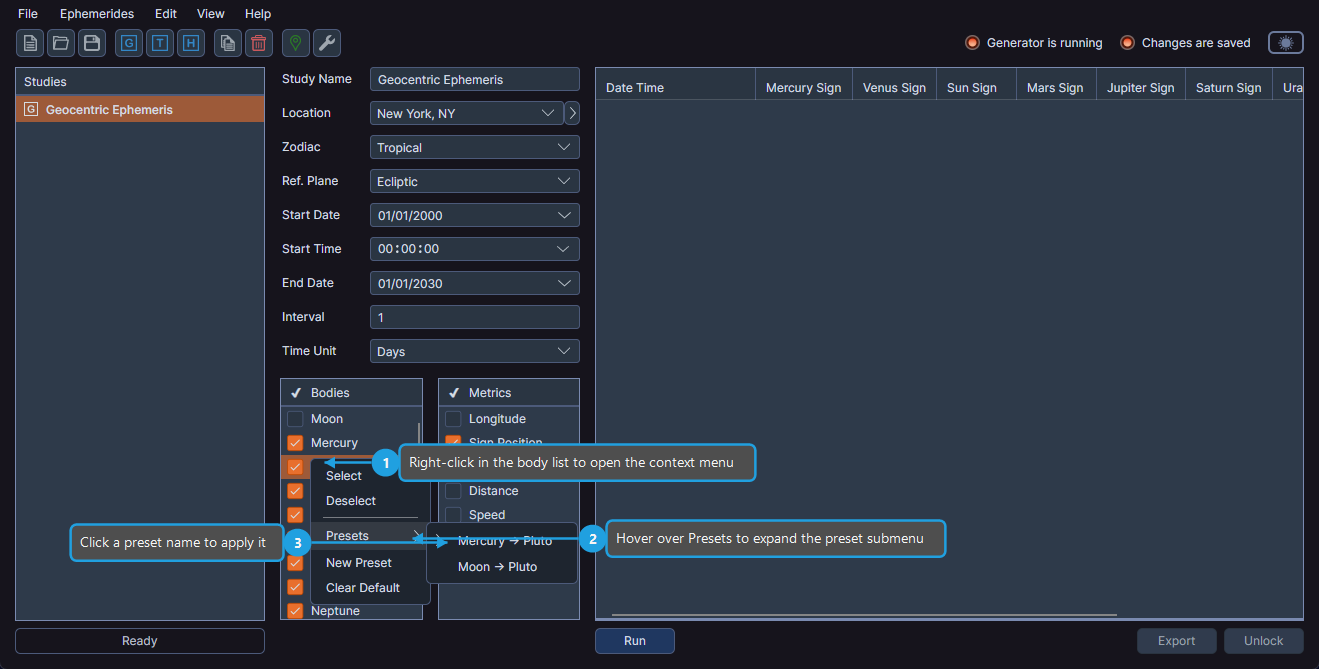
The body selections in the current study update to match the preset.
Creating a New Body Preset
To save the current body selections as a new preset:
- Right-click in the body list to open the context menu.
- Click New Preset.
- Enter a name for the preset and confirm.
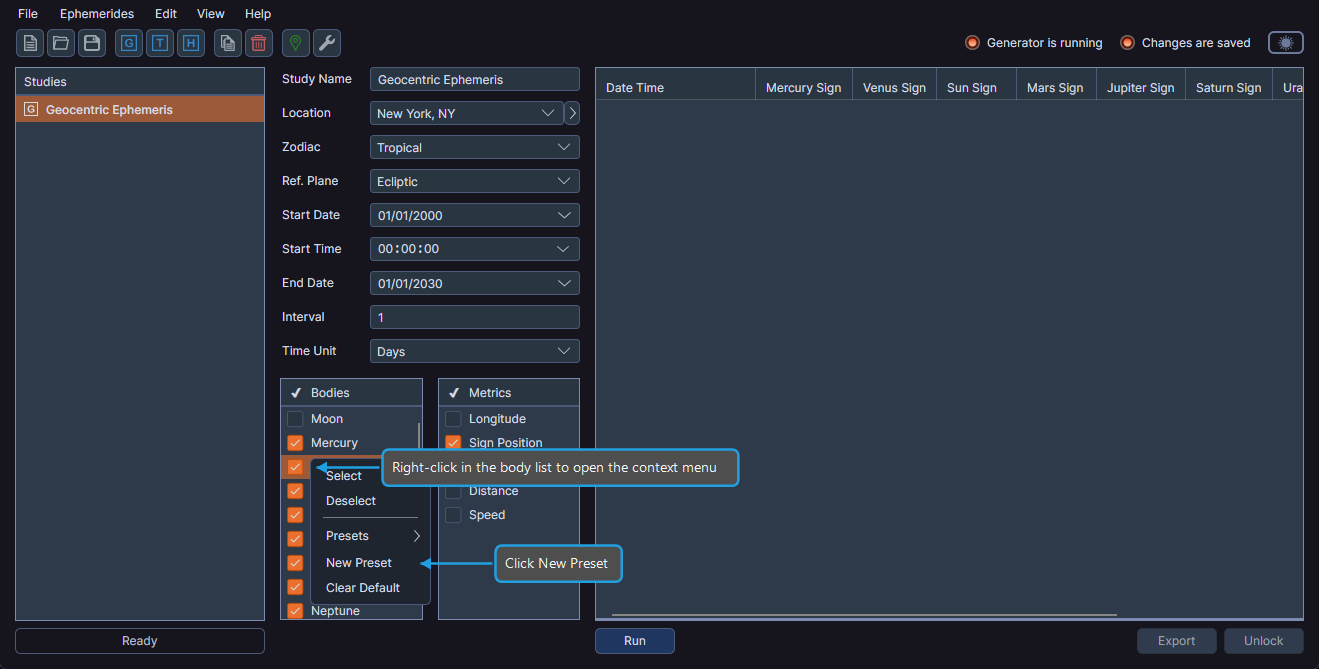
Ephy saves the preset, and it becomes available in the Presets submenu.
Managing Body Presets
You can rename, replace, set as default, or delete an existing preset.
To manage a body preset:
- Right-click in the body list to open the context menu.
- Hover over Presets to expand the preset submenu.
- Right-click a specific preset to view management options.
- Click Set Default, Rename, Replace, or Delete.
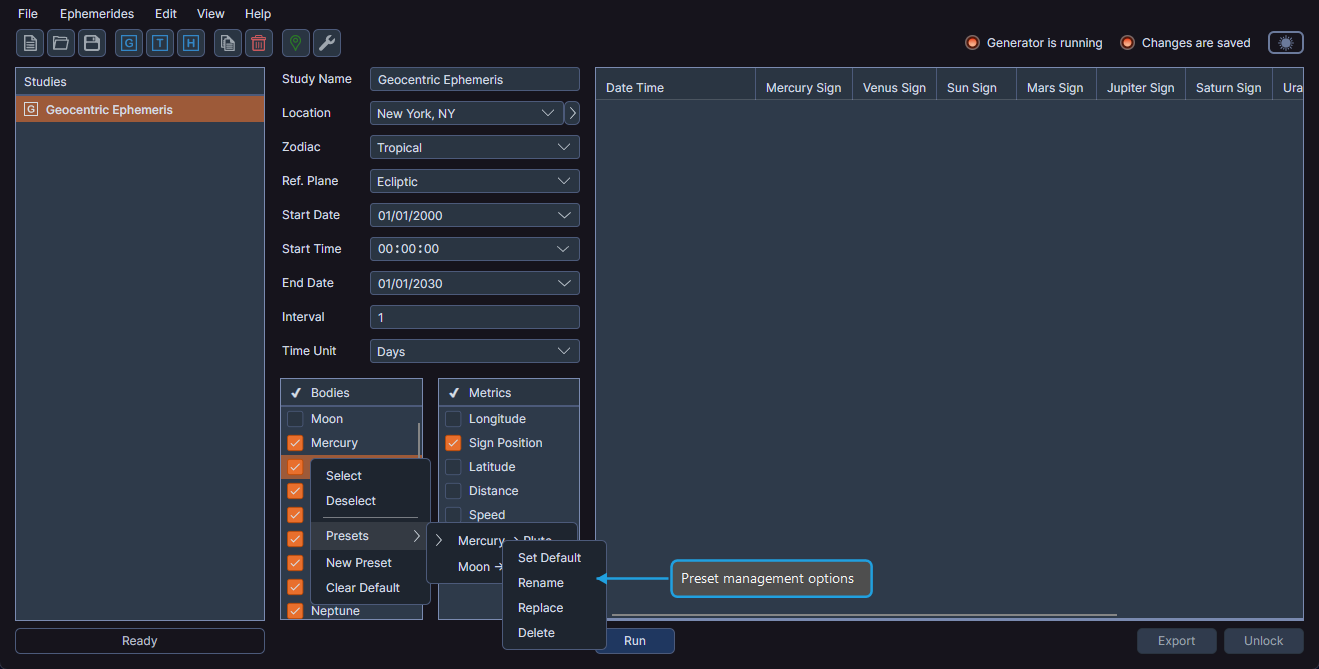
| Option | Description |
|---|---|
| Set Default | Makes this preset the default, automatically applied to new studies |
| Rename | Changes the preset name |
| Replace | Overwrites the preset with the current body selections |
| Delete | Permanently removes the preset |
Clearing the Default Body Preset
To remove the default preset assignment so Ephy does not apply a body preset automatically when creating new studies:
- Right-click in the body list to open the context menu.
- Click Clear Default.