Joining the Program
Signing up as a Platinum Partner takes only a few minutes. The Affiliate Portal is passwordless — there are no credentials to create or remember. You verify your identity with a one-time code sent to your email address, and you're straight into your dashboard.
Both your invitation and the verification codes you'll use to sign in are sent by our affiliate platform, and mail filters often route them to Junk, Spam, or Promotions rather than your inbox. If you're expecting an email from us and it hasn't arrived, look there first — then mark it as safe so future messages reach your inbox.
1. Open the Affiliate Portal
Your invitation email links directly to the Rhythm Seven Affiliate Portal at affiliates.rhythmseven.com.
The same page handles both signing up and logging in — enter your email address and select Get code to your Email.
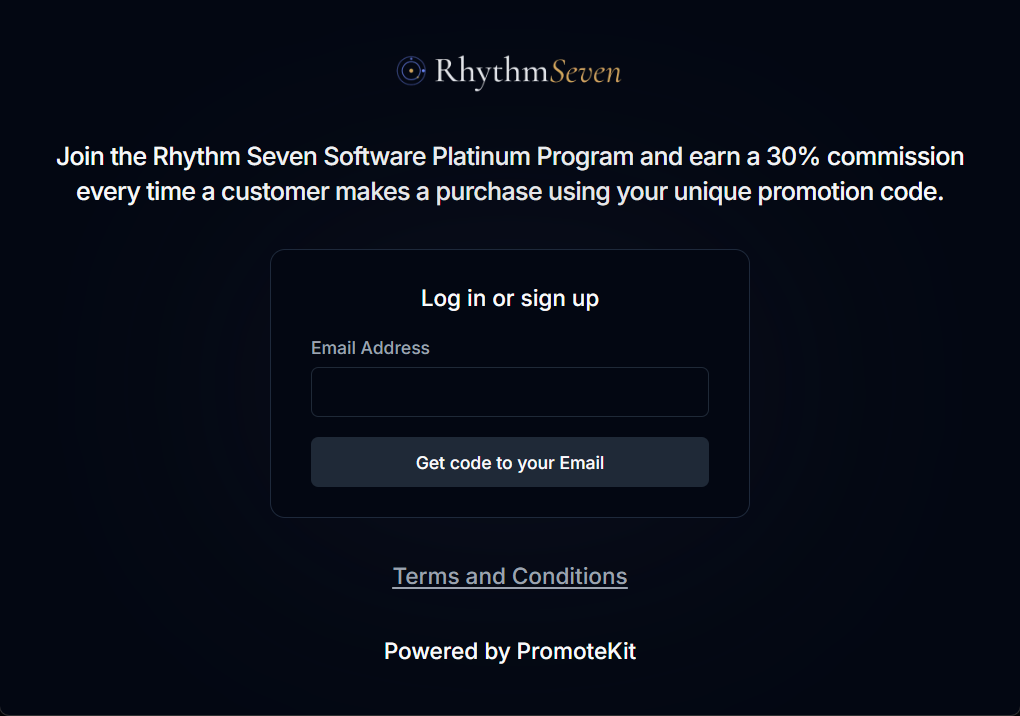
Use the email address your invitation was sent to. That address becomes your account identifier and the one we use to contact you about the program.
2. Verify Your Email
Within a few moments you'll receive a six-digit verification code by email. Enter it on the portal and select Submit Verification Code.
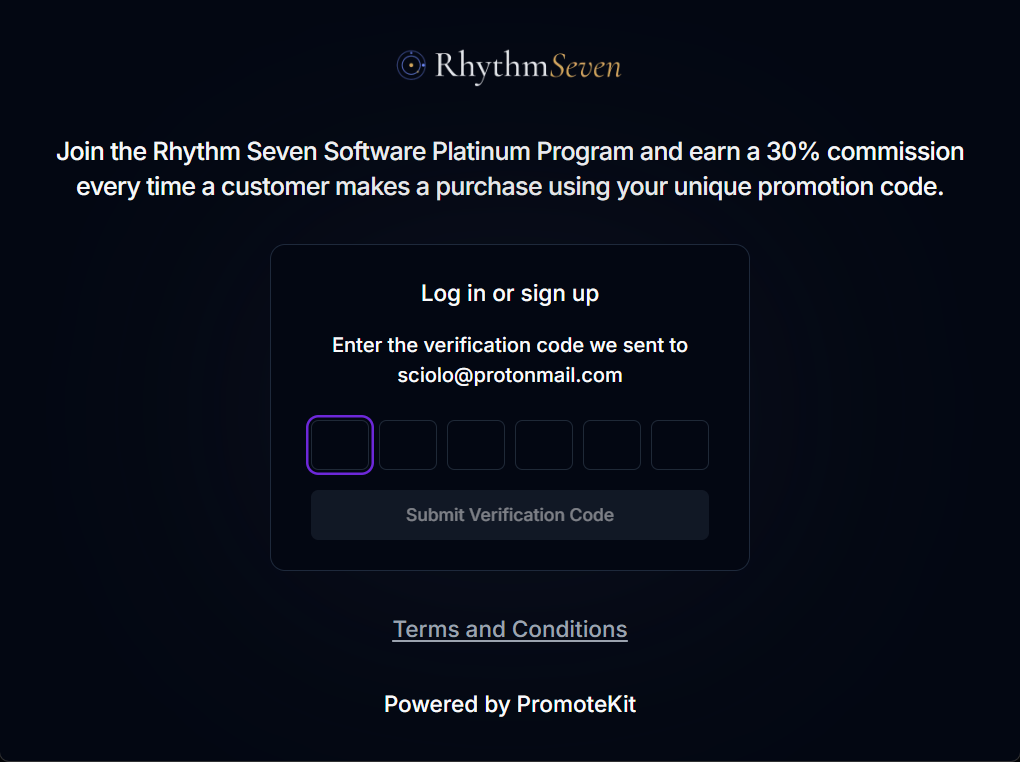
There is no password to create. Every time you return to the portal you'll sign in the same way: enter your email, receive a fresh code, and you're in.
- Codes are single-use and short-lived — request a new one if it expires.
- If the email doesn't arrive, check your spam or junk folder before requesting another code.
3. Complete Your Account Setup
The first time you sign in, you'll be taken to the Complete Account Setup page. All four fields are required.
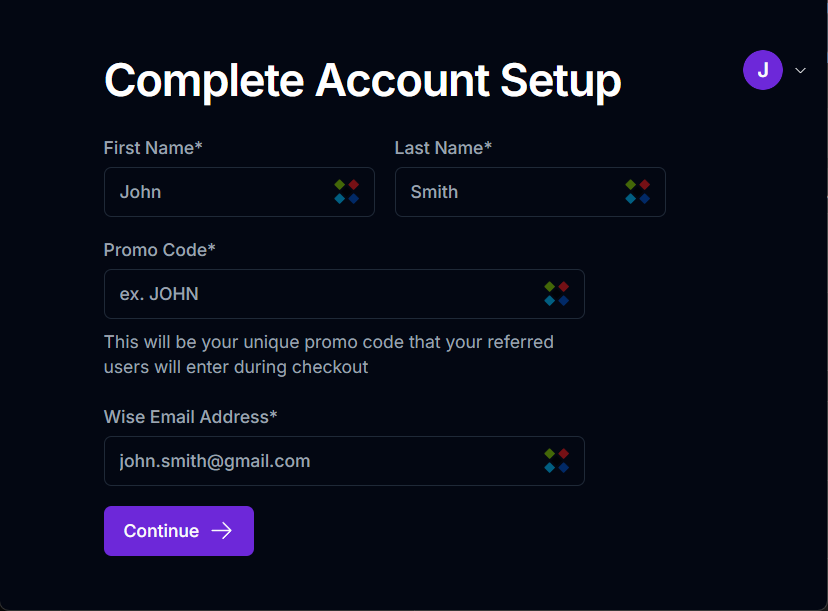
- Enter your First Name and Last Name.
- Choose your Promo Code — this is the code your referred customers enter at checkout. Pick something short and memorable that your audience will associate with you; many partners simply use their own name.
- Enter your Wise Email Address — the email registered to your Wise account. All commissions are paid in USD via Wise, and this is the address your transfers are sent to.
- Select Continue.
Important: Your Wise email must exactly match the address on your Wise account, or your payout will be delayed. If you don't have a Wise account yet, the Payout Guide (Wise) walks through setting one up — including why a USD balance matters if you're outside the USA. You can update this address later in Settings at any time.
Your promo code is created and activated as soon as you select Continue, so choose it with some care — it's the code you'll be sharing publicly. If you later need it changed, get in touch using the contact form at the bottom of this page.
4. Meet Your Dashboard
Selecting Continue takes you straight to your dashboard. The Home page has everything you need to start promoting.
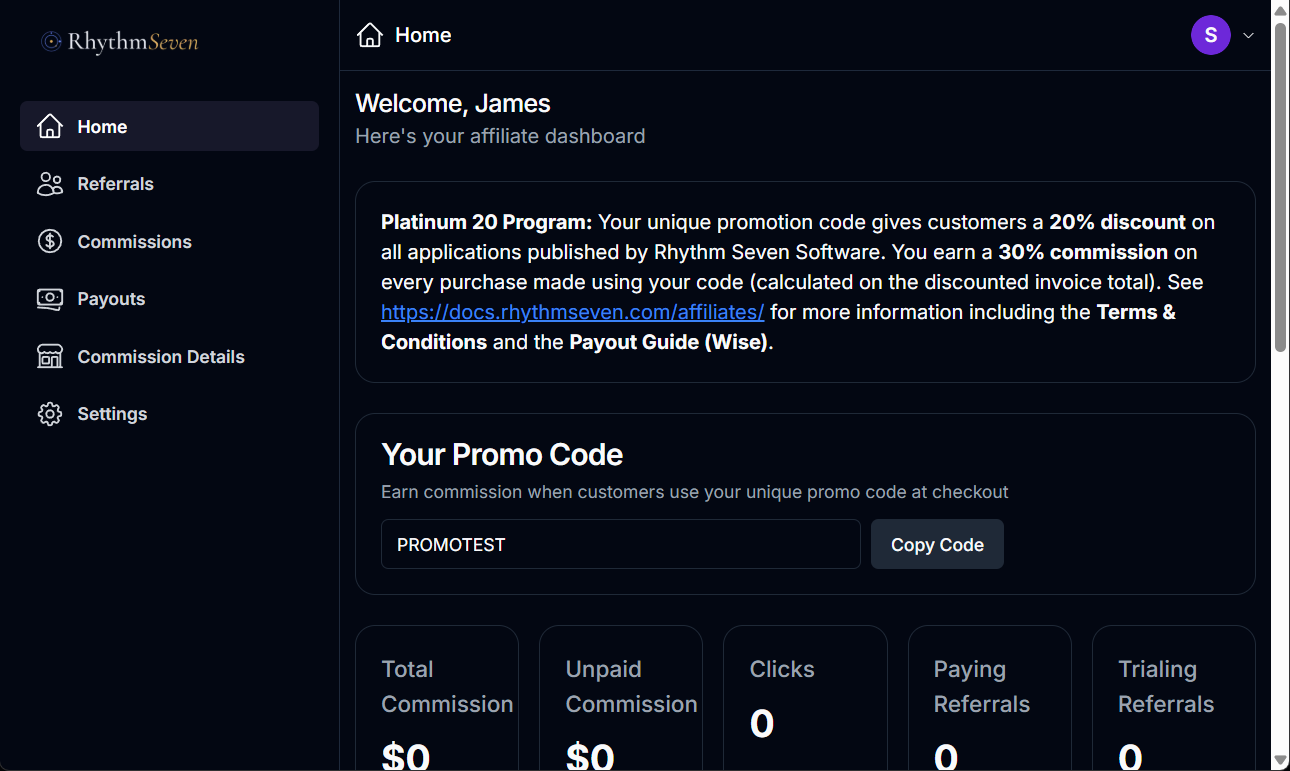
- Your Promo Code — the code you just chose, with a Copy Code button. Customers enter it at checkout to receive their discount, and the sale is attributed to you.
- Performance tiles — total commission, unpaid commission, clicks, paying referrals, and trialing referrals, all updating in real time.
You can start sharing your code right away. Because attribution is code-based, you get the credit whenever your code is used at checkout — regardless of browser cookies or the customer's previous visits.
5. Know Your Commission Terms
The Commission Details page confirms the terms attached to your account.
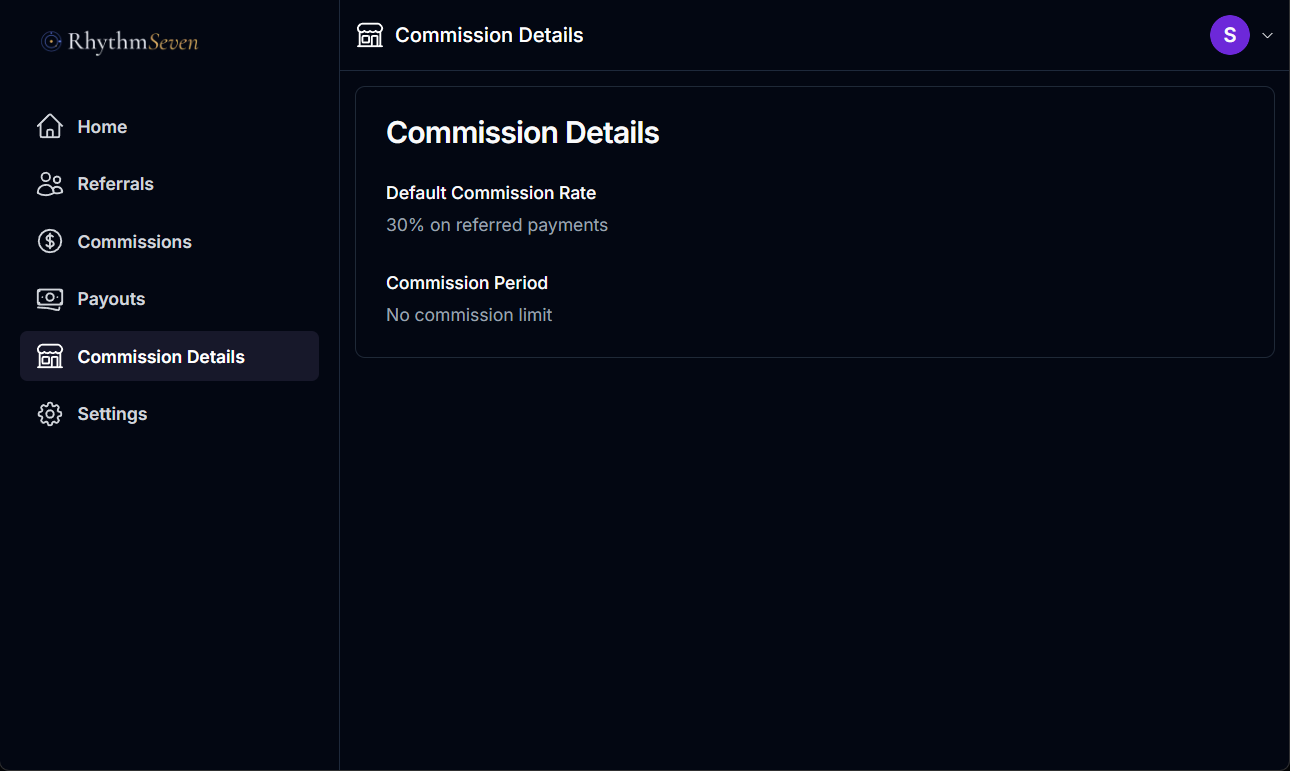
- Default Commission Rate — 30% on referred payments, calculated on the discounted invoice total.
- Commission Period — no commission limit.
Full details of how commissions are calculated, approved, and reversed are in the Terms and Conditions.
6. Adjust Your Details and Email Alerts
The details you entered during setup can be changed at any time from the Settings page, which is also where you choose how much the portal emails you.
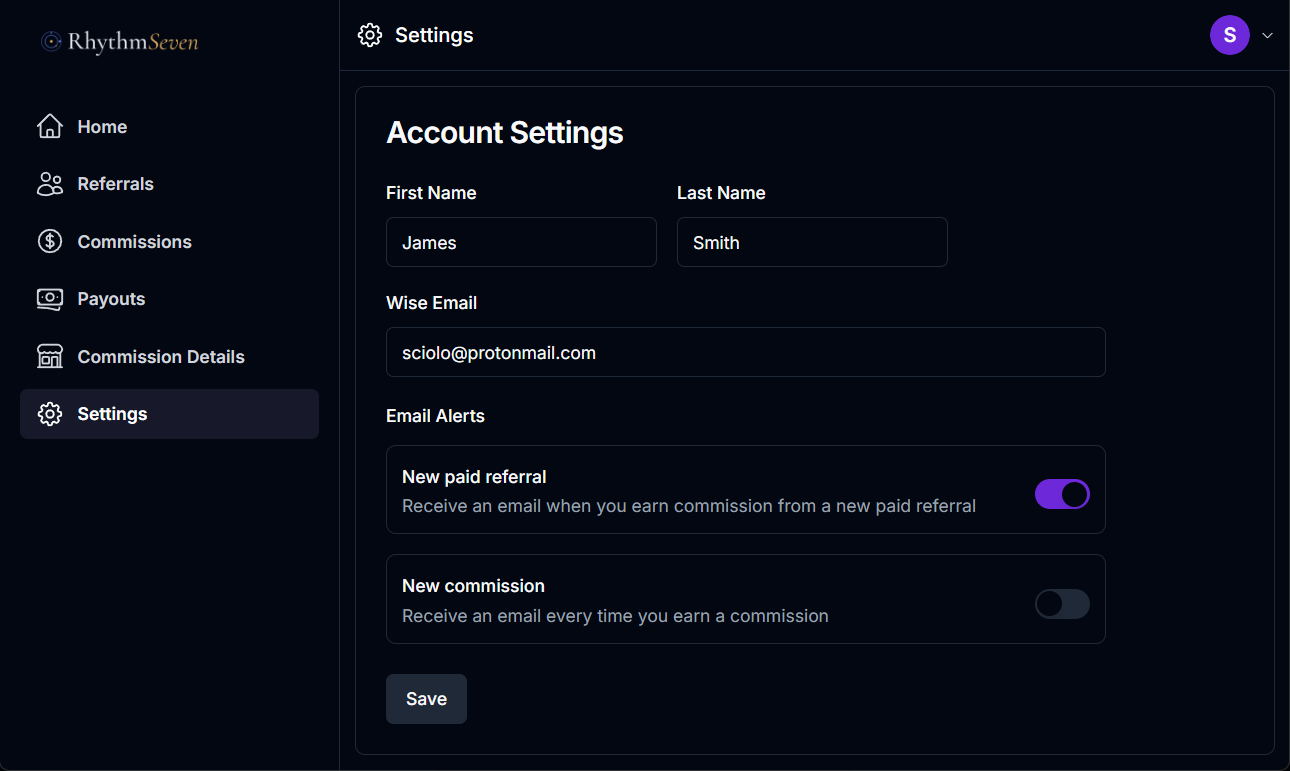
- First Name, Last Name, and Wise Email — update these whenever they change. Keep the Wise email current, or your next payout will be delayed.
- New paid referral — email me when I earn commission from a new paid referral.
- New commission — email me every time I earn a commission.
Select Save to apply your changes.
7. Track Your Results
Share your code, then return to the portal any time to see how it's performing. The left-hand menu gives you:
- Referrals — customers who signed up using your code.
- Commissions — what you've earned, and what's still pending the 15-day refund window.
- Payouts — your payment history. Commissions are batched and issued on the 16th of the month following the month of purchase.
Signing back in uses the same passwordless flow — enter your email, enter the code we send you, and your dashboard is waiting.
Need Help?
If you run into trouble signing up or have questions about the program, please use our Contact Form.