Aspect Settings
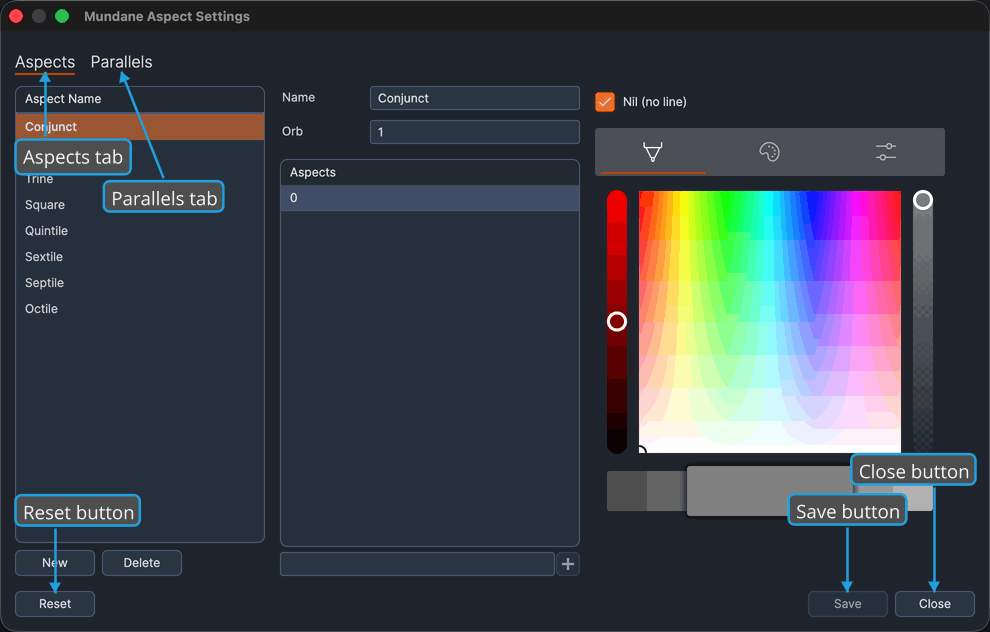
The Aspect Settings window is where you define, for a single chart type, which aspects the wheel recognizes, their orbs, and their colors. Each of the Mundane, Natal, and Transit chart types keeps its own aspect and parallel-aspect settings, and the window title names the type you are editing.
The window has two tabs, Aspects and Parallels, with a bottom bar for resetting, saving, and closing. Edits preview live on every open chart of that type and persist only when you save. Closing the window with unsaved edits prompts you to save, discard, or cancel, and Reset restores that type's built-in defaults after a confirmation.
In this section
- Aspect Definitions: the Aspects tab, a master list of named aspect settings with a detail editor for the selected setting's name, orb, angles, nil flag, and color.
- Parallel Aspect Settings: the Parallels tab, where you set the orb and chord color of the Parallel and Contraparallel aspects.
Opening Aspect Settings
Aspect Settings is scoped to one chart type, so you choose the type when you open it.
- Click Edit → Aspect Settings on the main menu bar, then click the chart type you want to configure: Mundane, Natal, or Transit.
You can also open Aspect Settings for the current type from the toolbar of any open chart window.
Saving, resetting, and closing
The bottom bar of the window carries Reset, Save, and Close.
Save your changes
Saving writes this chart type's aspect and parallel settings to disk. Every open chart of that type keeps the saved definitions.
- Click the Save button.
Reset to the built-in defaults
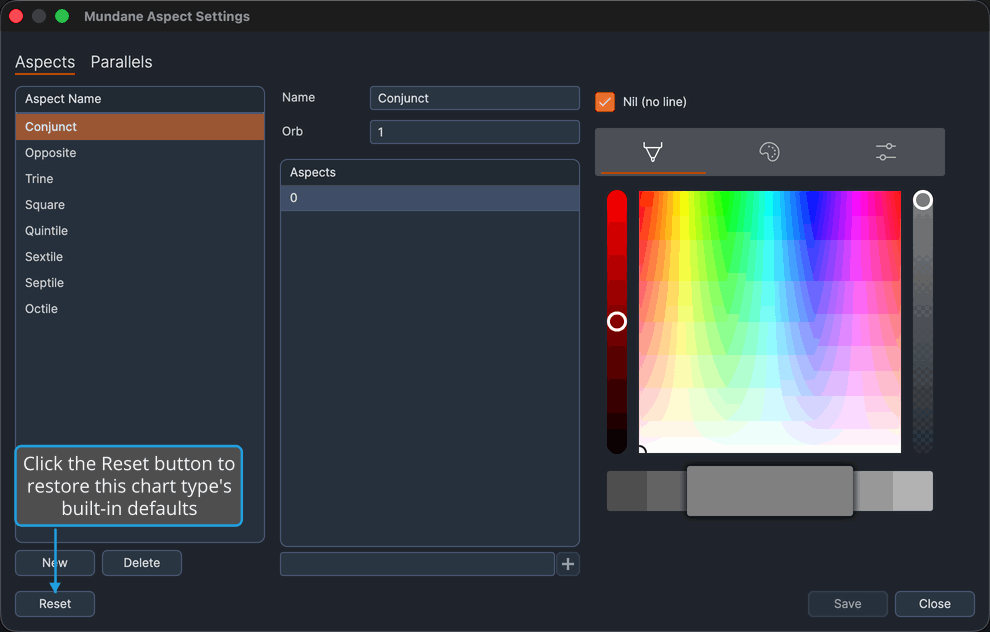
Resetting replaces this chart type's aspect settings and both parallel kinds with the built-in defaults. The change previews live but is not written to disk until you save.
To reset this chart type's aspect settings to the built-in defaults:
- Click the Reset button.
- Confirm at the Confirmation Dialog to replace this type's aspect and parallel settings with the built-in values.
Close the window
- Click the Close button.
If the window has unsaved edits, an Unsaved Changes prompt appears first. From that prompt you can Save Changes at the Unsaved-Changes Prompt, Discard Changes at the Unsaved-Changes Prompt, or Cancel Closing at the Unsaved-Changes Prompt.
Save Changes at the Unsaved-Changes Prompt
When you close a settings or editor window that has unsaved edits, an Unsaved Changes prompt appears so you can decide what to do with the pending changes. To save the changes and continue closing:
- Click Yes in the Unsaved Changes prompt to save and close.
Discard Changes at the Unsaved-Changes Prompt
To abandon the pending changes and continue closing:
- Click No in the Unsaved Changes prompt to discard the changes and close.
Cancel Closing at the Unsaved-Changes Prompt
To stop closing and keep the window open with your edits intact:
- Click Cancel in the Unsaved Changes prompt to keep the window open.
Confirm at the Confirmation Dialog
A Confirmation Request dialog appears before a resetting or deleting action is carried out, such as resetting settings to their defaults or deleting an item. To approve the action so it proceeds:
- Click Yes in the confirmation dialog to proceed.