Aspect Definitions
The Aspects tab of the Aspect Settings window is where you build and tune the named aspect settings that a chart type recognizes. It has two parts: a master list of aspect settings on the one side, and a detail editor for the selected setting on the other. Changes preview live on every open chart of this type, and persist only when you save (see Aspect Settings).
The Aspects tab is the default tab of the Aspect Settings window, so it is already showing when you open the window.
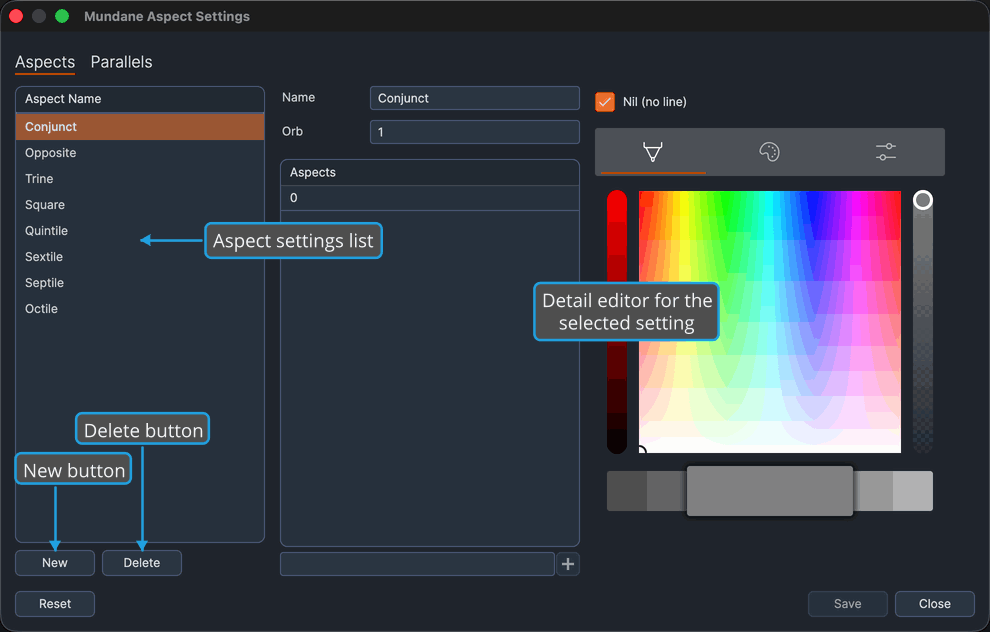
The aspect settings list
The list holds the named aspect settings defined for the chart type the window is scoped to (each of Mundane, Natal, and Transit keeps its own set). Each row shows the setting's name. The order of the list sets resolution precedence: when a pair of bodies could match more than one setting, the one nearer the top wins.
The list is seeded from the built-in defaults, and you manage it from there by adding, deleting, and reordering settings.
Add an aspect setting
Adding a setting appends a new, default-named setting to the list and selects it in the detail editor, ready to edit.
- Click the New button.
Delete an aspect setting
To remove a setting from the list:
- Click a setting in the aspect list.
- Click the Delete button.
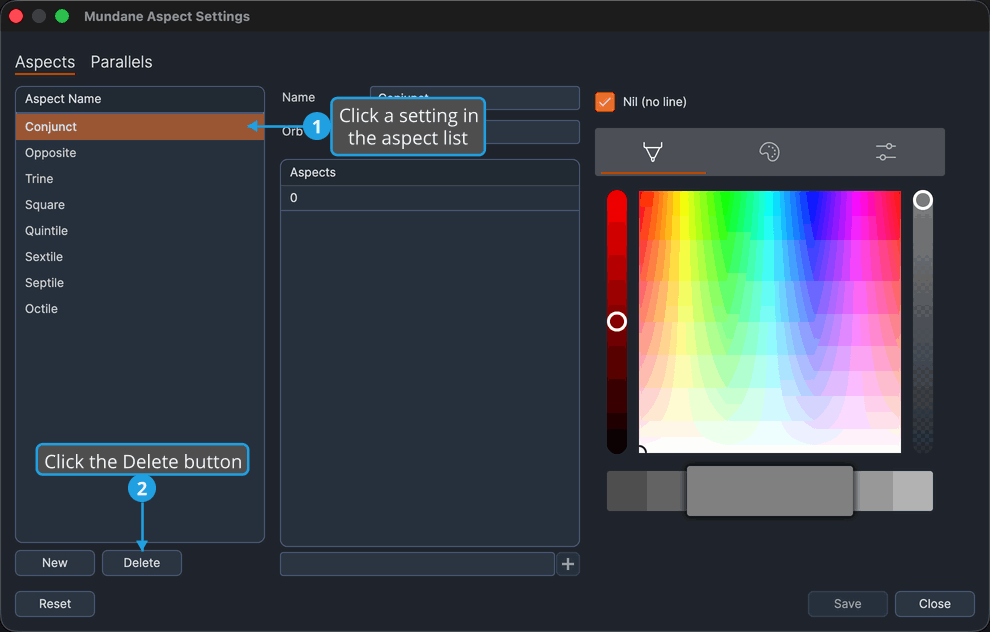
The nearest neighboring setting becomes selected.
Reorder aspect settings
Because list order sets resolution precedence, you reorder settings to change which one takes priority.
- Drag an aspect setting to a new position in the list.
Editing an aspect setting
Select an aspect setting in the list to load it into the detail editor. Every field shows the setting's current values, so change only what you want to adjust:
- Name: labels the setting in the master list, where it identifies the aspect and carries its resolution precedence.
- Orb: the matching tolerance in degrees, governing how far from an exact angle two bodies may be and still count as this aspect. The single orb applies to every angle in the setting.
- The Nil (no line) checkbox and the color picker: whether the aspect draws a chord and in what color. When Nil is checked, the aspect draws no chord, the convention used for conjunctions.
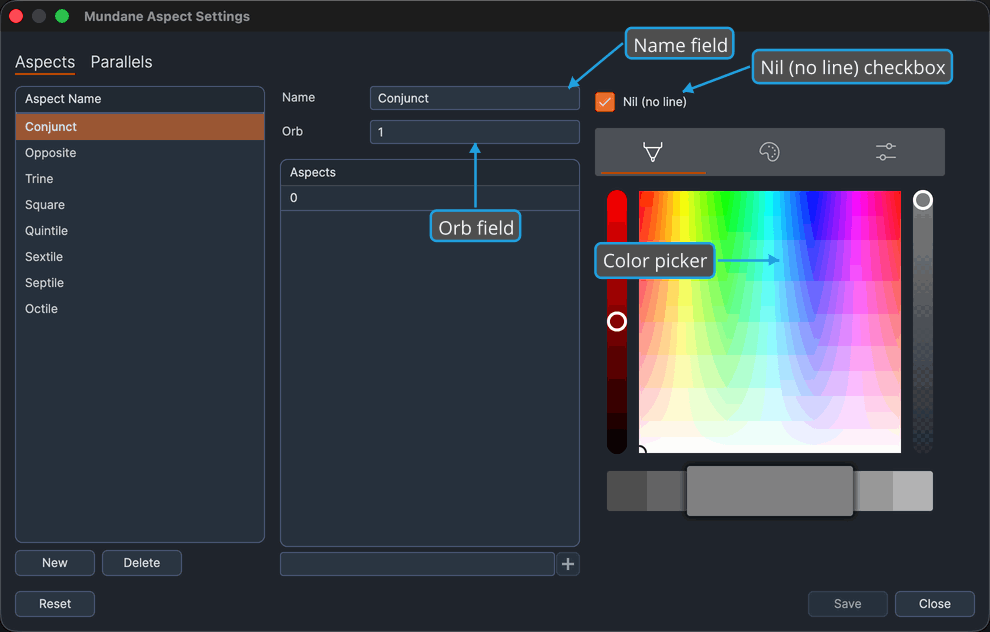
Your edits re-match and recolor every open chart of this type live. Save the window to persist them (see Aspect Settings).
Aspect angles
Each aspect setting owns a list of one or more angles, shown in a single-column grid headed Aspects. Every row is one aspect angle in degrees, and the setting's single orb applies to all of them. An entry box sits below the grid for adding new angles.
Add an angle
To add an angle to the selected setting:
- Type an angle into the entry box below the grid.
- Press Enter to add the angle.
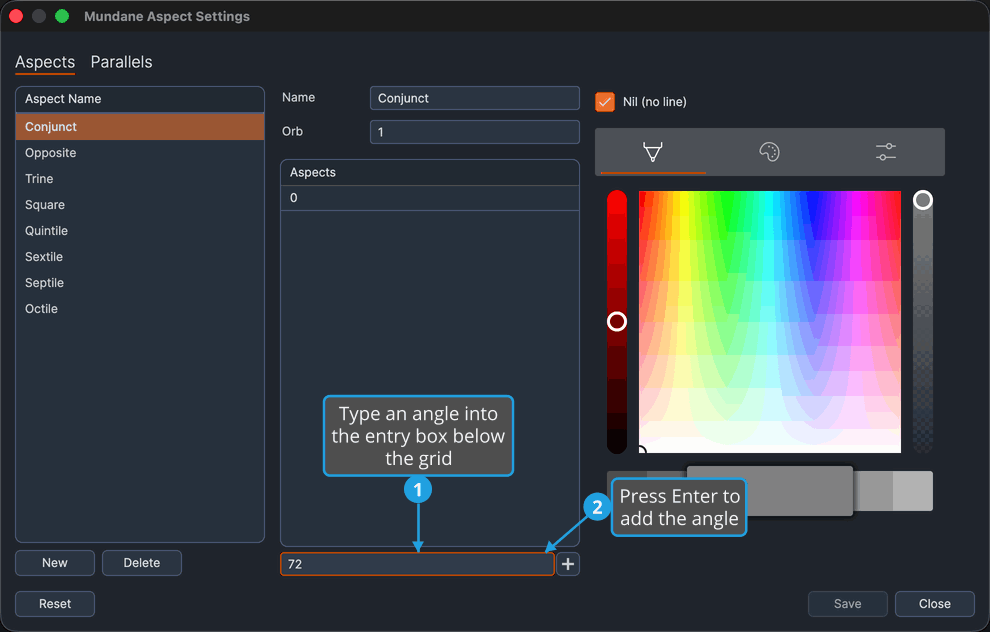
You can also click the Add (plus) button next to the entry box instead of pressing Enter.
Remove aspect angles
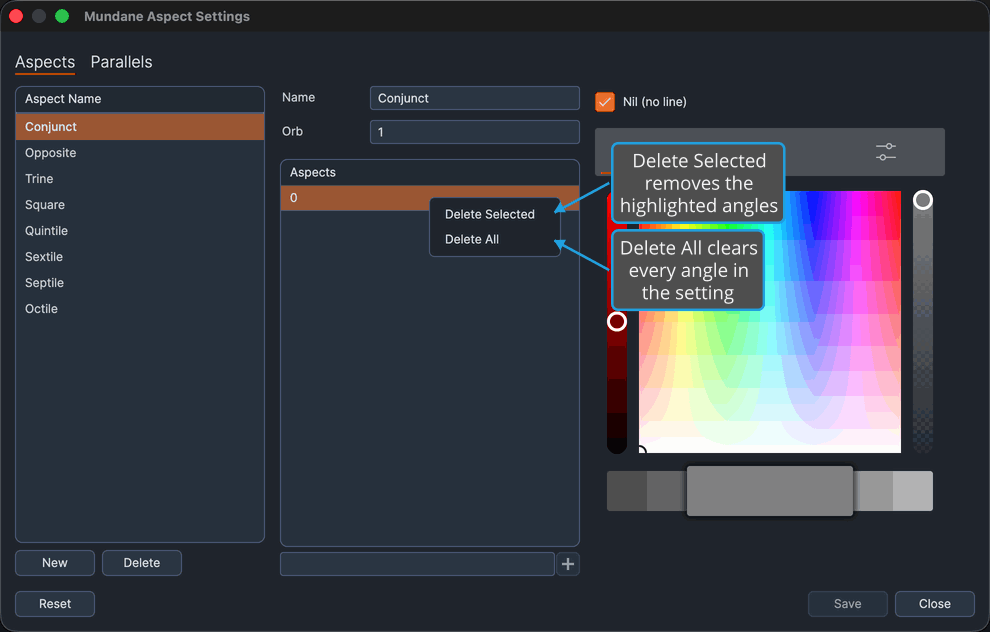
You remove angles from the selected setting through the grid's right-click menu:
- Right-click an angle row and select Delete Selected to remove the highlighted angles.
- Right-click an angle row and select Delete All to clear every angle in the setting.