Default Settings Editor
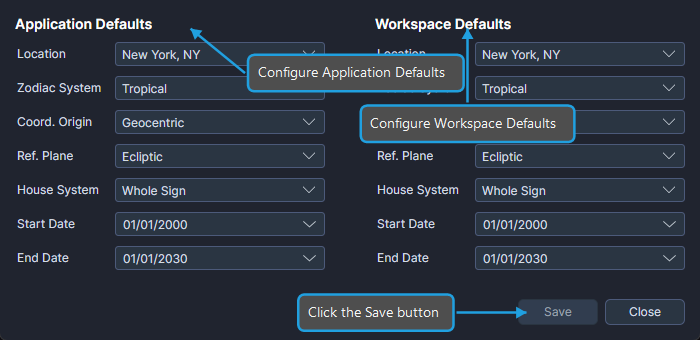
The Default Settings Editor dialog lets you configure default values that apply to new studies. The dialog presents two columns: Application Defaults and Workspace Defaults.
Opening the Default Settings Editor
Using the Menu
- Click Edit on the menu bar.
- Click Default Settings in the Edit menu.
Using the Toolbar
- Click the Default Settings toolbar button.
Understanding the Defaults Hierarchy
Cygnus uses a two-level defaults system:
- Application Defaults are persistent settings stored on your computer. When you create a new workspace, the application defaults are assigned to the workspace defaults.
- Workspace Defaults are settings stored within the current workspace. When you create a new study, the workspace defaults supply the study's initial configuration.
info
Creating a new workspace copies Application Defaults into the workspace defaults. Creating a new study copies workspace defaults into the study's initial configuration.
Configurable Settings
Both the Application Defaults and Workspace Defaults columns contain the same configurable settings:
| Setting | Options |
|---|---|
| Location | Any location from the Locations Editor |
| Zodiac | Tropical, Sidereal |
| Coordinate Origin | Geocentric, Topocentric, Heliocentric |
| Reference Plane | Ecliptic, Equatorial |
| House System | Alcabitus, Campanus, Equal (Ascendant), Koch, Morinus, Placidus, Porphyry, Regiomontanus, Topocentric (Polich/Page), Vehlow Equal, Whole Sign |
| Start Date | Date picker |
| End Date | Date picker |
Editing Application Defaults
- Modify a setting in the Application Defaults column.
- Click the Save button.
Application defaults persist across sessions and apply when you create new workspaces.
Editing Workspace Defaults
- Modify a setting in the Workspace Defaults column.
- Click the Save button.
Workspace defaults save with the workspace and apply to new studies you create within it.
Closing the Editor
- Click the Close button.