Ephemeris Presets
With ephemeris presets, you can save a study's configuration settings and apply them to other studies. A preset captures the location, zodiac system, and reference plane.
Creating an Ephemeris Preset
To save the current study's configuration as a new preset:
- Click the Presets flyout button next to the Location dropdown.
- Click New Preset in the flyout menu.
- Enter a name for the new preset when prompted.
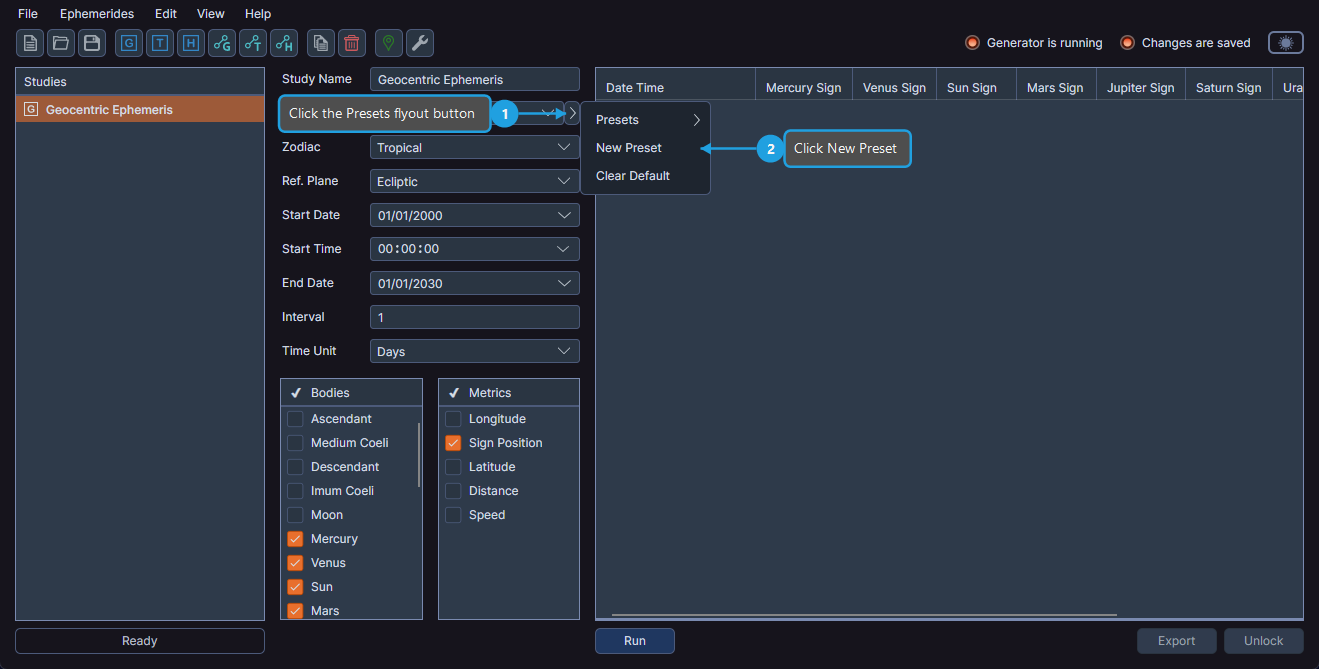
Cygnus saves the current study's settings as a new preset.
Applying an Ephemeris Preset
To apply a saved preset to the current study:
- Click the Presets flyout button next to the Location dropdown.
- Click Presets in the flyout menu to expand the list.
- Click the desired preset name.
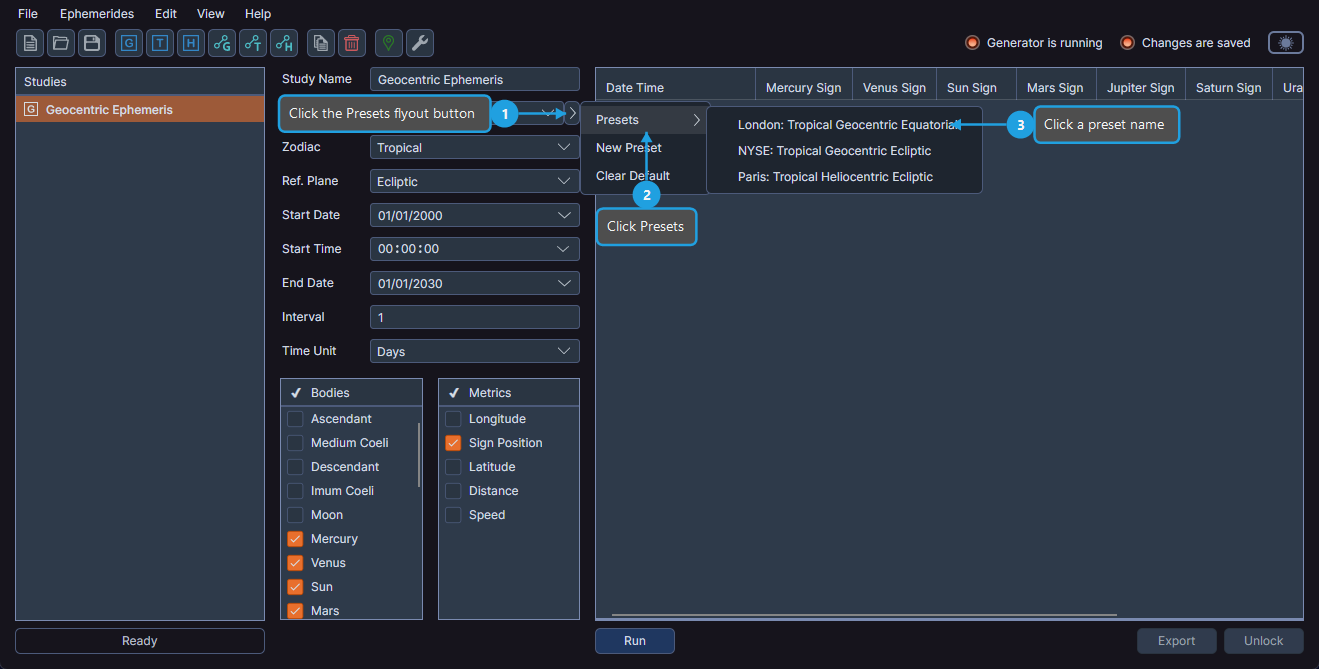
The preset updates the study's location, zodiac system, reference plane, and date range settings.
Setting a Default Ephemeris Preset
You can designate a preset as the default, which is automatically applied to new studies.
- Click the Presets flyout button next to the Location dropdown.
- Click Presets in the flyout menu to expand the list.
- Right-click the desired preset.
- Click Set Default in the context menu.
Clearing the Default Preset
To stop automatically applying a preset to new studies:
- Click the Presets flyout button next to the Location dropdown.
- Click Clear Default in the flyout menu.
Renaming an Ephemeris Preset
- Click the Presets flyout button next to the Location dropdown.
- Click Presets in the flyout menu to expand the list.
- Right-click the desired preset.
- Click Rename in the context menu.
Replacing an Ephemeris Preset
To update an existing preset with the current study's settings:
- Click the Presets flyout button next to the Location dropdown.
- Click Presets in the flyout menu to expand the list.
- Right-click the desired preset.
- Click Replace in the context menu.
Deleting an Ephemeris Preset
- Click the Presets flyout button next to the Location dropdown.
- Click Presets in the flyout menu to expand the list.
- Right-click the desired preset.
- Click Delete in the context menu.
The Presets flyout button and preset management require a selected, unlocked study. Unlock the study first if it has completed generation.