Generating Records
After configuring a study's parameters, you generate the ephemeris to produce the tabular records. This page covers how to start, cancel, and unlock studies after generation.
Generating an Ephemeris
Once your study is fully configured with a location, date range, selected bodies, and desired metrics, you can generate the ephemeris.
- Click the Run button.
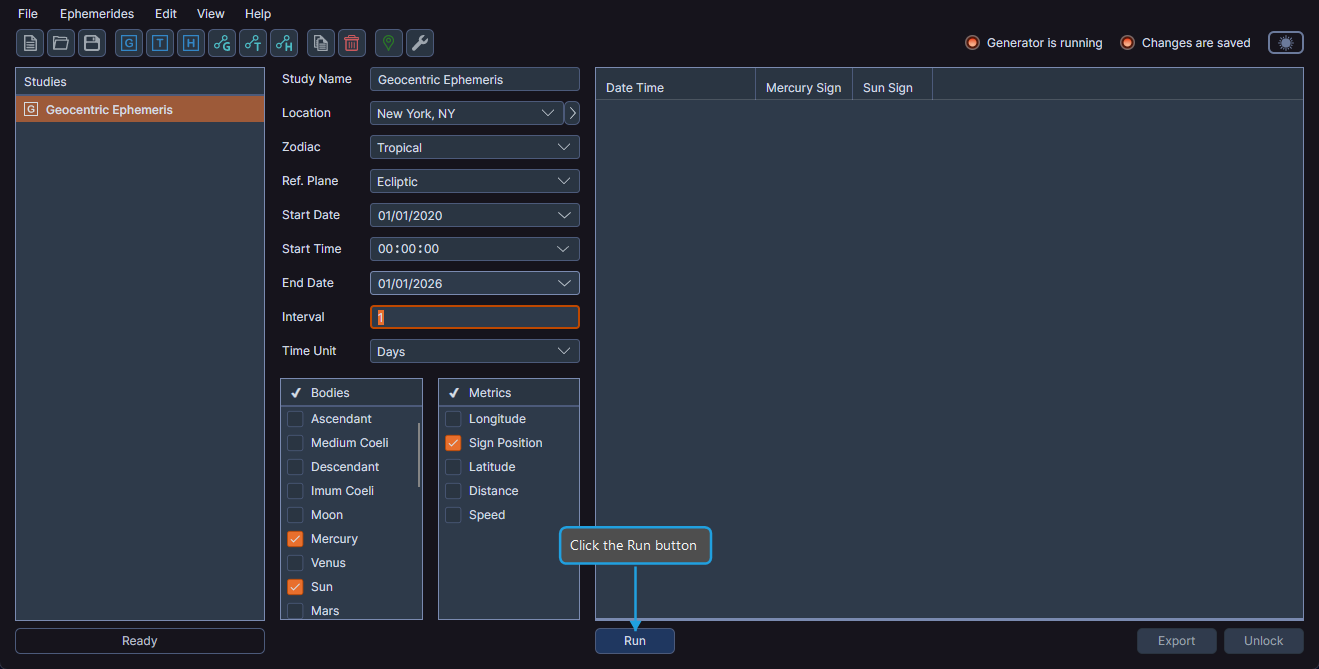
Records populate the ephemeris table as generation proceeds. Once generation completes, the study becomes locked and the record count appears below the table.
The Run button is available only when all required parameters are defined, including a location, date range, and at least one selected body. If the button is not active, check that all parameters have been configured.
Canceling Generation
If you need to stop an in-progress generation, you can cancel it at any time.
- Click the Cancel button.
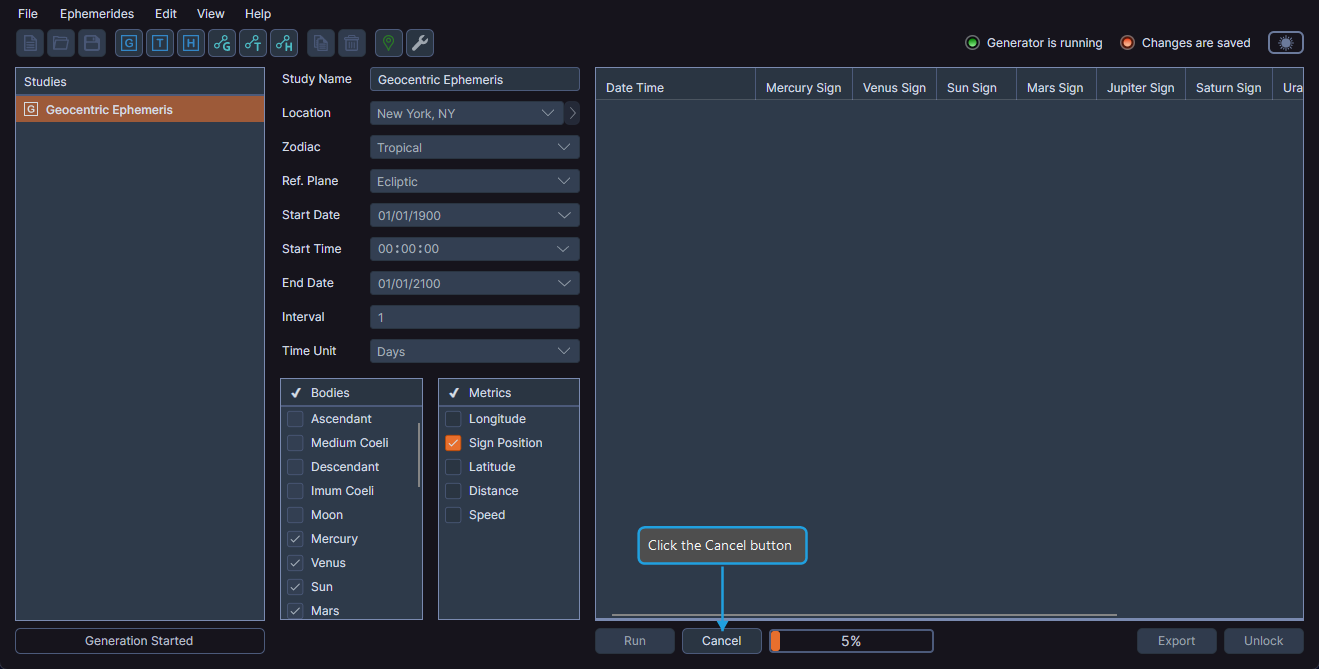
Generation stops and the study is unlocked for parameter modification. Any partially generated records are discarded.
Unlocking a Completed Study
After generation completes, the study is locked to prevent accidental changes to the parameters. To modify the study's configuration, you must first unlock it.
- Click the Unlock button.
- Click Yes in the confirmation dialog.
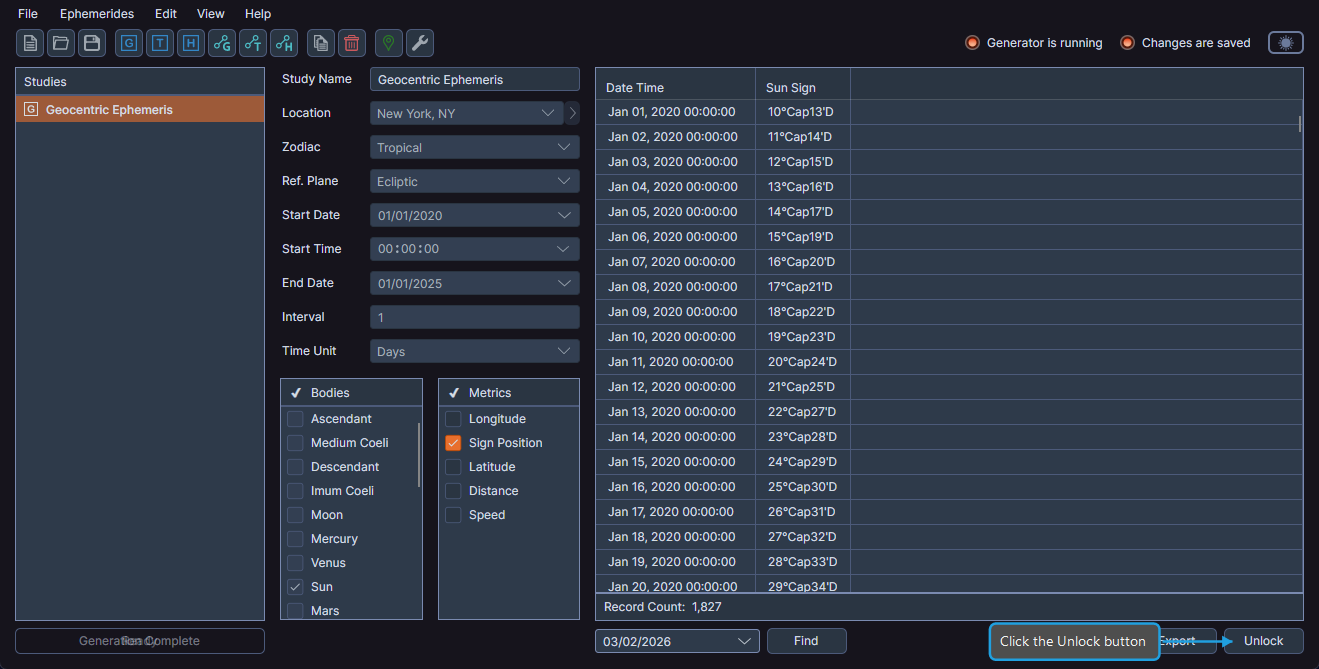
Unlocking a study clears all generated records. Generate the ephemeris again after making changes.
Study Lifecycle
The typical workflow for an ephemeris study follows this pattern:
- Configure -- Set up the study parameters (location, dates, bodies, metrics)
- Generate -- Click Run to produce the ephemeris records
- Review -- Examine the results in the ephemeris table
- Export -- Export the data to CSV or copy to clipboard
- Modify (optional) -- Unlock the study to change parameters and regenerate