Column Management
The ephemeris table displays columns based on your selected bodies and metrics. You can control which columns are visible, rearrange their order, and adjust their widths.
Toggling Column Visibility
Two methods control which columns appear in the ephemeris table:
- Select a metric in the Metrics list by clicking its checkbox. See Ephemeris Metrics for details.
- Right-click a column header in the ephemeris table to open a context menu with metric checkboxes.
Using the Column Header Context Menu
- Right-click any column header in the ephemeris table.
- Check or uncheck a column's checkbox in the context menu.
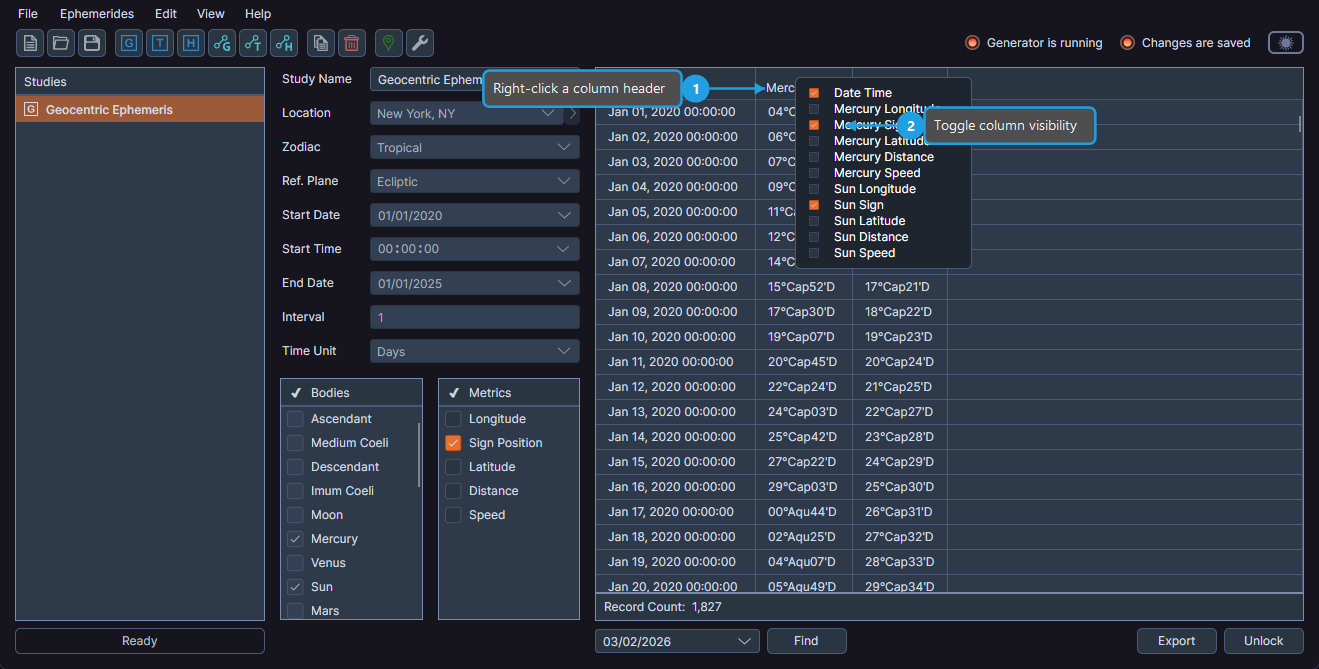
Checked columns are visible; unchecked columns are hidden.
info
Both methods of controlling column visibility can be applied before or after generating records.
Reordering Columns
You can rearrange the order of columns in the ephemeris table by dragging column headers.
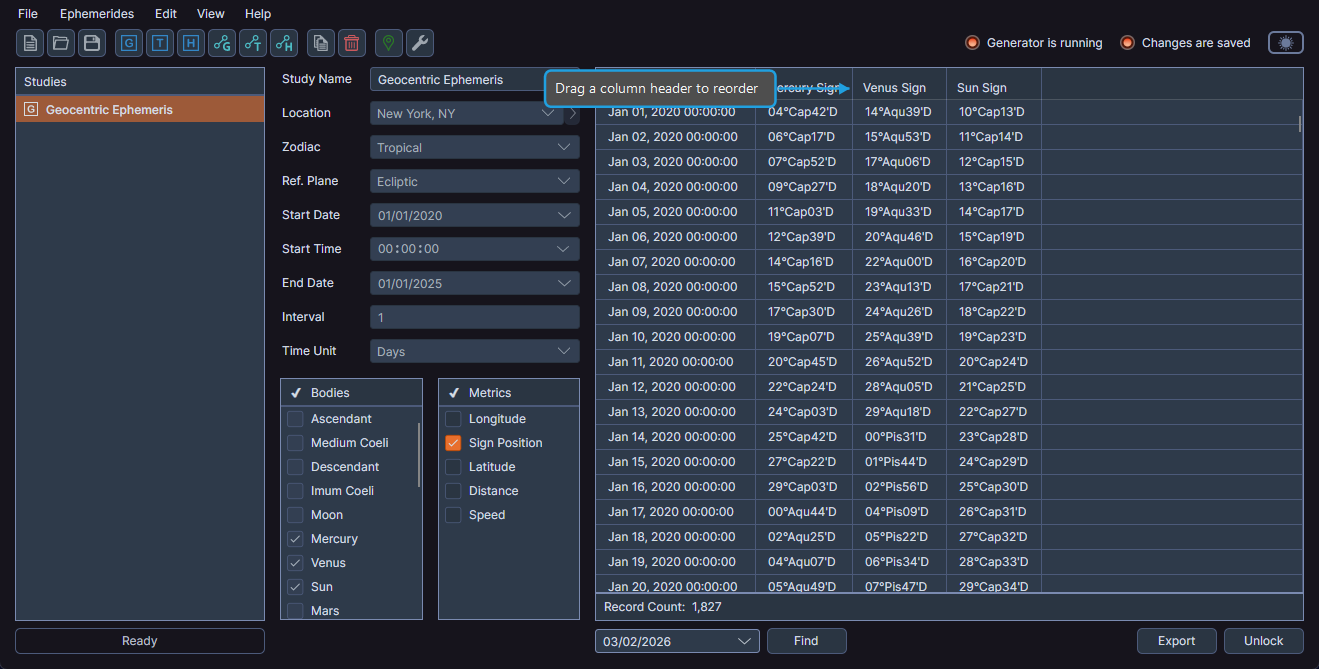
- Drag a column header to a new position in the ephemeris table.
Cygnus automatically saves and restores the column layout when you return to the study.
Resizing Columns
You can change the width of any column by dragging the column border in the header.
- Drag a column border in the ephemeris table header to resize.
Cygnus automatically saves and restores the column width when you return to the study.