Ephemeris Metrics
Metrics control which data columns appear in the ephemeris table. You can select metrics before or after generating records. There are two categories of metrics: body metrics (available in all study types) and aspect metrics (available only in aspect study types).
Body Metrics
Body metrics determine the positional data columns displayed for each selected celestial body. The available metrics change based on the selected reference plane.
Ecliptic Reference Plane
| Metric | Description |
|---|---|
| Longitude | Ecliptic longitude position |
| Sign Position | Position within the zodiac sign |
| Latitude | Ecliptic latitude position |
| Distance | Distance from the coordinate center |
| Speed | Rate of motion |
Equatorial Reference Plane
| Metric | Description |
|---|---|
| Right Asc | Right ascension position |
| Sign Position | Position within the zodiac sign |
| Declination | Angular distance from the celestial equator |
| Distance | Distance from the coordinate center |
| Speed | Rate of motion |
Selecting Body Metrics
In standard ephemeris studies, use the Metrics list. In aspect ephemeris studies, click the Body & Aspect Metrics tab, then use the Body Metrics list.
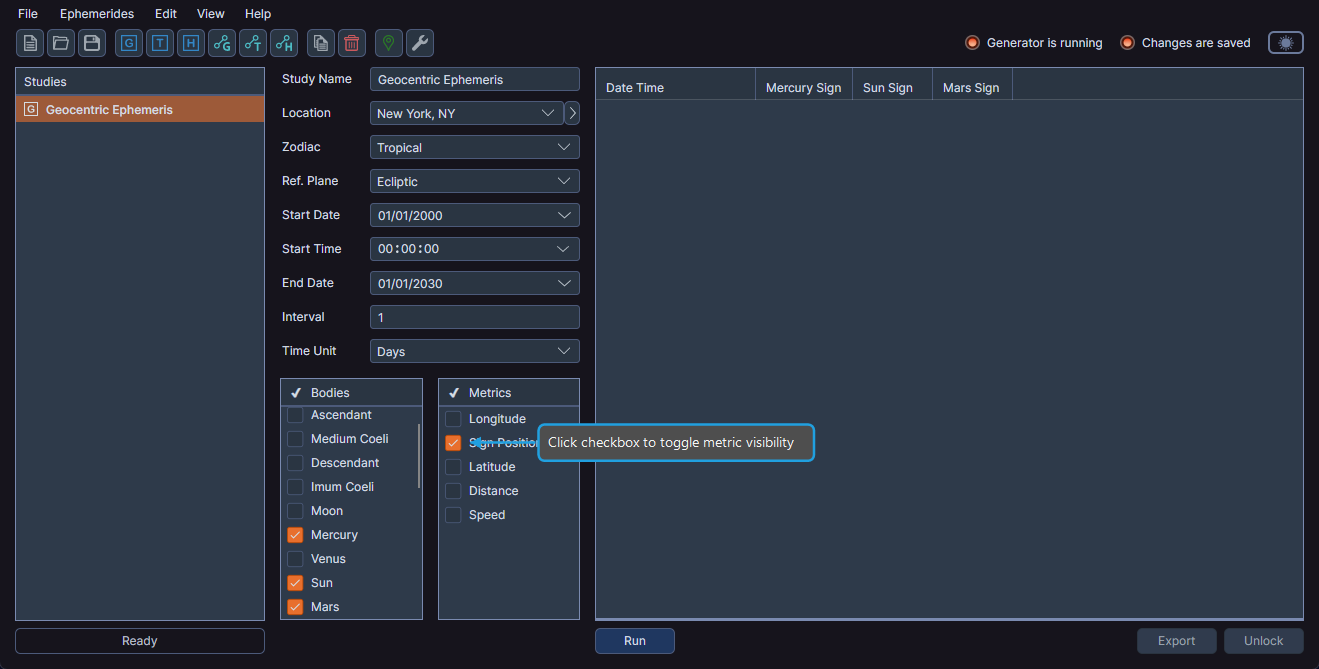
Using the Context Menu to Select
- Highlight one or more metrics in the Metrics list.
- Right-click on a highlighted metric.
- Click Select in the context menu.
Using the Context Menu to Deselect
- Highlight one or more metrics in the Metrics list.
- Right-click on a highlighted metric.
- Click Deselect in the context menu.
Aspect Metrics
Aspect metrics appear only in aspect ephemeris studies. They control the visibility of columns that describe the angular relationship between each body pair.
| Metric | Description |
|---|---|
| Cycle Angle | The angular position within the full 360-degree cycle between the body pair |
| Phase | The current phase of the aspect relationship |
| Separation | The angular distance between the two bodies |
Selecting Aspect Metrics
- Click the Body & Aspect Metrics tab.
- Highlight one or more metrics in the Aspect Metrics list.
- Right-click on a highlighted metric.
- Click Select in the context menu.
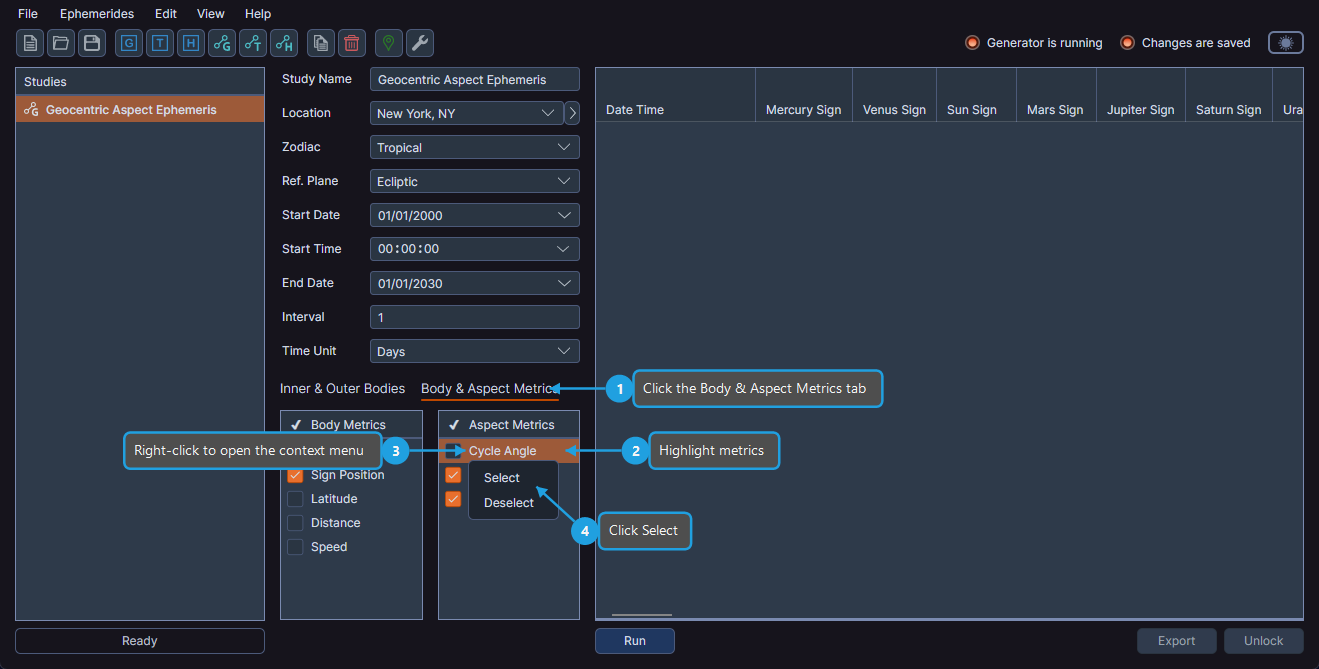
Deselecting Aspect Metrics
- Click the Body & Aspect Metrics tab.
- Highlight one or more selected metrics in the Aspect Metrics list.
- Right-click on a highlighted metric.
- Click Deselect in the context menu.
Column Visibility
In addition to selecting metrics in the metrics list, you can also toggle column visibility by right-clicking a column header in the ephemeris table. See Column Management for details.
Both methods of controlling column visibility -- selecting metrics and using the column header context menu -- can be applied before or after generating records.