Exporting Data
After generating an ephemeris, you can export the data in several ways: save to a CSV file, copy records to the clipboard, or drag records directly to another application.
Exporting to CSV
Export the generated records to a CSV file that includes the currently visible columns in their display order, with headers.
- Click the Export button.
- Choose a location and filename in the save dialog.
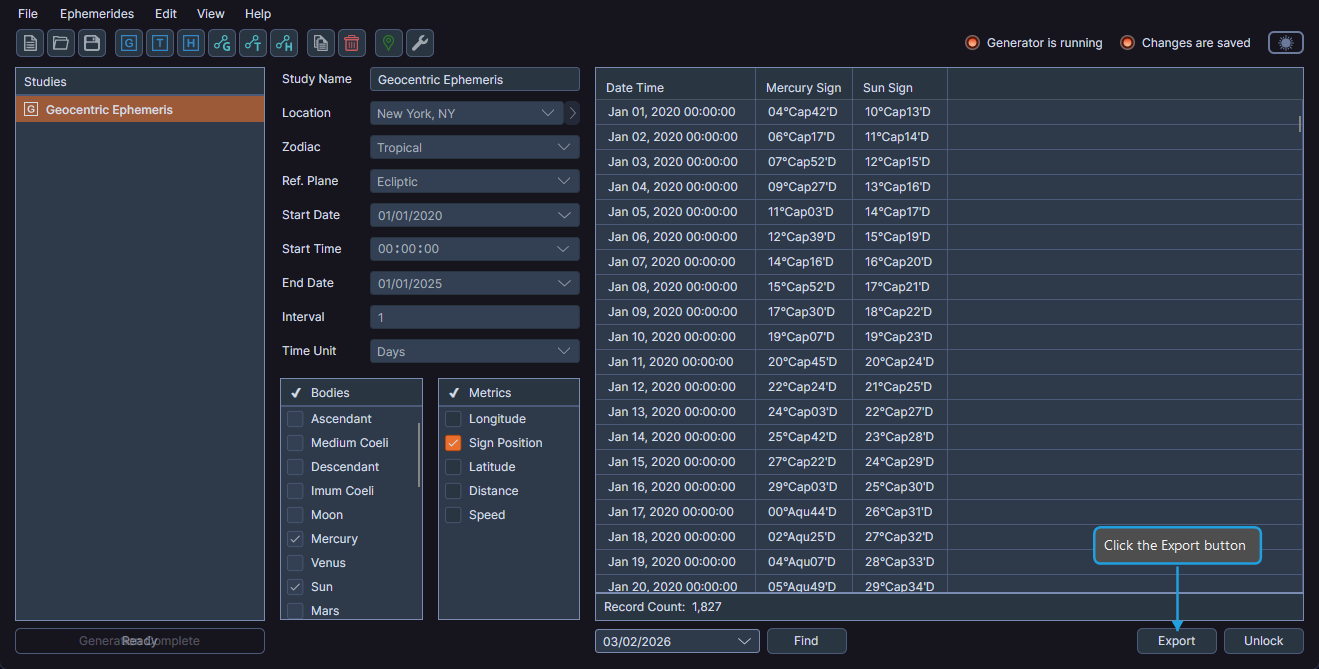
The exported CSV file can be opened in spreadsheet applications and other data analysis tools.
The Export button becomes active only after generation completes. The export includes only the columns currently visible in the ephemeris table.
Copying Records to the Clipboard
You can copy selected records to the clipboard in two formats.
Copy as Markdown
- Select one or more records in the ephemeris table.
- Right-click on the selection.
- Click As Markdown in the context menu.
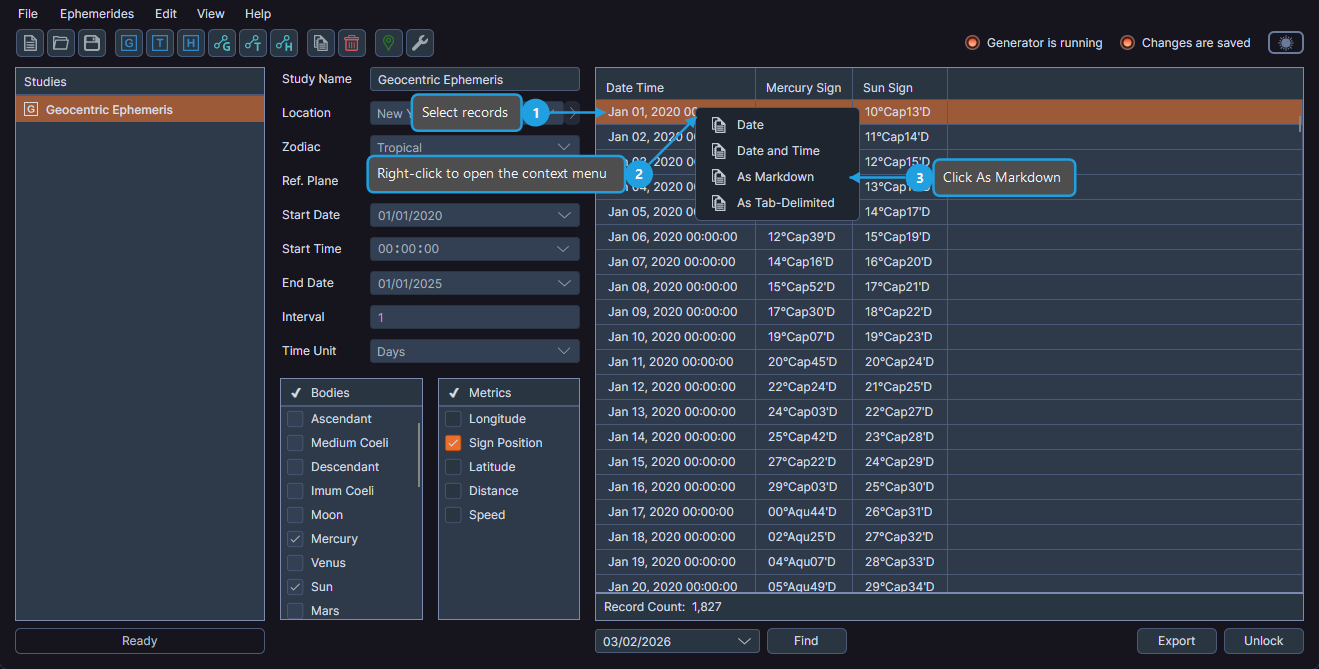
The clipboard receives a Markdown-formatted table, suitable for pasting into documentation or notes.
Copy as Tab-Delimited
- Select one or more records in the ephemeris table.
- Right-click on the selection.
- Click As Tab-Delimited in the context menu.
The clipboard receives tab-delimited text, suitable for pasting into spreadsheets.
Dragging Records to External Applications
You can transfer records directly to another application by dragging them from the ephemeris table.
- Select one or more records in the ephemeris table.
- Drag the selected records to an external application window.
The target application receives the records as tab-delimited text with headers.
This is a convenient way to quickly transfer data to a spreadsheet or text editor without going through the clipboard.