Results Navigation
After generating an ephemeris, you can navigate the results to find specific dates and copy record data.
Finding a Record by Date
To quickly navigate the ephemeris table to a specific date:
- Enter a date in the Find date picker.
- Click the Find button.
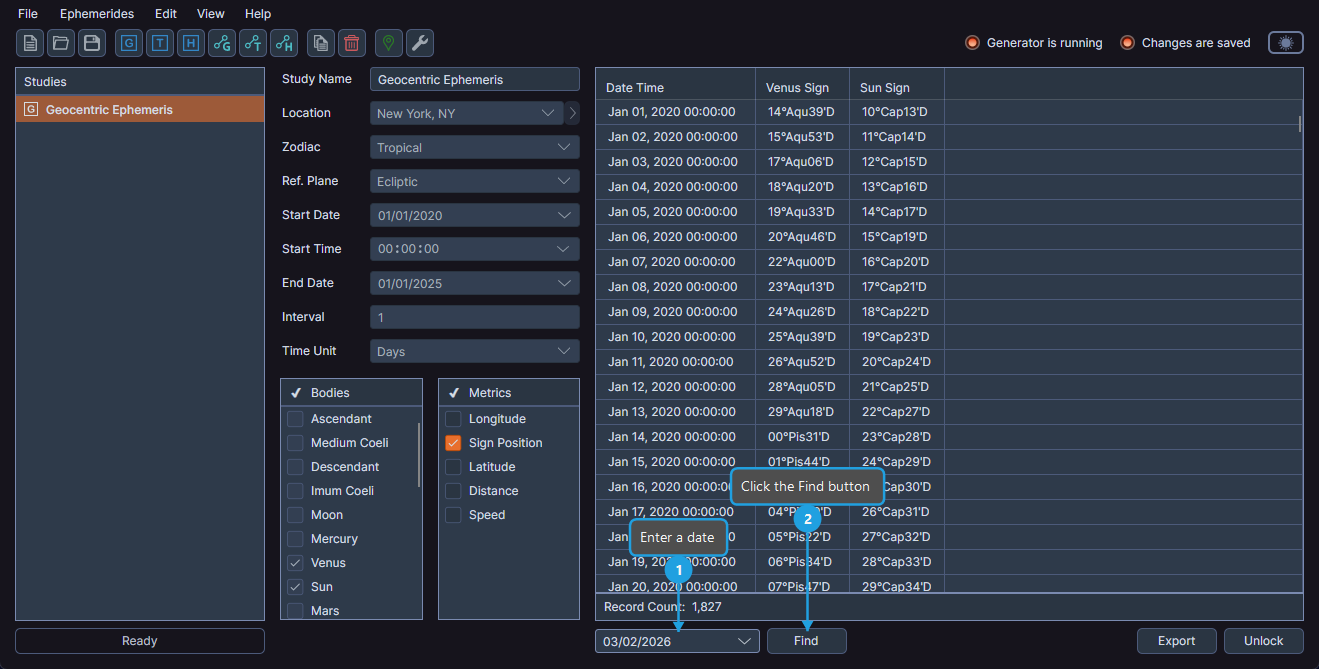
The ephemeris table scrolls to the record nearest the specified date.
Viewing the Record Count
After generation completes, the total number of generated records appears below the ephemeris table. This count helps you verify the expected output volume for your configured date range and time interval.
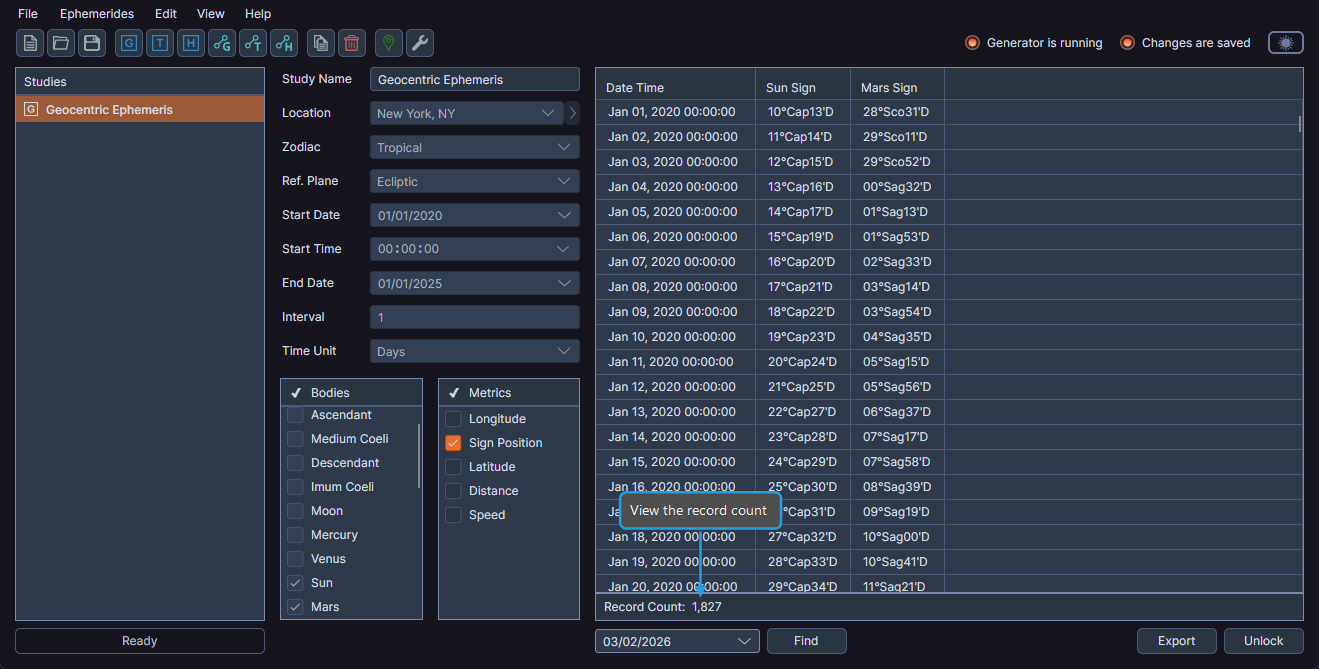
- Observe the record count displayed below the ephemeris table.
Copying Record Dates
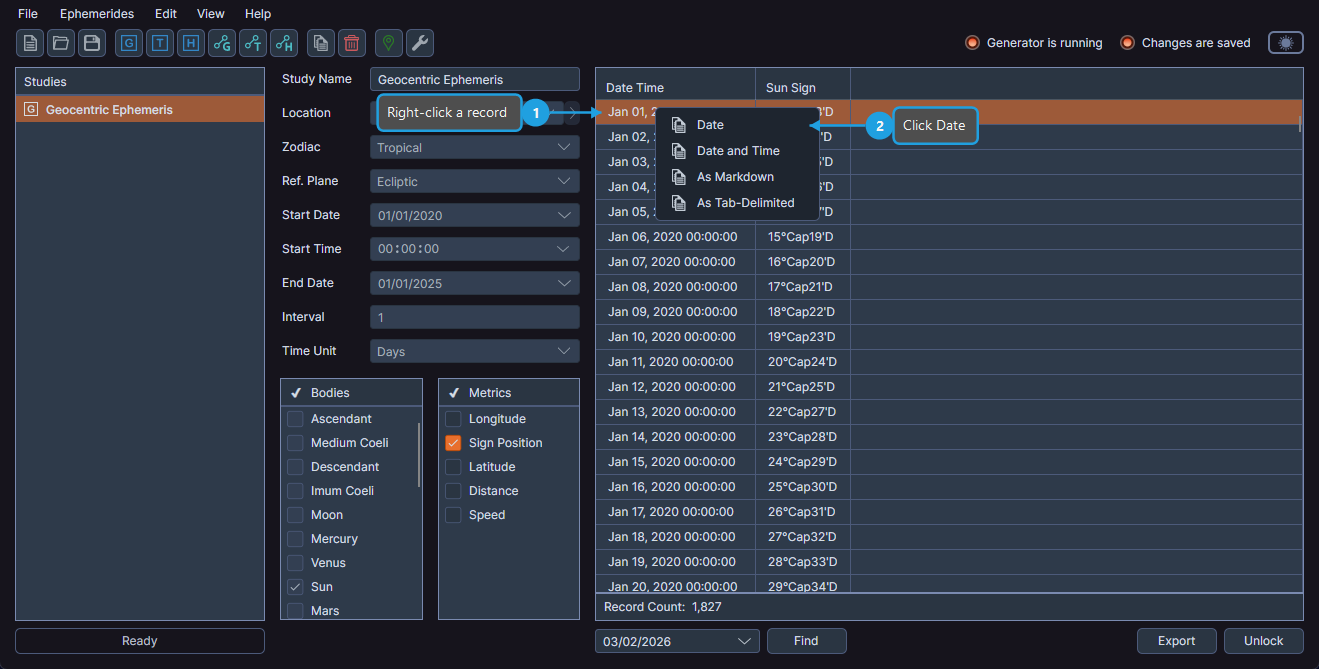
You can copy the date or date and time from a specific record to the system clipboard.
Copy Date Only
- Right-click a record in the ephemeris table.
- Click Date in the context menu.
Copy Date and Time
- Right-click a record in the ephemeris table.
- Click Date and Time in the context menu.
The copied value goes to the system clipboard, ready to paste into other applications.