Study Management
You can copy and delete studies in your workspace using the toolbar, menu, or context menu.
Copying a Study
Copying a study creates a duplicate with the same configuration. The copy receives a "(copy)" suffix and does not include any generated records.
Using the Toolbar
- Click the Copy Study toolbar button.
Using the Menu
- Click Edit on the menu bar.
- Click Copy Study in the Edit menu.
Using the Context Menu
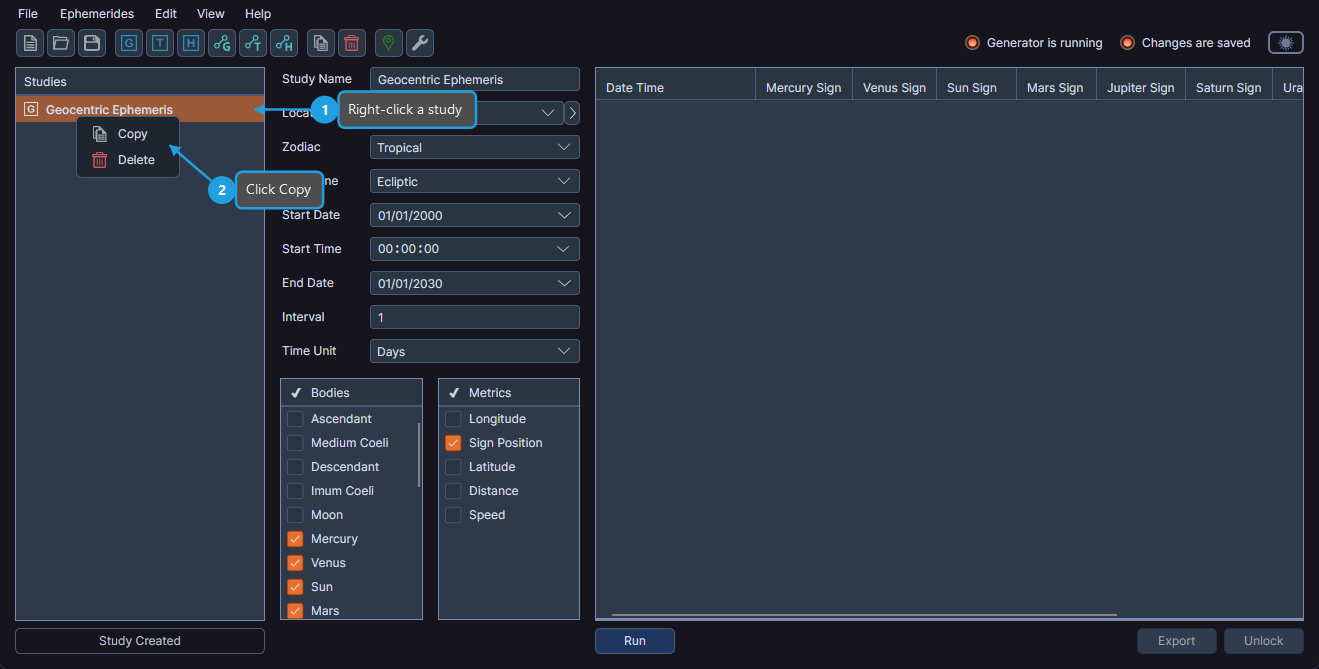
- Right-click a study in the Studies list.
- Click Copy in the context menu.
tip
Copying a study is a quick way to create a variation of an existing study. Change a few parameters in the copy and generate a new ephemeris for comparison.
Deleting a Study
Deleting a study permanently removes it from the workspace. A confirmation dialog appears before Cygnus proceeds.
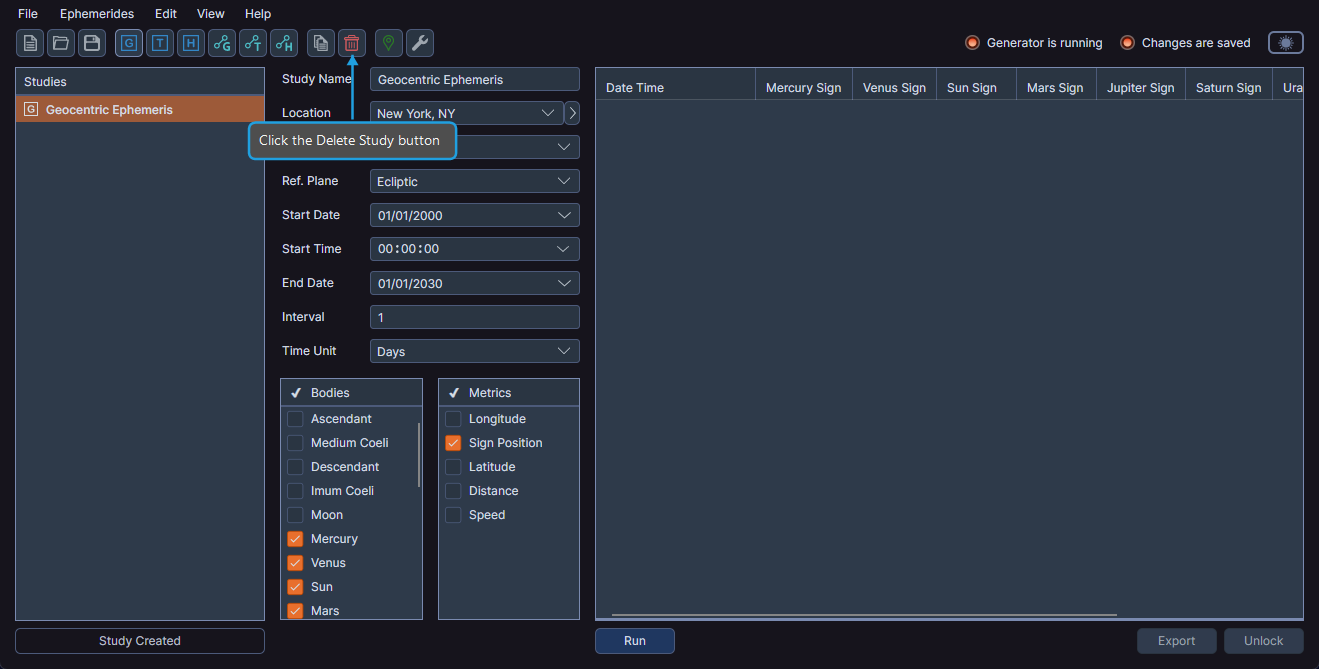
Using the Toolbar
- Click the Delete Study toolbar button.
- Click Yes in the confirmation dialog.
Using the Menu
- Click Edit on the menu bar.
- Click Delete Study in the Edit menu.
- Click Yes in the confirmation dialog.
Using the Context Menu
- Right-click a study in the Studies list.
- Click Delete in the context menu.
- Click Yes in the confirmation dialog.
caution
A study cannot be copied or deleted while it is generating records. Wait for generation to complete or cancel it first.