Aspect Definitions List
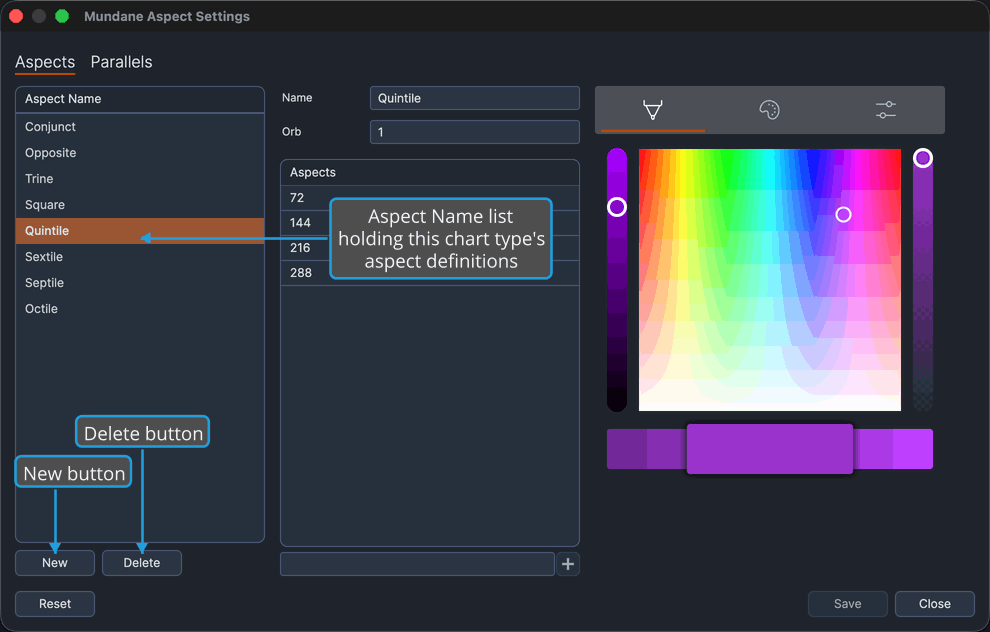
The list headed Aspect Name on the Aspects tab holds this chart type's aspect definitions. Selecting a row loads it into the Aspect Definition Editor beside it.
Overview
The list is your own catalog of aspects for one chart type. Add and remove definitions with the New and Delete buttons directly beneath the list, which appear only on the Aspects tab, and keep it in whatever order matches how you think about aspects.
The order matters beyond tidiness: it is the order the definitions are resolved in, so moving a row changes which definition claims a pair when more than one could. Open charts of that type recolor as soon as you move a row.
Two ways to reorder a definition:
- Drag the row to its new position. A ghost of the row follows the pointer as you drag.
- Select the row and press
Alt+UporAlt+Down.
On macOS the reorder modifier is Option rather than Alt.
Procedures
Select an Aspect Definition
To choose which aspect definition the detail editor works on:
- Click an aspect's name in the Aspect Name list.
The row is highlighted and its name, orb, angles, and color load into the editor pane on the right.
Add an Aspect Definition
To add a new aspect definition to this chart type's catalog:
- Click the New button beneath the list.
A definition with a generated unique name is appended to the list, selected, and loaded into the editor pane, ready for you to rename it there. No name prompt is raised.
Delete an Aspect Definition
To remove an aspect definition from this chart type's catalog:
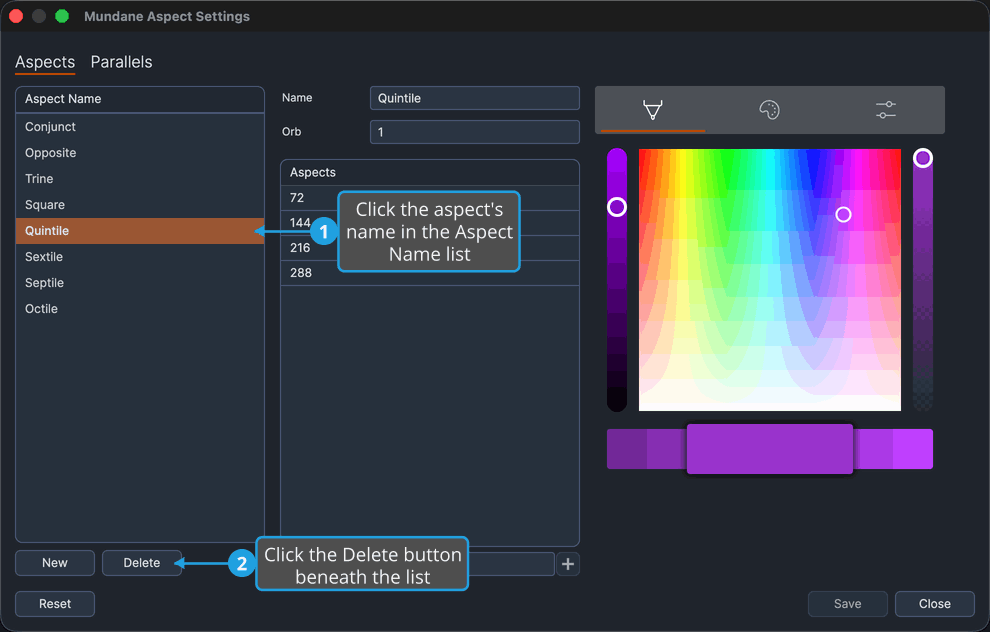
- Click the aspect's name in the Aspect Name list.
- Click the Delete button beneath the list.
The definition leaves the list, its nearest neighbor becomes selected, and open charts of that type stop drawing its chords.
Deletion is immediate and raises no confirmation prompt. The removal is not written to disk until you save the window, so closing without saving brings the definition back.
Reorder an Aspect Definition by Dragging
To move an aspect definition to a different position:
- Drag the aspect's row to its new position in the Aspect Name list.
A ghost of the row follows the pointer during the drag. The row lands at its new position and open charts of that type recolor to the changed resolution order.
Reorder an Aspect Definition by Keyboard
To move the selected definition one position at a time without using the pointer:
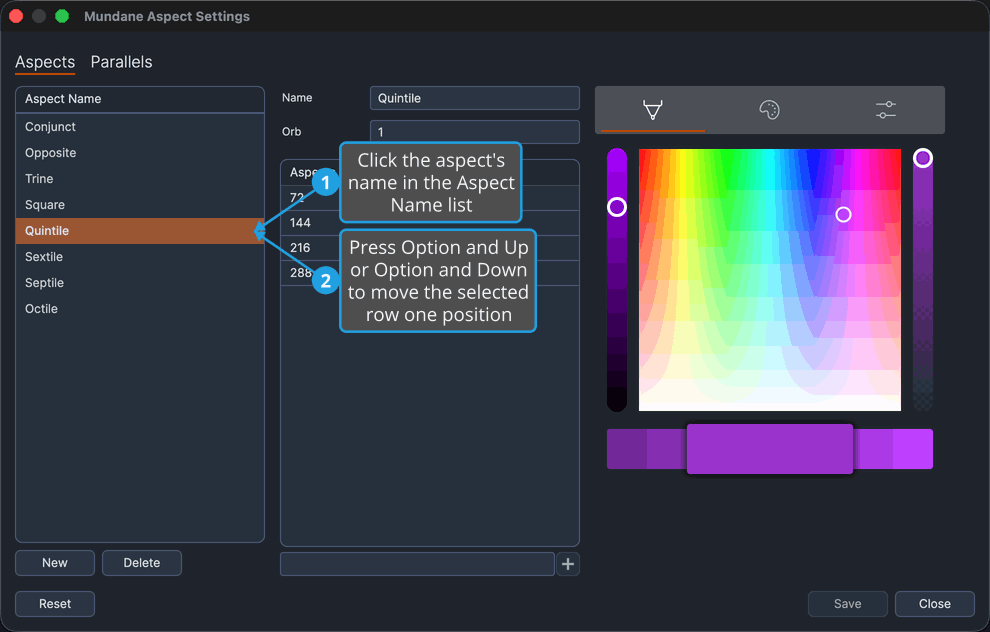
- Click the aspect's name in the Aspect Name list.
- Press
Alt+UporAlt+Down(Option+UporOption+Downon macOS) to move the selected row one position.
The row moves one position and keeps both its selection and its keyboard focus, so you can press again to keep going.
Reference
What the list holds
Each row is one aspect definition for this chart type: a name, an orb, a set of matched angles, and a color. The definitions are yours to create, rename, reorder, and delete, so the list's contents cannot be enumerated here.
Compass ships with a seeded set of definitions, but those are your data from the moment the application starts and can be edited or deleted like any other.