Aspect Definition Editor
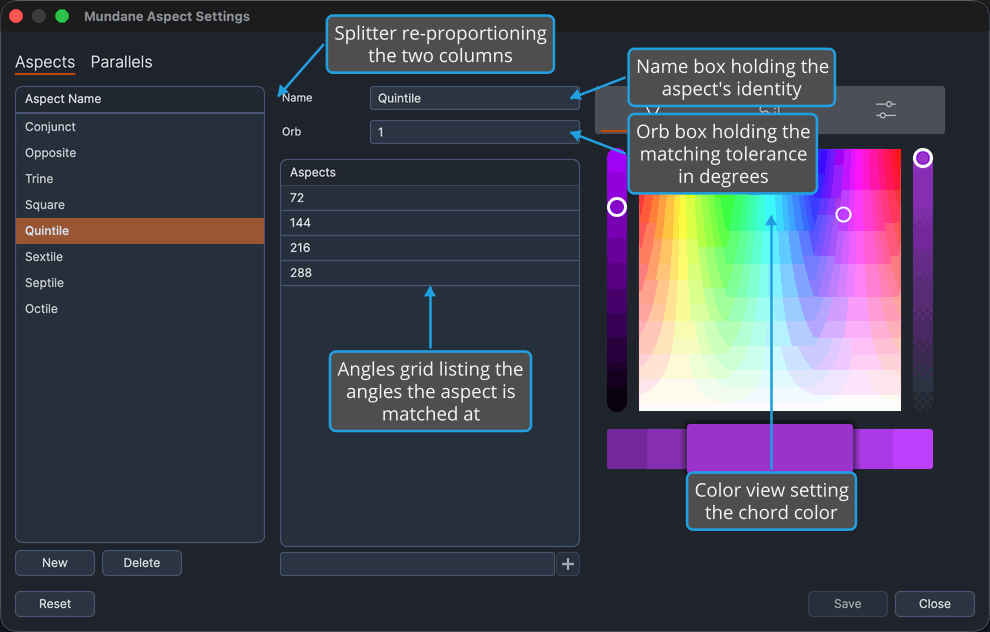
The editor pane beside the Aspect Definitions List says exactly what an aspect is: its name, how far from exact still counts, which angles it covers, and how it should look on the wheel.
Overview
The pane holds four controls, and they load from whichever definition is selected in the list:
| Control | What it decides |
|---|---|
| Name | The label the definition is listed under, and the name the aspect is shown by wherever it appears. |
| Orb | How far from exact, in degrees, a pair may stand and still be matched as this aspect. It accepts 0 to 180 degrees. |
| Angles grid | The angles the aspect is matched at. |
| Color view | The color this aspect's chords are drawn in. |
The angles grid is the same single-column grid the chart windows use, with its preset entries deliberately hidden here: the angle set belongs to the definition being edited, not to a saved chart preset. Angles are added from the box beneath the grid, edited in place, and removed through the grid's right-click menu.
A splitter between the list and this pane re-proportions the two.
Nothing is written to disk until you press Save on the window's bottom bar. See Aspect Settings Window.
Aspect Definition Settings
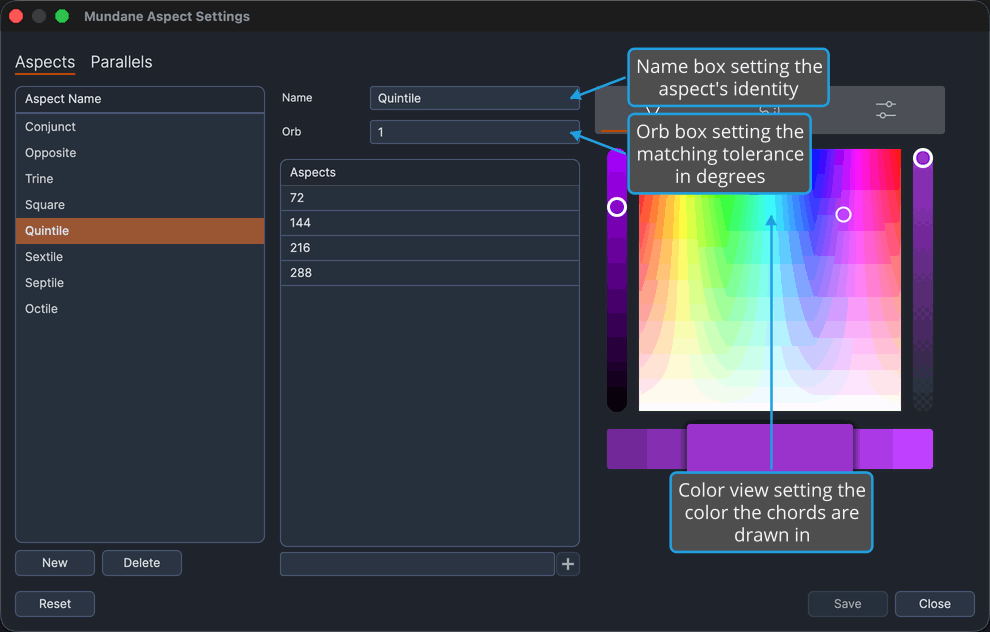
The three settings below already hold the selected definition's current values, so change only the ones you want to adjust, in whatever order suits you:
- Name sets the aspect's identity. It governs the label this definition is listed under in the Aspect Name list, and the name the aspect is shown by everywhere else.
- Orb sets the matching tolerance. It governs how far from exact, in degrees, a pair may stand and still be matched as this aspect: a wider orb draws more chords, a narrower one fewer. The box accepts 0 to 180 degrees.
- The Color view sets the chord appearance. It governs the color this aspect's chords are drawn in, which is how the aspect is told apart from its neighbors on a busy wheel.
The list shows the new name and open charts of that type redraw with the new orb and color as each change lands.
Procedures
Add an Angle to the Aspect Definition
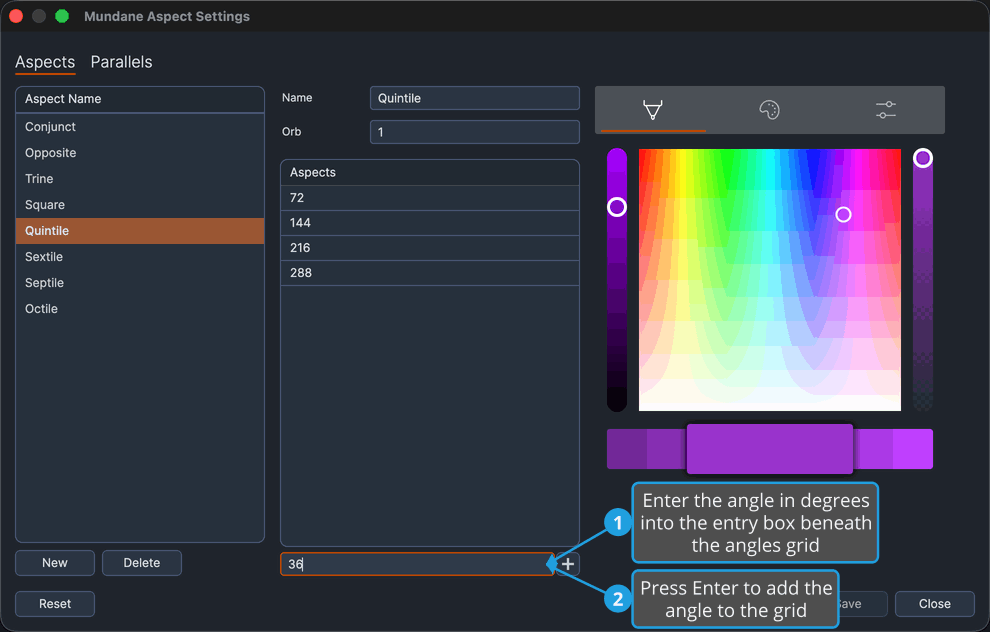
To add an angle that this aspect is matched at:
- Enter the angle in degrees into the entry box beneath the angles grid.
- Press
Enterto add the angle.
The angle appears as a new row at the bottom of the grid, the entry box clears, and open charts of that type match the aspect at the added angle.
The add button beside the entry box commits the value too.
Edit an Angle of the Aspect Definition
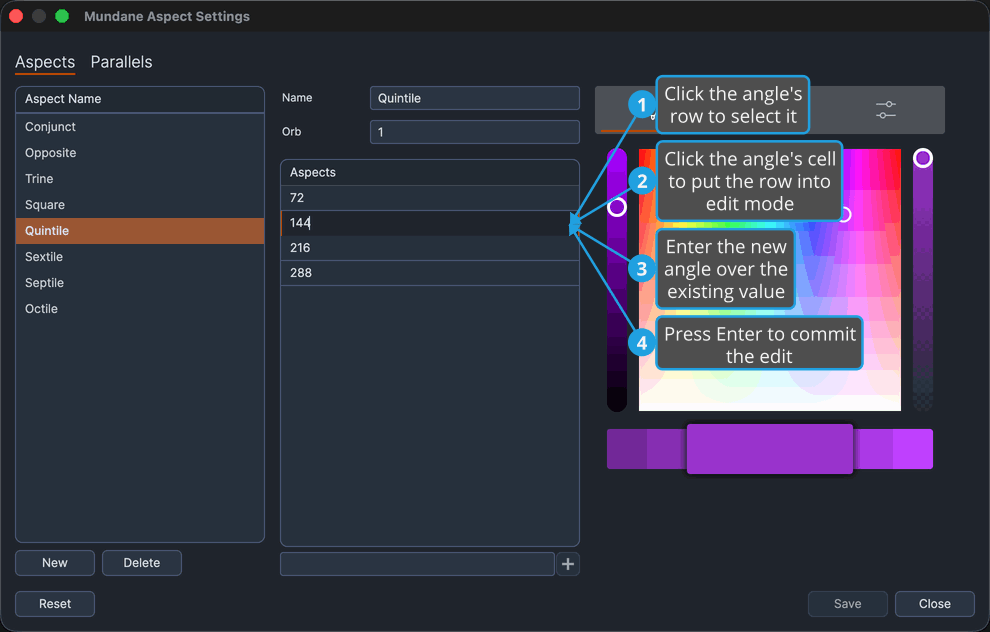
To change one of the angles this aspect is matched at:
- Click the angle's row to select it.
- Click the angle's cell to put the row into edit mode.
- Enter the new angle over the existing value.
- Press
Enterto commit the edit.
The row shows the new angle and open charts of that type match the aspect at it.
This is a single-click gesture, not a double-click. Tab commits the value as well, but because the grid has a single column it carries focus out of the row.
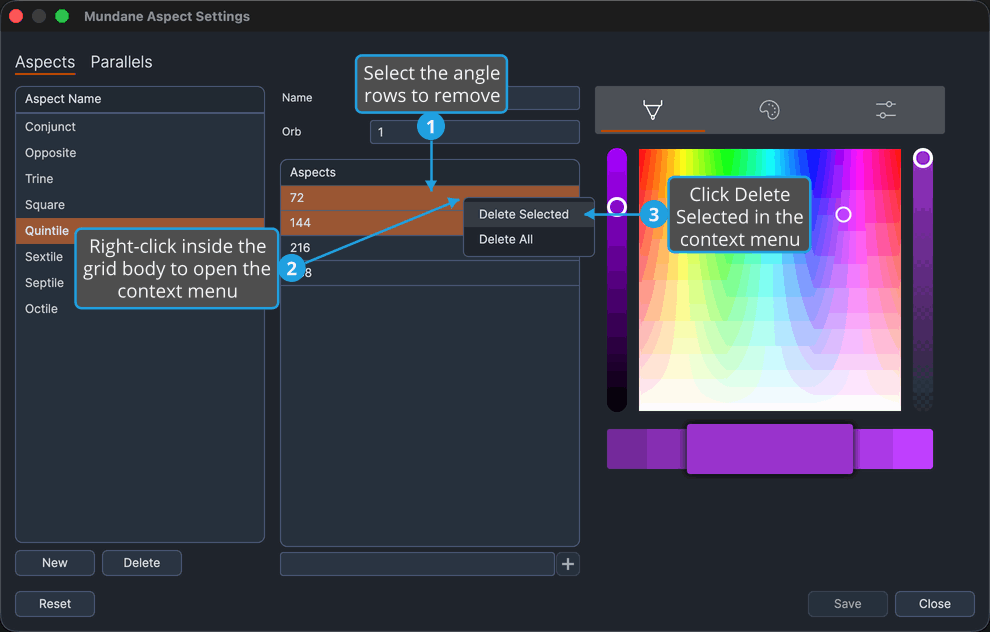
Delete Selected Angles from the Aspect Definition
To remove particular angles from the aspect's definition:
-
Select the angle rows to remove.
tipCtrl-click (Cmd-click on macOS) to toggle individual rows in the selection, andShift-click to extend the selection to a range. -
Click Delete Selected in the context menu.
The selected rows leave the angles grid and open charts of that type stop matching the aspect at them.
The Delete key does the same thing while the grid holds focus.
Delete All Angles from the Aspect Definition
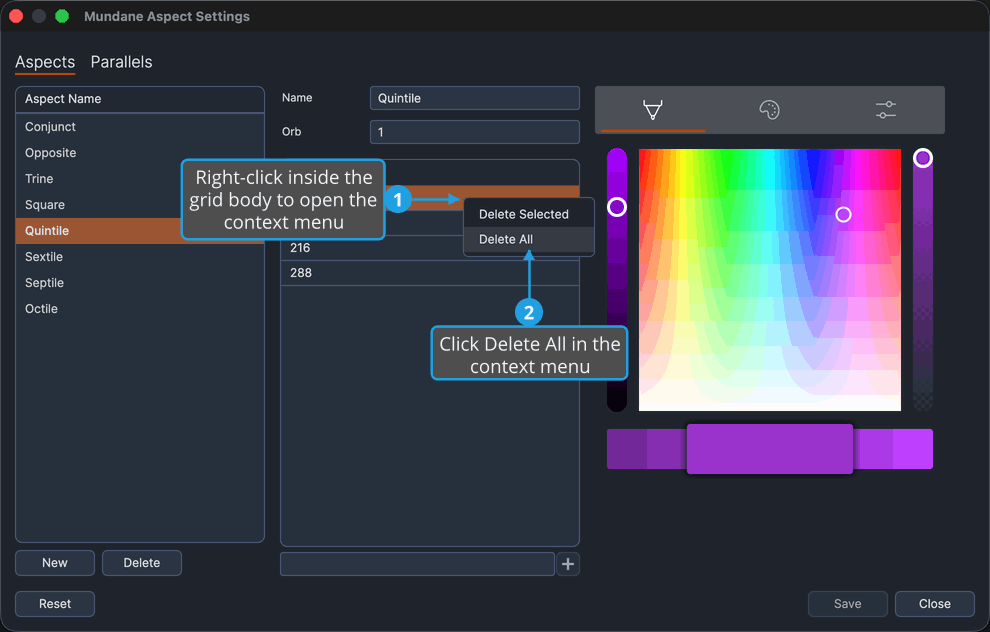
To empty the aspect's angles grid in one gesture:
- Open the Numeric Grid Context Menu.
- Click Delete All in the context menu.
The angles grid is empty and open charts of that type match the aspect at no angle.
Sort the Aspect Definition's Angles
To put the aspect's angles into order so the grid reads in sequence:
- Click the angles grid's column header.
The rows are reordered smallest angle first.
Resize the Definitions List and Editor Pane
To give either the aspect names list or this detail pane more room:
- Drag the splitter between the list and the editor pane left or right.
The two columns re-proportion to the splitter's new position. The list column has a minimum and a maximum width, so the drag stops at those bounds.
Reference
The angles grid column
| Column header | What it holds |
|---|---|
| Aspects | One angle, in degrees, that the selected aspect definition is matched at. |
The column is editable and accepts digits and a decimal point only.
Context menu commands
Right-clicking inside the angles grid body offers two commands here. The preset entries that the chart windows' grids carry are hidden on this grid.
| Command | What it does |
|---|---|
| Delete Selected | Removes the selected rows. |
| Delete All | Empties the grid, whatever is selected. |