Aspect Settings Window
The Aspect Settings window is where you decide, for each chart type, how wide each aspect's orb is and what color its chords are drawn in. Compass keeps a separate set of aspect settings for each of the six chart types, so each type has its own window, titled with the type it edits: Mundane Aspect Settings, for example. You can have up to six of these windows open side by side, one per chart type.
Open the window for a chart type, make your changes, and click Save to keep them, or click Close and choose in the Unsaved Changes prompt whether to save them.
Window Layout
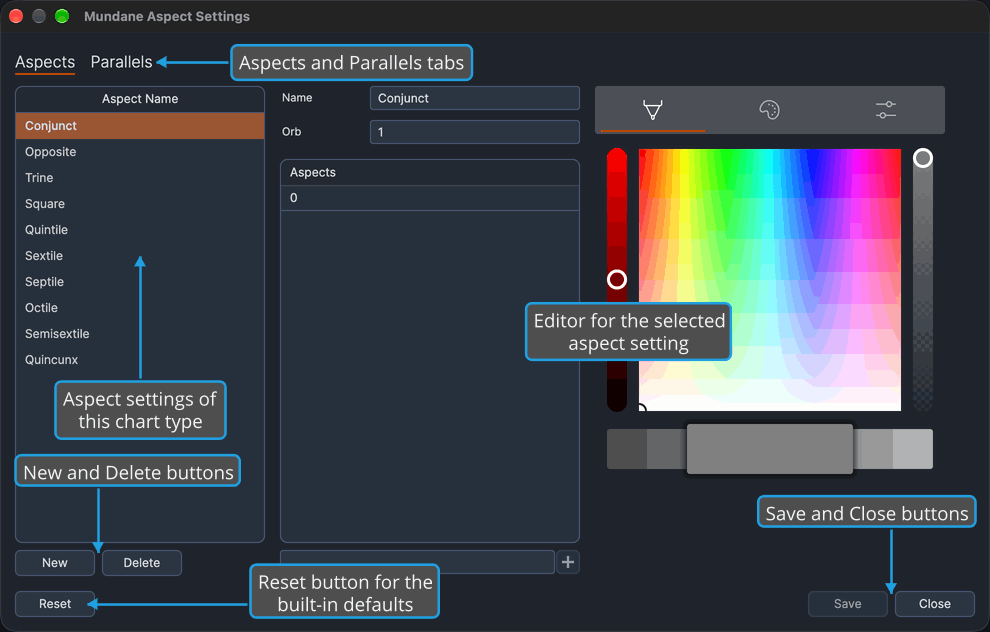
The window holds the chart type's named aspect settings on its Aspects tab and, on the Mundane, Natal and Transit windows, the parallel settings on its Parallels tab. A bar of buttons runs along the bottom. Which tabs appear depends on the chart type the window edits.
The Mundane, Natal and Transit Windows
These three windows show two tabs:
| Tab | What You Set There |
|---|---|
| Aspects | The named aspect settings that give this chart type's aspects their orbs and colors. |
| Parallels | The orbs and colors of parallels and contraparallels. See Parallel Aspect Settings. |
The Primary Directions, Solar Arc Directions and Secondary Progressions Windows
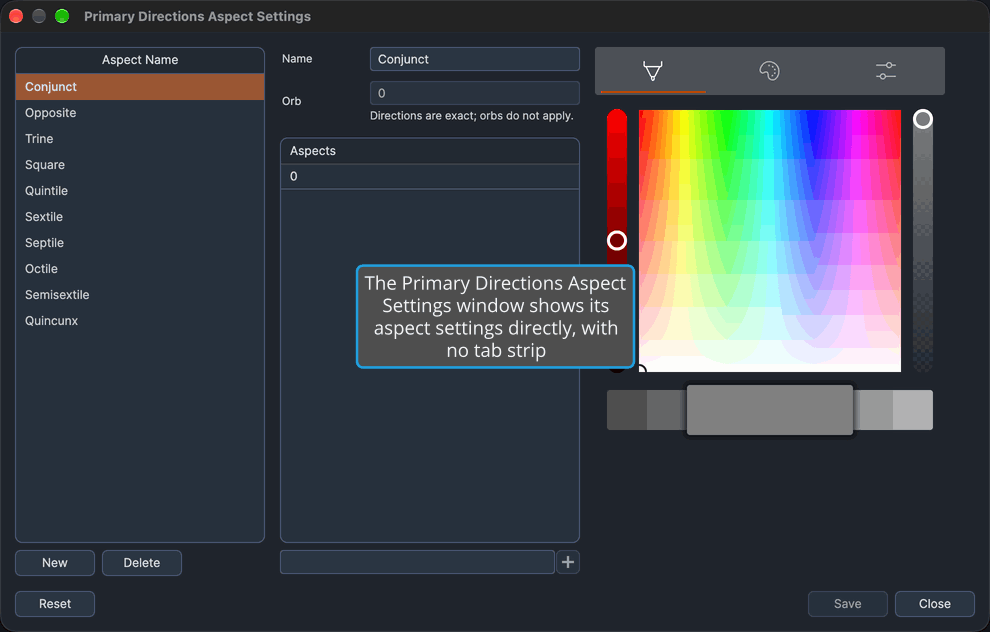
These windows show no tab strip. Their wheels draw no parallels, so there is no Parallels tab, and the aspect settings fill the window directly.
The Aspects Tab
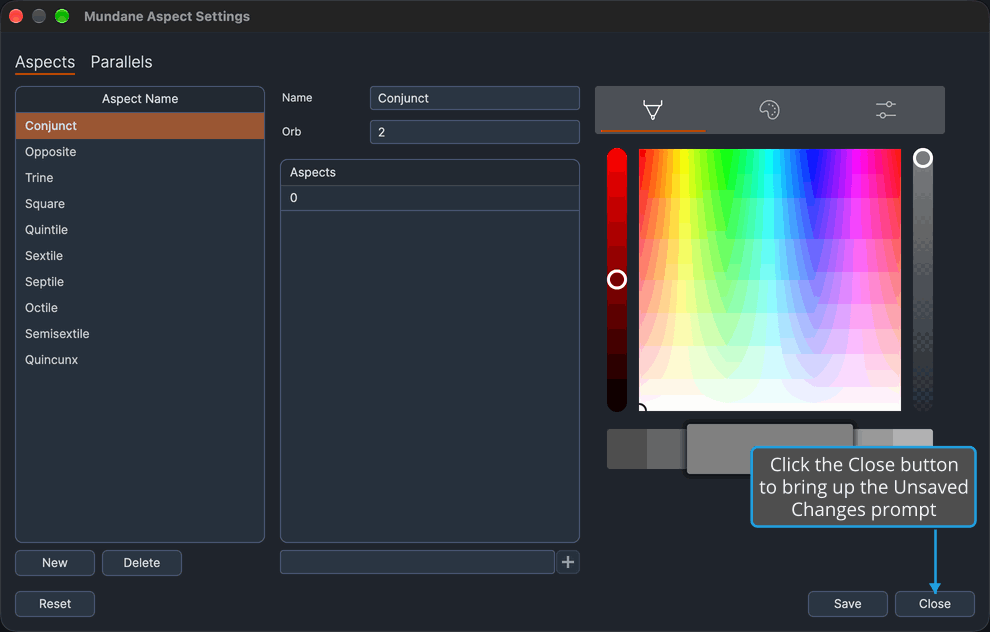
The Aspects tab holds the list of the chart type's aspect settings and, beside it, the editor for the one you select, with a splitter between them:
- The list, headed Aspect Name, names each aspect setting of the chart type. Its order sets which setting takes precedence. See Aspect Settings List and Reorder Aspect Settings.
- Beneath the list, New adds a setting and Delete removes the selected one. See New Aspect Setting and Delete Aspect Setting.
- The editor shows the selected setting's name, its orb, the angles it covers and its color. See Aspect Settings Editor.
The Buttons Along the Bottom
The bar along the bottom holds three buttons:
- Reset, at the bottom left, replaces this chart type's aspect settings, and on the Mundane, Natal and Transit windows its parallel settings, with the built-in defaults once you confirm. See Reset Aspect Settings.
- Save, at the bottom right, keeps your changes for future sessions. It is grayed while the window holds no unsaved edits. See Save Aspect Settings.
- Close, also at the bottom right, closes the window, as described in Close an Aspect Settings Window.
When Changes Take Effect
Your edits reach open charts at once, but reach disk only when you save:
- Every edit reaches the open charts of this chart type at once, so you can see its effect on the wheel before you save.
- Nothing is written to disk until you click Save, or save the changes when the Unsaved Changes prompt asks as you close the window.
- If you close the window without saving, the last saved settings come back, and open charts of the window's chart type return to them at once.
Open an Aspect Settings Window
Open the window from the menu bar once Compass has finished loading its settings and reference data. On macOS, the Edit menu is in the menu bar at the top of the screen. The Aspect Settings submenu lists the six chart types: Mundane, Natal, Transit, Primary Directions, Solar Arc Directions and Secondary Progressions. Each opens the window for its own type.
- Open the Edit menu, as described in Open the Edit Menu.
- Click Aspect Settings.
- Click the chart type whose aspects you want to set, for example Mundane.
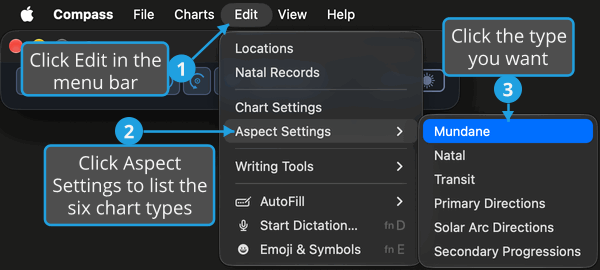
The chart type's Aspect Settings window opens, titled with the type. The Mundane, Natal and Transit windows show the Aspects and Parallels tabs; the Primary Directions, Solar Arc Directions and Secondary Progressions windows show no tab strip. If that chart type's window is already open, it comes to the front instead.
The Aspect Settings drop-down button on the Main Toolbar opens a drop-down menu listing the same six chart types. The Aspect Settings button on a chart window's toolbar opens the window for that chart's own type; see Chart Window Toolbar.
Close an Aspect Settings Window
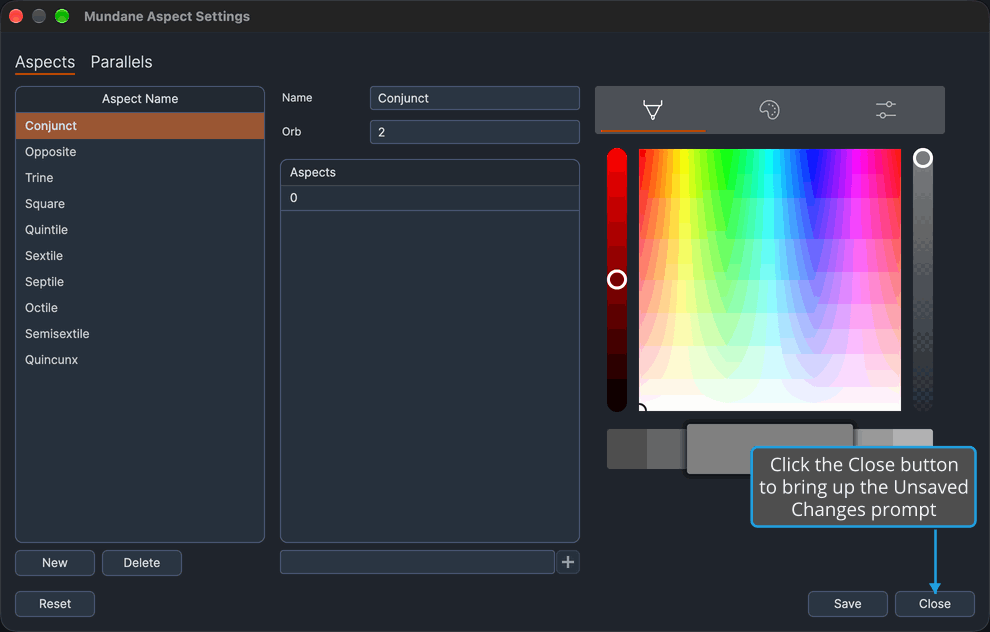
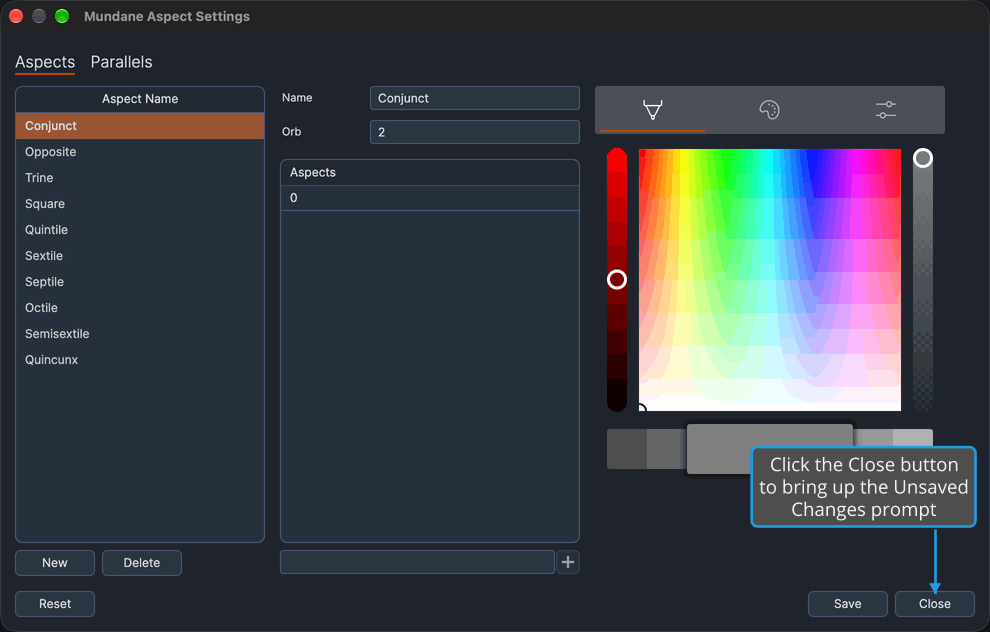
Close sits at the bottom right of the window, and the window's title-bar close button does the same. What happens next depends on whether the window holds unsaved edits, which it does whenever Save is not grayed. With unsaved edits, closing brings up the Unsaved Changes prompt, which asks "Would you like to save your changes before closing?"
Close a Window with No Unsaved Edits
While Save is grayed, the window has nothing to save and closes at once:
- Click Close.
Save Changes as You Close
To keep your unsaved edits as the window closes:
- Click Close.
- Save the changes from the Unsaved Changes prompt, as described in Save Changes from the Unsaved Changes Prompt.
The chart type's aspect settings, and on the Mundane, Natal and Transit windows its parallel settings, are written to disk and the window closes. If the save fails, Compass reports the failure and the window stays open with your edits.
Discard Changes as You Close
To close the window without keeping your unsaved edits:
- Click Close.
- Discard the changes from the Unsaved Changes prompt, as described in Discard Changes from the Unsaved Changes Prompt.
The aspect settings, and on the Mundane, Natal and Transit windows the parallel settings, return to their last saved state, open charts of the window's chart type return to them at once, and the window closes.
Cancel the Close
To back out of closing once the prompt appears:
- Click Close.
- Cancel the close from the Unsaved Changes prompt, as described in Cancel Closing from the Unsaved Changes Prompt.
The window stays open with your unsaved edits in place.