Main Toolbar
The main toolbar gives you one-click access to the charts and settings you open most often. It is the row of icon buttons in the Main Window, under the window's menu bar on Windows, arranged in four groups: Open Chart; the Mundane, Natal and Transit chart buttons; the Primary Directions, Solar Arc Directions and Secondary Progressions chart buttons; then Chart Settings and the Aspect Settings drop-down button. At the right end of the row sit the download button and the theme switch.
Every button except the download button repeats a command of the Menu Bar, and the tables below link to the page that documents each one.
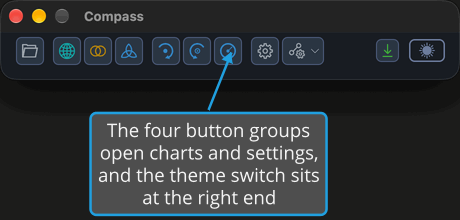
Open Chart Button
The first button of the toolbar opens a saved chart.
| Command | Description | Details |
|---|---|---|
| Open Chart | Opens a chart saved to a Compass chart file. It repeats File → Open Chart…. | Open Chart File |

Chart Buttons
Each button opens a new chart window of its type, as the matching Charts menu command does. See New Chart.
| Command | Description | Details |
|---|---|---|
| Mundane Chart | Opens a new Mundane chart window. | Mundane Chart |
| Natal Chart | Opens a new Natal chart window. | Natal Chart |
| Transit Chart | Opens a new Transit chart window. | Transit Chart |

Directions and Progressions Chart Buttons
Each button opens a new chart window of its type, as the matching Charts menu command does. See New Chart.
| Command | Description | Details |
|---|---|---|
| Primary Directions Chart | Opens a new Primary Directions chart window. | Primary Directions Chart |
| Solar Arc Directions Chart | Opens a new Solar Arc Directions chart window. | Solar Arc Directions Chart |
| Secondary Progressions Chart | Opens a new Secondary Progressions chart window. | Secondary Progressions Chart |

Settings Buttons
The last group opens the Chart Settings editor and the Aspect Settings editors, as the matching Edit menu commands do.
| Command | Description | Details |
|---|---|---|
| Chart Settings | Opens the Chart Settings editor. It repeats Edit → Chart Settings. | Chart Settings Window |
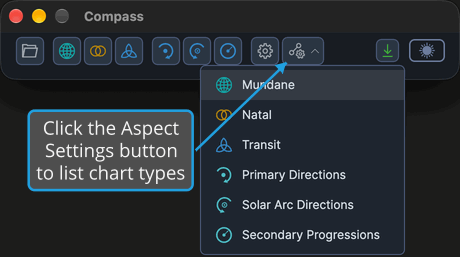
| Aspect Settings | A drop-down button whose menu lists the six chart types; choosing one opens that type's Aspect Settings editor. It repeats Edit → Aspect Settings. | Aspect Settings Window |


Open the Aspect Settings Drop-Down Menu
The menu's entries stay unavailable until Compass has finished loading at startup. To choose which chart type's aspect settings to edit:
- Click the Aspect Settings drop-down button, the last button of the toolbar's settings group.
A menu opens under the button listing the six chart types. Choosing one opens that chart type's Aspect Settings editor.
| Command | Description |
|---|---|
| Mundane | Opens the Aspect Settings editor for Mundane charts. |
| Natal | Opens the Aspect Settings editor for Natal charts. |
| Transit | Opens the Aspect Settings editor for Transit charts. |
| Primary Directions | Opens the Aspect Settings editor for Primary Directions charts. |
| Solar Arc Directions | Opens the Aspect Settings editor for Solar Arc Directions charts. |
| Secondary Progressions | Opens the Aspect Settings editor for Secondary Progressions charts. |
Update and Theme Controls
Two controls sit at the right end of the toolbar:
| Control | Description | Details |
|---|---|---|
| Download button | Opens the Compass download page in your default web browser. It appears immediately to the left of the theme switch, and only when a newer version of Compass is available. | Update Notification |
| Theme switch | Switches Compass between its light and dark themes, as View → Toggle Theme does. | Toggle Theme |
