Menu Bar
The menu bar reaches every Compass command by name. On macOS its menus appear in the menu bar at the top of the screen: the Compass application menu, then File, Charts, Edit, View and Help. On Windows the File, Charts, Edit, View and Help menus sit inside the Main Window instead.
The chart and settings commands become available once Compass has finished loading its saved settings, presets and reference data at startup. Most commands open a window documented on its own page, and the tables below link to each.
Compass Application Menu
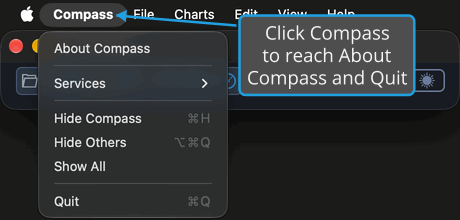
On macOS the Compass application menu holds About Compass and Quit. On Windows there is no application menu, and the About dialog opens from the Help menu's About Dialog item. On macOS the Help menu's About item opens it as well.
Open the Compass Application Menu
To reach About Compass and Quit:
- Click Compass in the menu bar.
The menu drops open with the commands below. macOS adds its own standard commands to this menu as well.
| Command | Description | Details |
|---|---|---|
| About Compass | Opens the About dialog, which shows the Compass version and its activation status. | About Dialog |
| Quit | Quits Compass, first asking about each open chart that is saved to a file and has unsaved changes. Cmd+Q does the same. | Quit Compass |
File Menu
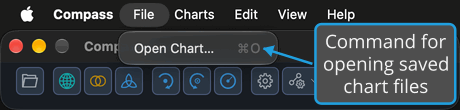
The File menu holds the command that opens a saved chart.
| Command | Description | Details |
|---|---|---|
| Open Chart… | Opens a chart saved to a Compass chart file in a chart window of its own. Cmd+O (Ctrl+O on Windows) does the same. | Open Chart File |
Charts Menu
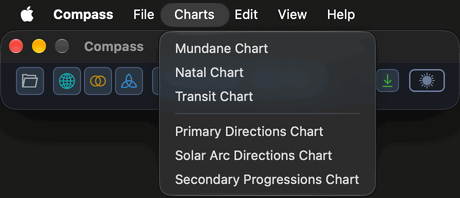
Each command opens a new chart window of its type. A separator divides the Mundane, Natal and Transit charts from the three technique charts. See New Chart.
| Command | Description | Details |
|---|---|---|
| Mundane Chart | Opens a new Mundane chart window. | Mundane Chart |
| Natal Chart | Opens a new Natal chart window. | Natal Chart |
| Transit Chart | Opens a new Transit chart window. | Transit Chart |
| Primary Directions Chart | Opens a new Primary Directions chart window. | Primary Directions Chart |
| Solar Arc Directions Chart | Opens a new Solar Arc Directions chart window. | Solar Arc Directions Chart |
| Secondary Progressions Chart | Opens a new Secondary Progressions chart window. | Secondary Progressions Chart |
Edit Menu
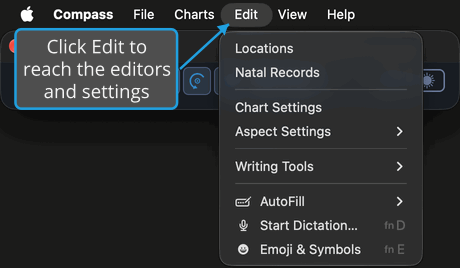
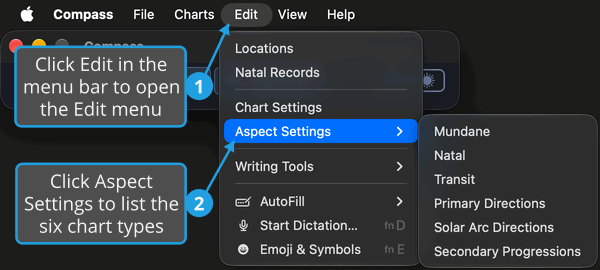
The Edit menu holds the two reference-data editors and the two settings editors.
Open the Edit Menu
To open the Edit menu:
- Click Edit in the menu bar.
The Edit menu drops open, listing Locations and Natal Records, then, below a separator, Chart Settings and the Aspect Settings submenu. macOS adds its own standard commands below them. On Windows, Alt+D opens it from the keyboard.
| Command | Description | Details |
|---|---|---|
| Locations | Opens the Locations Editor, where you keep the places you cast charts for. | Locations Editor |
| Natal Records | Opens the Natal Records Editor, where you keep the birth data of the people you chart. | Natal Records Editor |
| Chart Settings | Opens the Chart Settings editor, which sets the defaults new charts open with and the colors every chart is drawn in. | Chart Settings Window |
| Aspect Settings | Opens a submenu of the six chart types, each of which opens that type's Aspect Settings editor. | Aspect Settings Window |
Open the Aspect Settings Submenu
To reach the list of chart types whose aspect settings you can edit:
- Open the Edit menu, as described in Open the Edit Menu.
- Click Aspect Settings.
The Aspect Settings submenu opens beside the Edit menu. Choosing a chart type opens that type's Aspect Settings editor.
| Command | Description | Details |
|---|---|---|
| Mundane | Opens the Aspect Settings editor for Mundane charts. | Aspect Settings Window |
| Natal | Opens the Aspect Settings editor for Natal charts. | Aspect Settings Window |
| Transit | Opens the Aspect Settings editor for Transit charts. | Aspect Settings Window |
| Primary Directions | Opens the Aspect Settings editor for Primary Directions charts. | Aspect Settings Window |
| Solar Arc Directions | Opens the Aspect Settings editor for Solar Arc Directions charts. | Aspect Settings Window |
| Secondary Progressions | Opens the Aspect Settings editor for Secondary Progressions charts. | Aspect Settings Window |
View Menu
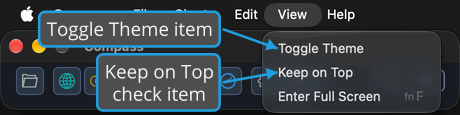
The View menu holds the two commands that change how Compass looks and whether the main window stays above other windows. macOS adds its own standard commands below them.
| Command | Description | Details |
|---|---|---|
| Toggle Theme | Switches Compass between its light and dark themes. | Toggle Theme |
| Keep on Top | A check item that keeps the main window above every other window while it is checked. | Keep on Top |
Help Menu
The Help menu holds the commands that open the About dialog and the online documentation. macOS adds its own search field above them.
| Command | Description | Details |
|---|---|---|
| About | Opens the About dialog. On Windows this item reads About Dialog. | About Dialog |
| Documentation | Opens the Compass online documentation in your default web browser. | Documentation |

Open a Menu from the Keyboard
On Windows, the Charts, Edit, View and Help menus of the main window open from the keyboard. The menus in the macOS menu bar have no Alt access keys.
- Press Alt together with the underlined letter of the menu's name, for example Alt+C for Charts.
The menu drops open with its commands' underlined access letters showing, and pressing a command's letter chooses it. In the Charts menu, for example, M chooses Mundane Chart, N Natal Chart, T Transit Chart, P Primary Directions Chart, S Solar Arc Directions Chart and Y Secondary Progressions Chart.
| Menu | Access Key |
|---|---|
| Charts | Alt+C |
| Edit | Alt+D |
| View | Alt+V |
| Help | Alt+H |