Quit Compass
Quit Compass closes Compass, first giving you the chance to save each chart file that has changed. Before it quits, Compass shows the Unsaved Changes prompt for each open chart that is saved to a file and has changed since it was last saved: Yes saves it, No discards its changes, and Cancel stops the quit with every window left open. It then records the main window's position for the next launch. A chart that has never been saved to a file closes without the prompt.
Click Compass → Quit in the menu bar.
Cmd+Q quits Compass from the keyboard, and closing the Main Window with its title-bar close button quits it too. On Windows, Alt+F4 on the main window closes it the same way.
Quit with No Changed Charts
When no open chart saved to a file has unsaved changes, Compass quits without asking anything:
- Click Compass in the menu bar.
- Click Quit.
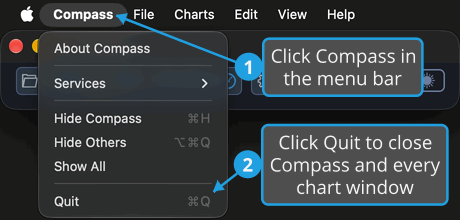
Alternatively, press Cmd+Q.
Compass records the main window's position and closes with every chart window.
Quit and Save Changed Charts
To quit Compass, saving each changed chart file on the way out:
- Click Compass in the menu bar.
- Click Quit.
- Click Yes for each changed chart Compass asks about, as described in Save Changes from the Unsaved Changes Prompt.
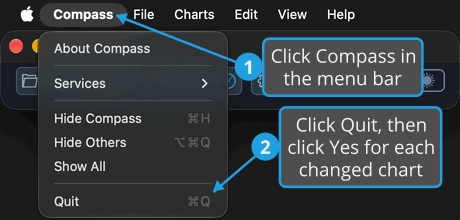
Pressing Cmd+Q replaces steps 1 and 2.
Compass asks once for each changed chart that is saved to a file, each time over that chart's own window, so step 3 repeats for each chart. Each chart is saved to its file the moment you click Yes, before the next one is asked. Once you have answered for every chart, Compass records its window position and closes. A save that fails stops the quit, as Cancel does.
Quit and Discard Chart Changes
To quit Compass without saving the changes to open chart files:
- Click Compass in the menu bar.
- Click Quit.
- Click No for each changed chart Compass asks about, as described in Discard Changes from the Unsaved Changes Prompt.
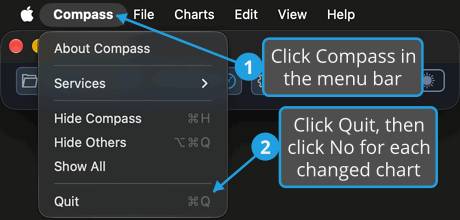
Pressing Cmd+Q replaces steps 1 and 2.
Once you have clicked No for every changed chart, their changes are discarded, and Compass records its window position and closes. A chart's changes are discarded only once you have answered for every chart, so a later Cancel still keeps it open.
Cancel the Quit
To stop a quit that has reached a changed chart file:
- Click Compass in the menu bar.
- Click Quit.
- Click Cancel for the changed chart, as described in Cancel Closing from the Unsaved Changes Prompt.
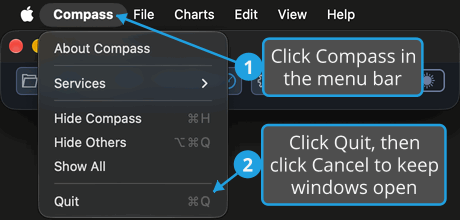
Pressing Cmd+Q replaces steps 1 and 2.
The quit stops and every window stays open. A chart you already answered Yes for stays saved, and every other chart keeps its unsaved changes.