Save Chart
Keep a chart, with all its settings and listed directions, so you can reopen it later or pass it on. Click Save or Save As on the chart window's toolbar and choose where to save the .compass file. Save is also Cmd+S (Ctrl+S on Windows), and Save As is Cmd+Shift+S (Ctrl+Shift+S on Windows).
Every chart window can be saved: Mundane, Natal, Transit, Primary Directions, Solar Arc Directions and Secondary Progressions. To reopen a saved chart, see Open Chart File.
How Compass Tracks Unsaved Changes
Saving a chart binds its window to the file. Save, Save As and the window title work with that binding:
- Save writes to the file the window is bound to, or asks for a file when the window has none. It is grayed while the window is bound and unchanged.
- Save As always asks for a file in the Save Chart dialog and re-binds the window to the file you choose. It is always enabled.
- A bound window's title carries the file name, and an asterisk (
*) marks unsaved changes.
Compass judges changes by comparing what the window would save now with what it last saved, so stepping the chart's moment away and back again reads as unchanged.
Closing a bound chart that has changed raises the Unsaved Changes prompt, with Yes, No and Cancel. A chart that has never been saved closes without asking, however much has changed. Quitting Compass raises the same prompt for each open chart that is saved to a file and has changed since; see Quit Compass.
Save a New Chart
To save a chart that has never been saved:
- Click the Save button on the chart window's toolbar.
- Choose the folder and file name in the Save Chart dialog, which suggests a file name built from the chart and offers the Compass chart file type, and save, as described in Save a File in the Save Dialog.
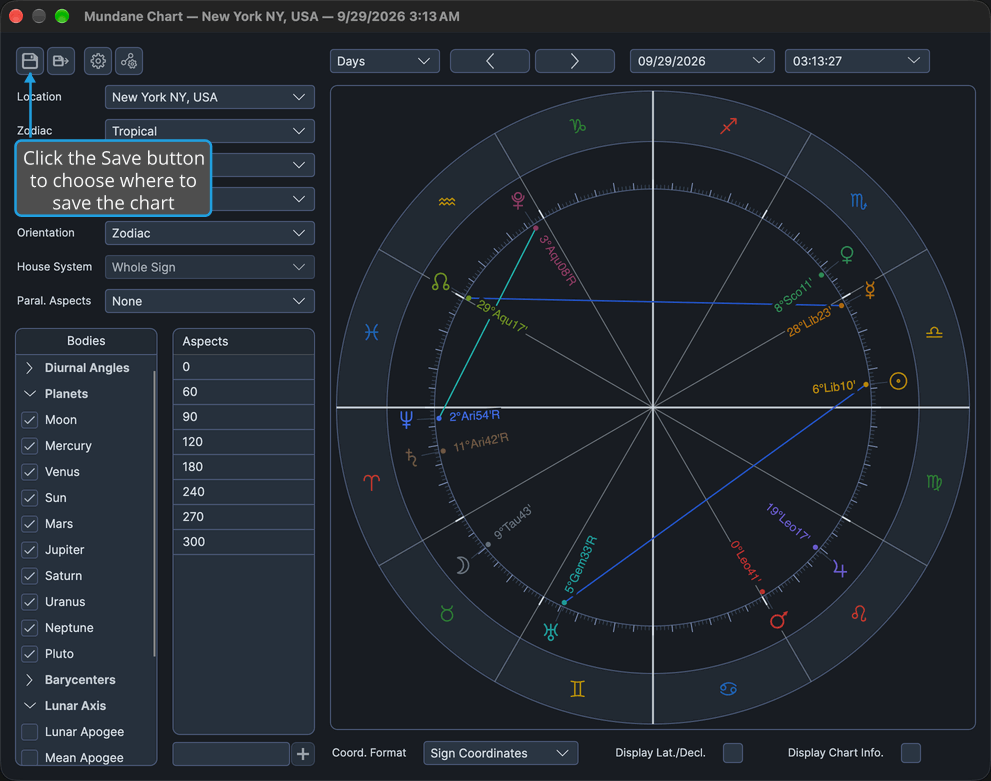
The chart is written to the file, the window is bound to it and its title carries the file name, and Save stays grayed until the chart changes.
In place of step 1, press Cmd+S (Ctrl+S on Windows).
Save Changes to a Chart File
When a chart bound to a .compass file has unsaved changes, its title carries the asterisk. To write the changes back to the file:
- Click the Save button on the chart window's toolbar.
You can also press Cmd+S (Ctrl+S on Windows).
The chart is written to the file it is bound to without a dialog. The asterisk leaves the title and Save is grayed again.
Save a Chart As a New File
To save the chart under a new name or in a new place:
- Click the Save As button on the chart window's toolbar.
- Choose the folder and file name in the Save Chart dialog and save, as described in Save a File in the Save Dialog.
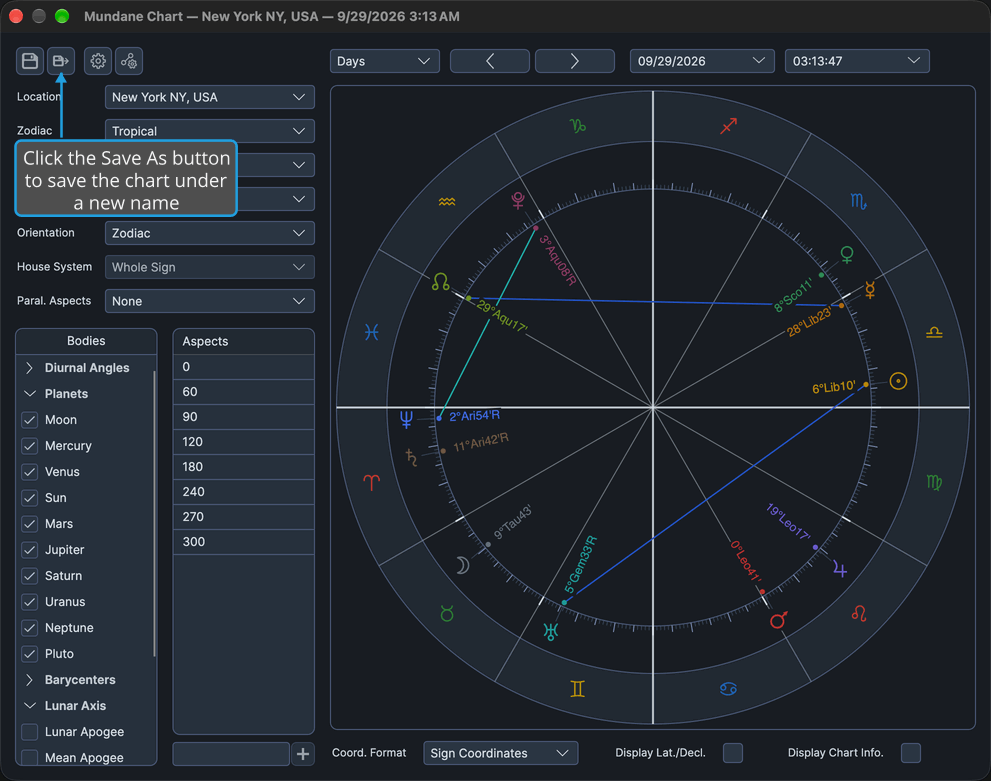
The chart is written to the chosen file and the window is re-bound to it, its title naming the new file. For a chart already bound to a file, the dialog starts in that file's folder.
In place of step 1, press Cmd+Shift+S (Ctrl+Shift+S on Windows).
Cancel Save As
To back out of saving the chart under a new name:
- Click the Save As button on the chart window's toolbar.
- Cancel the Save Chart dialog, as described in Cancel the Save Dialog.
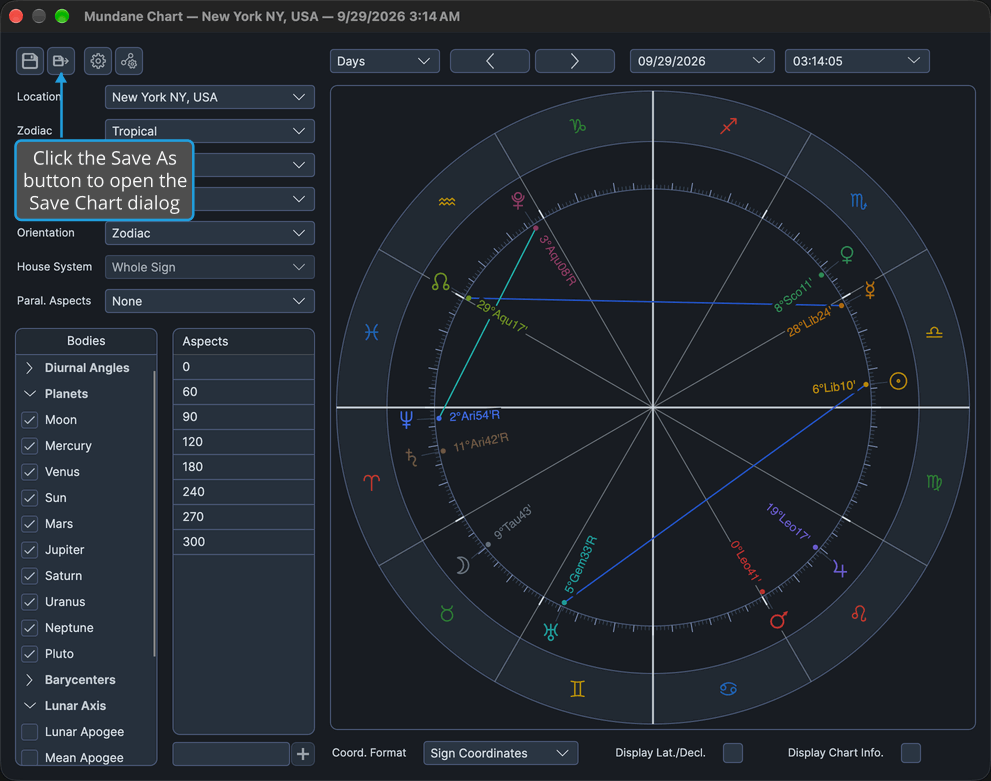
The dialog closes. Nothing is written, and the window stays bound as it was.
In place of step 1, press Cmd+Shift+S (Ctrl+Shift+S on Windows).
Close a Changed Chart and Save It
To close a chart window whose file has unsaved changes, saving them first:
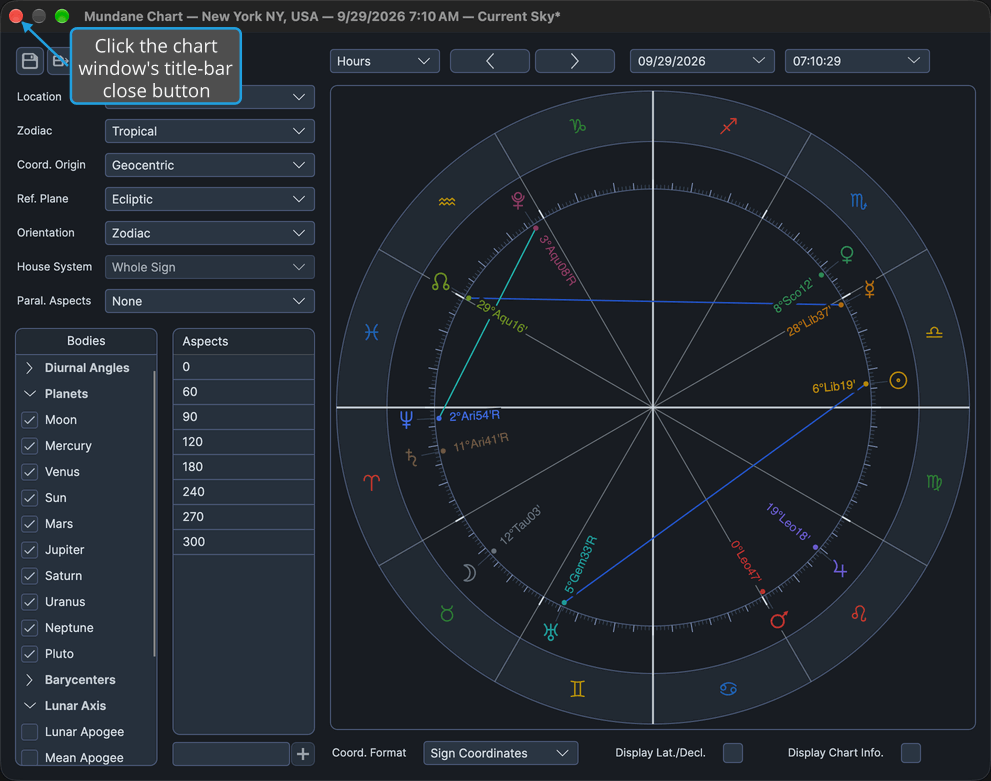
- Click the chart window's title-bar close button.
- Click Yes in the Unsaved Changes prompt, as described in Save Changes from the Unsaved Changes Prompt.
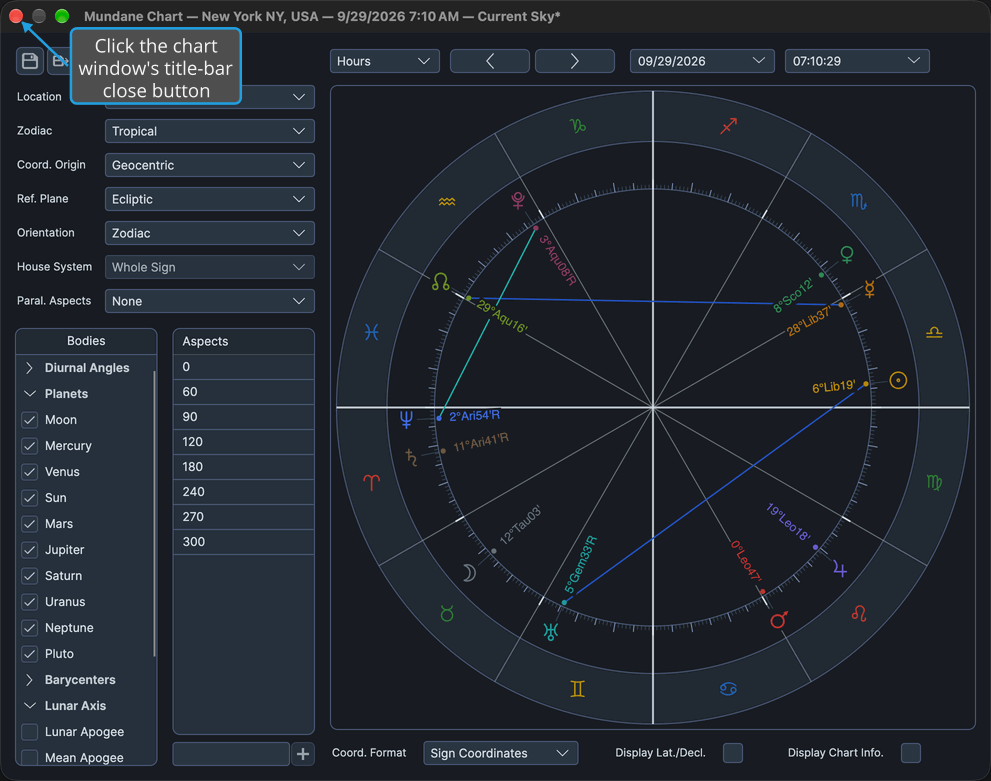
The chart is saved to its file and the window closes. If the save fails, the window stays open.
Close a Changed Chart Without Saving
To close a chart window bound to a .compass file and discard its unsaved changes:
- Click the chart window's title-bar close button.
- Click No in the Unsaved Changes prompt, as described in Discard Changes from the Unsaved Changes Prompt.
The window closes and the file keeps what it last held.
Cancel Closing a Changed Chart
A chart that has never been saved closes at step 1 below without the prompt, so save it first, as described in Save a New Chart.
To keep a chart window bound to a .compass file open after starting to close it:
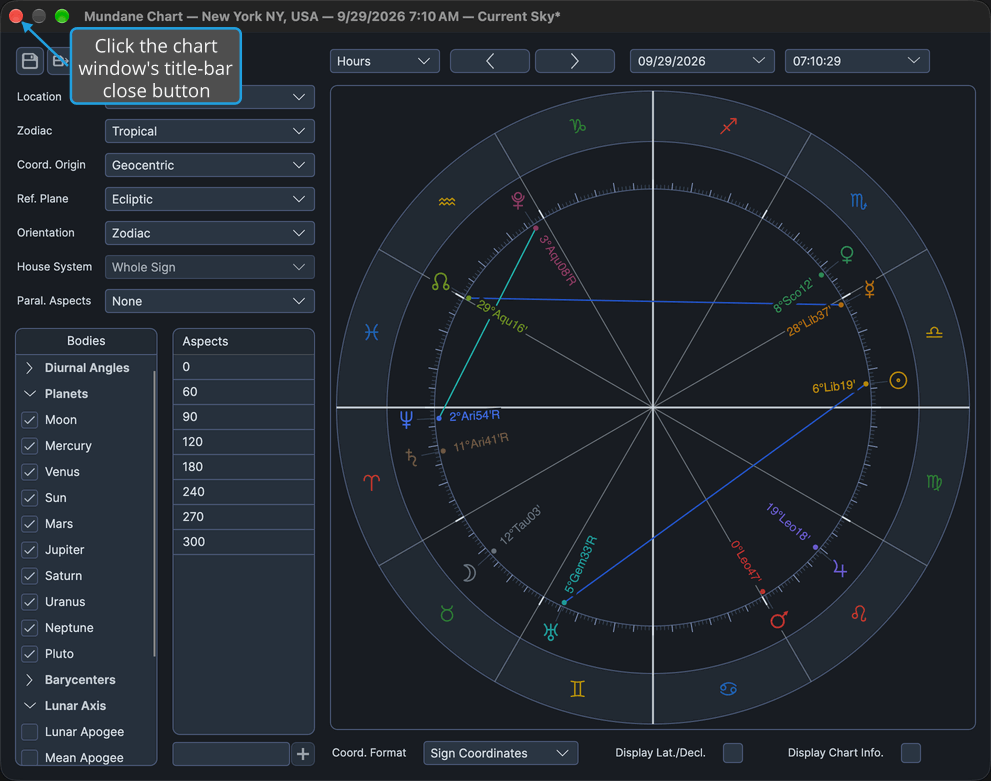
- Click the chart window's title-bar close button.
- Click Cancel in the Unsaved Changes prompt, as described in Cancel Closing from the Unsaved Changes Prompt.
The window stays open with its unsaved changes.
Answer the Save Dialog
The save dialog is the operating system's own, and it opens with a suggested file name. Compass shows it as the Save Chart dialog from a chart window's Save or Save As button, and also when you export locations or natal records to a CSV file from an editor's Data menu.
Save a File in the Save Dialog
To choose where the file is written and save it:
- Browse to the destination folder.
- Type the file name in the dialog's name field.
- Click Save.
The dialog closes and the command that opened it writes the file to the chosen folder under the chosen name. Pressing Enter does the same as clicking Save. When a file of that name already exists, the operating system asks whether to replace it.
Cancel the Save Dialog
To close the save dialog without writing a file:
- Click Cancel in the save dialog.
The dialog closes and nothing is written. Pressing Esc does the same.
Answer the Unsaved Changes Prompt
The Unsaved Changes prompt asks "Would you like to save your changes before closing?" and offers Yes, No and Cancel. It appears in front of a window with unsaved changes that is being closed: a chart window bound to a .compass file (closed on its own or while Compass quits), the Chart Settings editor, an Aspect Settings editor, or the Locations or Natal Records editor.
Save Changes from the Unsaved Changes Prompt
To keep the changes by saving them before the window closes:
- Click Yes in the Unsaved Changes prompt.
The changes are saved and the close, or the quit that raised the prompt, goes ahead. If the save does not complete, the window stays open with its changes, and a quit stops. Yes is the prompt's default button, so pressing Enter answers it too.
Discard Changes from the Unsaved Changes Prompt
To let the changes go:
- Click No in the Unsaved Changes prompt.
The changes are discarded and the close, or the quit, goes ahead. A settings editor's colors and defaults first return to their last saved state, and open charts follow them. When Compass is quitting, a chart answered No closes only once every chart asked about has answered, so a later Cancel still keeps it open.
Cancel Closing from the Unsaved Changes Prompt
To abandon closing the window:
- Click Cancel in the Unsaved Changes prompt.
The prompt closes and the close, or the quit, is abandoned: the window stays open with its unsaved changes, and during a quit every window stays open. A chart already answered Yes during the quit stays saved.
Related Topics
- Open Chart File: reopen a saved chart, bound to its file.
- Chart Window Toolbar: the Save and Save As buttons.
- Quit Compass: the Unsaved Changes prompt for every changed chart file when Compass quits.
- Chart Settings Window, Aspect Settings Window, Locations Editor and Natal Records Editor: the other windows that ask the same question when closed with unsaved changes.
- Export Locations and Export Natal Records: the other commands that use the save dialog.