Drag a Body to an Aspect
Explore how the sky evolves as a planet moves, and find when two planets form an aspect. On the Mundane Chart and the Transit Chart, hold Control (Ctrl on Windows), press on a transiting body's glyph and drag it. Watch the chart follow the body, then release on another body or one of its aspect points to jump to the aspect, or press Esc to go back.
On macOS this drag uses the Control key, not Command.
How the Chart Follows the Drag
While you drag a transiting body with Control held, a translucent copy of the body's glyph, the ghost, follows the pointer, and the whole chart moves with it. At each position, every other body is redrawn where it stands when the dragged body reaches that degree, while the house cusps and angles hold still.
The ghost of the dragged body snaps within 1.5° to another transiting body, or to one of that body's aspect points for the chart's aspect angles. The conjunction is always offered. While the ghost is snapped, the chart stands at that aspect's nearest perfection.
The ghost's label shows what a release there will do:
| Label | Meaning |
|---|---|
{body} | The ghost is snapped to that body. |
{body} at {angle}° | The ghost is snapped to that body's aspect point at the angle shown. |
| An arrow and the coordinate | The ghost is not snapped, and a release lands on the moment the dragged body stands at that degree. The arrow is the direction cue: → when the release will land on the next occurrence, ← when it will land on the previous one. |
| The coordinate alone, with no arrow | The ghost is not snapped, and a release there returns the chart to its starting moment. |
Only Control starts this drag; pressing with Control and Shift together starts no drag. Natal bodies and the plotted angles cannot be dragged.
Where the Chart Lands
| Release | Where the Chart Lands |
|---|---|
| On a snapped target | The perfection of that aspect nearest the moment shown |
| Elsewhere, after a counterclockwise wind | The next moment the dragged body stands at the released degree; each whole lap lands one occurrence further on |
| Elsewhere, after a clockwise wind | The previous moment the dragged body stood at the released degree; each whole lap lands one occurrence further back |
| Back where the drag began, with no lap | Exactly the starting moment |
| Canceled with Esc, or with the pointer lost | Exactly the starting moment |
It is the net rotation you wind that decides the direction, not where the release lands.
If the pair never forms the aspect within the ephemeris range, a notice appears in the Chart Message Banner and the chart goes back to its starting moment.
Jump to an Aspect by Control-Dragging a Body
The aspect you want must be in the chart's aspects grid, set as described in Chart Aspect Angles; the conjunction is always offered.
To find when a transiting body forms an aspect with another transiting body:
- Hold down Control (Ctrl on Windows) and press the left mouse button on a transiting body's glyph.
- Drag the ghost around the wheel until it snaps to a target and its label names it.
- Release the mouse button.
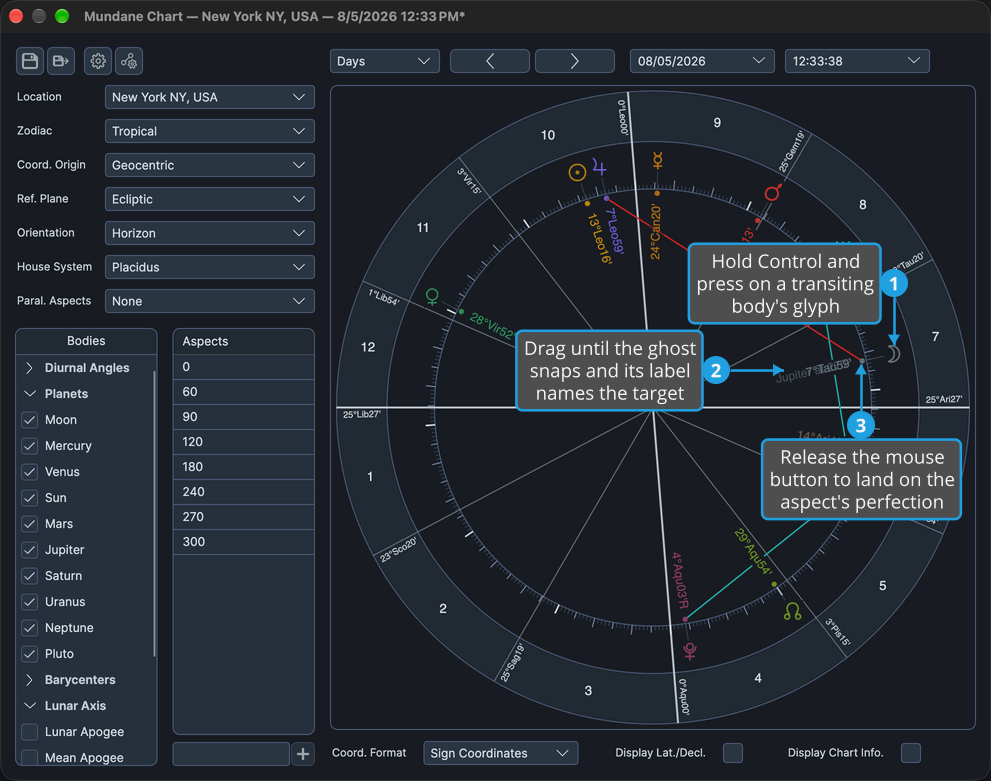
While you drag, the whole chart follows the body with the house cusps and angles held. On the release, the chart lands on the perfection of that aspect nearest the moment shown, with the date and time pickers updated.
Jump Forward to a Degree by Control-Dragging a Body
To move the chart forward to when a transiting body next reaches a chosen degree, watching the sky follow:
- Hold down Control (Ctrl on Windows) and press the left mouse button on a transiting body's glyph.
- Drag the ghost counterclockwise around the wheel to a degree where its label shows an arrow and the coordinate.
- Release the mouse button.
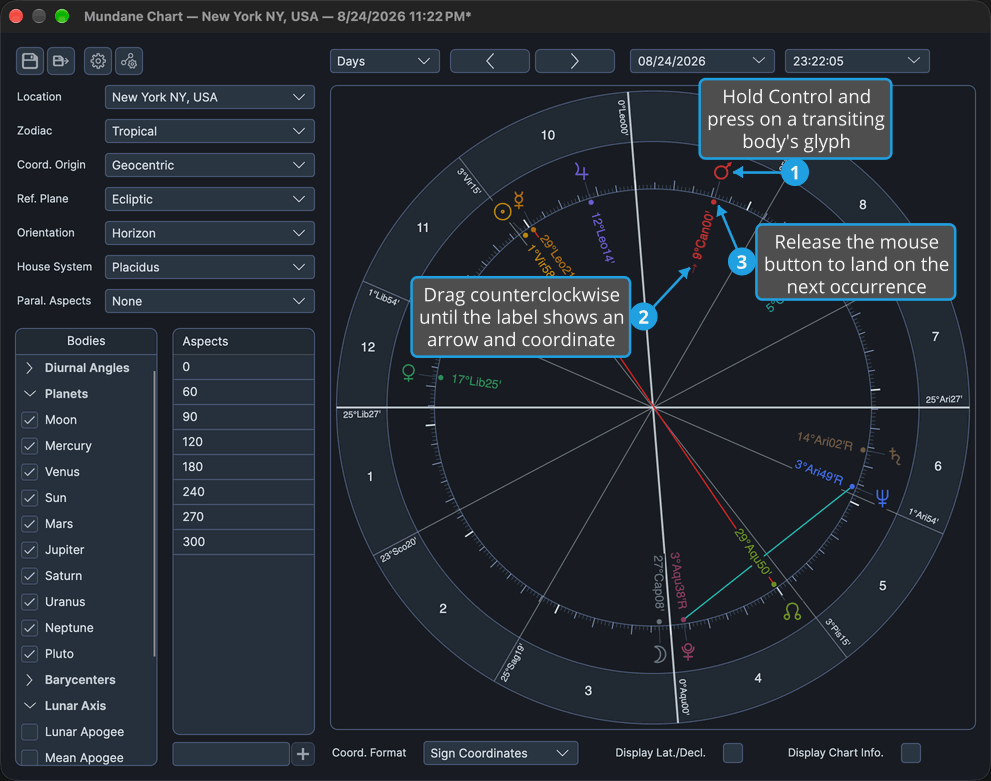
The chart lands on the next moment the dragged body stands at the released degree. Each whole counterclockwise lap wound before the release lands one occurrence further on. Releasing back where the drag began, with no lap, returns the chart to its starting moment exactly.
Jump Back to a Degree by Control-Dragging a Body
To move the chart back to when a transiting body last reached a chosen degree, watching the sky follow:
- Hold down Control (Ctrl on Windows) and press the left mouse button on a transiting body's glyph.
- Drag the ghost clockwise around the wheel to a degree where its label shows an arrow and the coordinate.
- Release the mouse button.
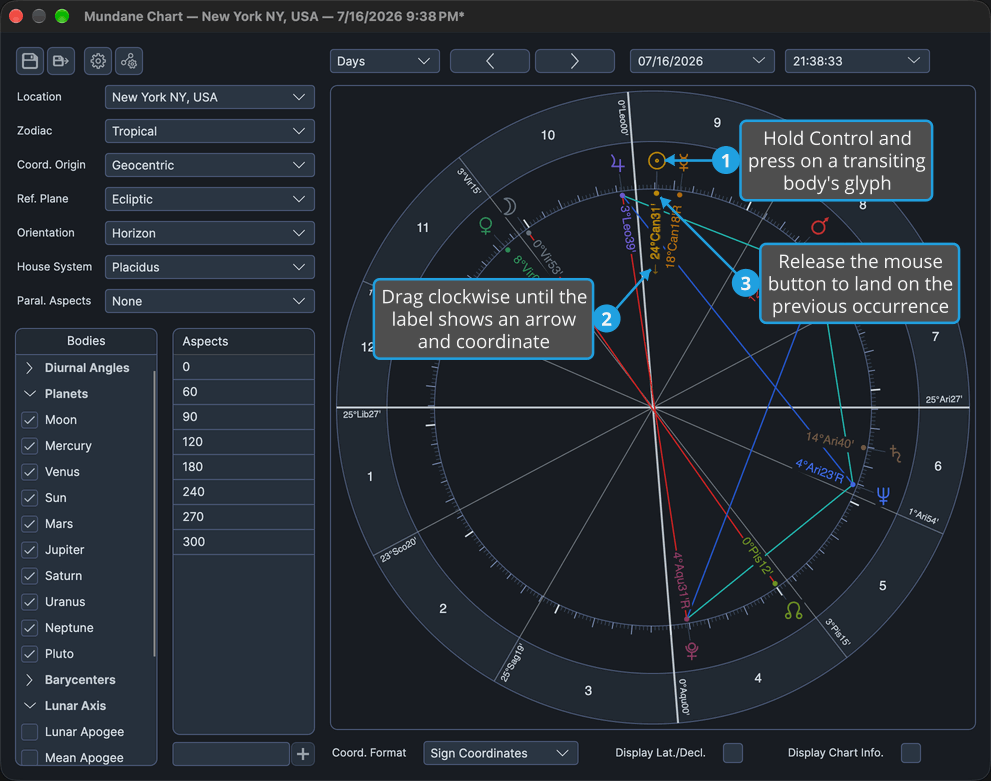
The chart lands on the previous moment the dragged body stood at the released degree. Each whole clockwise lap wound before the release lands one occurrence further back.
Cancel a Control-Drag
To abandon the drag and put the chart back:
- Hold down Control (Ctrl on Windows) and press the left mouse button on a transiting body's glyph.
- Drag the ghost around the wheel.
- Press Esc with the mouse button still held.
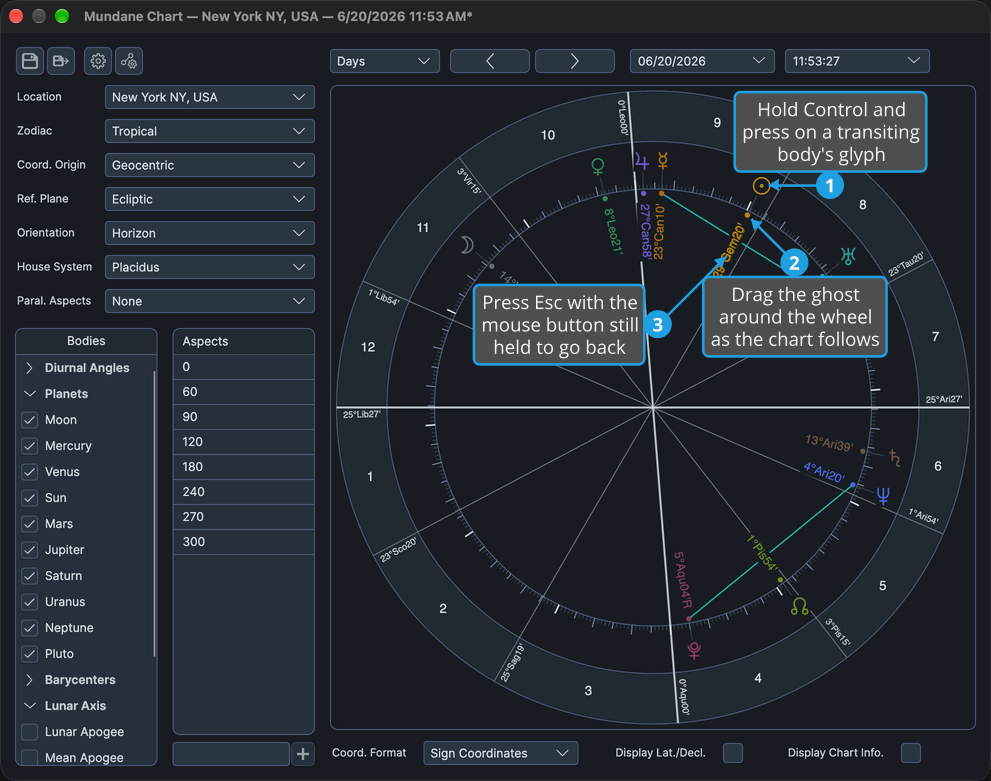
The chart returns exactly to the moment it showed when the drag began: its date, its time and its exact instant. Losing the pointer mid-drag also returns the chart to its starting moment.
Related Topics
- Drag a Body to Its Transit: Shift-drag a transiting body to jump to its transit of a degree while the chart stays still.
- Chart Aspect Angles: the aspect angles that give each body's aspect points.
- Chart Wheel: what the wheel draws.
- Chart Message Banner: where a notice appears when a pair never forms the aspect.