Chart Time Navigation
Watch the chart change as time moves forward or back, or jump straight to a particular date and time. The time band above the wheel of every chart window holds a step-unit drop-down and a back and a forward chevron. Select a step unit, then click or hold a chevron, or press - or +. On the charts that carry date and time pickers, type a date and time to jump there.
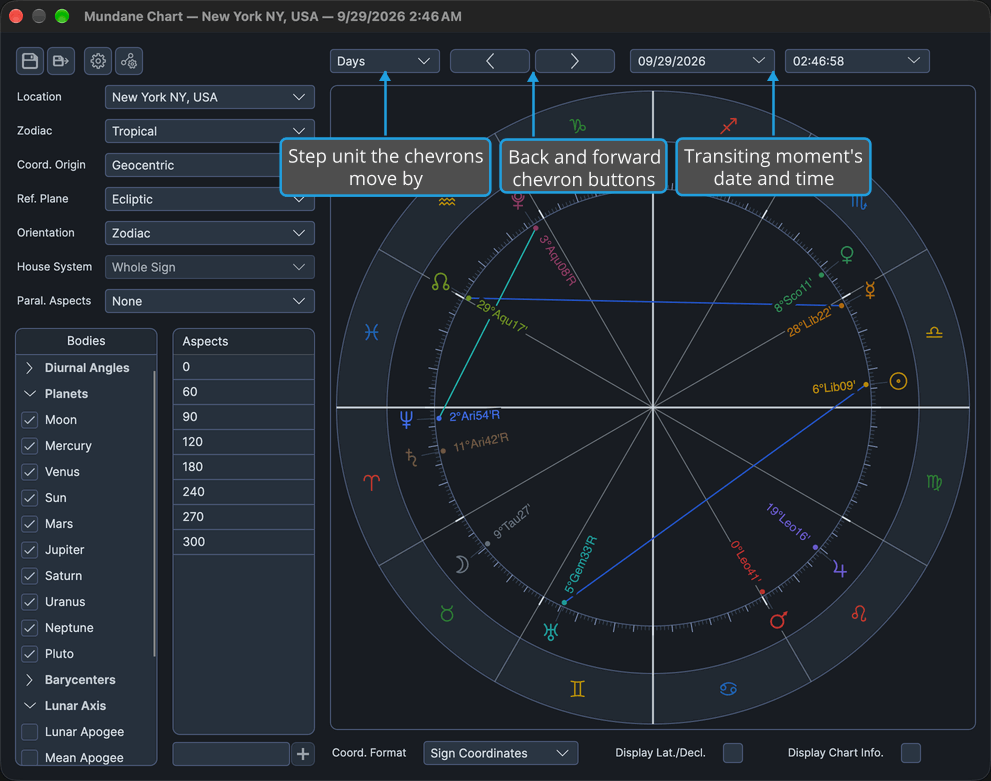
What the Time Band Steps
What the chevrons step, and whether the band carries date and time pickers, depends on the chart type:
| Chart | Date and Time Pickers | What the Chevrons Step |
|---|---|---|
| Mundane Chart | Yes | The transiting moment |
| Transit Chart | Yes | The transiting moment |
| Solar Arc Directions Chart | Yes | The directed date |
| Secondary Progressions Chart | Yes | The progressed date |
| Natal Chart | No | The birth moment |
| Primary Directions Chart | No | The birth moment, re-dating every listed direction |
Choose the Step Unit
To decide how far each step moves the chart:
- Select a unit in the step-unit drop-down above the wheel.
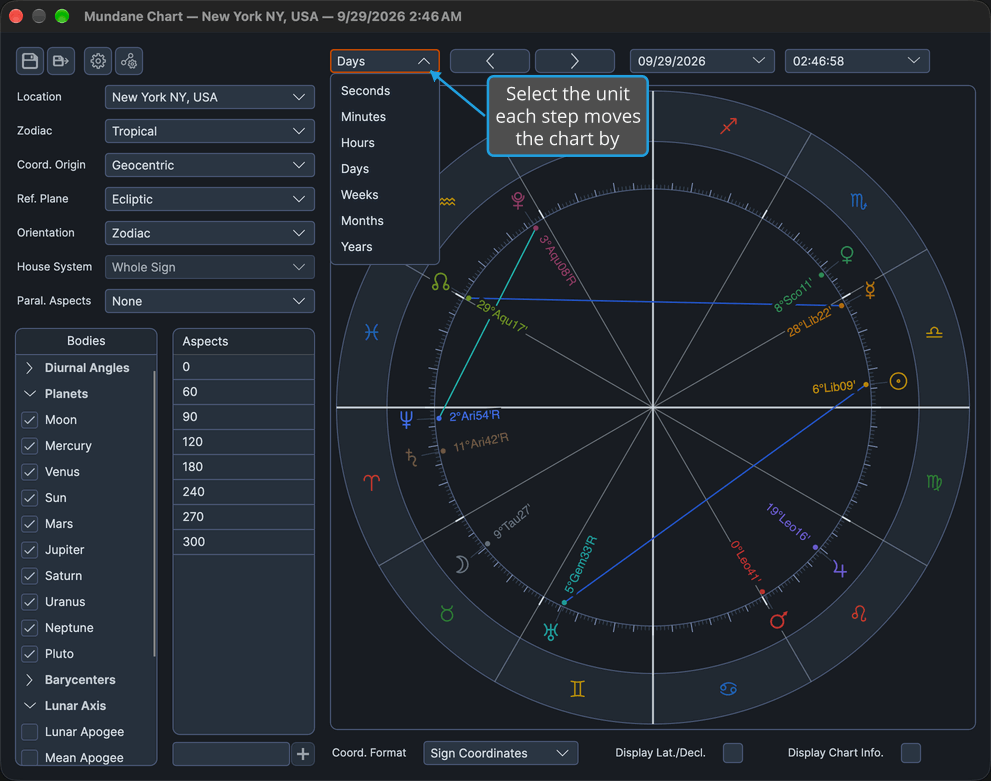
The chevrons and the + and - keys then step the chart by one chosen unit. You can also press Shift+1 to Shift+7 to choose a unit, from Seconds to Years.
Step Units
The step-unit drop-down offers the same seven units on every chart type. A new chart window starts at Days; a chart reopened from a chart file starts at the unit it was saved with.
| Unit | Keyboard Shortcut |
|---|---|
| Seconds | Shift+1 |
| Minutes | Shift+2 |
| Hours | Shift+3 |
| Days | Shift+4 |
| Weeks | Shift+5 |
| Months | Shift+6 |
| Years | Shift+7 |
Step the Chart Forward
To move the chart one unit later:
- Click the forward chevron above the wheel.
The chart redraws one step unit later. Which moment moves depends on the chart type, as the table above shows. On the Primary Directions chart, every listed direction is re-dated.
Hold the chevron down to keep stepping. You can also press +, and holding + keeps stepping in the same way. + still steps the chart while a date or time picker has focus.
Step the Chart Back
To move the chart one unit earlier:
- Click the back chevron above the wheel.
The chart redraws one step unit earlier, moving the same moment the forward chevron moves.
Hold the chevron down to keep stepping. You can also press -, and holding - keeps stepping in the same way. - still steps the chart while a date or time picker has focus.
Go to a Date and Time
To jump a Mundane, Transit, Solar Arc Directions or Secondary Progressions chart straight to a chosen date and time:
- Click the date field above the wheel to select its whole value.
- Type the date.
- Click the time field beside it to select its whole value.
- Type the time.
- Press Enter to commit the time.
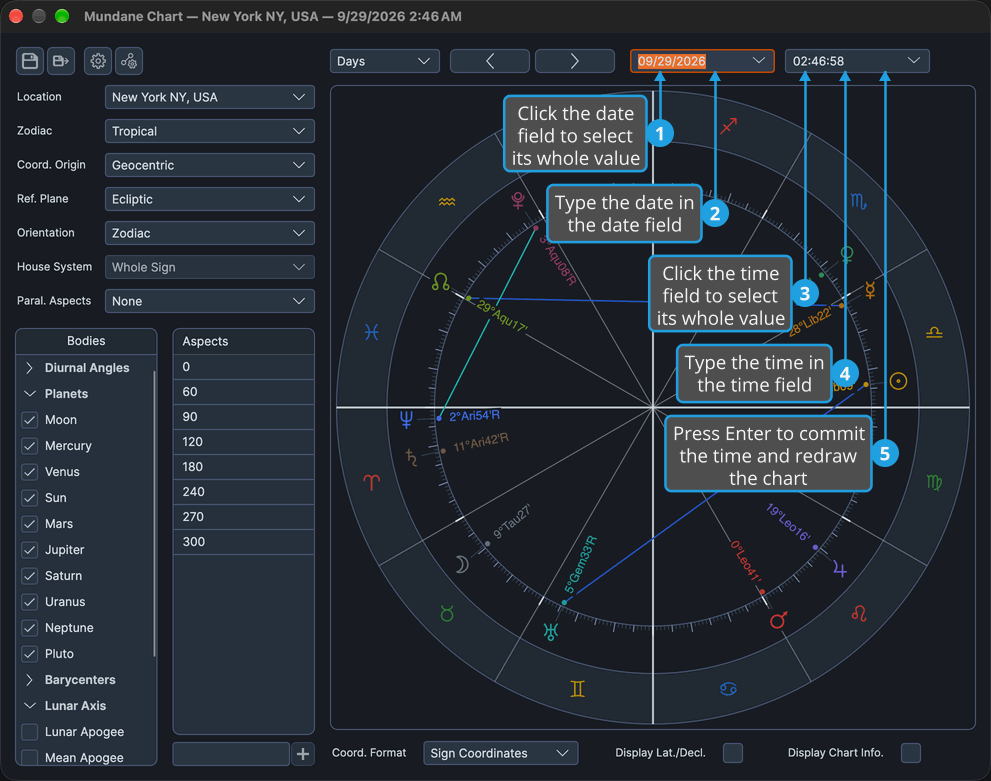
The chart redraws at the typed moment: the transiting moment on the Mundane and Transit charts, the directed date on the Solar Arc Directions chart, and the progressed date on the Secondary Progressions chart. The Natal and Primary Directions charts carry no pickers on this band.
A typed date commits when the date field loses focus, as it does at step 3, or when you press Enter. To pick a date from a calendar instead, click the date field's drop-down button, or press Option+Down (Alt+Down on Windows).
Keyboard Shortcuts
| Key | Action |
|---|---|
+ | Step the chart forward one unit |
- | Step the chart back one unit |
| Shift+1 to Shift+7 | Choose the step unit, from Seconds to Years |
These keys do nothing while you type in a text field, except that + and - still step the chart while a date or time picker has focus. The unit shortcuts also do nothing while a body is being dragged on the wheel.
Related Topics
- Chart Wheel: the wheel the time band moves through time.
- Drag a Body to Its Transit: jump the chart to the moment a body reaches a chosen degree.
- Drag a Body to an Aspect: move the chart by dragging a transiting body around the wheel.
- Directions List: the list that the Primary Directions chart re-dates as its birth moment steps.