Directions List
The directions list gathers the directions you are interested in into one dated list that you can read, work through and come back to. Read the list beside the wheel and click a row to see it on the wheel. On the Solar Arc Directions and Secondary Progressions charts, double-click a dated row, or right-click it and click Go to Date, to move the chart to its date.
The list sits at the right of the Primary Directions Chart, Solar Arc Directions Chart and Secondary Progressions Chart windows, at half the wheel's width, with a splitter between them. It holds the directions you list by dragging (List a Direction by Dragging) or with the Calculate button (Calculate Directions), and its rows are saved with the chart.
Columns
The list has two columns on all three charts:
| Column | Description |
|---|---|
| Date Time | The moment the listed contact perfects, in the natal record's own time zone, in the long date and time format. The column is narrow, so the time wraps under the date. The cell is empty for a row that has no direction, and shows an ellipsis (…) while the row's date is still being worked out. |
| Direction | The contact in the chart's own wording: the carried point, the target and the cycle angle to three decimals, then the technique's own detail, described under How a Row Reads below. Points are written by their full names, so the Midheaven reads Medium Coeli. |
Rows run in date order: dated rows first, from the earliest perfection, then the rows that have no date. Rows with the same date keep the order they were added in. Both columns are read-only, and you cannot sort or reorder them.
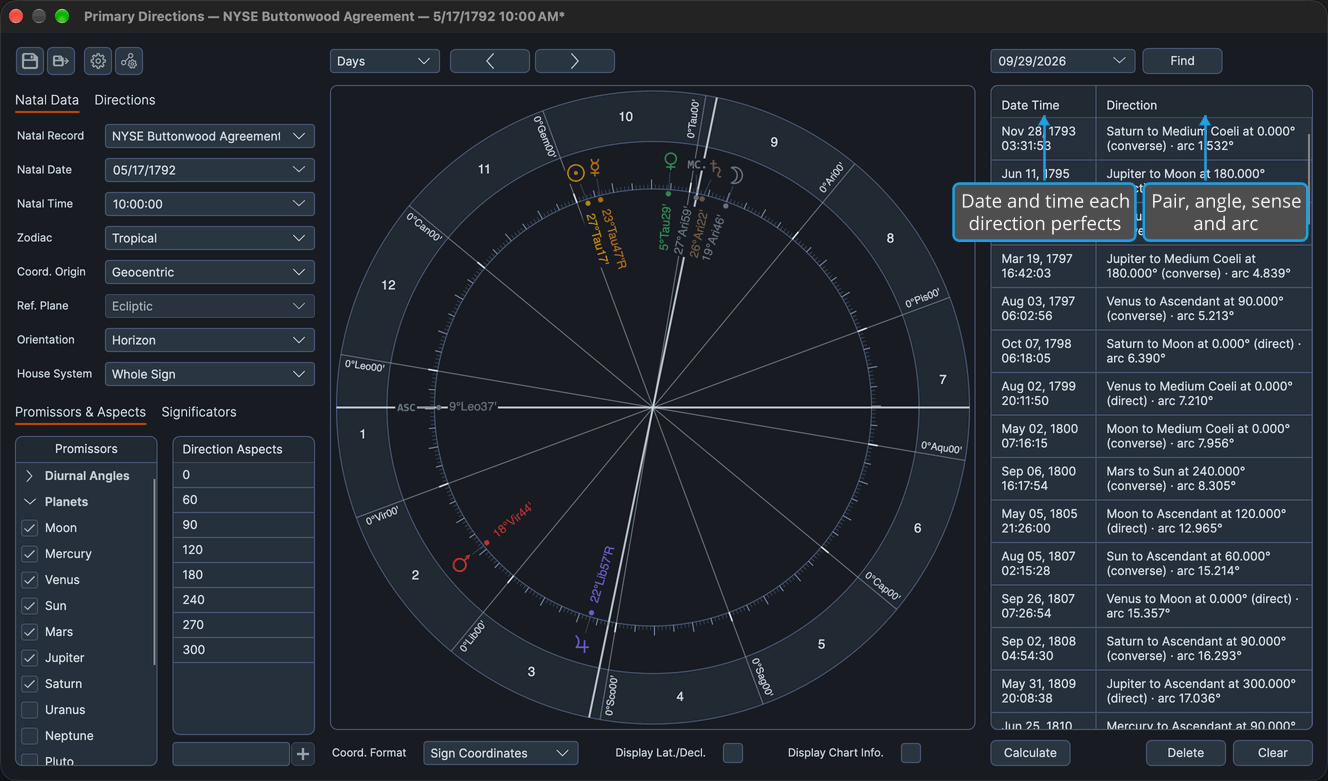
How a Row Reads
The Direction column follows the pair and the cycle angle with a detail that depends on the chart:
| Chart | What Follows the Pair and Angle | Example |
|---|---|---|
| Primary Directions | The sense in parentheses, direct or converse, then the arc. This is the only chart whose rows name a sense. | Sun to Medium Coeli at 90.000° (direct) · arc 23.410° |
| Solar Arc Directions | The arc. | Sun to Medium Coeli at 0.000° · arc 346.751° |
| Secondary Progressions | The progressed point's motion at the perfection: direct, retrograde or stationary. | Moon to Uranus at 0.000° · direct |
The numbers in these examples are illustrative. A row can also read in two other states:
- No direction: a combination that has no answer stays listed, grayed, with the pair and angle followed by
· no direction:and its reason. - Still resolving: the pair and angle are followed by
· …until the answer arrives.
Show a Listed Direction on the Wheel
To see where a listed direction happens on the wheel:
- Click the direction's row in the directions list.
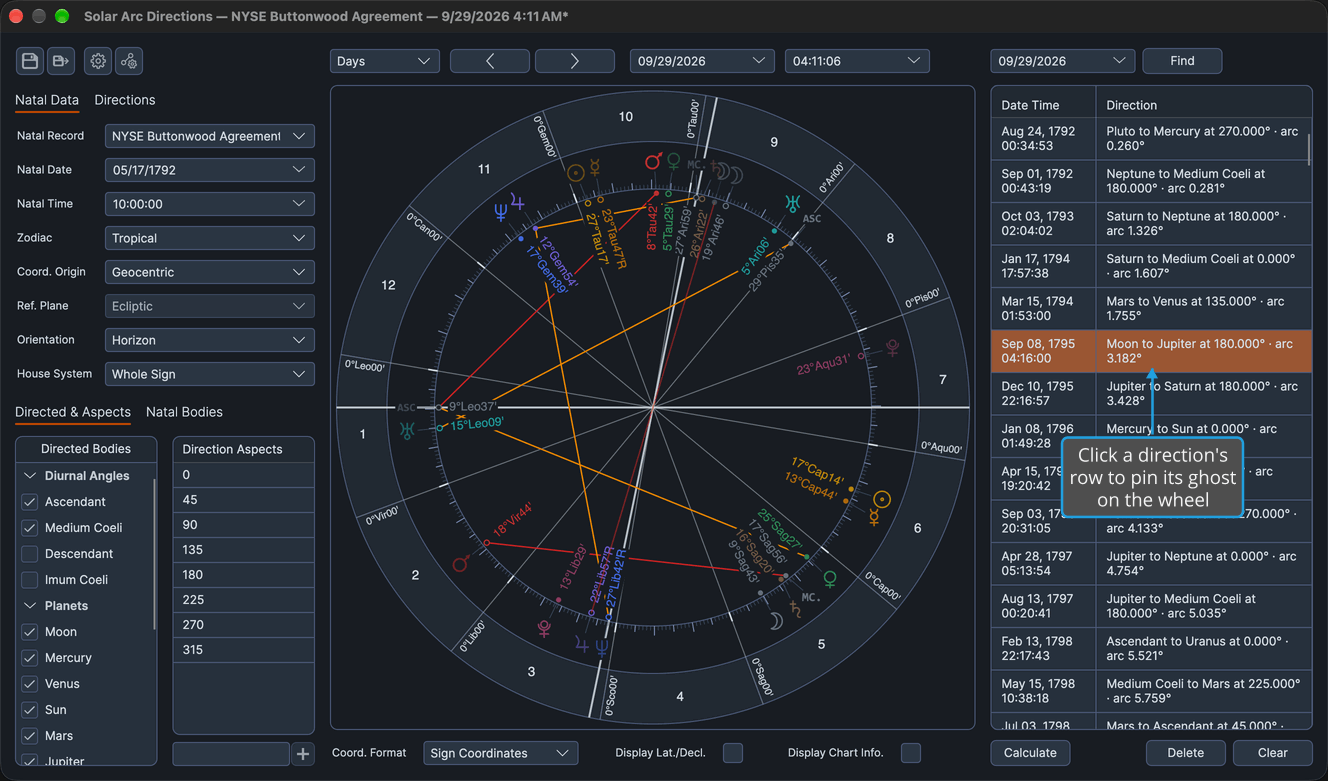
The row is highlighted and the wheel pins the direction's ghost, a translucent copy of the carried point's glyph, at its place, with a chord in the aspect's color when the row is an aspect rather than a conjunction. The chart itself does not move.
A row that is an aspect on a Primary Directions chart in the mundane frame pins nothing, because that frame offers no aspect points to hang it on. Selecting a row never changes the chart's moment and never counts as a change to a chart saved to a file.
Go to a Direction's Date
To move a Solar Arc Directions or Secondary Progressions chart to the moment a listed direction perfects:
- Right-click the dated row in the directions list (see Open the Directions List Row Menu).
- Click Go to Date in the row menu.
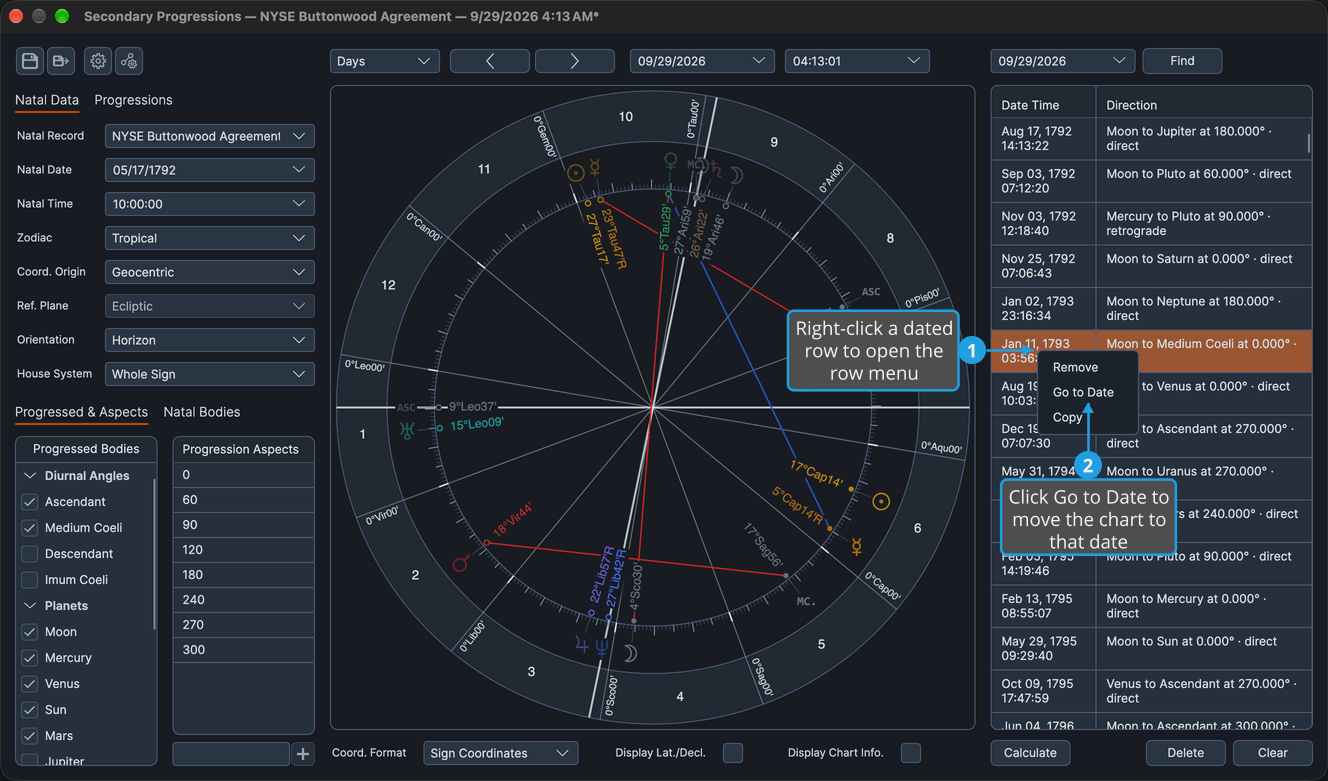
The chart's directed or progressed date and time move to the row's perfection, and the wheel is redrawn as the chart of that moment.
Double-clicking a dated row does the same.
The Primary Directions chart offers no Go to Date: its row menu shows no such item and a double-click does nothing, because its wheel is the birth chart. Go to Date is unavailable on a row with no date, whether grayed or still resolving.
Open the Directions List Row Menu
The row menu holds the commands for the rows of the list. To open it on a Primary Directions, Solar Arc Directions or Secondary Progressions chart whose list holds at least one row:
- Right-click a row in the directions list.
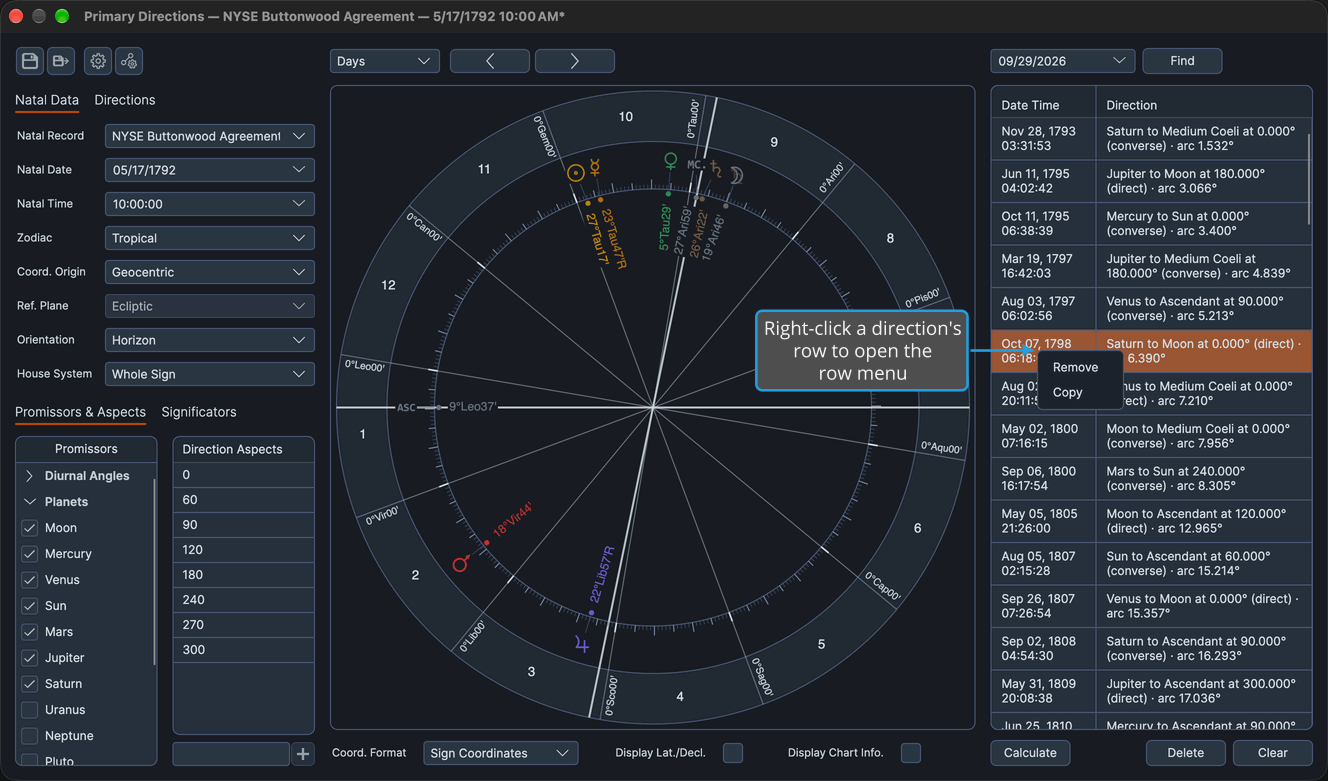
The row menu opens at the pointer, offering the items listed below.
Row Menu Items
The items on the row menu depend on the chart type, since only the Solar Arc Directions and Secondary Progressions charts can move to a row's date. The Mundane, Natal and Transit charts carry no directions list, so they have no row menu.
Primary Directions Chart
| Item | Description |
|---|---|
| Remove | Removes the selected rows from the list. See Remove Directions. |
| Copy | Copies the selected rows to the clipboard, one line per row with the date and the direction separated by a tab. See Copy Directions. |
Solar Arc Directions and Secondary Progressions Charts
| Item | Description |
|---|---|
| Remove | Removes the selected rows from the list. See Remove Directions. |
| Go to Date | Moves the chart to the date of the row you right-clicked, the same as double-clicking a dated row. The item stays on the menu but is unavailable on a row with no date. |
| Copy | Copies the selected rows to the clipboard, one line per row with the date and the direction separated by a tab. See Copy Directions. |
Resize the Directions List
To give more width to the wheel or to the directions list:
- Drag the splitter between the wheel and the directions list left or right.
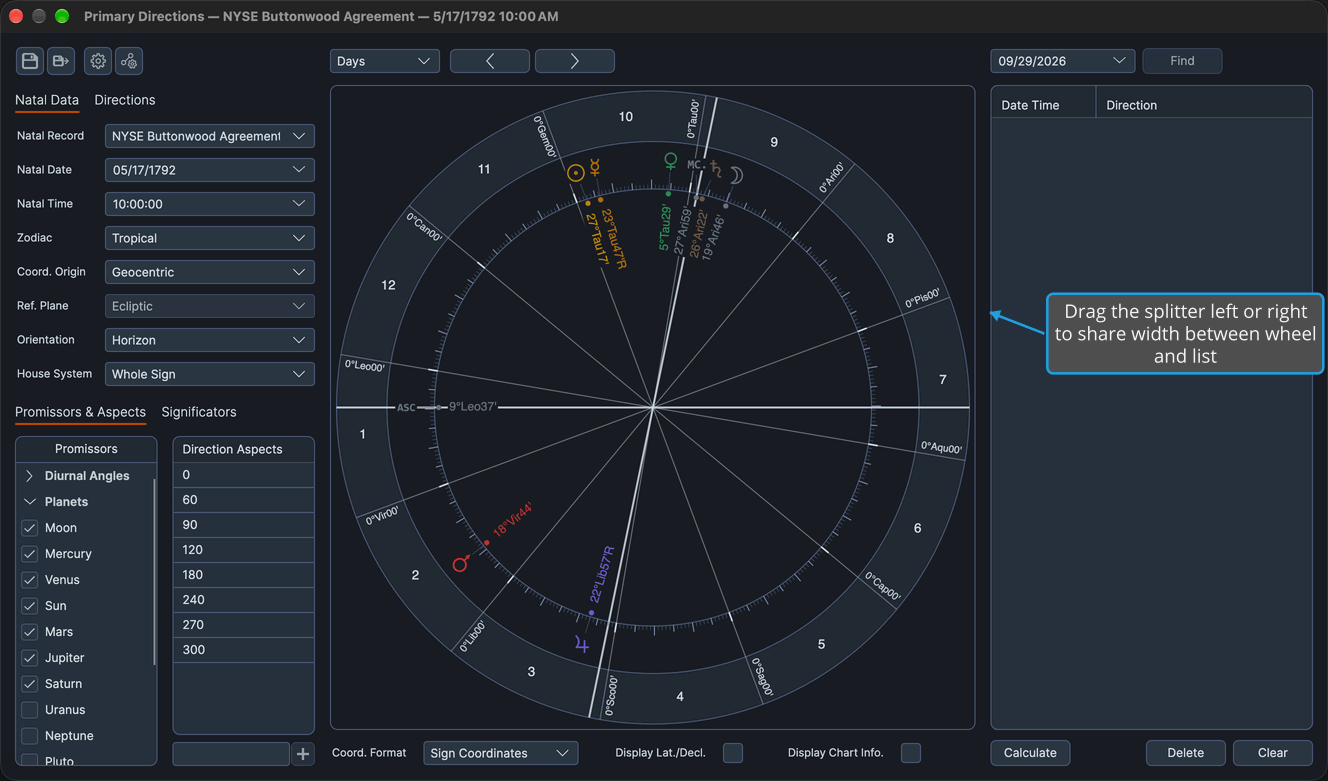
The wheel column and the list change width together, and the wheel stays square and centered in its frame. The list keeps a minimum width of 280 pixels and the wheel column a minimum of 485 pixels, which stop the drag.
Related Topics
- List a Direction by Dragging and Calculate Directions: fill the list.
- Find a Direction by Date: select the listed direction nearest a date.
- Copy Directions, Remove Directions and Clear the Directions List: work with the rows.
- Save Chart: keep the list with the chart.