Calculate Directions
Calculate lists every direction within a lifespan at once, and keeps the list up to date while you refine the birth time. Click Calculate beneath the directions list on a Primary Directions, Solar Arc Directions or Secondary Progressions chart and remove the rows you don't need, then adjust the birth time or the settings and watch the remaining rows re-date.
What Calculate Lists
Calculate fills the directions list in one step with every carried point to every target at every cycle angle in the aspects grid, keeping the directions that perfect within Max Years of the birth. The rows appear in date order.
What is carried, what it is carried to, which senses are listed, and whether a point carried to its own place under a conjunction is kept depend on the chart:
| Chart | Carried Points | Targets | Senses Listed | A Point to Its Own Place Under a Conjunction |
|---|---|---|---|---|
| Primary Directions | Promissors | Significators | Direct and converse | Left out |
| Solar Arc Directions | Directed points | Natal points | Direct only | Left out |
| Secondary Progressions | Progressed points | Natal points | Direct only | Kept |
Calculate the Directions List
Before you start, open a Primary Directions, Solar Arc Directions or Secondary Progressions chart.
To list every direction within Max Years:
- Click the Calculate button beneath the directions list.
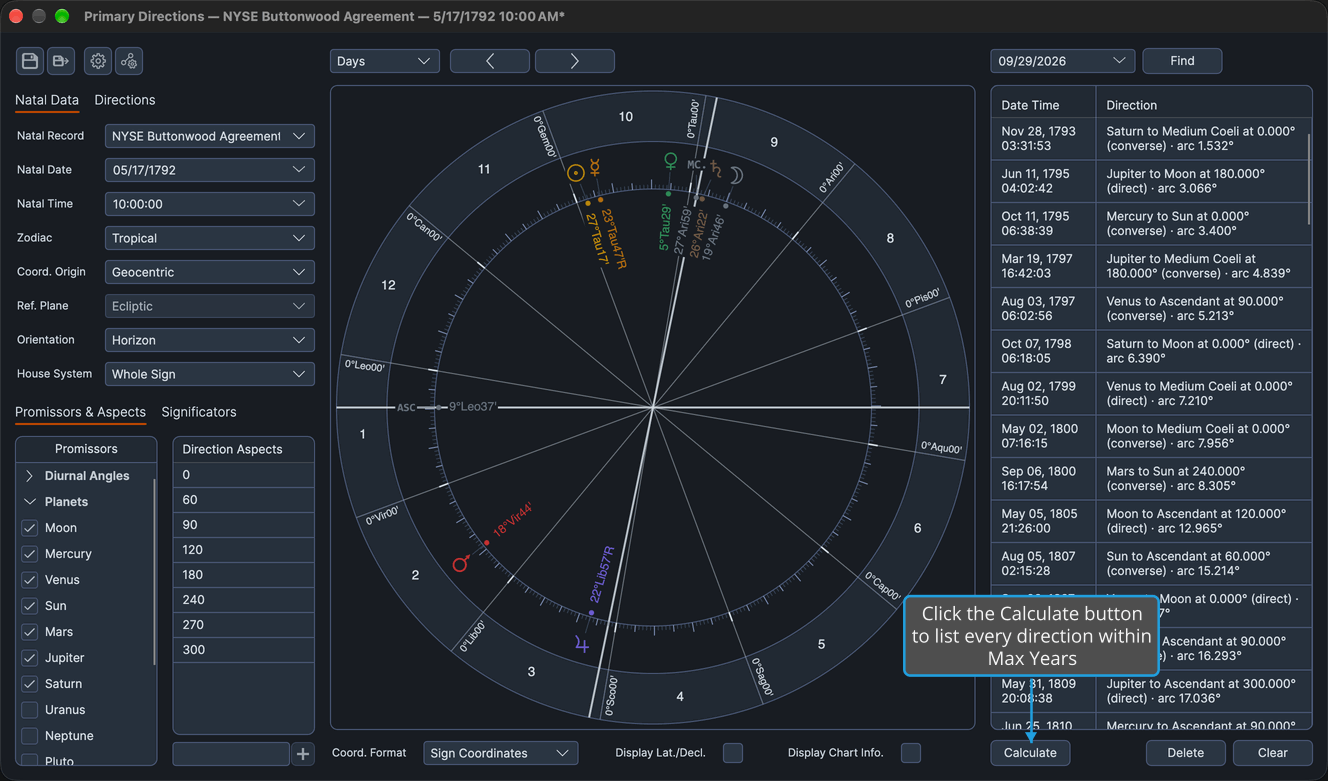
The directions list fills with every direction that perfects within Max Years of the birth, in date order.
Keep the List Up to Date
Calculate also arms the chart. Until you click Clear, changing any of these recalculates the list by itself:
- The natal record, or Natal Date or Natal Time on the Natal Data tab (on the Primary Directions chart, also the time band's chevrons, which step the birth moment)
- The Zodiac and Coord. Origin rows on the Natal Data tab (see Chart Frame)
- The technique settings on the Directions tab (the Progressions tab on the Secondary Progressions chart)
- Max Years
- The body lists or the aspects grid
A recalculation removes calculated rows that no longer qualify, but it never removes a row you listed by dragging, or a row that was in the chart when you opened it from a file (see List a Direction by Dragging). A row you remove while the chart is armed stays out of the list until you next click Calculate (see Remove Directions).
Clicking Clear empties the list and disarms the chart, which stops the automatic recalculation (see Clear the Directions List).
The armed state is not saved with the chart, so a chart you reopen from a file starts disarmed.
To rectify a birth time, remove the rows you don't need before you change anything. A row removed while the chart is armed stays out of every recalculation until you next click Calculate, so only the directions you are testing re-date as you adjust the birth time.