Remove Directions
Remove directions to prune the directions list to the directions that matter. Select the rows in the directions list of a Primary Directions, Solar Arc Directions or Secondary Progressions chart, then click Delete, press Delete (or Backspace), or right-click and click Remove.
Remove Directions from the List
Before you start, make sure the directions list holds the rows you want to remove.
tip
To select a run of rows, click the first row and Shift-click the last. To add rows one at a time, Cmd-click (Ctrl-click on Windows) each row.
To remove directions:
- Select the rows to remove in the directions list.
- Right-click one of the selected rows to open its menu, as described in Open the Directions List Row Menu.
- Click the Remove menu item.
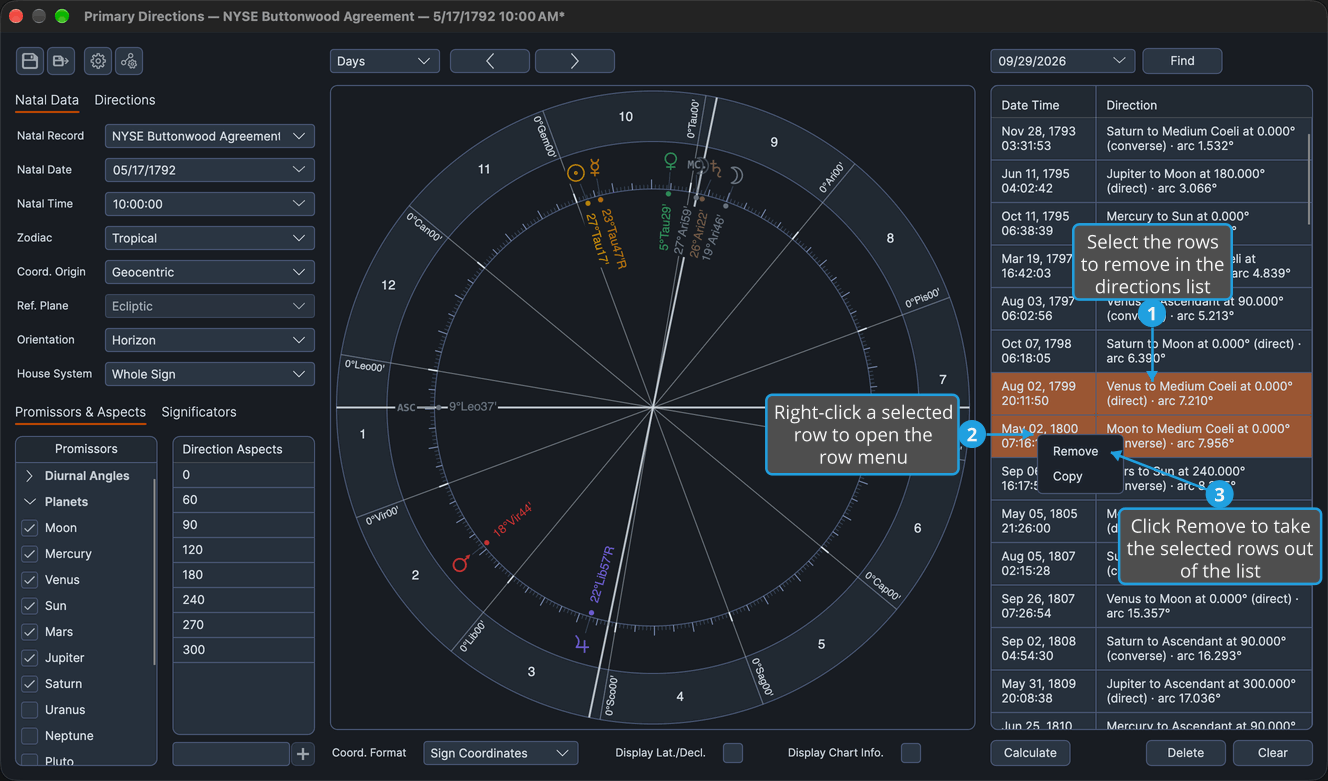
The selected rows leave the list.
caution
No confirmation is asked before the rows are removed.
Other Ways to Remove Directions
With the rows selected, you can also remove them without opening the menu:
- Click the Delete button beneath the directions list.
- Press Delete, or Backspace (the key a Mac keyboard labels delete), while the directions list has focus and no modifier key is held.
What Removing a Direction Changes
- On a chart armed by Calculate Directions, a removed calculated row stays out of the automatic recalculations until you next click Calculate.
- On a chart saved to a file, removing a row is an unsaved change: the chart differs from its file until you save it again (see Save Chart).