List a Direction by Dragging
Drag one point onto another to list exactly the directions you care about. Hold Shift, press on a carried point and drag it onto a target, winding the way that picks the sense or pass you want, then release. Press Esc to cancel.
How the Drag Works
The drag works the same way on the Primary Directions Chart, the Solar Arc Directions Chart and the Secondary Progressions Chart:
- Start: The drag starts when you hold Shift alone and press on the glyph of a carried point: a promissor, a directed point or a progressed point. Control (Ctrl on Windows) arms nothing on these charts.
- Drag: As you drag the point around the wheel, a ghost, a translucent copy of its glyph, follows with a live label while the wheel itself stays still.
- Snap: Within 1.5° the ghost snaps to a target's own place or, where the chart offers them, to one of its aspect points, one for each angle in the chart's aspects grid. While the ghost is snapped, its label names the contact with its solved date.
- Release: Releasing on a snapped target lists the direction in the Directions List. If the list already holds that direction, its row is selected and scrolled into view instead of being listed twice. Releasing on nothing lists nothing, and the wheel does not move either way.
The way you wind the drag means something different on each chart:
| Chart | Point You Drag | Targets | What the Wind Decides |
|---|---|---|---|
| Primary Directions | A promissor | A significator's own place, or one of its aspect points in the zodiacal frame. The mundane frame offers the places only. | The sense: clockwise is direct, counterclockwise is converse. |
| Solar Arc Directions | A directed point | A natal point's own place, or one of its aspect points. | Nothing: the technique has one sense, direct. |
| Secondary Progressions | A progressed point | A natal point's own place, or one of its aspect points. | The pass: counterclockwise lists the next perfection after the chart's date, clockwise the previous one. |
List a Primary Direction
On a Primary Directions chart, the way you wind the promissor around the wheel chooses the sense of the direction. The accumulated rotation decides, never the two end points of the drag, and the ghost's label spells the sense out as a word, direct or converse, never as an arrow. The frame that decides which targets are offered is set on the Directions tab (see Primary Direction Settings).
List a Direct Direction
To list a direct primary direction, with the promissor plotted on the wheel:
- Hold down Shift and press the mouse button on a promissor's glyph on the wheel.
- Drag the glyph clockwise around the wheel until the ghost snaps to a significator target and its label names the direction with its date.
- Release the mouse button.
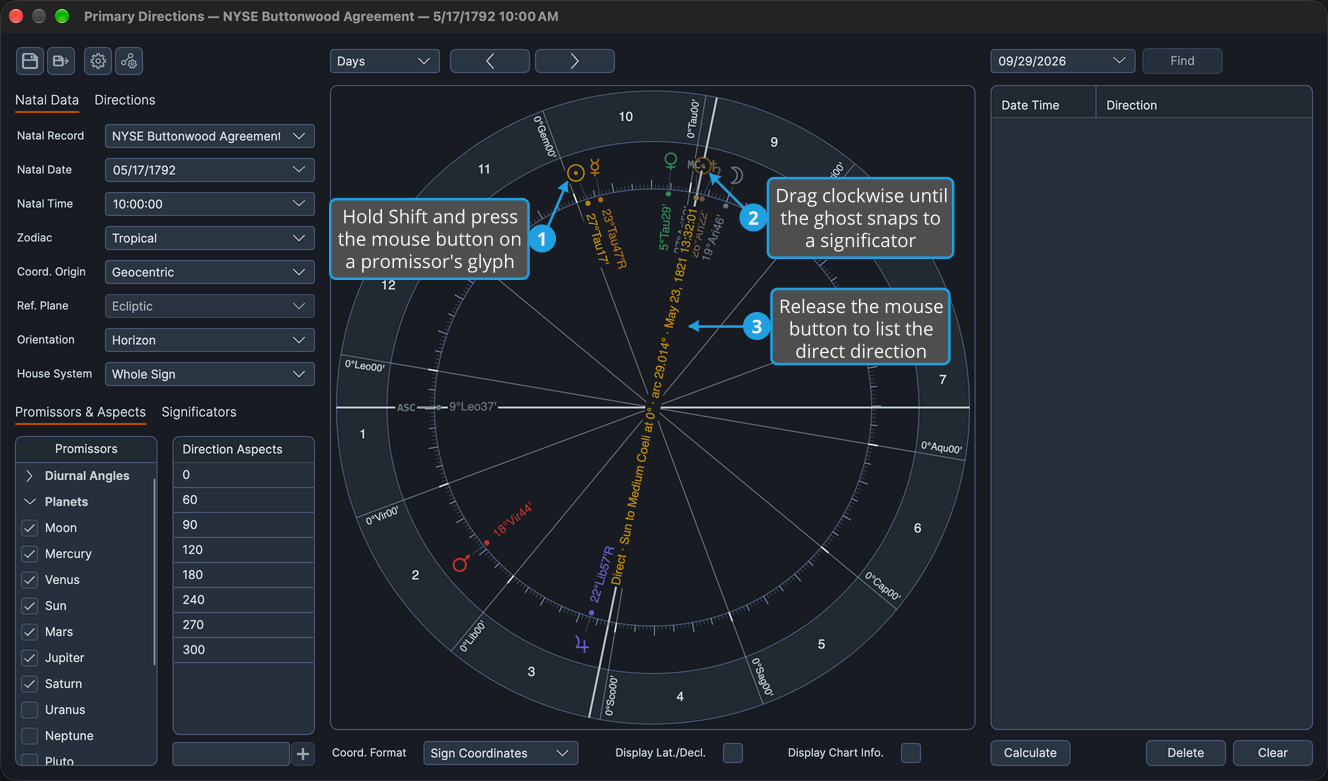
The direct direction is added to the directions list, dated in the natal record's time zone with its arc. Clockwise, with primary motion, is direct.
List a Converse Direction
To list a converse primary direction, dragging the promissor against primary motion:
- Hold down Shift and press the mouse button on a promissor's glyph on the wheel.
- Drag the glyph counterclockwise around the wheel until the ghost snaps to a significator target and its label names the converse direction with its date.
- Release the mouse button.
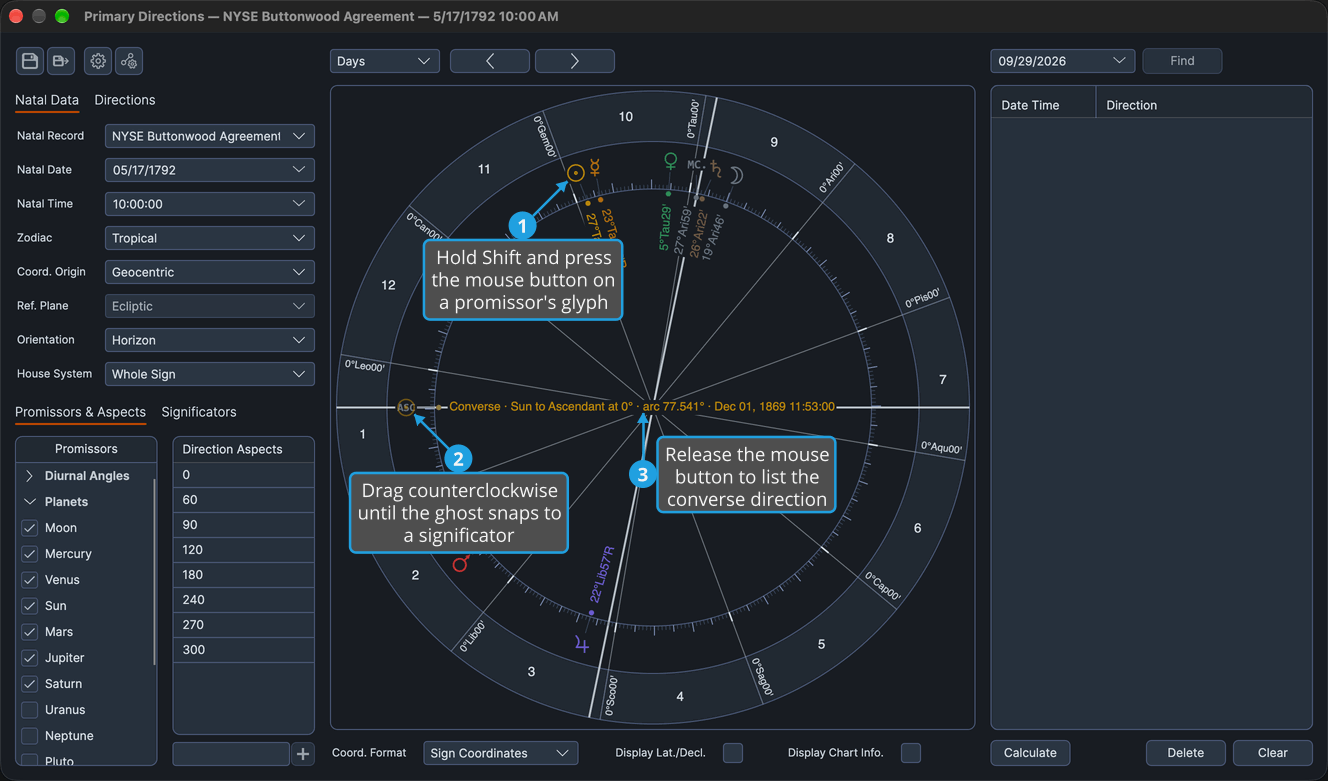
The converse direction is added to the directions list, dated with its arc.
List a Solar Arc Direction
To list a solar arc direction on a Solar Arc Directions chart, with the directed point plotted on the wheel:
- Hold down Shift and press the mouse button on a directed point's glyph on the wheel.
- Drag the glyph around the wheel until the ghost snaps to a natal target and its label names the direction with its date.
- Release the mouse button.
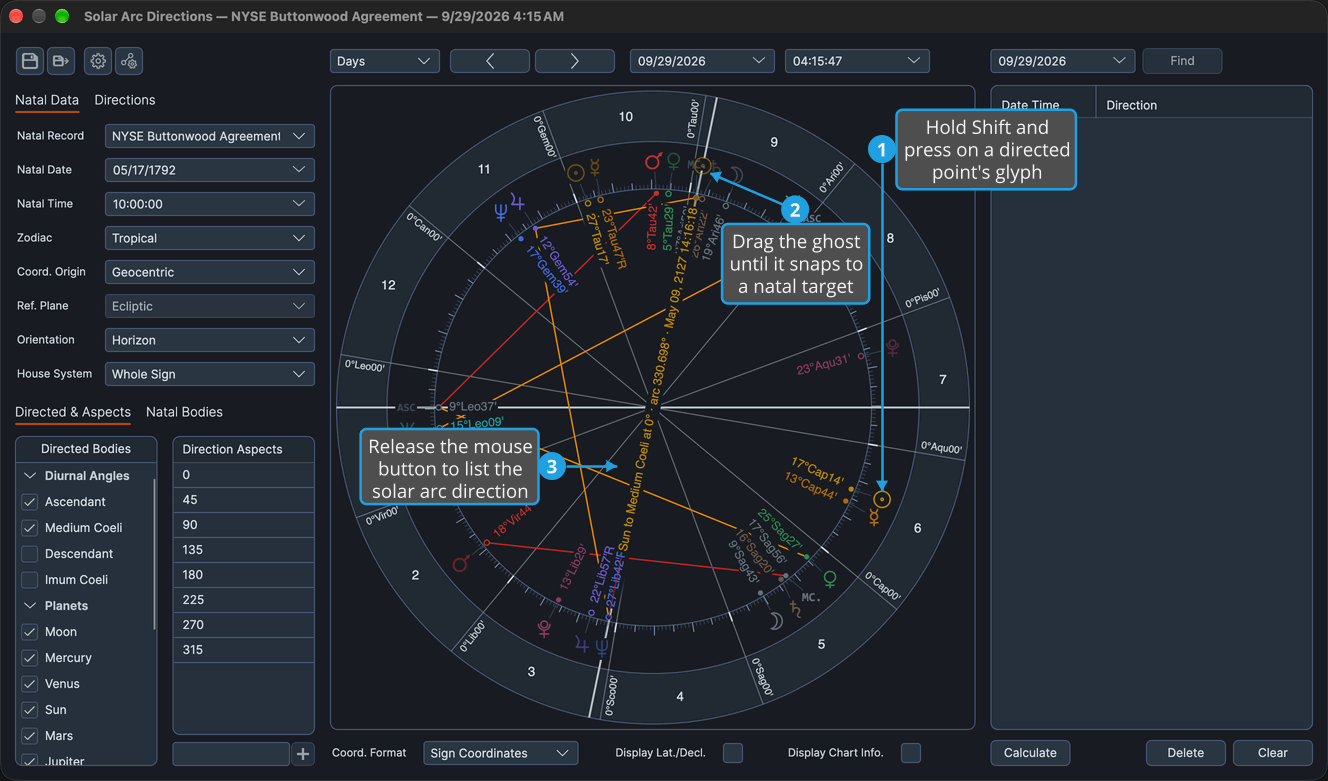
The direct solar arc direction is added to the directions list, dated with its arc. The technique has one sense, direct, so the way you wind the glyph decides nothing on this chart.
List a Progressed Perfection
On a Secondary Progressions chart, the way you wind the progressed point around the wheel chooses which pass of the contact is listed. A progressed point may be dropped on its own natal place, and one contact can be listed several times, once per pass. When a pass lies beyond the span already worked out, the ghost's label shows an ellipsis until it is found.
List the Next Perfection
To list the next perfection of a progressed contact after the chart's progressed date, with the progressed point plotted on the wheel:
- Hold down Shift and press the mouse button on a progressed point's glyph on the wheel.
- Drag the glyph counterclockwise around the wheel, with the progressed set's travel, until the ghost snaps to a natal target and its label names the pass with its date.
- Release the mouse button.
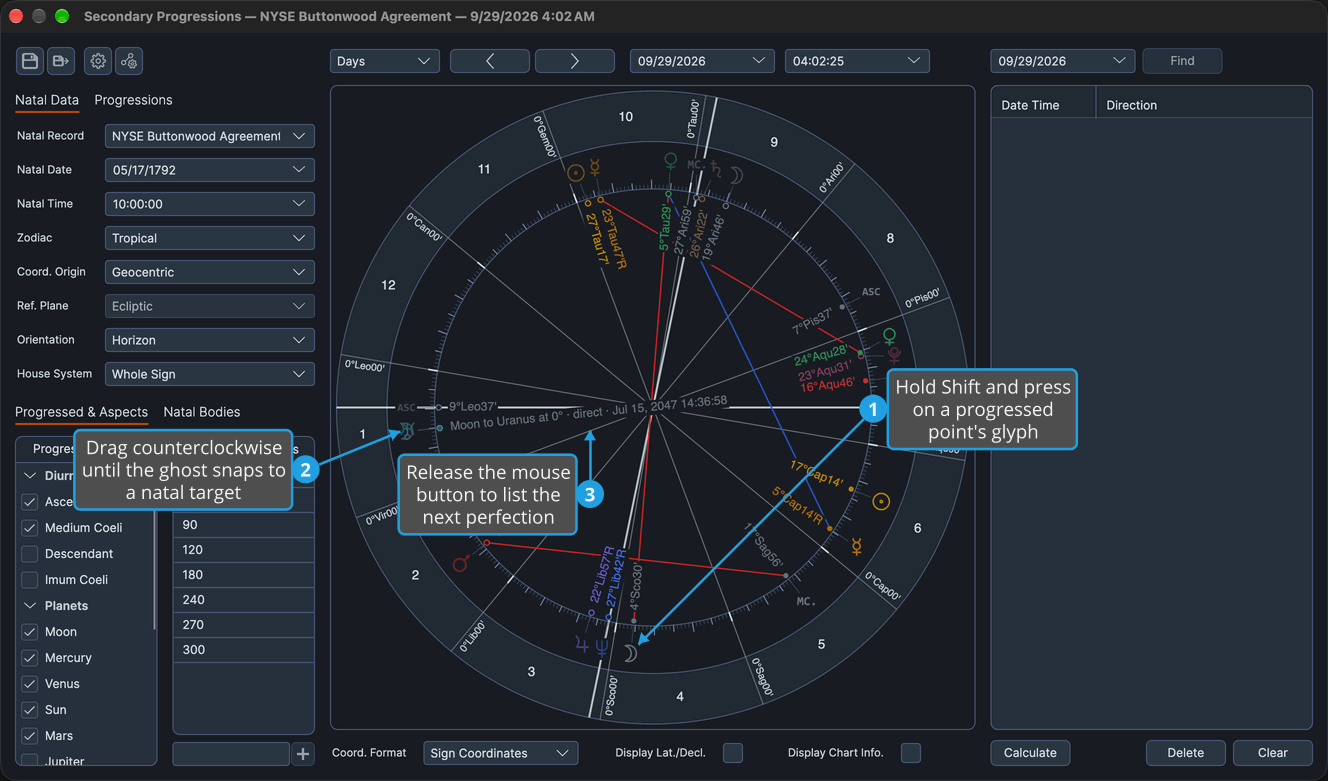
The first perfection after the chart's progressed date is added to the directions list with its date and the progressed point's motion.
List the Previous Perfection
To list the previous perfection of a progressed contact before the chart's progressed date:
- Hold down Shift and press the mouse button on a progressed point's glyph on the wheel.
- Drag the glyph clockwise around the wheel, against the progressed set's travel, until the ghost snaps to a natal target and its label names the pass with its date.
- Release the mouse button.
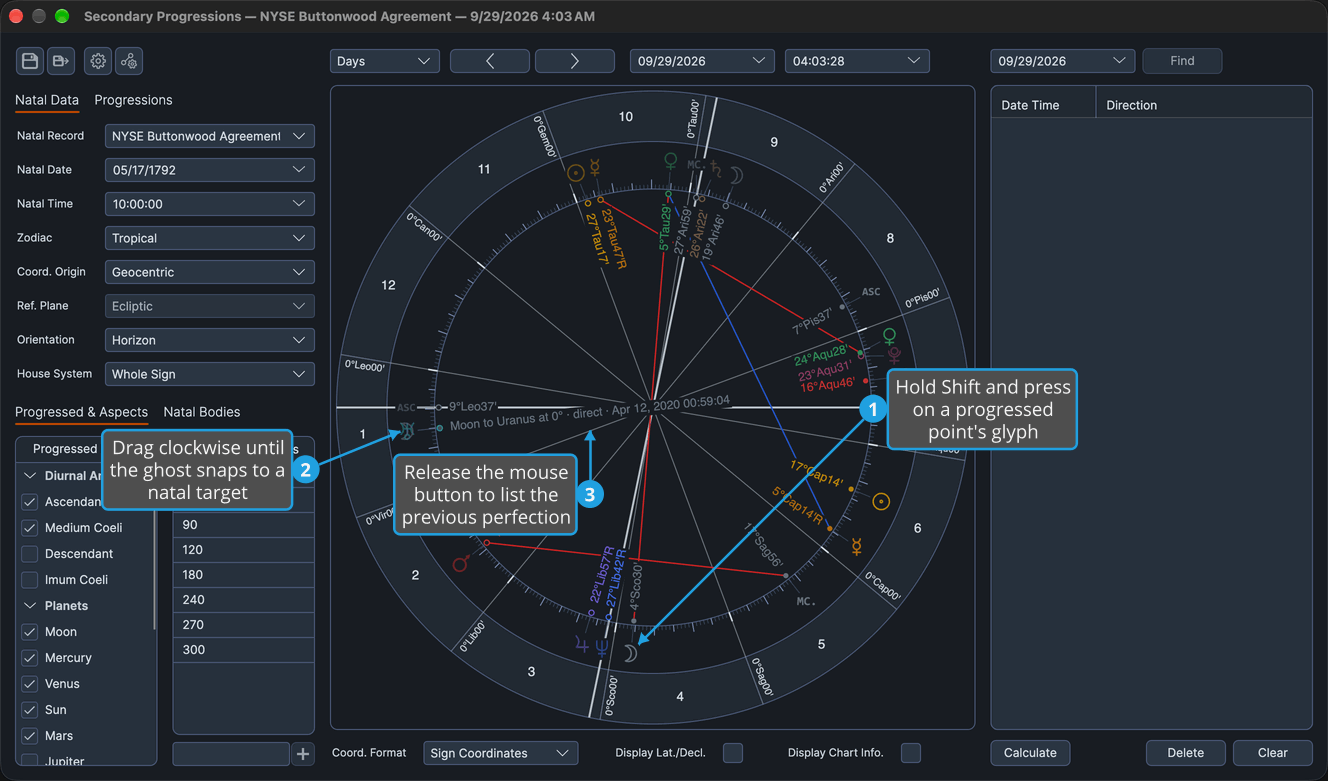
The last perfection before the chart's progressed date is added to the directions list. When there is none before that date, the label reads no direction: none before this date and releasing lists nothing.
Cancel a Direction Drag
To abandon a Shift-drag on a technique chart without listing anything:
- Hold down Shift and press the mouse button on a carried point's glyph on the wheel.
- Drag the glyph away from its place.
- Press Esc while still holding the mouse button.
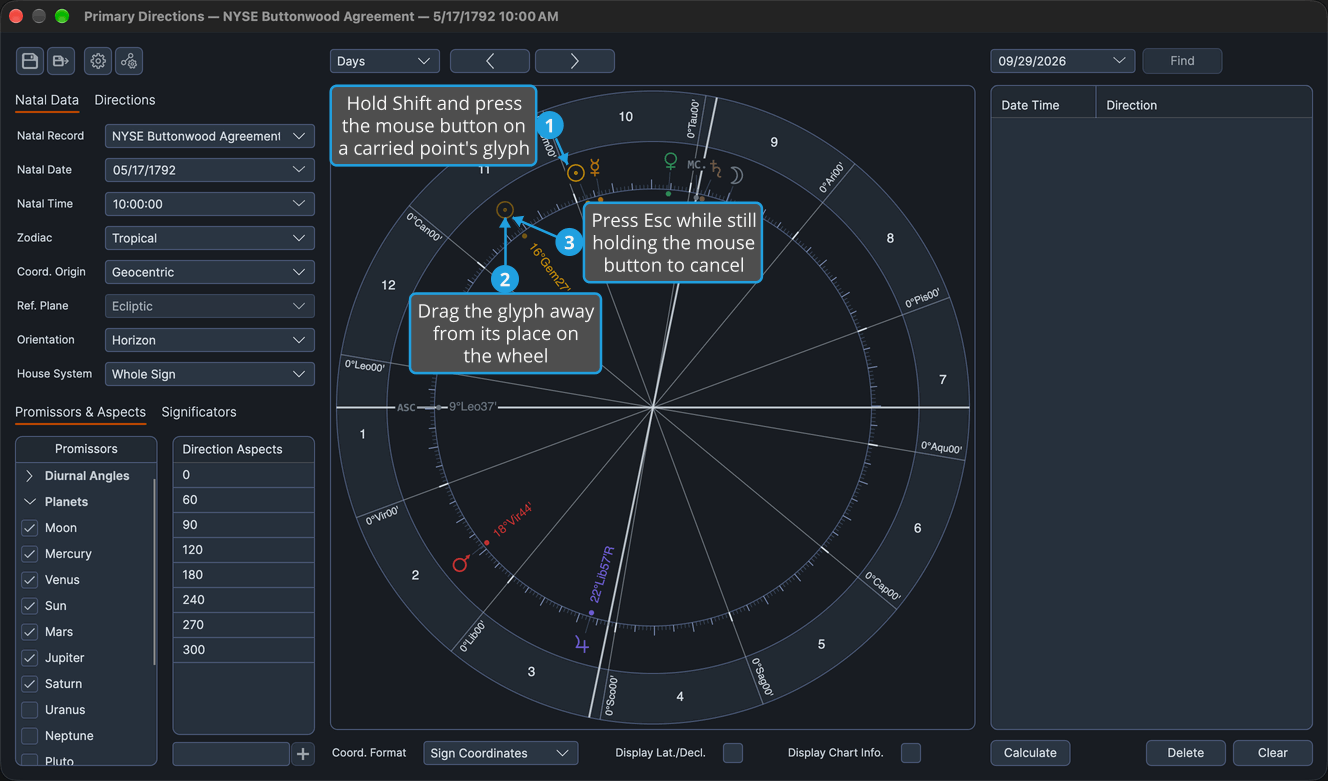
The ghost disappears and nothing is added to the directions list. If the chart is recalculated or redrawn while you drag, the drag is canceled too.
Related Topics
- Directions List: read the directions you list and see each one on the wheel.
- Calculate Directions: list every direction within Max Years at once.
- Chart Bodies Selection: choose the carried points and the targets.
- Chart Aspect Angles: choose the angles whose aspect points the ghost snaps to.
- Drag a Body to Its Transit: the Shift-drag on the Mundane and Transit charts, which jumps the chart to a transit instead of listing a direction.