Find a Direction by Date
Find a direction by date to jump to the directions around a particular date in a long list. Type a date in the date field above the directions list on a Primary Directions, Solar Arc Directions or Secondary Progressions chart and click Find, or press Enter in the field.
Find the Direction Nearest a Date
Before you start, make sure the directions list holds at least one dated direction, listed with Calculate Directions or List a Direction by Dragging. Find is unavailable until it does.
To find the direction nearest a date:
- Click the date field above the directions list to select its whole value.
- Type the date.
- Click the Find button.
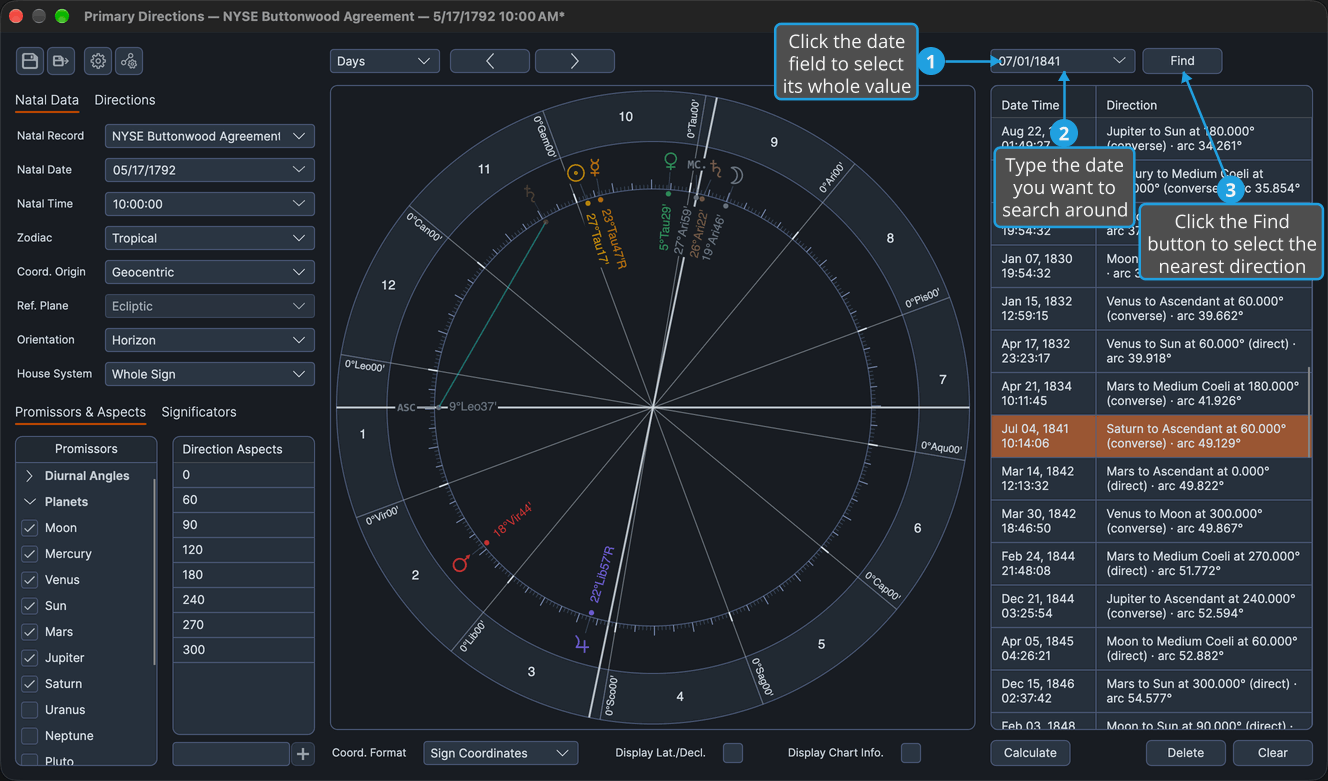
The listed direction that perfects nearest the middle of that day is selected, scrolled to the middle of the list and shown on the wheel. The chart itself does not move.
tip
Press Enter in the date field to commit the date and find in one keystroke.
How Find Works
- Find reads the date as the middle of that day, and selects the listed direction whose moment of perfection is nearest to it.
- A date before or after every listed direction finds the first or the last listed direction.
- Rows with no date are passed over, and Find is unavailable while no row has a date.
- Finding selects the row, which shows the direction on the wheel as clicking the row does. It does not move the chart: on the Solar Arc Directions and Secondary Progressions charts, Go to Date moves the chart to a row's date (see Directions List).
- The date field opens on today's date, and keeps what you typed for as long as the window is open.
- Neither the date you type nor a find counts as a change to the chart.