Secondary Progressions Chart
A Secondary Progressions chart follows a person's progressed chart through life and times when progressed points perfect aspects to the natal chart. Click Charts → Secondary Progressions Chart to open one (see New Chart), select the natal record on the Natal Data tab, then step the progressed date, drag progressed points onto natal places, or click Calculate.
What the Chart Shows
A Secondary Progressions chart re-reads the ephemeris on a day-for-a-year clock. One ring carries two sets of points:
- The natal points, at their birth places.
- The progressed points, each body drawn at its real position at the progressed instant.
Because each progressed body is read from the ephemeris, progressed planets move at their own speeds and can station and turn retrograde. Progressed angles are the natal angles advanced by the chosen angle method.
Aspects are matched from the progressed points to the natal points with orbs and drawn as chords. The chart draws no parallels.
The chart is cast for a progressed date. It opens at the present moment in the natal record's time zone, and the pickers and chevrons above the wheel walk the progressed date.
Shift-drag a progressed point onto a natal place or one of its aspect points to list a perfection, or click Calculate to list them all. The way you wind the drag chooses which pass is listed, and one contact can be listed several times. With Display Chart Info. checked, the chart information block on the wheel prints the rate, the progressed instant in Universal Time and the age.
Rectify a Birth Time
On this chart the chevrons walk the progressed date, so correct the birth date or time in the Natal Date and Natal Time fields on the Natal Data tab instead. A corrected birth date or time moves the natal points, the progressed points and the date of every listed perfection; the stored natal record is not changed. See Secondary Progressions Chart Configuration.
Window Layout
The Secondary Progressions chart window holds these areas:
- Chart Window Toolbar: four icon buttons at the top left of the window, above the settings panel, for saving the chart and opening the Chart Settings and Aspect Settings editors.
- Secondary Progressions Chart Configuration: the settings panel, in two tab pairs. The upper pair is the Natal Data and Progressions tabs, and the lower pair is the Progressed & Aspects and Natal Bodies tabs. The Natal Data tab holds the natal record, its birth date and time, and the frame rows (see Chart Frame). The Progressions tab holds the progression settings, described in Progression Settings, Year Reckoning and Max Years. The Progressed & Aspects and Natal Bodies tabs hold the two body lists (see Chart Bodies Selection) and the Progression Aspects grid (see Chart Aspect Angles).
- Chart Time Navigation: the time band above the wheel, with date and time pickers for the progressed moment, a step-unit drop-down and back and forward chevrons that step the progressed date.
- Chart Message Banner: a banner above the wheel that appears only when there is an error or a notice to report about the chart's calculation.
- Chart Wheel: the wheel in the middle of the window, with a splitter between it and the settings panel. Right-clicking a body glyph or an aspect chord opens the Wheel Context Menu, whose copied position names the point's role, progressed or natal.
- Chart Display Options: the display strip beneath the wheel, with Coord. Format, Display Lat./Decl. and Display Chart Info.
- Directions List: the list of perfections at the right of the window, with a splitter between it and the wheel. Double-clicking a dated row moves the chart to that row's date. Above the list sit a date field and a Find button (Find a Direction by Date); beneath it sit the Calculate button (Calculate Directions) and the Delete and Clear buttons (Remove Directions and Clear the Directions List). Its row menu also offers Copy Directions.
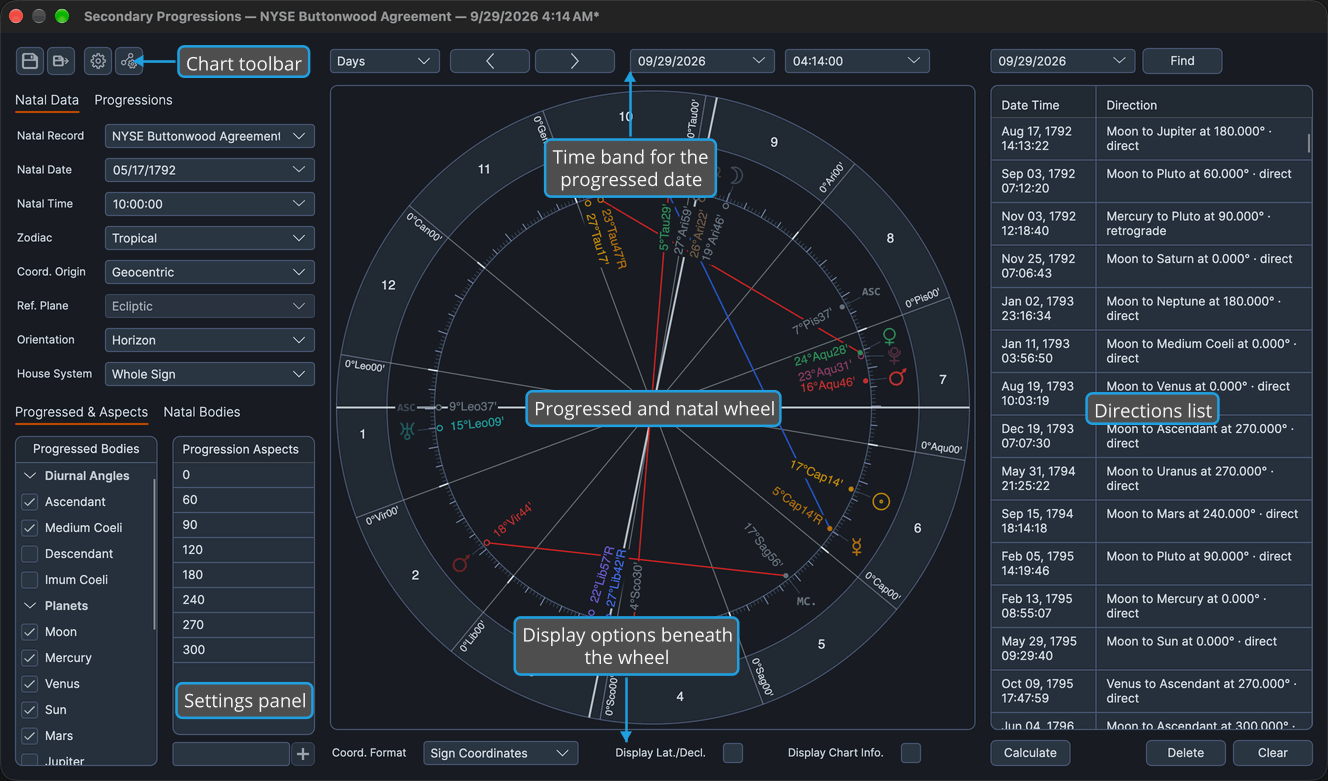
To list a perfection from the wheel, Shift-drag a progressed point onto a natal target, as described in List a Direction by Dragging. Dragging counterclockwise lists the next perfection after the chart's date, and clockwise the previous one.
Related Topics
- New Chart: open a Secondary Progressions chart.
- Secondary Progressions Defaults: the settings a new Secondary Progressions chart opens with.
- Save Chart and Open Chart File: keep a Secondary Progressions chart, with its listed perfections, and come back to it.
- Primary Directions Chart and Solar Arc Directions Chart: the other two technique charts.