Secondary Progressions Defaults
Set these defaults once, and every new Secondary Progressions chart starts with your usual rate and angle method. Open the Secondary Progressions sub-tab of the Directions & Progressions tab in the Chart Settings Window and select the defaults. Click Save to keep them.
The sub-tab begins with Orientation, the orientation a new Secondary Progressions chart opens with, followed by the defaults for:
- Rate
- User Rate, available only while Rate is User-Defined Rate
- Day Type, available only under the Secondary and Tertiary rates
- Angle Method
- Year
- Max Years
Angle Method is always editable here, because the sub-tab has no body list to test for a diurnal angle. On the chart's own Progressions tab, Angle Method is available only while a diurnal angle is among the progressed bodies.
These defaults seed each new Secondary Progressions chart and leave charts that are already open alone. An open chart keeps its own settings, described in Progression Settings. Your choices are kept for future sessions when you save them (see Save Chart Settings).
Set the Secondary Progressions Rate Defaults
These rows choose the orientation, rate, user rate and day type that a new Secondary Progressions chart opens with. Each row already shows its current default, so keep any value you do not want to change.
- Open the Secondary Progressions sub-tab of the Directions & Progressions tab.
- Select the orientation and the progression rate in the Orientation and Rate drop-downs.
- If Rate is User-Defined Rate, double-click the value in the User Rate box to select it.
- Type a rate in progressed days per year.
- If Rate is Secondary or Tertiary, select the day type in the Day Type drop-down.
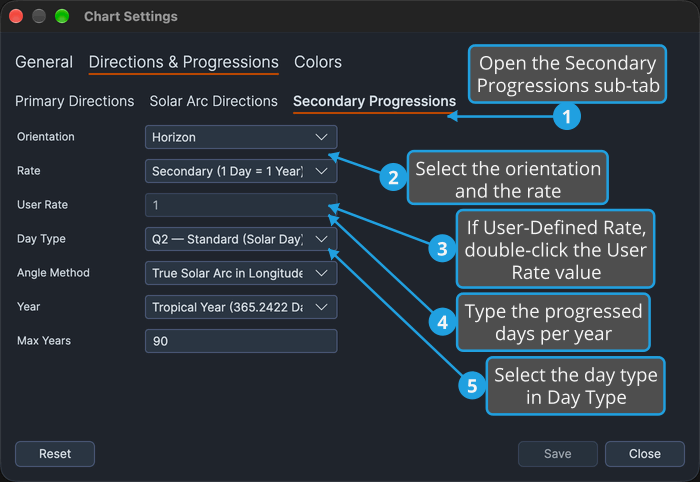
The rate is chosen first because it governs the User Rate box and the Day Type drop-down.
Set the Secondary Progressions Angle Method and Span Defaults
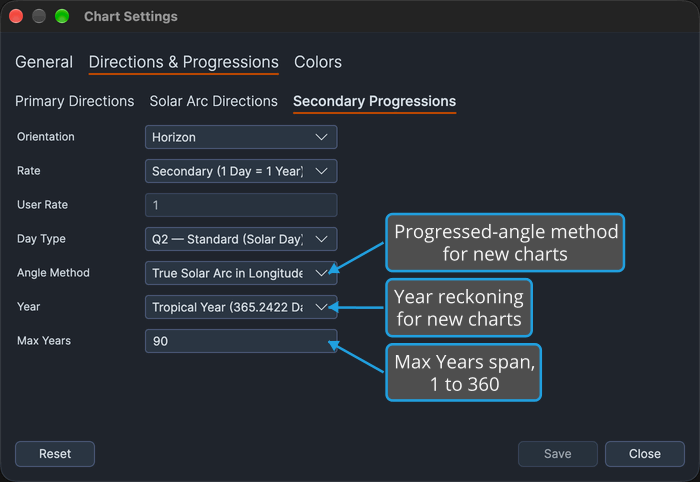
These rows set the angle method, year reckoning and Max Years that a new Secondary Progressions chart opens with. Every row already shows its current default and none of them enables another, so change only the ones you want.
Open the Secondary Progressions sub-tab of the Directions & Progressions tab.
- Angle Method: choose the progressed-angle method new charts use.
- Year: choose the year reckoning new charts use. See Year Reckoning.
- Max Years: double-click the number in the Max Years box and type a whole number of years from 1 to 360. See Max Years.
Options Reference
Each drop-down on the sub-tab offers a fixed set of options. What the rate, day type and angle method options do is described in Progression Settings.
Orientation
The Orientation row chooses the orientation a new Secondary Progressions chart opens with.
- Horizon
- Zodiac
Rate
The Rate row chooses the progression rate a new chart opens with.
- Secondary (1 Day = 1 Year): enables the Day Type drop-down.
- Tertiary (1 Day = 1 Lunar Month): enables the Day Type drop-down.
- Minor (1 Lunar Month = 1 Year)
- User-Defined Rate: enables the User Rate box.
Day Type
Available only under the two day-based rates, Secondary (1 Day = 1 Year) and Tertiary (1 Day = 1 Lunar Month).
- Q2 — Standard (Solar Day)
- Q1 — Bija (Sidereal Day)
Angle Method
The Angle Method row chooses the progressed-angle method a new chart opens with.
- True Solar Arc in Longitude
- True Solar Arc in Right Ascension
- Naibod in Longitude
- Naibod in Right Ascension
Year
The Year row chooses the year reckoning a new chart opens with.
- Tropical Year (365.2422 Days)
- Prophetic Year (360 Days, 30-Day Month)