Progression Settings
Use the Progressions tab of a Secondary Progressions chart's settings panel to choose the rate, day type and angle method your practice progresses by. Choose Rate, Day Type and Angle Method; under User-Defined Rate, type your own rate in the User Rate box. The progressed points and the directions list update as each setting changes.
The tab opens at the settings in Secondary Progressions Defaults. It also carries the Year row, described in Year Reckoning, and the Max Years row, described in Max Years.
Choose the Rate
Choose the rate the chart advances by.
- Click the Progressions tab.
- Select a rate from the Rate drop-down.
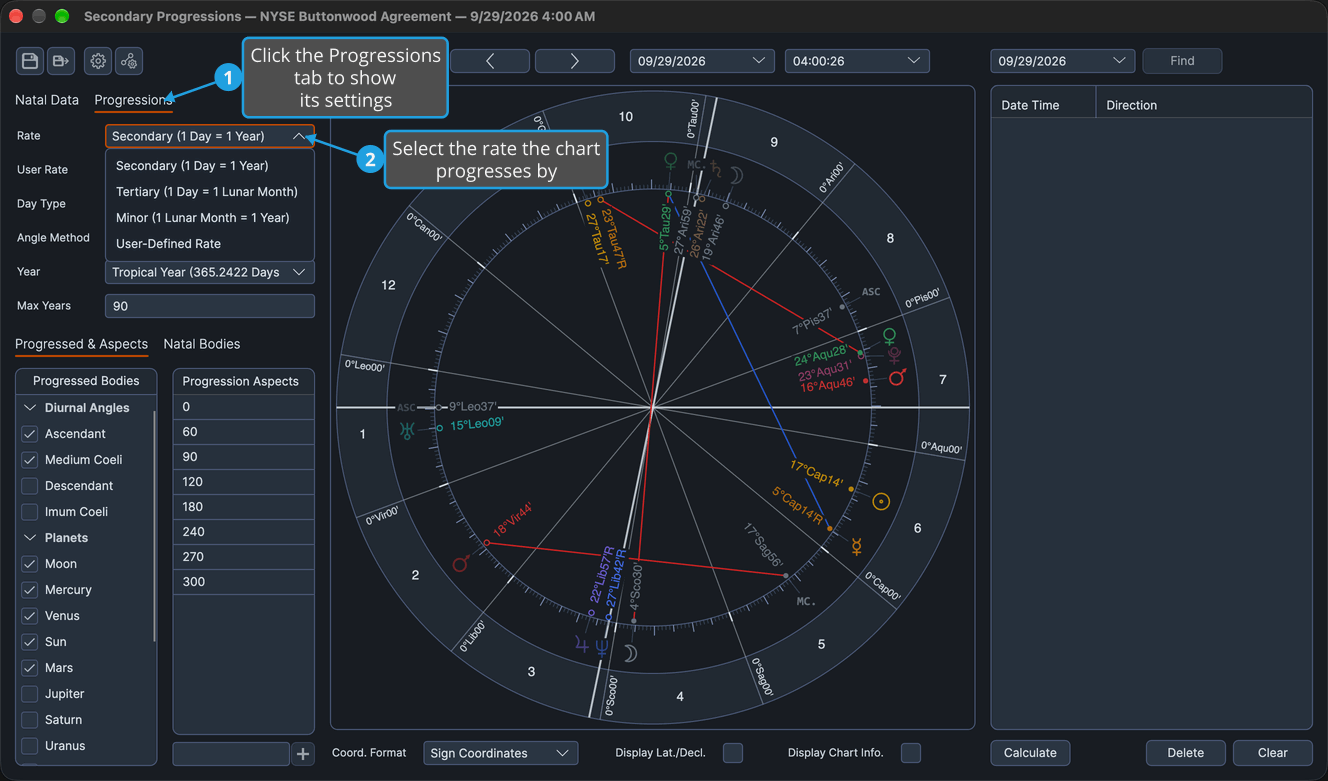
The progressed points are recomputed at the new rate and the directions list re-dates. The rows that depend on the rate enable or disable with it: Day Type only under the Secondary and Tertiary rates, and User Rate only under User-Defined Rate.
Choose the Day Type
Choose whether a day of the rate is a standard solar day or a sidereal day. Day Type is enabled only while Rate is Secondary or Tertiary.
- Click the Progressions tab.
- Select a day type from the Day Type drop-down.
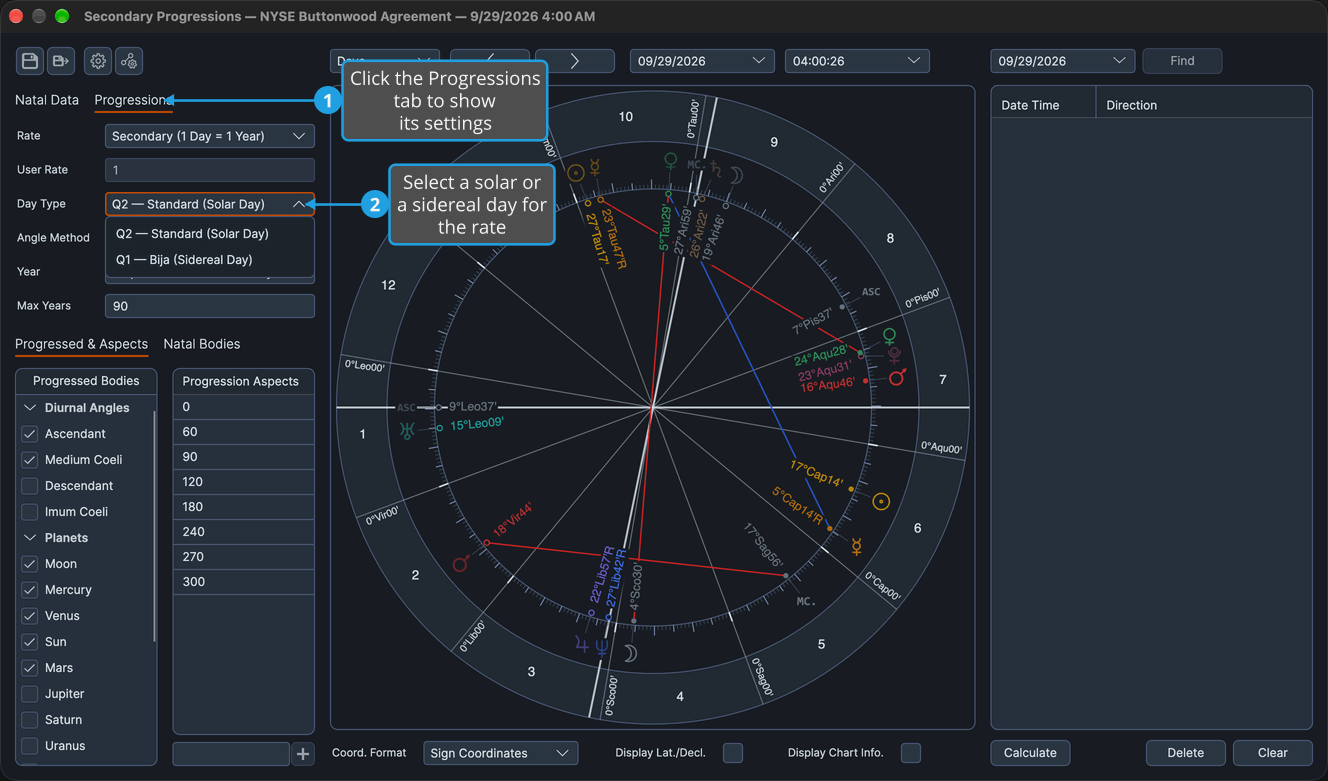
The progressed points are recomputed with the chosen day and the directions list re-dates.
Set a User-Defined Rate
Advance the chart by a rate of your own, in ephemeris days per year of life.
- Click the Progressions tab.
- Select User-Defined Rate from the Rate drop-down.
- Double-click the value in the User Rate box to select it.
- Type a rate from 0.01 to 366.
- Press Enter to commit the rate.
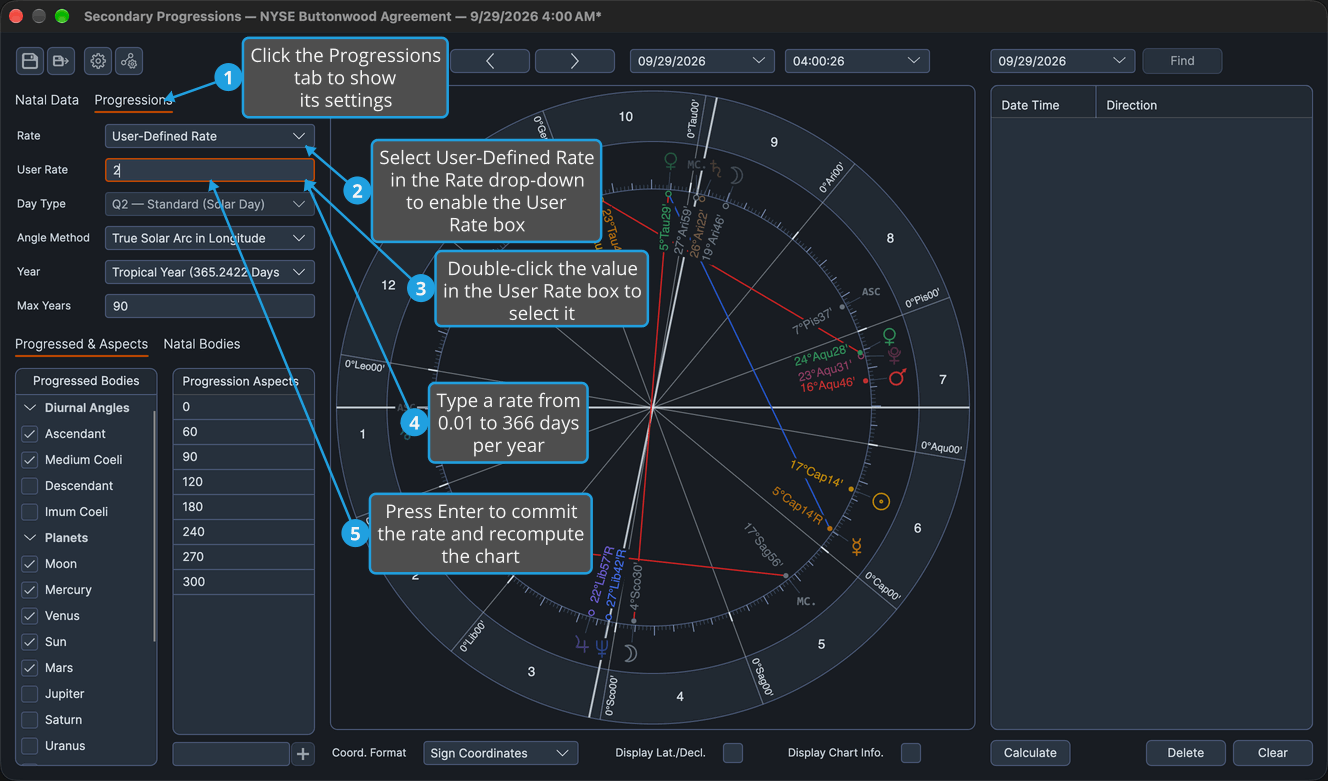
The progressed points are recomputed at the typed rate and the directions list re-dates. A value outside 0.01 to 366 is clamped to the nearer end of that range. Moving focus out of the User Rate box commits the typed rate as Enter does.
Choose the Angle Method
Choose how the progressed Midheaven advances. Angle Method is enabled only while a diurnal angle is among the progressed bodies, chosen in the Progressed Bodies list; see Secondary Progressions Chart Configuration.
- Click the Progressions tab.
- Select a method from the Angle Method drop-down.
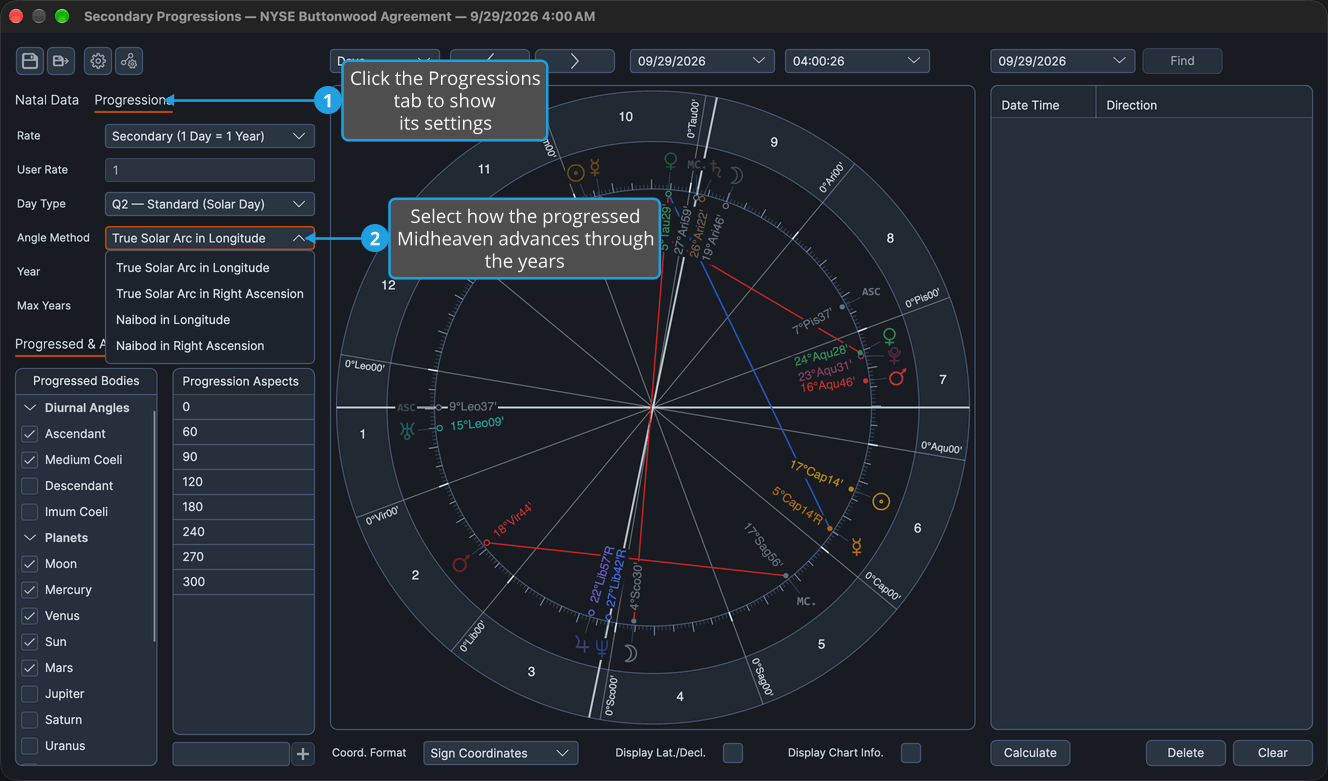
The progressed Midheaven advances by the chosen method, the progressed Ascendant is re-derived from it at the natal latitude, and the directions list re-dates.
Progressions Tab Rows
Each drop-down below offers a fixed set of options, which stay the same whether or not the row is enabled, and the User Rate box takes a number.
Rate
The rate is how many ephemeris days stand for a year of life.
- Secondary (1 Day = 1 Year)
- Tertiary (1 Day = 1 Lunar Month)
- Minor (1 Lunar Month = 1 Year)
- User-Defined Rate
The Secondary and Tertiary rates enable the Day Type row, and User-Defined Rate enables the User Rate box beneath the Rate row.
User Rate
The User Rate box holds the user-defined rate, in ephemeris days per year of life. It accepts 0.01 to 366, ships at 1.0, and is used and enabled only while Rate is User-Defined Rate.
Day Type
The Day Type row is enabled only under the Secondary and Tertiary rates.
- Q2 — Standard (Solar Day)
- Q1 — Bija (Sidereal Day)
Angle Method
The angle method is how the progressed Midheaven advances. The row is enabled only while a diurnal angle is among the progressed bodies.
- True Solar Arc in Longitude
- True Solar Arc in Right Ascension
- Naibod in Longitude
- Naibod in Right Ascension