Solar Arc Directions Chart Configuration
The settings panel of a Solar Arc Directions Chart is where you set up whose chart is directed by solar arc, how, and which points are compared. On the Natal Data tab you select the record, correct the birth time and set the frame. On the Directions tab you choose the solar arc settings. On the Directed & Aspects and Natal Bodies tabs you choose the two body lists and the cycle angles.
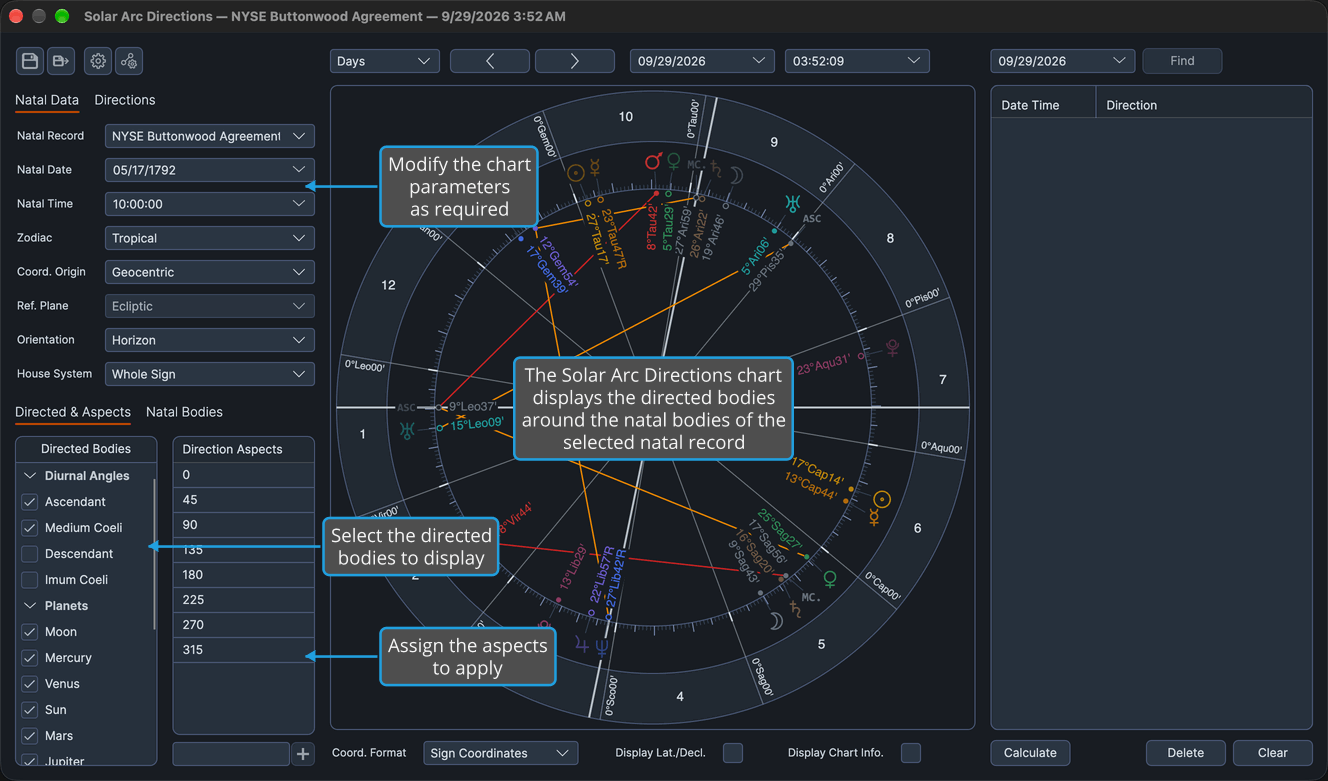
Settings Panel Tabs
The panel holds two tab pairs. The upper pair sizes itself to the content of the selected tab, and the lower pair shares the rest of the panel's height.
| Pair | Tab | Contents |
|---|---|---|
| Upper | Natal Data | The Natal Record, Natal Date and Natal Time rows, which set the birth moment the wheel is cast from, then the five frame rows |
| Upper | Directions | The Rate, User Rate, Day Type, Multiple, Year and Max Years rows |
| Lower | Directed & Aspects | The Directed Bodies list beside the Direction Aspects grid |
| Lower | Natal Bodies | The Natal Bodies list |
Natal Data Tab
The Natal Data tab holds the natal record the chart is cast for, with its Natal Date and Natal Time, and the five frame rows: Zodiac, Coord. Origin, Ref. Plane, Orientation and House System. It is where this chart's birth time is corrected. On this chart three of the frame rows are set apart from the other chart types:
- Coord. Origin offers Geocentric and Topocentric only.
- Ref. Plane is disabled and stays at Ecliptic.
- Orientation opens at the Solar Arc Directions orientation default set in Solar Arc Directions Defaults.
The natal data rows work as they do on a natal chart, described in Natal Chart Configuration. The frame rows are described in Chart Frame.
Choose the Natal Record
Choose whose chart the Solar Arc Directions chart is cast for. The record must already be in the Natal Records database; you add records in the Natal Records Editor.
- Click the Natal Data tab.
- Select the record from the Natal Record drop-down.
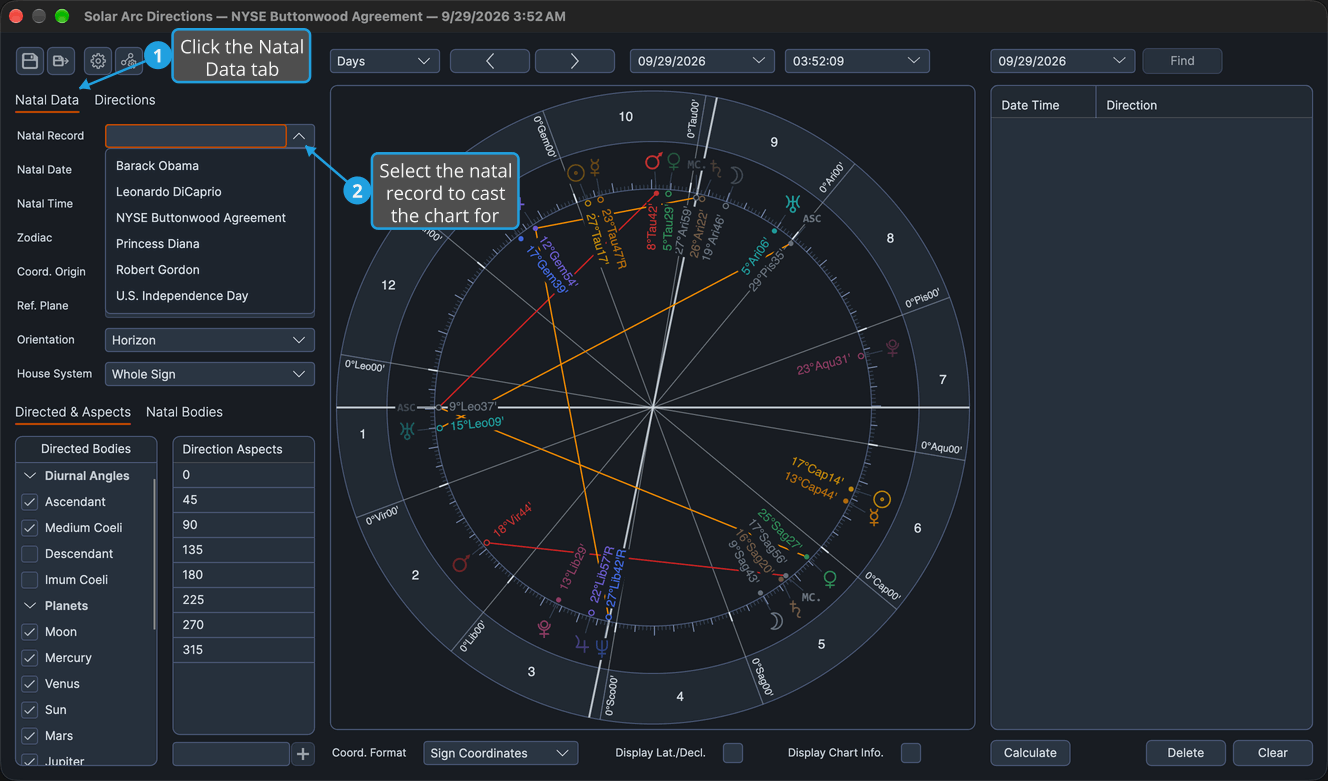
The Natal Record drop-down is searchable. Once its list is open, typing part of a name narrows the list, and clicking a record chooses it.
The Natal Date and Natal Time rows fill from the chosen record, and the chart is recast for it. The natal points, the solar arc, the directed points and the dates in the directions list all follow.
Rectify a Birth Time
Adjust the birth date or time the chart is cast from, for rectification or a what-if trial. Both rows open holding the selected natal record's date and time.
- Click the Natal Data tab.
- Click the Natal Date field to select its whole value.
- Type the date.
- Click the Natal Time field to select its whole value.
- Type the time and press Enter to commit it.
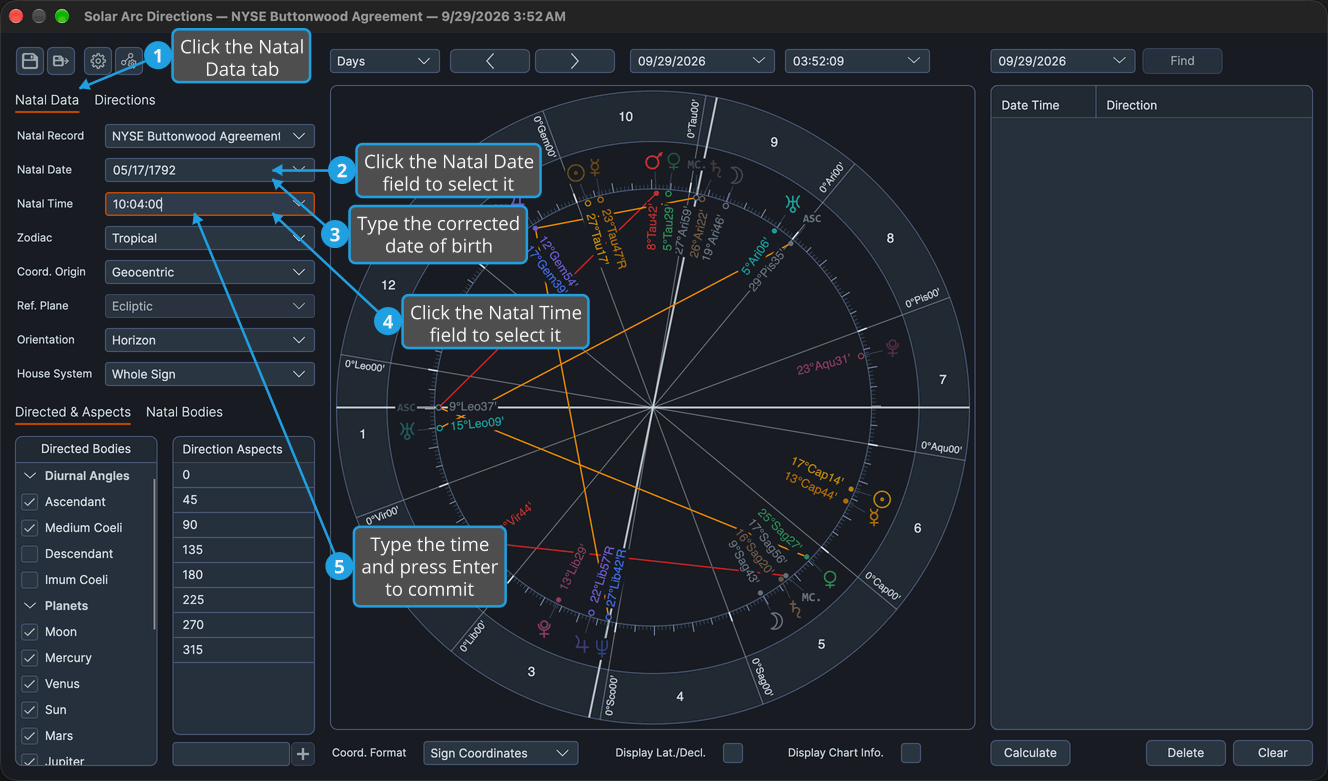
A typed date commits when the field loses focus or on Enter, and a typed time commits on Enter or when focus leaves it.
The natal points, the solar arc, the directed points and the date of every listed direction all move with the edited birth moment. The natal record itself is not changed.
Directions Tab
The Directions tab holds the settings that decide how the solar arc is taken. The Rate, User Rate, Day Type and Multiple rows are described in Solar Arc Settings, the Year row in Year Reckoning and the Max Years row in Max Years.
Directed Bodies, Natal Bodies and Aspects
The lower tab pair chooses the directed points, the natal points they are compared with, and the cycle angles of the directions.
| Control | Tab | Ships With |
|---|---|---|
| Directed Bodies | Directed & Aspects | The Moon -> Pluto & Angles preset |
| Direction Aspects | Directed & Aspects | The 8th Harmonic preset |
| Natal Bodies | Natal Bodies | The Moon -> Pluto & Angles preset |
The two lists work as every chart's body lists do; see Chart Bodies Selection and Chart Bodies Presets. The angles in the Direction Aspects grid set the exact aspect points a drag can snap to, and are drawn on the wheel as chords within the orbs set in this chart type's Aspect Settings Window. To edit the angles, see Chart Aspect Angles and Chart Aspects Presets.