Chart Aspects Presets
Switch between aspect sets quickly, and decide which set new charts of each type start with. Right-click the aspects grid: click New Preset to save the current angles, or click Presets and click a preset to apply it, or right-click a preset for Set Default, Rename, Replace or Delete.
Applying a preset merges its angles into the grid: the grid then holds every angle of the preset together with the angles already there, so applying a preset never removes an angle. To remove angles, use Delete Selected or Delete All, described in Chart Aspect Angles. On a chart whose aspects grid sits on a tab, click that tab first, as described there.
Preset Shelves
Each chart type has its own preset shelf and its own default:
| Chart | Grid | Shipped Default |
|---|---|---|
| Mundane | Aspects | 102 Ptolemaic (Major Aspects) |
| Natal | Aspects | 102 Ptolemaic (Major Aspects) |
| Transit | Transiting Aspects | 102 Ptolemaic (Major Aspects) |
| Primary Directions | Direction Aspects | 102 Ptolemaic (Major Aspects) |
| Solar Arc Directions | Direction Aspects | 8th Harmonic |
| Secondary Progressions | Progression Aspects | 102 Ptolemaic (Major Aspects) |
The Mundane, Natal and Transit shelves each ship seven presets: 101 Conjunctions, 102 Ptolemaic (Major Aspects), 103 Keplerian (Minor Aspects), 2nd Harmonic, 3rd & 4th Harmonic, 3rd Harmonic and 4th Harmonic. The shipped presets are ordinary presets: you can change or delete them like any you save yourself.
Apply an Aspects Preset
Bring a saved set of aspect angles into the chart's aspects grid.
- Open the aspects grid's context menu, as described in Open the Aspects Grid Context Menu.
- Click Presets in the context menu.
- Click the preset's name in the Presets submenu.
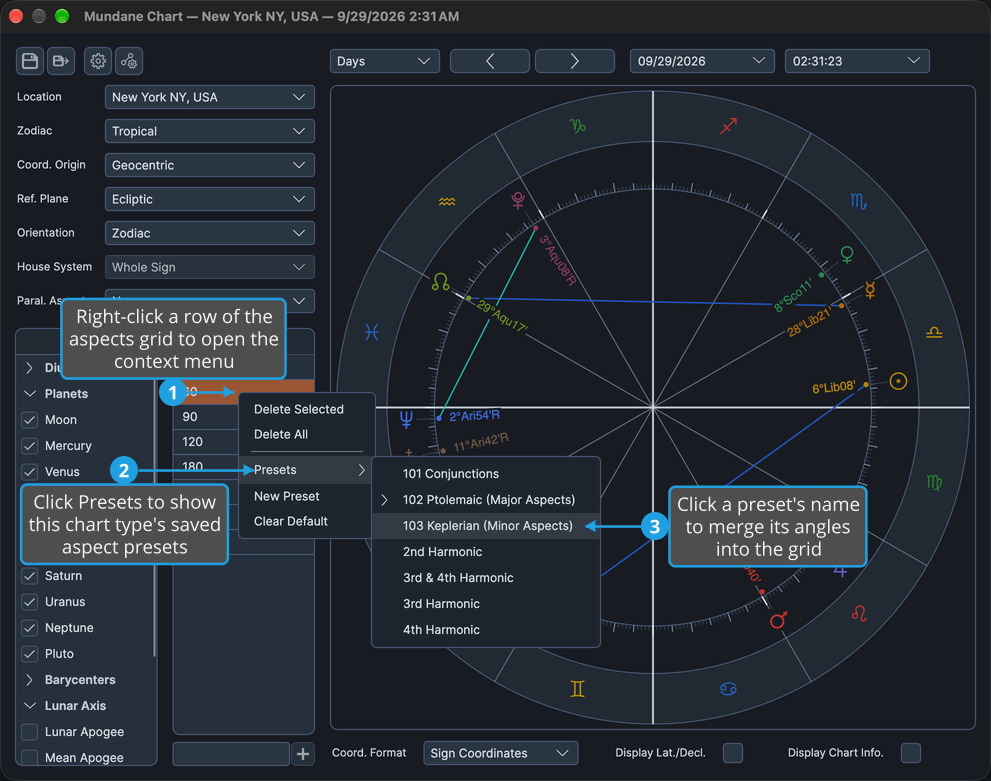
The preset's angles are merged into the grid and the chart is redrawn. A preset saved by an incompatible earlier version is not applied; an Incompatible Preset notice reports it instead.
Save the Aspect Angles as a New Preset
Save the grid's current angles as a named preset on the chart type's shelf.
- Open the aspects grid's context menu, as described in Open the Aspects Grid Context Menu.
- Click New Preset in the context menu.
- Name the preset and save it, as described in Save a Name in the Enter Name Dialog.
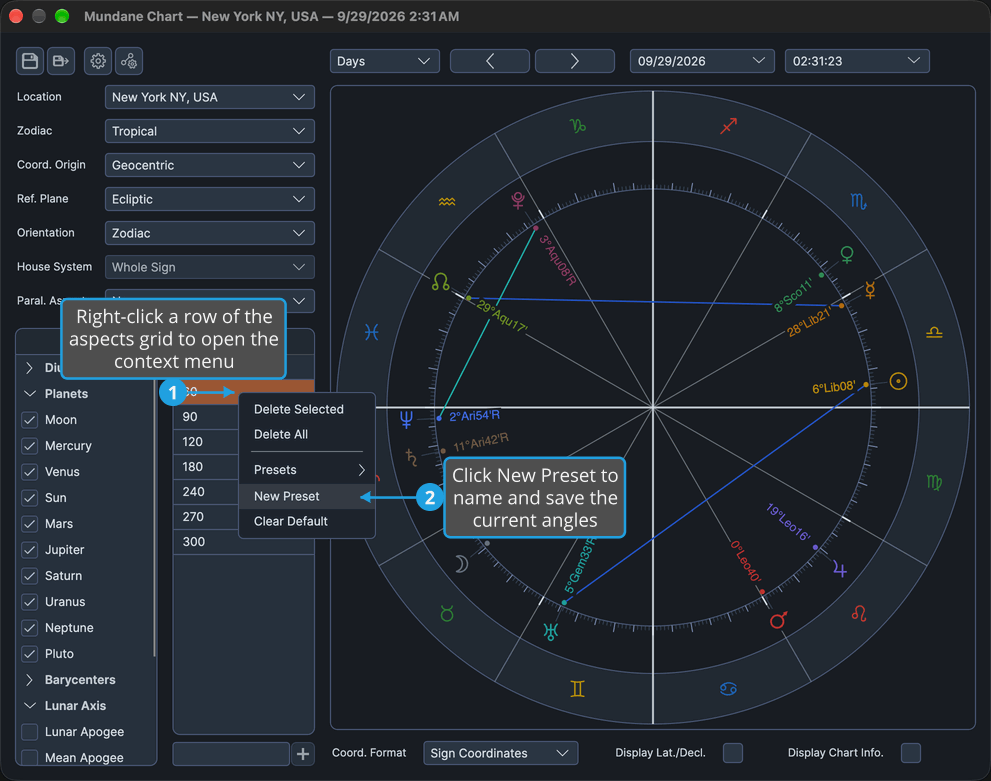
A preset holding the current angles is added to the Presets submenu under the name you entered. Canceling the Enter Name dialog, as described in Cancel the Enter Name Dialog, abandons the preset.
Set the Default Aspects Preset
Choose the preset new charts of this type open with.
- Open the aspects grid's context menu, as described in Open the Aspects Grid Context Menu.
- Click Presets in the context menu.
- Right-click the preset's name in the Presets submenu.
- Click Set Default in the preset's menu.
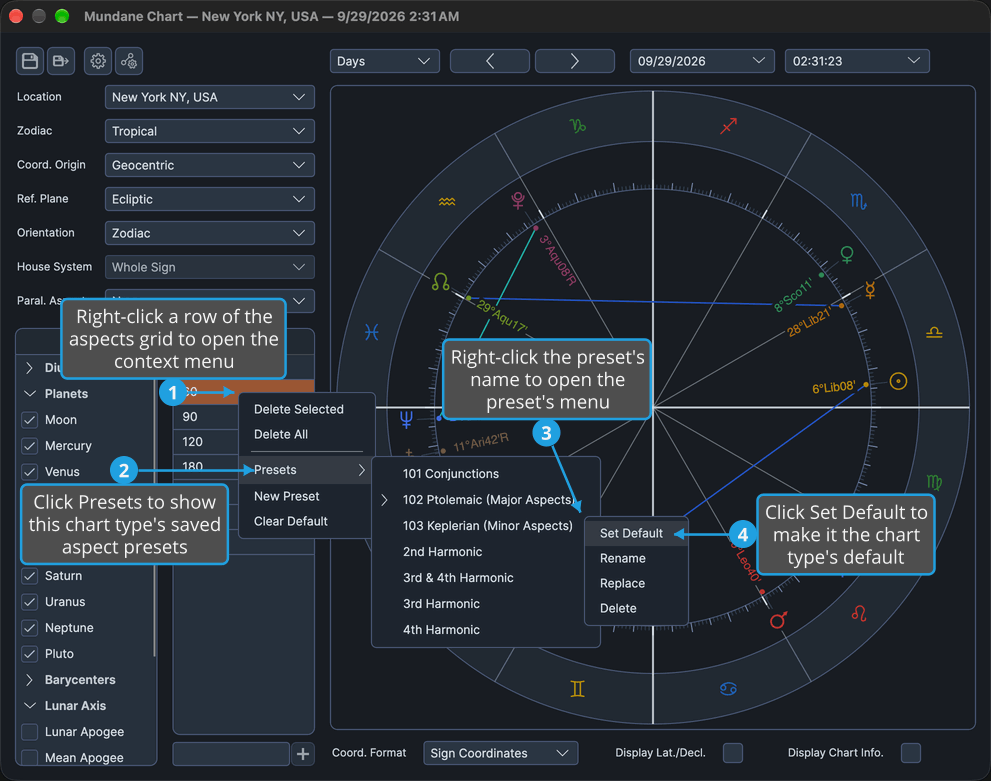
The preset becomes the chart type's default, marked with a chevron in the Presets submenu, and seeds the aspects grid of every new chart of that type. Charts already open are unchanged.
Clear the Default Aspects Preset
Stop any preset seeding new charts of this type.
- Open the aspects grid's context menu, as described in Open the Aspects Grid Context Menu.
- Click Clear Default in the context menu.
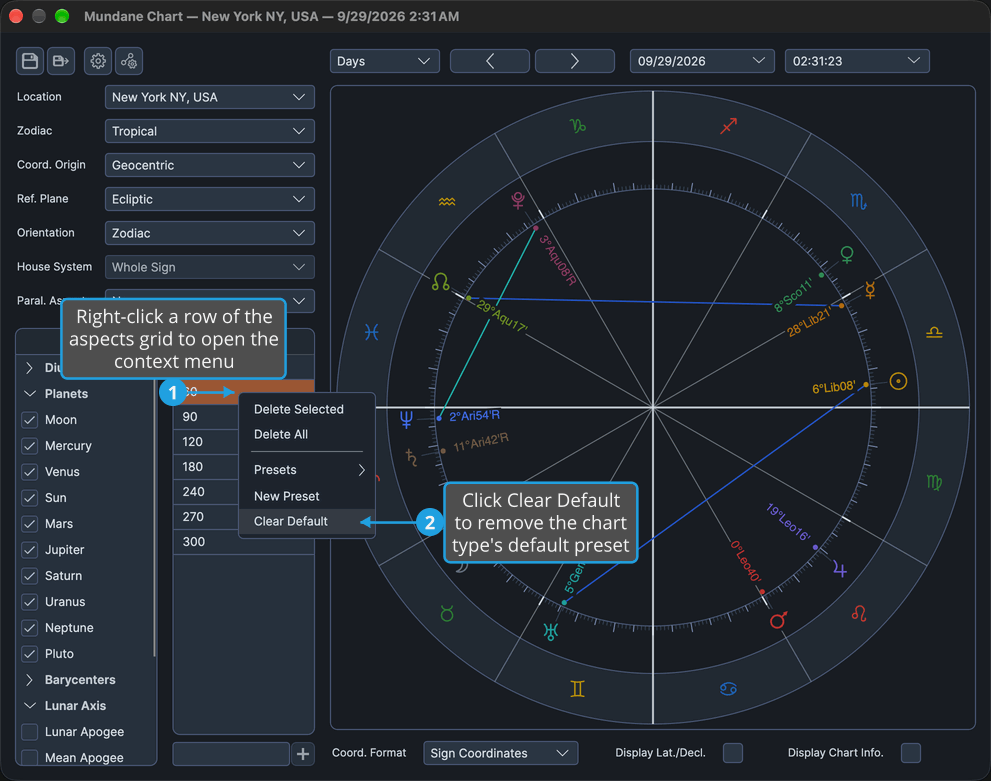
The chart type's shelf has no default preset, and no preset is marked in the Presets submenu. The change reaches this chart type's shelf only.
Rename an Aspects Preset
Give a saved preset a new name.
- Open the aspects grid's context menu, as described in Open the Aspects Grid Context Menu.
- Click Presets in the context menu.
- Right-click the preset's name in the Presets submenu.
- Click Rename in the preset's menu.
- Replace the current name in the Enter Name dialog and save it, as described in Save a Name in the Enter Name Dialog.
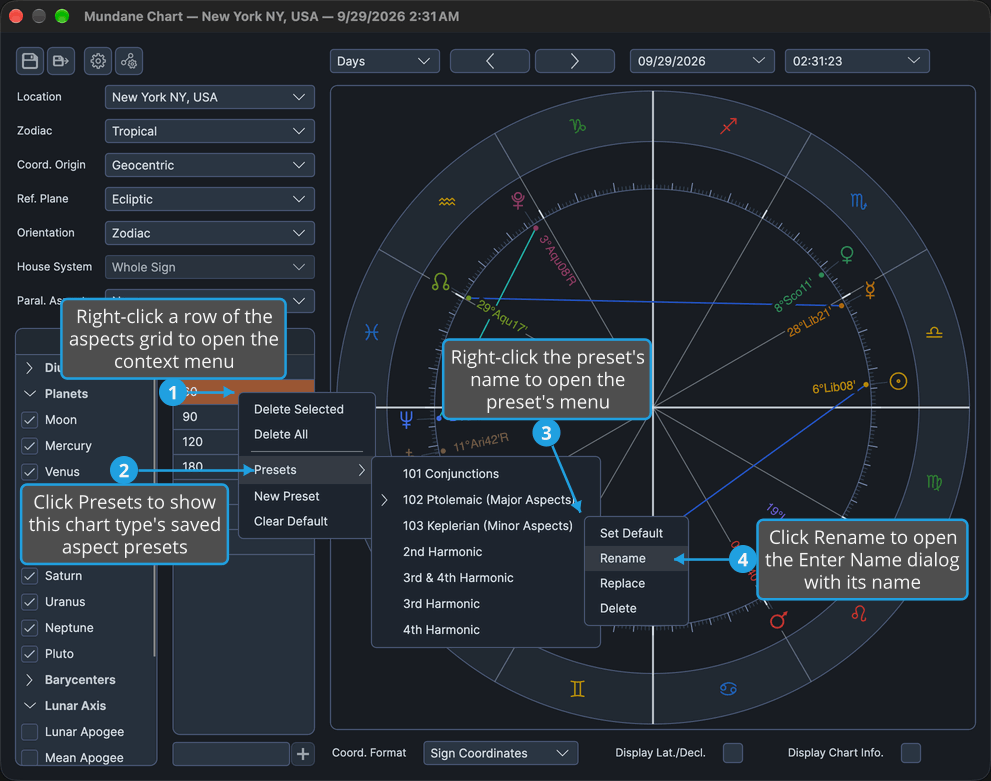
The preset appears in the Presets submenu under its new name, holding the same angles. Canceling the dialog leaves the name unchanged.
Replace an Aspects Preset
Overwrite a saved preset with the grid's current angles.
- Open the aspects grid's context menu, as described in Open the Aspects Grid Context Menu.
- Click Presets in the context menu.
- Right-click the preset's name in the Presets submenu.
- Click Replace in the preset's menu.
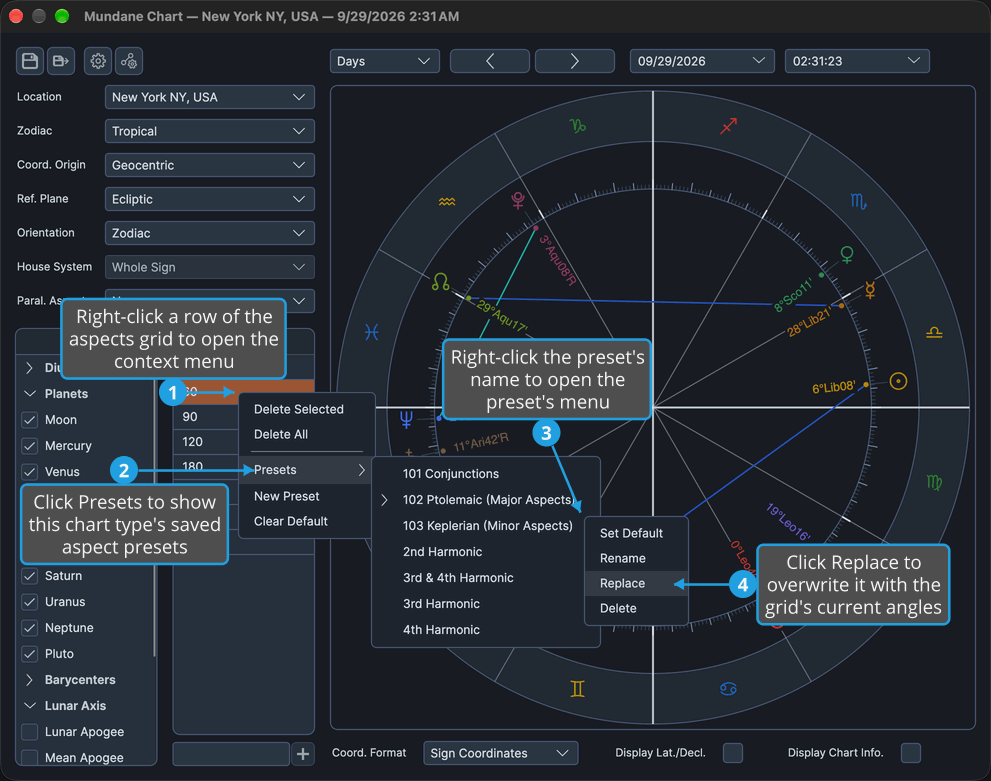
The preset keeps its name and default status and now holds the grid's current angles. No confirmation is asked.
Delete an Aspects Preset
Remove a saved preset from the chart type's shelf.
- Open the aspects grid's context menu, as described in Open the Aspects Grid Context Menu.
- Click Presets in the context menu.
- Right-click the preset's name in the Presets submenu.
- Click Delete in the preset's menu.
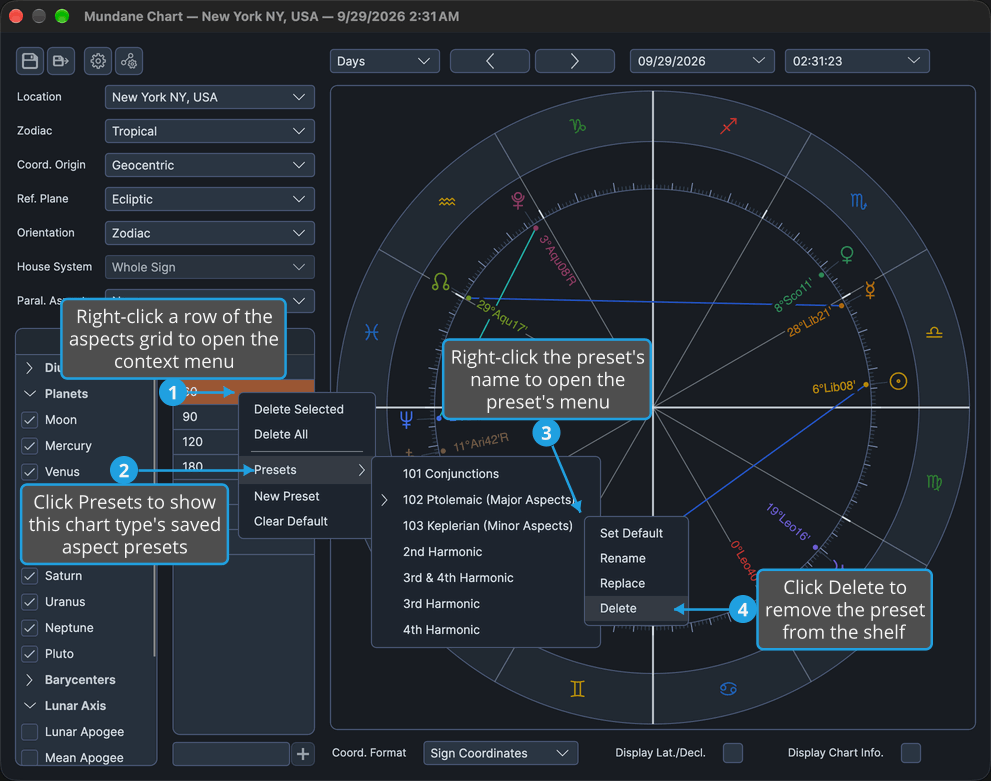
The preset leaves the Presets submenu; the angles already in any chart's grid are unchanged. No confirmation is asked.
Preset Menus
The aspects grid's context menu carries three preset items below a separator: Presets, New Preset and Clear Default. The Presets submenu lists the presets saved on the chart type's shelf, each by its name, with a chevron beside the default; clicking one merges its angles into the grid. Its contents change as you save, rename, replace and delete presets.
Right-clicking a preset in the submenu opens the preset's own menu, whose items act on that preset:
| Menu Item | What It Does |
|---|---|
| Set Default | Makes the preset the chart type's default. |
| Rename | Opens the Enter Name dialog holding the preset's name. |
| Replace | Overwrites the preset with the grid's current angles. |
| Delete | Removes the preset from the shelf. |
Related Topics
- Chart Aspect Angles: add, edit and delete the angles in the grid.
- Chart Bodies Presets: the same preset menus on the body lists, and the Enter Name dialog.
- Aspect Settings Window: the orbs and colors each chart type's aspects are drawn with.