Chart Bodies Presets
Switch a body list between the selections you use often, and decide which one new charts start with. Right-click a body row: click New Preset to save the current selection, or click Presets and click a preset to apply it, or right-click a preset for Set Default, Rename, Replace or Delete.
The body lists have no preset button; the presets are reached only from the menu that opens when you right-click a body row. Right-clicking a group header row, such as Planets or Asteroids, opens no menu. On a chart whose list sits on a tab, click that tab first, as described in Chart Bodies Selection.
The default preset of a list's shelf is the one a new chart's list opens with.
Preset Shelves
Each list shows the presets saved on its own shelf, and each shelf has its own default. Two shelves are shared between chart types; every list on a technique chart has a shelf of its own.
| Lists That Use the Shelf | Shipped Default |
|---|---|
| Bodies on the Mundane chart and Transit. Bodies on the Transit chart | Moon -> Pluto + NN |
| Bodies on the Natal chart and Natal Bodies on the Transit chart | Moon -> Pluto + NN |
| Promissors on the Primary Directions chart | Moon -> Saturn |
| Significators on the Primary Directions chart | Luminaries & Angles |
| Directed Bodies on the Solar Arc Directions chart | Moon -> Pluto & Angles |
| Natal Bodies on the Solar Arc Directions chart | Moon -> Pluto & Angles |
| Progressed Bodies on the Secondary Progressions chart | Moon -> Mars & Angles |
| Natal Bodies on the Secondary Progressions chart | Moon -> Pluto & Angles |
The first two shelves also ship the preset Moon -> Pluto. The shipped presets are ordinary presets: you can change or delete them like any you save yourself.
Apply a Body List Preset
Switch a body list to a saved selection.
- Right-click a body row in the list to open the body row menu.
- Click Presets in the body row menu.
- Click the preset's name in the Presets submenu.
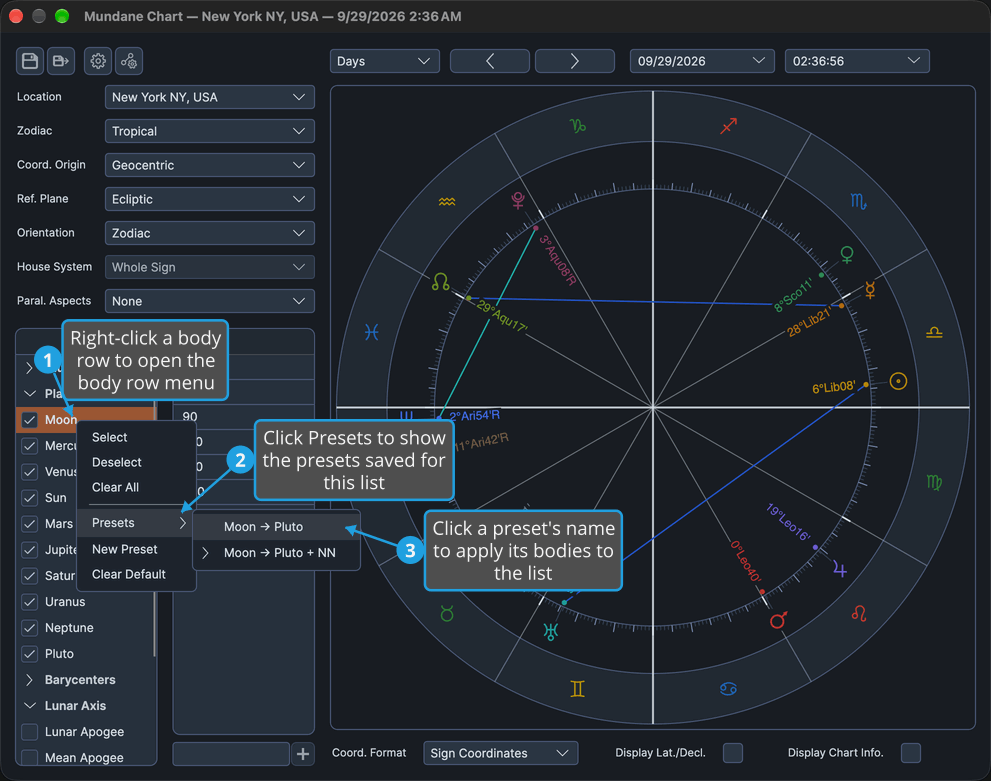
The list's selection is replaced by the preset's bodies, and the wheel redraws with them. Only bodies the list offers are checked; on a heliocentric chart the Earth takes the Sun's place.
Save a New Body List Preset
Save the list's current selection as a named preset.
- Right-click a body row in the list to open the body row menu.
- Click New Preset in the body row menu.
- Name the preset and save it, as described in Save a Name in the Enter Name Dialog.
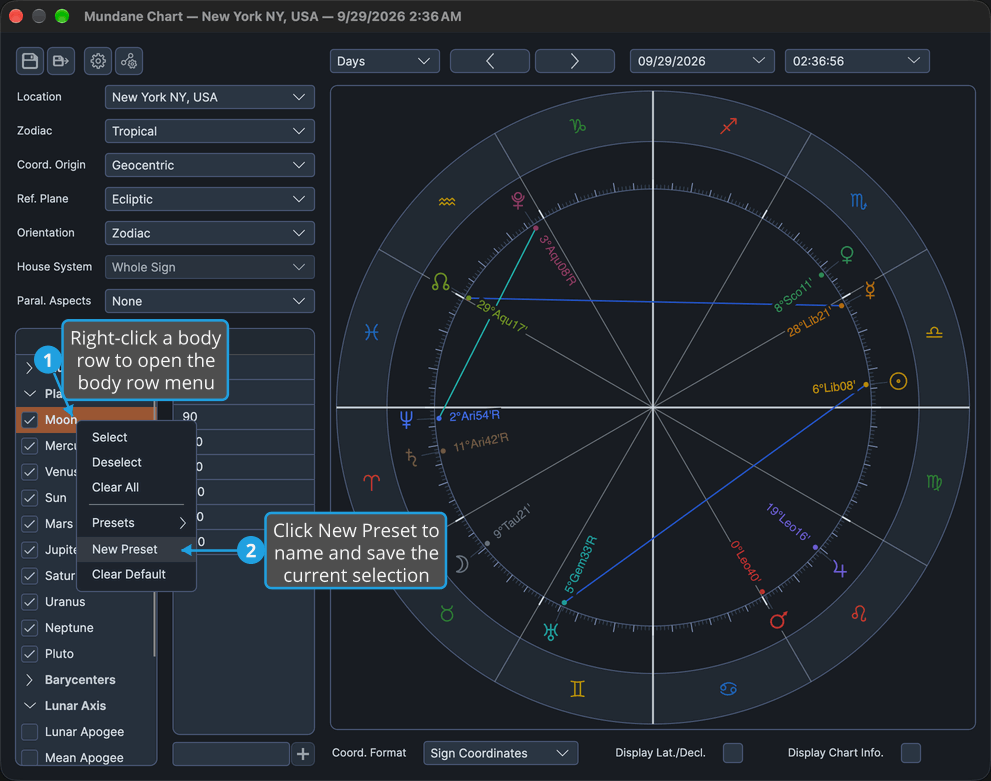
The current selection is saved as a new preset on the list's shelf and appears in the Presets submenu. Canceling the Enter Name dialog, as described in Cancel the Enter Name Dialog, abandons the preset.
Set the Default Body List Preset
Choose which preset new charts' lists of this kind open with.
- Right-click a body row in the list to open the body row menu.
- Click Presets in the body row menu.
- Right-click the preset's name in the Presets submenu.
- Click Set Default in the preset's menu.
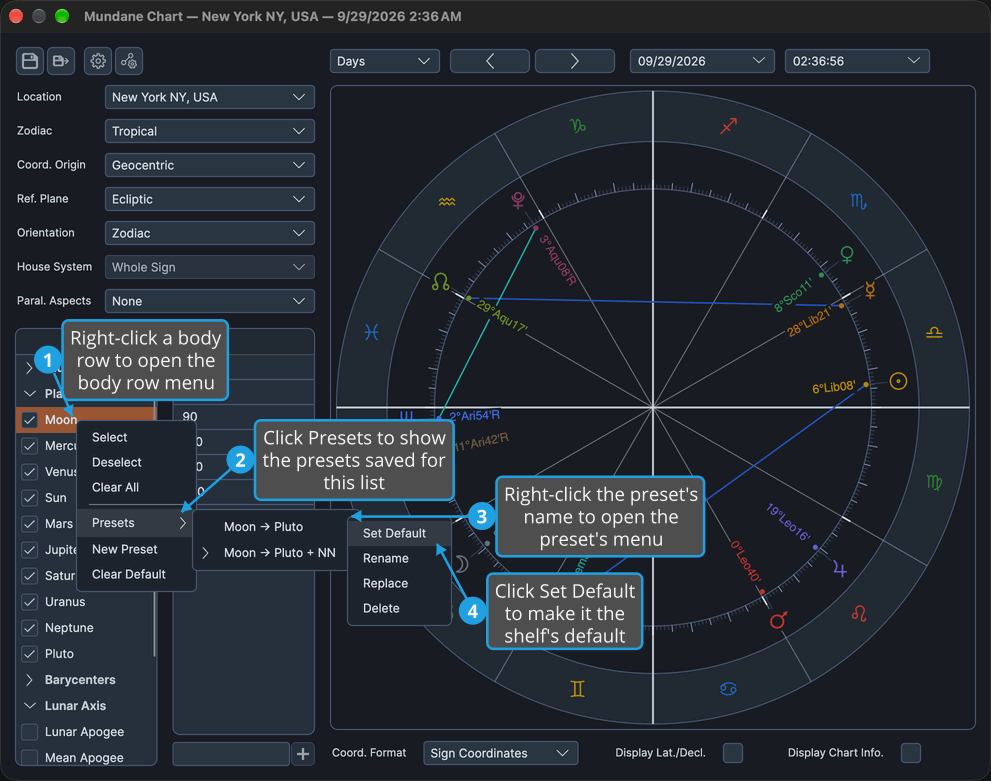
The preset becomes its shelf's default and is marked with a chevron in the Presets submenu. New chart windows whose list uses that shelf open with it.
Clear the Default Body List Preset
Remove the default from the list's preset shelf.
- Right-click a body row in the list to open the body row menu.
- Click Clear Default in the body row menu.
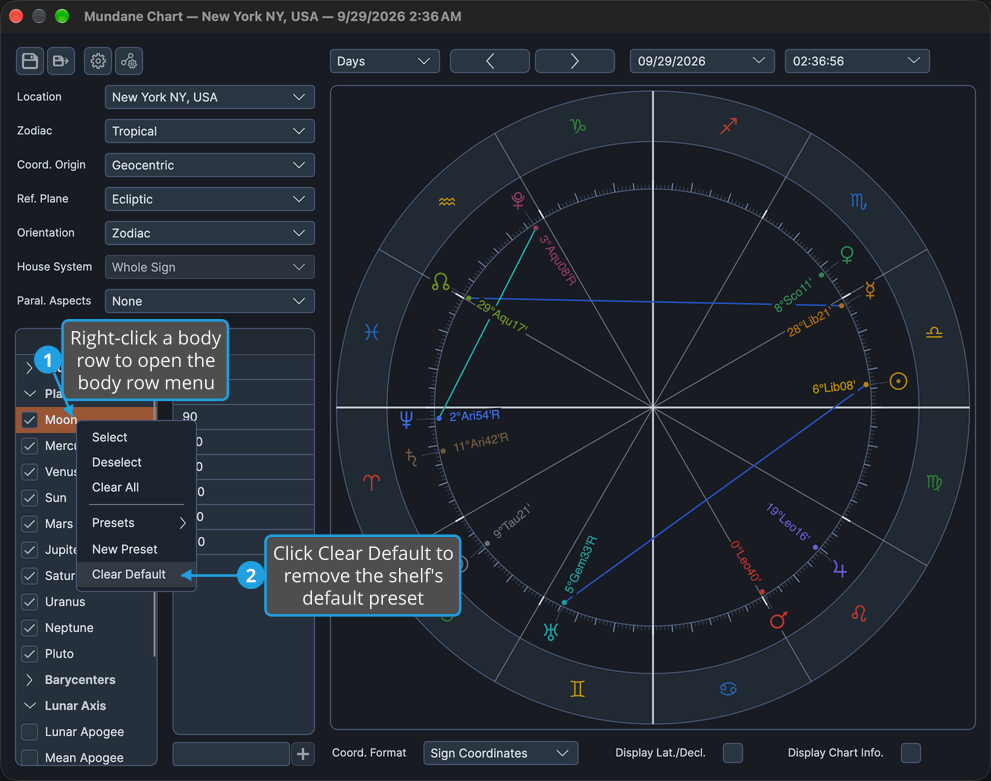
The shelf has no default preset anymore, and no preset carries the default chevron. A new chart's list on that shelf then opens with the built-in set of planets described in Chart Bodies Selection.
Rename a Body List Preset
Give a saved preset a new name.
- Right-click a body row in the list to open the body row menu.
- Click Presets in the body row menu.
- Right-click the preset's name in the Presets submenu.
- Click Rename in the preset's menu.
- Replace the current name in the Enter Name dialog and save it, as described in Save a Name in the Enter Name Dialog.
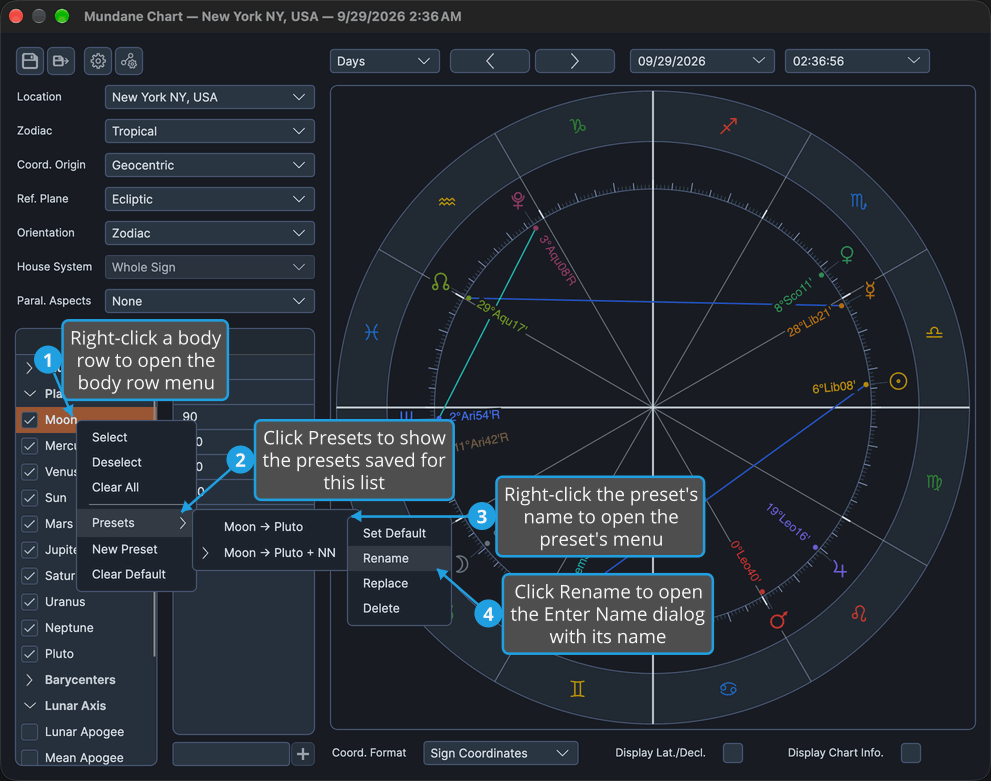
The preset keeps its bodies under the new name. Canceling the dialog leaves the name unchanged.
Replace a Body List Preset
Overwrite a saved preset with the list's current selection.
- Right-click a body row in the list to open the body row menu.
- Click Presets in the body row menu.
- Right-click the preset's name in the Presets submenu.
- Click Replace in the preset's menu.
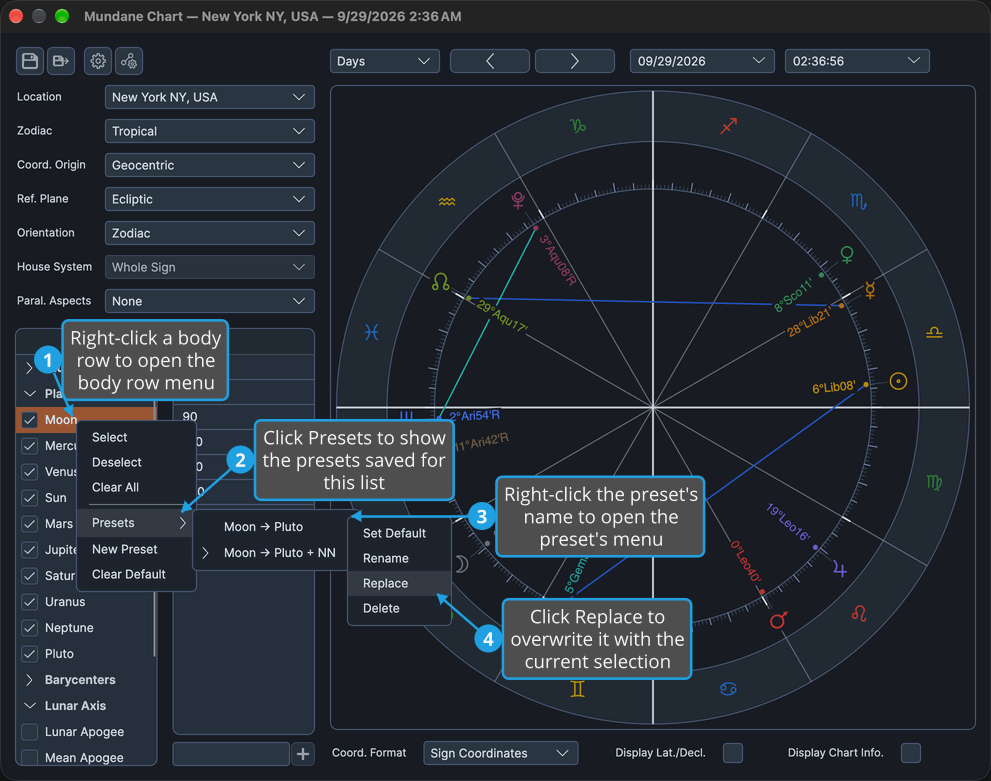
The preset keeps its name and shelf but now holds the list's current selection. No confirmation is asked.
Delete a Body List Preset
Remove a saved preset from the list's shelf.
- Right-click a body row in the list to open the body row menu.
- Click Presets in the body row menu.
- Right-click the preset's name in the Presets submenu.
- Click Delete in the preset's menu.
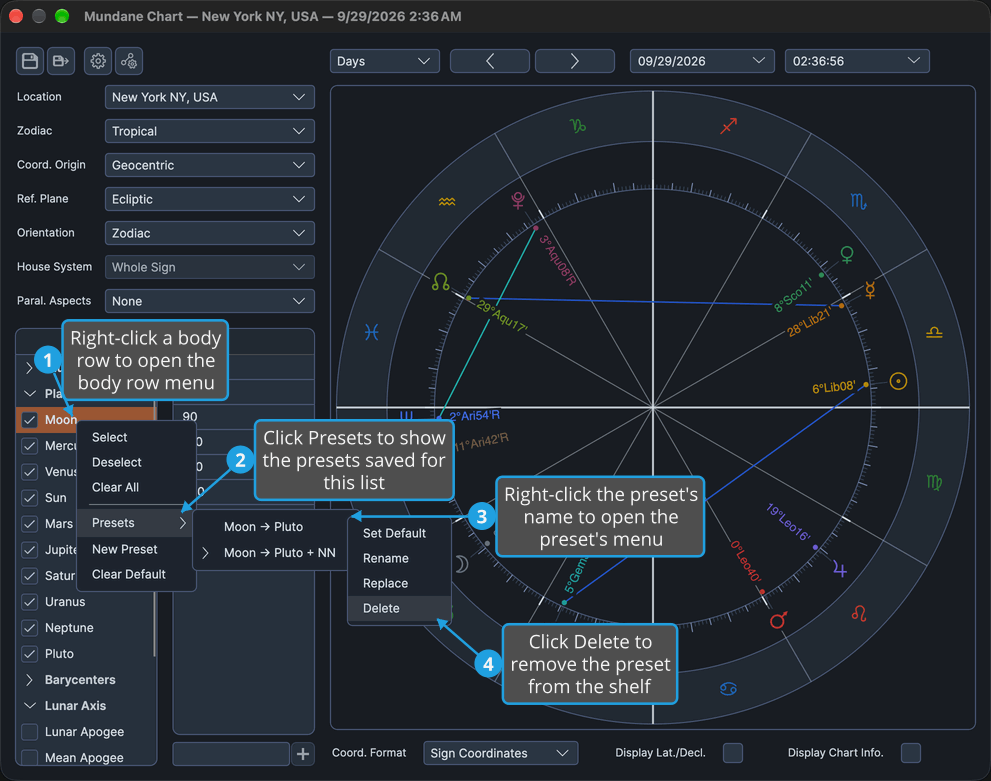
The preset disappears from the Presets submenu. No confirmation is asked.
Preset Menus
The body row menu carries three preset items: Presets, New Preset and Clear Default. The Presets submenu lists the presets saved on the list's shelf, each by its name, with a chevron beside the shelf's default; clicking one applies it. Its contents change as you save, rename, replace and delete presets.
Right-clicking a preset in the submenu opens the preset's own menu, whose items act on that preset:
| Menu Item | What It Does |
|---|---|
| Set Default | Makes the preset its shelf's default. |
| Rename | Opens the Enter Name dialog holding the preset's name. |
| Replace | Overwrites the preset with the list's current selection. |
| Delete | Removes the preset from the shelf. |
Name a Preset
New Preset and Rename open the Enter Name dialog, from the preset menus of the body lists and of the aspects grid alike.
Preset Name Entry
The Enter Name dialog holds one text box with Cancel and Save buttons: New Preset opens it empty, and Rename opens it holding the preset's current name. You keep the name or abandon it:
- To keep the name, follow Save a Name in the Enter Name Dialog.
- To abandon it, follow Cancel the Enter Name Dialog.
Save a Name in the Enter Name Dialog
Name a preset, a new one or one being renamed, and confirm it.
- Select any name the text box already holds, for example with Cmd+A (Ctrl+A on Windows).
- Type the preset's name and click the Save button.

The dialog closes and the workflow that opened it completes under the typed name, with leading and trailing spaces trimmed: New Preset saves the current selection as a preset of that name, and Rename gives the preset that name. Save is grayed while the text box is empty. Pressing Enter saves too, because Save is the dialog's default button.
Cancel the Enter Name Dialog
Abandon naming a preset.
- Click the Cancel button.
The dialog closes and the workflow that opened it is abandoned: no preset is created or renamed. Pressing Esc, or clicking the dialog's title-bar close button, abandons the name the same way.
Related Topics
- Chart Bodies Selection: check and uncheck bodies, and the body row menu.
- Chart Aspects Presets: the same preset menus on the aspects grid.
- Mundane Chart Configuration, Natal Chart Configuration and Transit Chart Configuration: the settings panels whose lists share shelves.