Mundane Chart Configuration
The settings panel of a Mundane chart window decides where the chart is cast and what it shows. Select a location, adjust the frame rows and the Paral. Aspects drop-down, and choose the bodies and aspect angles beneath them.
A new Mundane chart window opens with the Chart Settings defaults. Every setting you change in the panel applies to this window only and redraws the chart at once; the preset commands in the body row menu and the aspects grid's context menu change the shelves new windows open with, as described in Chart Bodies Presets and Chart Aspects Presets.
Settings Panel Layout
The panel's rows run from top to bottom, with the Bodies list and the Aspects grid side by side at the foot:
| Row | What It Sets |
|---|---|
| Location | The place the chart is cast for, from the Locations database. |
| Zodiac | The zodiac the chart's longitudes are measured in. |
| Coord. Origin | The observer's position. |
| Ref. Plane | The reference plane positions are reported in. |
| Orientation | How the wheel is turned. |
| House System | How the wheel's houses are divided. |
| Paral. Aspects | Which declination aspects the wheel draws as dashed chords. |
| Bodies | The bodies the chart plots. |
| Aspects | The aspect angles the wheel looks for. |
The five frame rows, from Zodiac to House System, are described in Chart Frame, the list in Chart Bodies Selection and the grid in Chart Aspect Angles.
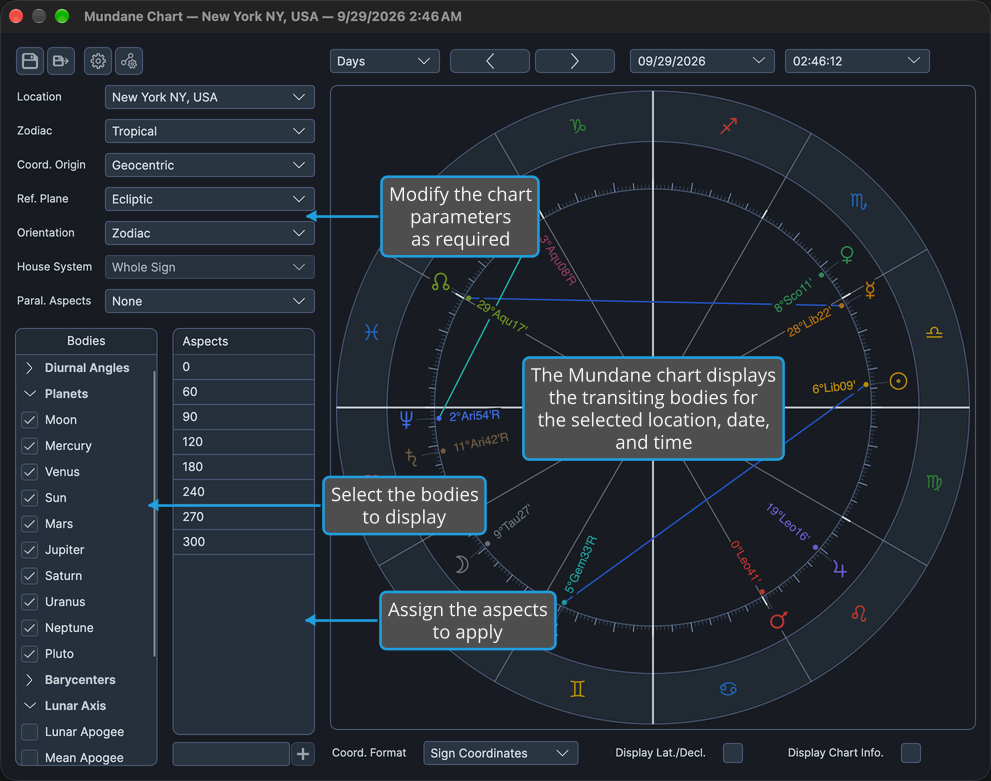
Choose the Mundane Chart's Location
Cast the chart for a different place. The Location drop-down lists the saved locations of the Locations database by name, in the order the database holds them. Compass shares the database with the sibling Rhythm Seven applications. You create, edit, delete, import and export locations in the Locations Editor (Edit → Locations), and changes made there appear in this drop-down at once.
- Select a location in the Location drop-down at the top of the settings panel.
The chart redraws for the chosen location, and its houses and angles follow it. The date and time in the pickers above the wheel stay as they are and are read in the new location's time zone. You set the date and time themselves on the time band, as described in Chart Time Navigation.
A new Mundane chart window opens at the default location set in General Chart Defaults.
Choose Which Parallels the Mundane Wheel Draws
Decide which declination aspects the wheel draws as dashed chords.
- Select which parallels to draw in the Paral. Aspects drop-down.
The wheel redraws with the chosen parallels, for this window only. The drop-down offers four options:
| Option | What the Wheel Draws |
|---|---|
| None | No parallel chords. |
| All | Both parallels and contraparallels. |
| Parallels | Parallels only. |
| Contraparallels | Contraparallels only. |
A new window takes this setting from the Chart Settings default, described in General Chart Defaults.
Related Topics
- Mundane Chart: what a Mundane chart is and how its window is laid out.
- Chart Frame: the Zodiac, Coord. Origin, Ref. Plane, Orientation and House System rows.
- Chart Bodies Selection: choose the bodies the chart plots.
- Chart Aspect Angles: choose the aspect angles the wheel looks for.
- Chart Time Navigation: set and step the chart's date and time.
- General Chart Defaults: the location and settings a new Mundane chart opens with.
- Locations Editor: manage the places a chart can be cast for.