Locations Editor
Keep a list of the places you cast charts for, with accurate coordinates. The Locations Editor shows the Locations database in an editable grid: add a location, edit its name, latitude, longitude and height, delete the locations you no longer need, and save.
Add and Delete sit at the bottom left of the editor, and Save and Close at the bottom right. The editor's own menu bar carries a File menu (Save, Exit) and a Data menu (Import, Export).
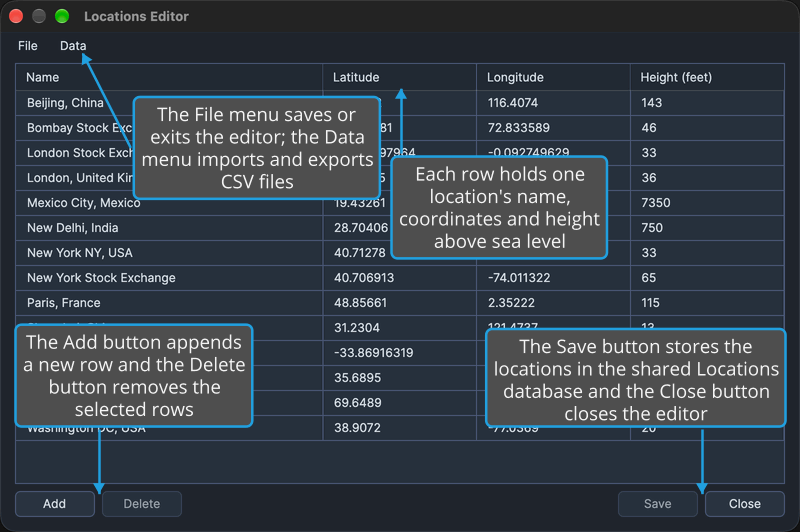
There is no time-zone column: Compass works out each location's time zone from its latitude and longitude.
Your changes stay in the editor until you save. Saving writes the Locations database, which is shared with the sibling Rhythm Seven applications. Compass reads it for the Location row of Mundane and Transit charts and for the default location in Chart Settings. Closing the editor with unsaved changes raises the Unsaved Changes prompt.
Open the Locations Editor
On macOS the Edit menu is in the menu bar at the top of the screen. To open the editor:
- Open the Edit menu, as described in Open the Edit Menu.
- Click Locations.
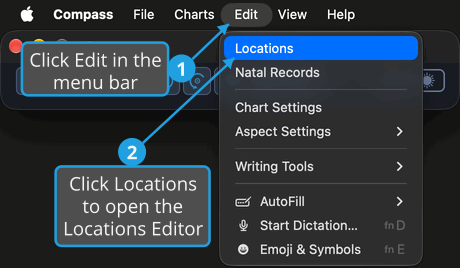
The Locations Editor opens with the saved locations in its grid.
Add a Location
To add a new, empty location to the grid:
- Click Add at the bottom left of the editor.
A new row is appended to the grid and selected, with its Name cell open for typing. Pressing Tab in the last cell of the last row also adds a row and opens its first cell. A row with no name is not saved.
Edit a Location
Each location has four fields: Name, Latitude, Longitude and Height (feet). You click the row and then the cell, one single click each: coming from outside the grid, a first click only selects the row. To change a field:
- Click the location's row in the grid to select it.
- Click the row's Name, Latitude, Longitude or Height (feet) cell to enter edit mode.
- Type the new value: a name, a latitude or longitude in decimal degrees, or a height above sea level in feet.
- Press Tab to commit the value.
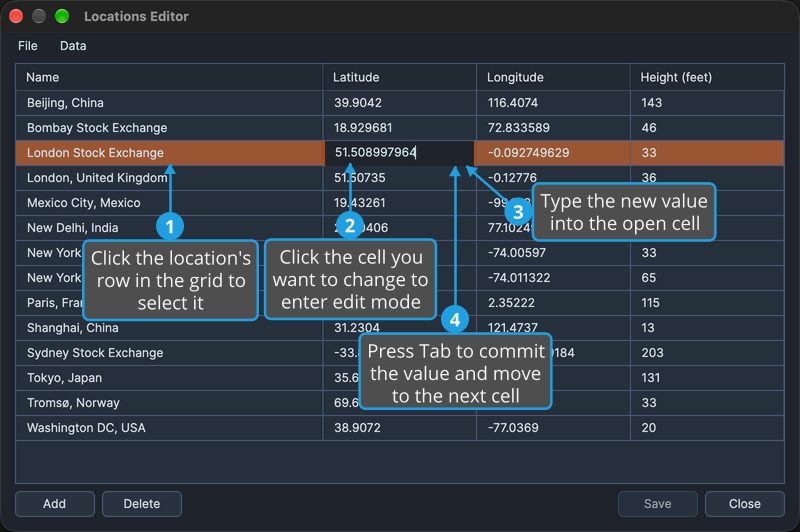
The cell shows the new value and the editor has unsaved changes; the value is kept once you save the editor. Changing a latitude or longitude updates the location's time zone.
Tab also moves to the next cell of the row, and from the last cell to the first cell of the next row. Press Enter instead to commit the value in place. To edit more cells of the same row, press Tab or click each cell in turn; the row stays in edit mode until you leave it.
Delete Locations
To remove locations from the grid:
- Click the row of the location to delete.
- Click Delete at the bottom left of the editor.
- Confirm the deletion in the Confirmation Request prompt, as described in Confirm a Yes/No Prompt.
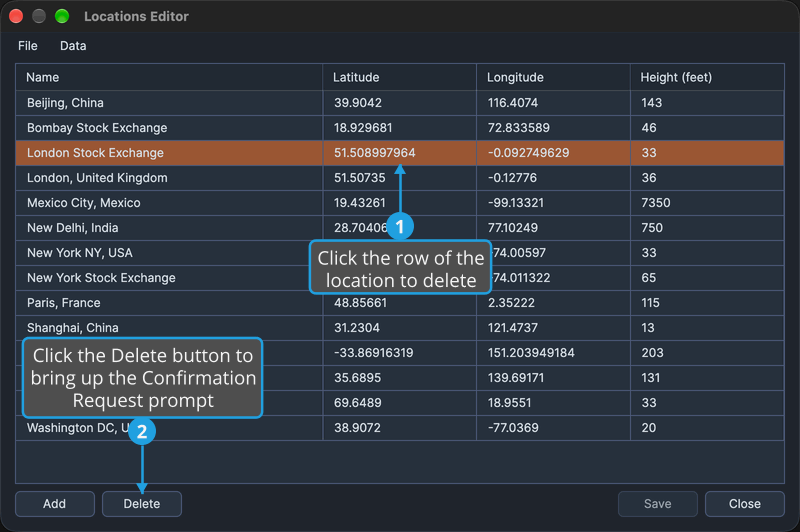
To delete several locations at once, Shift-click or Cmd-click (Ctrl-click on Windows) more rows to extend the selection before you click Delete.
The prompt asks "Delete the selected location?", in the plural when several rows are selected. Once you confirm, the selected rows leave the grid and the next row is selected; the deletion is kept once you save the editor. Declining the prompt, as described in Decline a Yes/No Prompt, keeps the rows.
From the keyboard, pressing Delete or Backspace on the grid deletes the selected rows after the same confirmation. The keys delete rows only when pressed on the grid itself, not inside a cell you are editing.
Save Locations
To write the editor's locations to the Locations database:
- Click File on the editor's menu bar.
- Click Save.
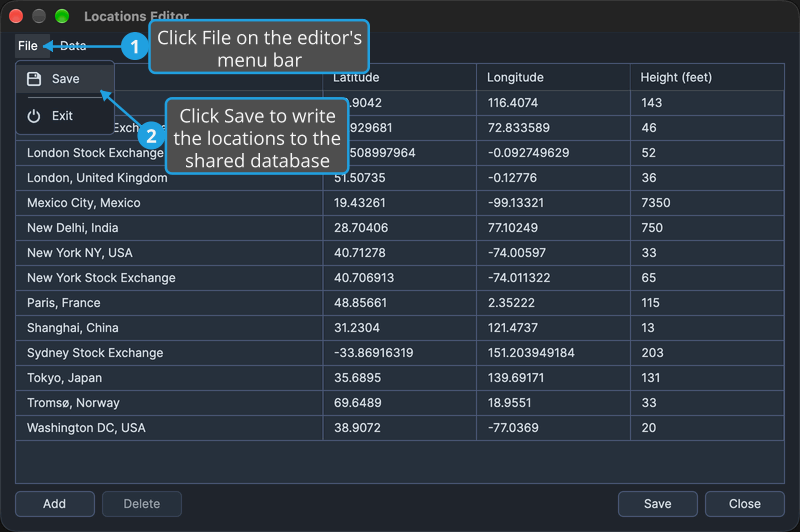
The Save button at the bottom right of the editor, and Cmd+S (Ctrl+S on Windows), save the same way. The named locations are saved, sorted, to the database shared with the sibling Rhythm Seven applications, and Save is grayed until the next change. A location with no name is not saved.
Close the Locations Editor
You can close the editor from File → Exit, from the Close button at the bottom right of the editor, or from its title-bar close button. When the editor has unsaved changes, it raises the Unsaved Changes prompt first. Text you have typed into a cell but not yet committed is committed before the prompt appears.
Close the Editor with No Unsaved Changes
To close the editor when there is nothing to save:
- Click File on the editor's menu bar.
- Click Exit.
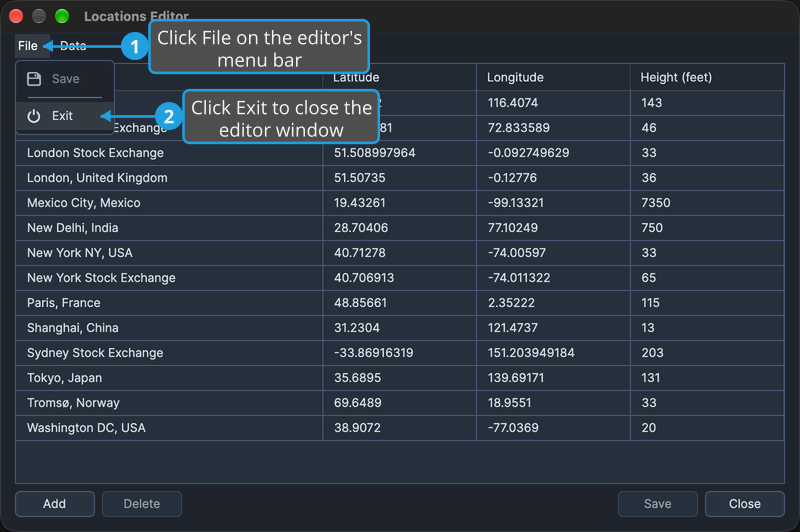
The editor window closes.
Save Changes as You Close
To close the editor and keep the changes made in it:
- Click File on the editor's menu bar.
- Click Exit.
- Choose to save the changes, as described in Save Changes from the Unsaved Changes Prompt.
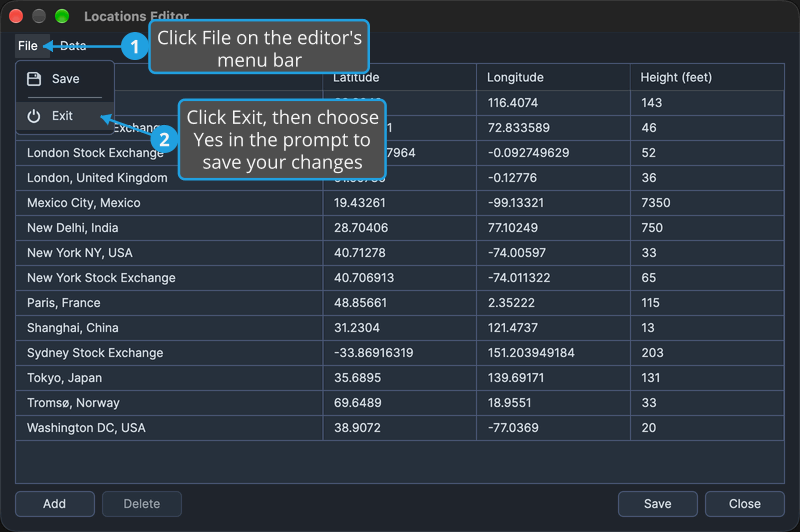
The changes are saved to the shared database and the editor closes. If the save does not complete, the editor stays open.
Discard Changes as You Close
To close the editor without keeping the changes made since the last save:
- Click File on the editor's menu bar.
- Click Exit.
- Choose to discard the changes, as described in Discard Changes from the Unsaved Changes Prompt.
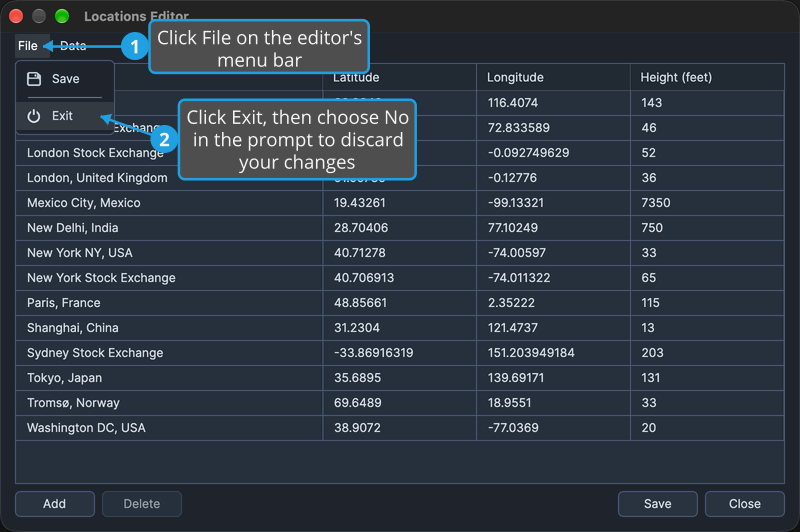
The editor closes and the database keeps its last saved locations.
Cancel the Close
To back out of closing the editor after it asks about its unsaved changes:
- Click File on the editor's menu bar.
- Click Exit.
- Cancel the close, as described in Cancel Closing from the Unsaved Changes Prompt.
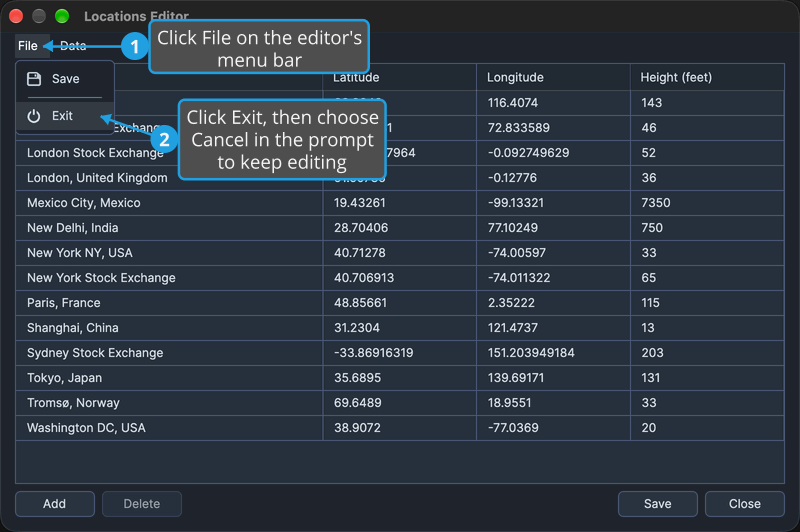
The editor stays open with its unsaved changes in place, and nothing is saved.
Locations Grid
The grid lists one location per row, in four fixed columns. The columns cannot be sorted.
| Column | Description |
|---|---|
| Name | The location's name, which identifies it. A location with no name is skipped when the editor is saved or exported. |
| Latitude | Latitude in decimal degrees, from -90 (south) to +90 (north). Changing it updates the location's time zone. |
| Longitude | Longitude in decimal degrees, from -180 (west) to +180 (east). Changing it updates the location's time zone. |
| Height (feet) | Elevation above sea level, in feet. It does not affect the time zone. |
Editor Menus
The editor's menu bar, inside the editor window, carries two menus of its own.
File Menu
The File menu saves the editor and closes it.
| Command | Description |
|---|---|
| Save | Saves the editor's locations to the Locations database, as described in Save Locations above. |
| Exit | Closes the editor, asking first about any unsaved changes. |
Data Menu
The Data menu moves locations in and out as CSV files.
| Command | Description | Details |
|---|---|---|
| Import | Adds the locations in a CSV file to the grid. | Import Locations |
| Export | Writes the grid's named locations to a CSV file. | Export Locations |
Answer Prompts and Messages
Some actions in Compass ask for confirmation first, and the Locations Editor and the Natal Records Editor report the result of an import or an export in a message. These prompts and messages work the same way wherever they appear.
Confirm a Yes/No Prompt
A Yes/No prompt appears before an action that asks for confirmation: Reset Chart Settings, Reset Aspect Settings, Delete in this editor or in the Natal Records Editor, and saving a natal record whose birth time never occurred. The two resets and Delete show the prompt titled Confirmation Request, and saving a birth time that never occurred shows it titled Nonexistent Time. To go ahead with the action:
- Click Yes in the prompt.
The prompt closes and the action it asked about is carried out. Yes is the prompt's default button, so pressing Enter answers it too.
Decline a Yes/No Prompt
To decline an action that asks for confirmation first:
- Click No in the prompt.
The prompt closes and the action is not carried out: nothing is reset, deleted or saved. Declining the Nonexistent Time prompt also selects the record whose time never occurred, so you can correct it; see Save a Record Whose Time Never Occurred.
Acknowledge a Message
The Locations Editor and the Natal Records Editor report an import or an export in an information message with a single Ok button: Import Successful, Export Successful, or No Locations to Export (No Records to Export in the Natal Records Editor) when no row has a name. To dismiss the message:
- Click Ok in the message.
The message closes and the editor that raised it has focus again. Ok is the message's default button, so pressing Enter dismisses it too.
Related Topics
- Import Locations: add the locations in a CSV file to the grid.
- Export Locations: write the named locations to a CSV file.
- Natal Records Editor: keep the birth data of the people you chart, in an editor that works the same way.
- Mundane Chart Configuration and Transit Chart Configuration: the Location row that offers these locations.
- General Chart Defaults: the default location in Chart Settings.
- Menu Bar: the Edit menu that opens the editor.