Reset Aspect Settings
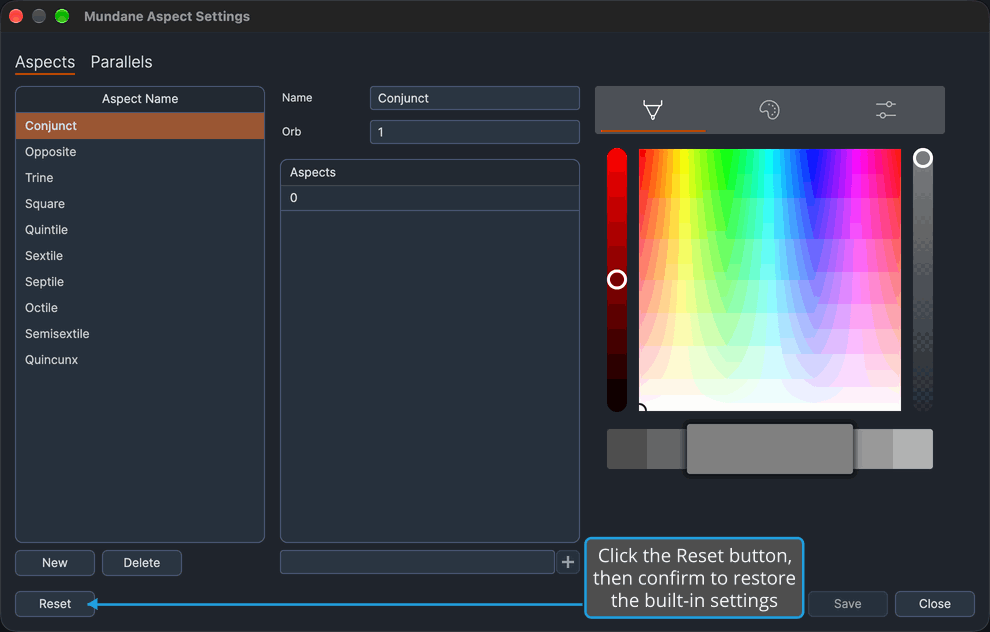
Get back to a chart type's built-in aspect orbs and colors. Reset, at the bottom left of the Aspect Settings Window, replaces the chart type's aspect settings with the built-in defaults once you confirm. On the Mundane, Natal and Transit windows it replaces the parallel settings as well. Click Reset, confirm and save the result.
Reset the Aspect Settings
Replace a chart type's aspect settings, and its parallel settings where the window offers them, with the built-in defaults.
- Click the Reset button at the bottom left of the Aspect Settings window.
- Confirm the reset in the Confirmation Request prompt, as described in Confirm a Yes/No Prompt.
The prompt names the chart type. On the Mundane, Natal and Transit windows it names the parallel settings too, for example "Reset all Mundane chart aspect and parallel settings to their built-in defaults? Your current settings will be replaced." On the Primary Directions, Solar Arc Directions and Secondary Progressions windows, which have no Parallels tab, it names the aspect settings alone.
Once you confirm, the list and the editor show the chart type's built-in aspect settings, and the Parallels tab, where offered, shows its built-in orbs and colors. Open charts of the type redraw at once.
Declining the prompt, as described in Decline a Yes/No Prompt, leaves everything as it was.
The reset is written to disk only when you save it, as described in Save Aspect Settings. Closing the window without saving brings the last saved settings back, as described in Discard Changes as You Close.
Related Topics
- Aspect Settings Window: the window Reset belongs to.
- Save Aspect Settings: keep the reset for future sessions.
- Aspect Settings Editor: the aspect settings the reset replaces.
- Parallel Aspect Settings: the parallel settings the reset replaces on the Mundane, Natal and Transit windows.
- Reset Chart Settings: the matching reset in the Chart Settings editor.