Aspect Settings Editor
Set an aspect setting's name, orb, angles and color in one place. The Aspect Settings Editor is the pane beside the Aspect Settings List in the Aspect Settings Window, and it shows the setting selected in the list. Select a setting in the list to edit its Name and Orb, add or edit the angles in its Aspects grid, and pick the color its chords are drawn in.
On the Mundane, Natal and Transit windows, click the Aspects tab first if the Parallels tab is showing; the Primary Directions, Solar Arc Directions and Secondary Progressions windows have no tab strip and show the pane directly.
Every edit redraws open charts of the window's chart type at once, and is kept when you save it, as described in Save Aspect Settings.
Edit an Aspect Setting's Name, Orb and Color
Name an aspect setting, set how wide its orb is and choose the color its chords are drawn in.
In the Primary Directions window, the Orb box is disabled, with the note "Directions are exact; orbs do not apply." beneath it.
First select the setting to edit, as described in Select an Aspect Setting. The Name and Orb boxes and the color picker then show the selected setting's current values, so change only the ones you want:
- Name: select the name in the Name box and type the new one.
- Orb: double-click the number in the Orb box and type the orb in degrees, which sets how widely charts of the window's chart type match the setting's angles.
- Color: choose the color the setting's chords are drawn in with the color picker.
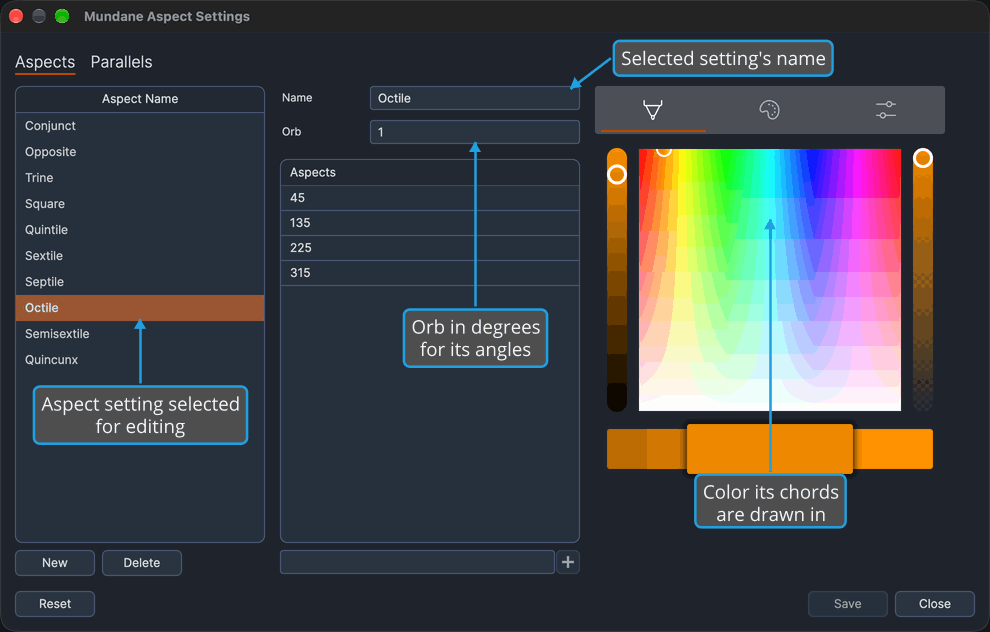
The setting shows its new name in the list, and open charts of the window's chart type match its angles within the new orb and draw its chords in the new color.
Add an Angle to an Aspect Setting
Add an aspect angle to the ones an aspect setting covers.
- Select the setting to edit, as described in Select an Aspect Setting.
- Type the angle in degrees in the entry box beneath the Aspects grid.
- Press Enter to add the angle.
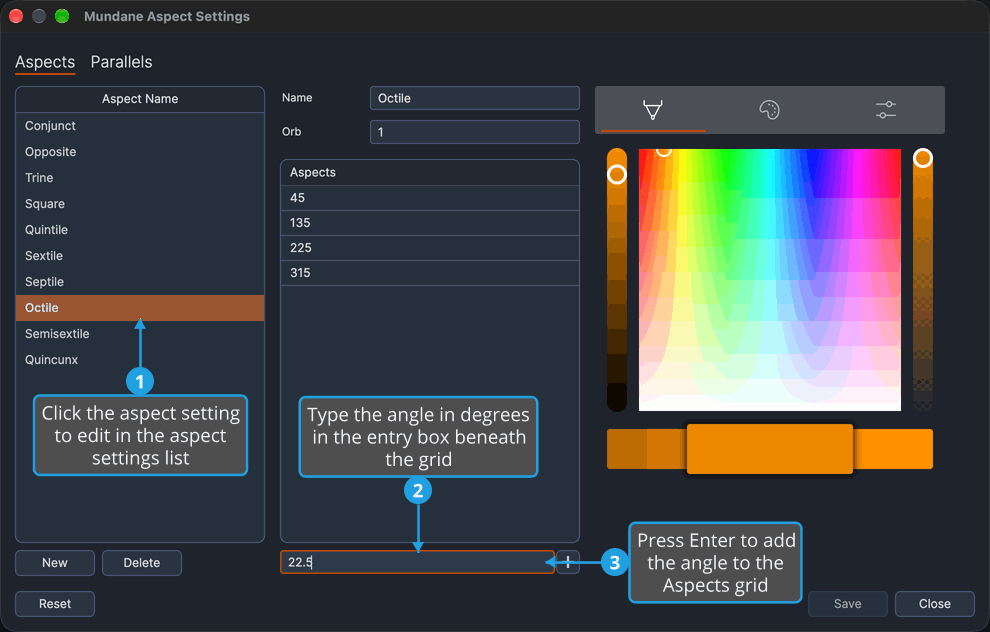
The angle is appended as a new row of the setting's Aspects grid, and the entry box is cleared. The add button beside the entry box, enabled once the box holds text, adds the angle too.
Edit an Aspect Setting's Angle
Change the value of an angle the setting already covers.
- Select the setting to edit, as described in Select an Aspect Setting.
- Click the angle's row in the Aspects grid to select it.
- Click the row's cell to enter edit mode.
- Type the new angle.
- Press Enter to commit the edit.
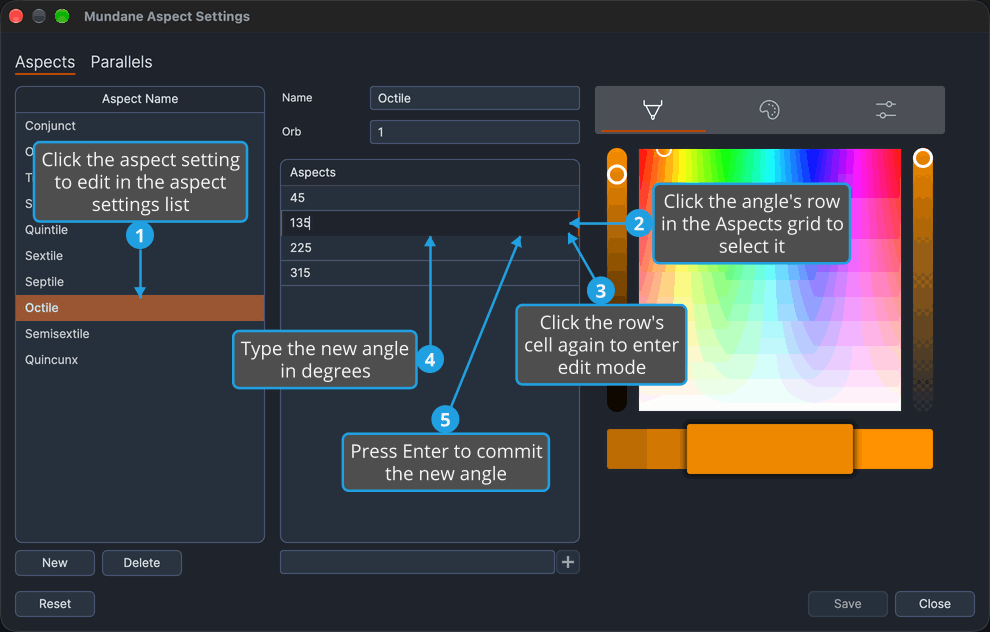
The first click selects the row without editing it; the second click, on the cell, opens it for editing. The cell accepts digits and a decimal point only. Pressing Tab also commits the value and moves focus on to the next cell. The row then holds the new angle.
Delete Selected Angles from an Aspect Setting
Remove chosen angles from an aspect setting.
- Select the setting to edit, as described in Select an Aspect Setting.
- Click the angle's row in the Aspects grid to select it.
- Open the Aspects grid's context menu, as described in Open the Aspects Grid Context Menu.
- Click Delete Selected in the context menu.
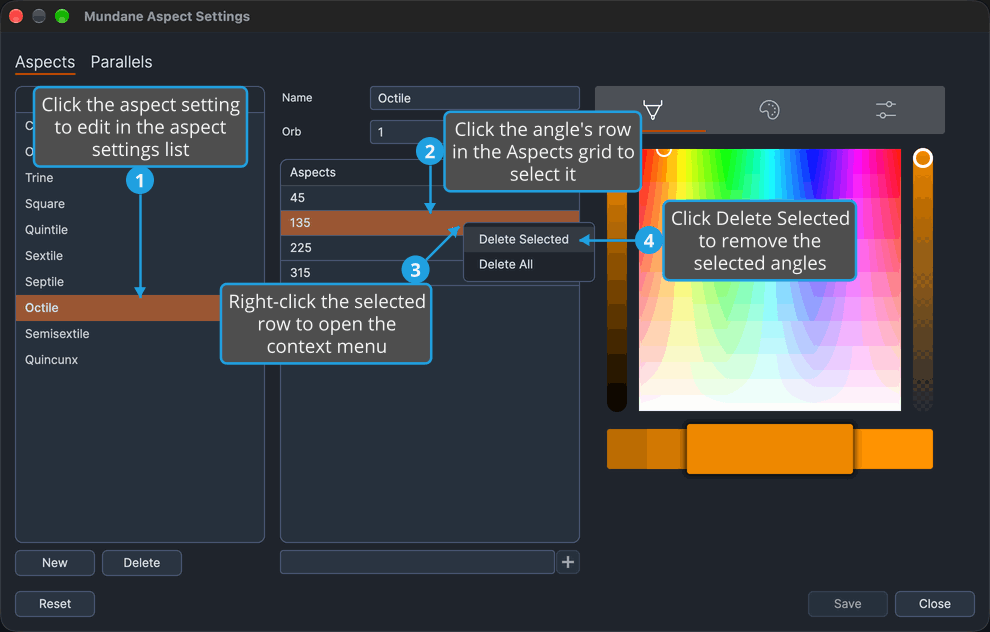
Cmd-click (Ctrl-click on Windows) or Shift-click more rows to add them to the selection before you open the menu. With the grid focused and rows selected, pressing Delete, or Backspace (the key a Mac keyboard labels delete), removes them too.
The selected rows leave the setting's Aspects grid.
Delete All Angles from an Aspect Setting
Empty an aspect setting's Aspects grid.
- Select the setting to edit, as described in Select an Aspect Setting.
- Open the Aspects grid's context menu, as described in Open the Aspects Grid Context Menu.
- Click Delete All in the context menu.
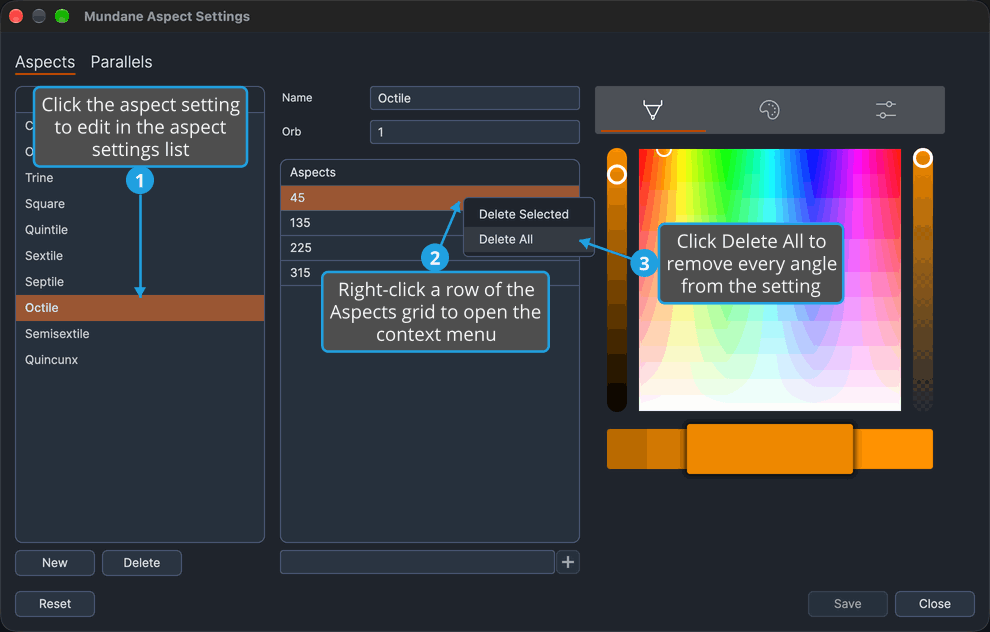
Every row leaves the setting's Aspects grid, so the setting covers no aspects.
Sort an Aspect Setting's Angles
Put an aspect setting's angles into ascending order. The setting needs two or more angles for the sort to change anything.
- Select the setting to edit, as described in Select an Aspect Setting.
- Click the Aspects grid's column header.
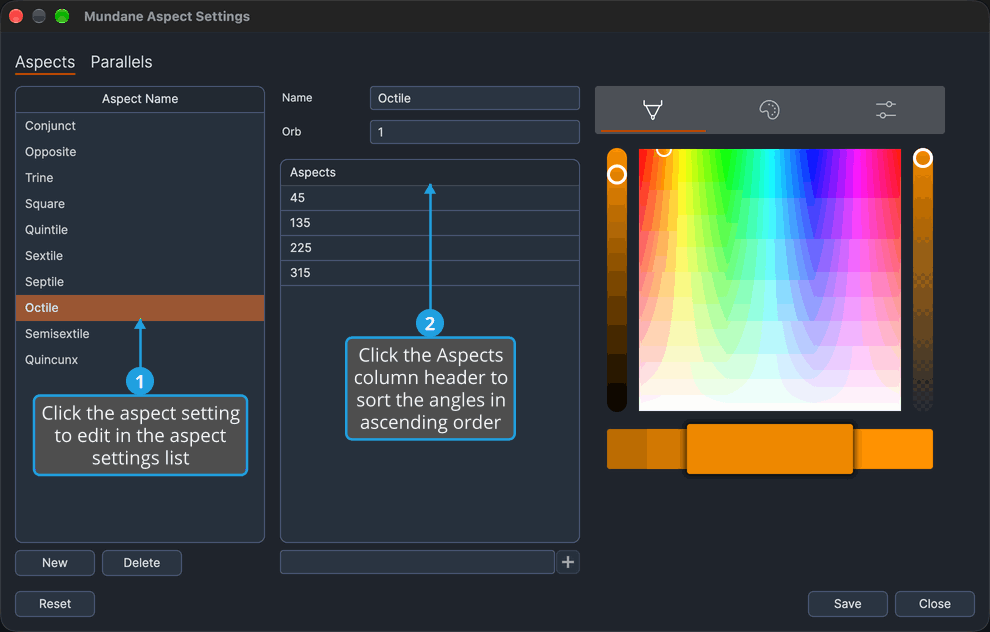
The rows are reordered from the smallest angle to the largest. The sort is always ascending; clicking the header again leaves the order as it is.
Aspects Grid Column
The Aspects grid has one column, and it is the same in every chart type's window.
| Column | Description |
|---|---|
| Aspects | One angle, in degrees, that the selected aspect setting covers, with one row per angle. An angle runs from 0 up to but not including 360. The cell is edited in place; new angles are added through the entry box and add button beneath the grid, and rows are removed through the grid's context menu or the Delete key. The column fills the grid's width, and clicking its header sorts the rows in ascending order. |
Aspects Grid Context Menu
Right-clicking a row of the Aspects grid opens a menu of two items. Unlike the aspects grid of a chart window's settings panel, it offers no presets.
| Menu Item | Description |
|---|---|
| Delete Selected | Removes the selected angle rows. |
| Delete All | Removes every angle. |
Related Topics
- Aspect Settings Window: the window the editor sits in, and how to open and close it.
- Aspect Settings List: the list of the chart type's settings, one of which the editor shows.
- New Aspect Setting: add a setting to fill in here.
- Parallel Aspect Settings: the orbs and colors of parallels and contraparallels.
- Save Aspect Settings: keep the edits for future sessions.
- Chart Aspect Angles: the aspects grid of a chart window's settings panel.