Aspect Settings List
The aspect settings list shows every aspect setting of a chart type, so you can pick the one to edit. It is the list headed Aspect Name on the Aspects tab of the Aspect Settings Window, with one row for each setting. Click a name to open that setting in the Aspect Settings Editor beside the list, and drag the splitter between the two to give the list or the editor more width.
New and Delete sit beneath the list; see New Aspect Setting and Delete Aspect Setting. The order of the list is the settings' order of precedence, which you can change as described in Reorder Aspect Settings.
On the Mundane, Natal and Transit windows the list is on the Aspects tab, so click the Aspects tab first if the Parallels tab is showing. The Primary Directions, Solar Arc Directions and Secondary Progressions windows have no tab strip, and the list is on screen as soon as the window opens.
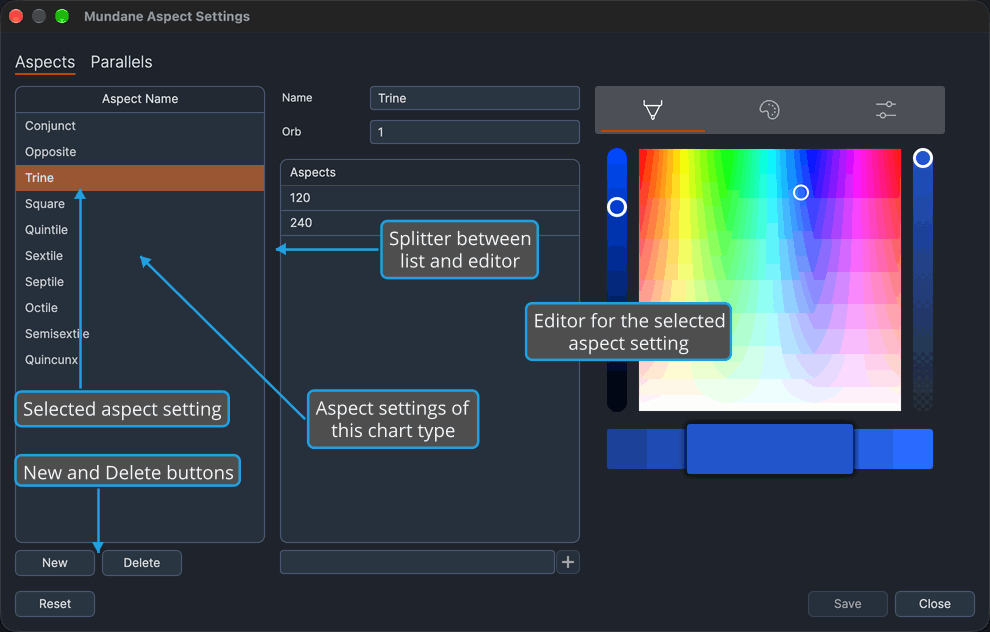
Select an Aspect Setting
Select a setting to show it in the editor and to choose the setting Delete and the reorder keys act on:
- Click the setting's name in the list.
The setting is highlighted in the list, and its name, orb, angles and color fill the editor beside it.
Resize the Aspect Settings List
A splitter separates the list from the editor. To give more width to the list or to the editor:
- Drag the splitter between the list and the editor left or right.
The list and the editor change width together.
What the List Holds
Each row is one aspect setting of the window's chart type, shown by its name. A setting carries a name, an orb, the angles it covers and a color, all edited in the Aspect Settings Editor.
- Starting contents. The list holds the chart type's saved aspect settings. A chart type with no saved aspect settings starts from the built-in defaults: Conjunct, Opposite, Trine, Square, Quintile, Sextile, Septile, Octile, Semisextile and Quincunx, with orbs that differ by chart type. Reset brings those defaults back; see Reset Aspect Settings.
- Selection on opening. The first setting is selected when the window opens.
- Managing the list. From there the list is yours to shape:
- New adds a setting named New Aspect Setting, numbered when that name is already taken.
- Delete removes the selected setting.
- Name, in the editor, renames the selected setting.
- A drag, or Option+Up or Option+Down (Alt+Up or Alt+Down on Windows), moves a setting to a new place.
- Order. A setting takes precedence over the settings below it in the list.
- Saving. Changes to the list reach open charts of the window's chart type at once and are written to disk when you save; see Save Aspect Settings.