Reorder Aspect Settings
The order of the aspect settings list decides which aspect setting takes precedence when settings overlap: a setting takes precedence over the settings below it. Drag a setting to a new place in the list, or select it and press Option+Up or Option+Down (Alt+Up or Alt+Down on Windows) to move it one place.
Either way, the open charts of the window's chart type update their aspect colors at once, the window now holds unsaved edits, so Save is no longer grayed, and the new order is kept when you save; see Save Aspect Settings.
You need at least two settings in the list. The list is on the Aspects tab of the Aspect Settings Window. On the Mundane, Natal and Transit windows, click the Aspects tab first if the Parallels tab is showing. The Primary Directions, Solar Arc Directions and Secondary Progressions windows have no tab strip and show the list directly.
Drag an Aspect Setting to a New Place
To move a setting by dragging it:
- Press and hold the mouse button on the setting's name in the list.
- Drag the setting up or down the list to its new place.
- Release the mouse button.
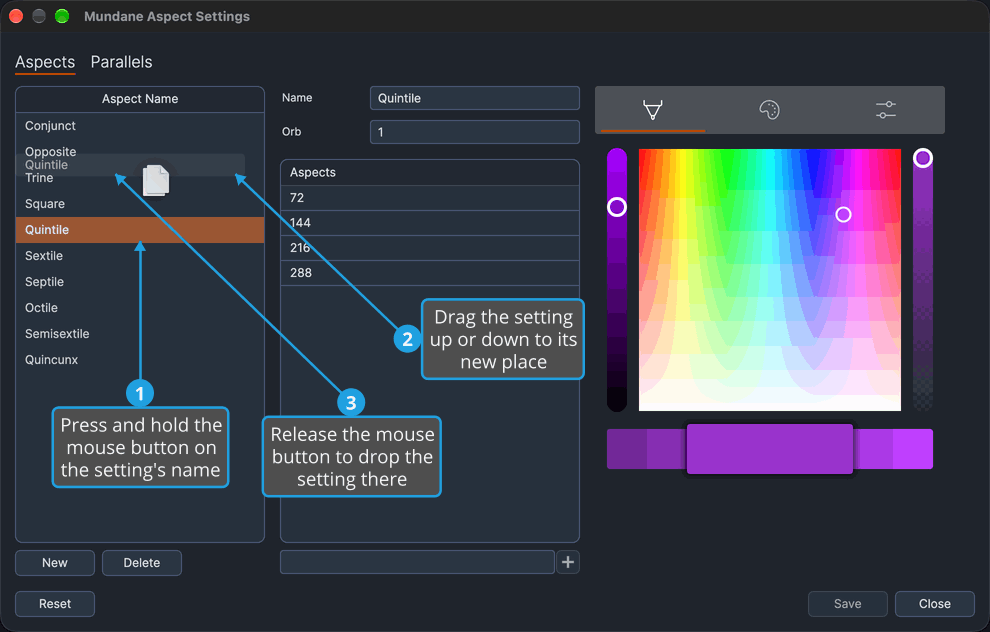
The drag begins once the pointer has moved a few pixels, and a ghost of the setting's name follows the pointer while you drag. The setting moves to where you release it, which changes its precedence over the settings below it.
Move an Aspect Setting with the Keyboard
To move a setting one place at a time:
- Select the setting you want to move, as described in Select an Aspect Setting.
- Press Option+Up (Alt+Up on Windows) to move it one place up the list.
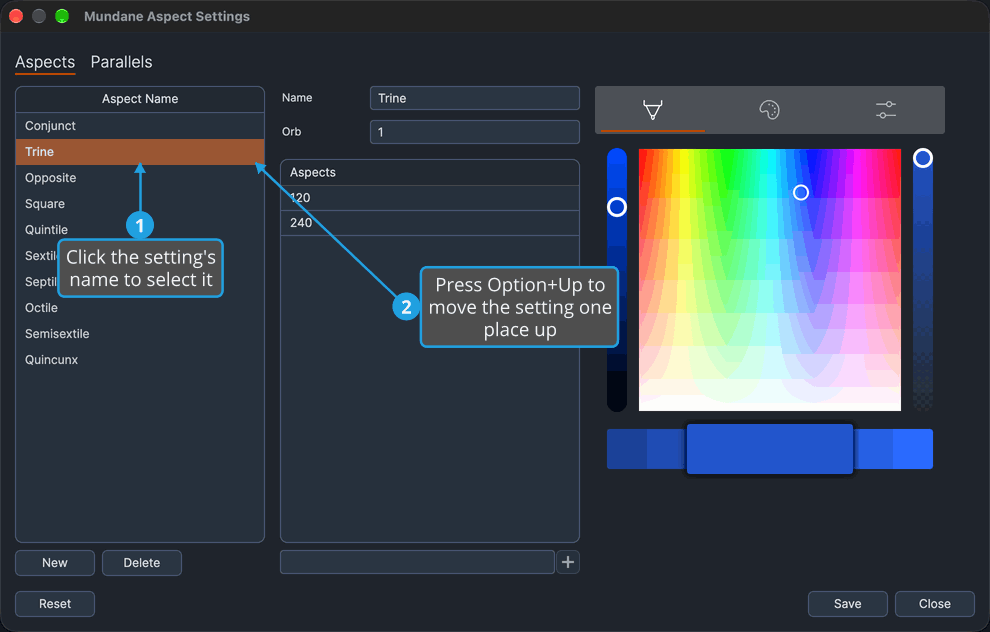
Press Option+Down (Alt+Down on Windows) to move it one place down the list the same way. The setting stays selected after each move. Option+Up does nothing on the first setting in the list, and Option+Down does nothing on the last.
Hold Option alone with the arrow key (Alt alone on Windows). A chord that adds another modifier, such as Option+Shift+Up, does not move the setting.