Reset Chart Settings
After experimenting with chart colors and defaults, you can go back to the values Compass ships with. Reset, at the bottom left of the Chart Settings Window, restores every color and every default in the window to Compass's built-in values once you confirm.
Reset the Chart Settings
To put every chart color and default in the window back to its built-in value:
- Click Reset at the bottom left of the Chart Settings editor.
- Confirm the reset in the Confirmation Request prompt, as described in Confirm a Yes/No Prompt.
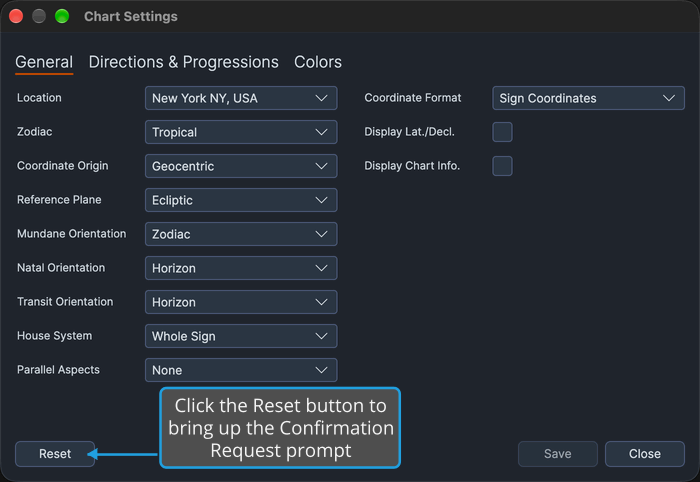
The prompt reads "Reset all chart settings to their built-in defaults? Your current settings will be replaced." Once you confirm, every color and default in the window shows its built-in value, and open charts redraw in the built-in colors at once.
Declining the prompt, as described in Decline a Yes/No Prompt, leaves every setting, and any edit still pending, as it was.
The reset is written to disk only when you save it (see Save Chart Settings). Closing the Chart Settings editor without saving brings the last saved settings back.