Import Locations
Bring a list of locations prepared elsewhere into Compass in one step. Data → Import in the Locations Editor adds the locations in a CSV file to the editor's grid and reports how many it imported. Save the editor to keep them.
Import Locations from a CSV File
With the Locations Editor open, to add the locations in a CSV file to its grid:
- Click Data → Import on the editor's menu bar.
- Choose the CSV file in the Select CSV File to Import dialog, as described in Open a File in the Open Dialog.
- Dismiss the Import Successful message, as described in Acknowledge a Message.
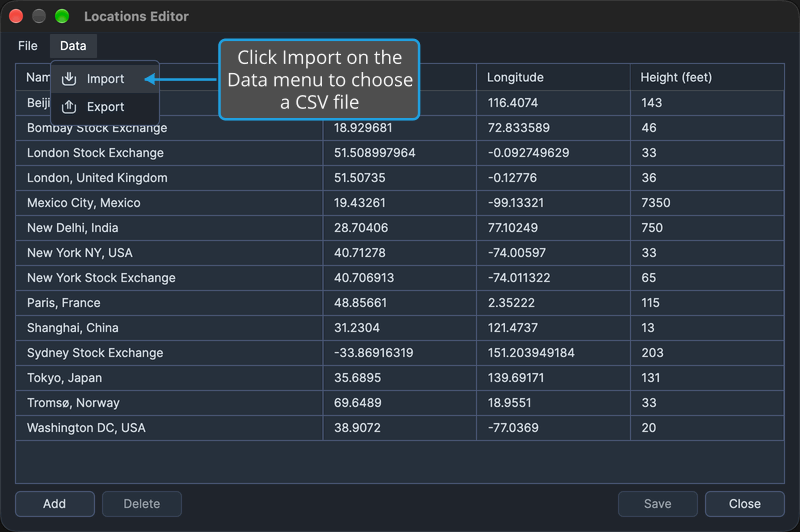
The file's locations are appended to the grid, and the Import Successful message reports how many were imported. The imported locations are kept once you save the editor.
The dialog's file-type filter offers CSV files (*.csv) and all files. Compass reports a file that cannot be read and adds nothing. Canceling the dialog, as described in Cancel the Open Dialog, imports nothing and shows no message.
Related Topics
- Locations Editor: edit, delete and save the imported locations.
- Export Locations: write the editor's named locations to a CSV file.
- Import Natal Records: the same import in the Natal Records Editor.