Open Chart File
Come back to a chart you saved earlier and continue from where you left it. Click File → Open Chart…, click the Open Chart button on the main toolbar, or press Cmd+O (Ctrl+O on Windows), then pick the .compass file in the dialog.
On macOS the File menu sits in the menu bar at the top of the screen and holds Open Chart… alone.
What a Saved Chart Restores
A saved chart opens in a chart window of the type it was saved as, exactly as it was saved:
- its moment, and its location or natal record
- its frame
- its body lists and aspect angles
- its display options
- its technique settings, Max Years and listed directions, on the Primary Directions, Solar Arc Directions and Secondary Progressions charts
The window is bound to the file, and its title names it. For what binding means when you save, see Save Chart.
Compass refuses a file saved by a newer version with a notice to update, and reports a file that is not a chart file. Neither opens a window.
Open a Saved Chart
You need a .compass file saved earlier, and Compass must have finished loading its startup data.
- Click File in the menu bar.
- Click Open Chart….
- Choose the
.compassfile in the Open Chart dialog, which lists Compass chart files, and open it, as described in Open a File in the Open Dialog.
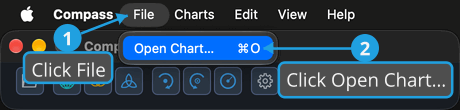
The chart opens in a chart window of the type it was saved as, bound to the file, with the file named in its title.
In place of the first two steps, click the Open Chart button on the main toolbar, or press Cmd+O (Ctrl+O on Windows).
Cancel Opening a Chart
To back out of opening a chart file:
- Click File in the menu bar.
- Click Open Chart….
- Cancel the Open Chart dialog, as described in Cancel the Open Dialog.
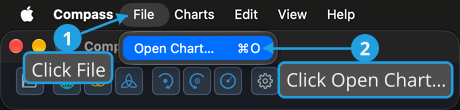
The dialog closes and no chart window opens.
In place of the first two steps, click the Open Chart button on the main toolbar, or press Cmd+O (Ctrl+O on Windows).
Answer the Open Dialog
The open dialog is the operating system's own. Compass shows it for Open Chart, which lists Compass chart files, and for choosing a CSV file to import in the Locations Editor and the Natal Records Editor.
Open a File in the Open Dialog
To choose a file and open it:
- Browse to the folder that holds the file.
- Click the file in the dialog's file list.
- Click Open.
The dialog closes and the chosen file goes to the command that opened the dialog. Pressing Enter does the same as clicking Open.
Cancel the Open Dialog
To close the open dialog without choosing a file:
- Click Cancel in the open dialog.
The dialog closes and nothing is opened or read. Pressing Esc does the same.
Related Topics
- Save Chart: save a chart to a
.compassfile, and what the asterisk in its title means. - New Chart: start a chart from your defaults instead.
- Main Toolbar: the Open Chart button.
- Menu Bar: the File menu.
- Import Locations and Import Natal Records: the other commands that use the open dialog.