Wheel Context Menu
Copy a body's exact position or an aspect's details into your notes or another program. Right-click a body glyph on the chart wheel and click Copy Position, or right-click an aspect chord and click Copy Description, then paste the text elsewhere.
Copy a Body's Position
To copy a text description of a plotted body's position to the clipboard, in a chart window of any type:
- Right-click the body's glyph on the chart wheel.
- Click Copy Position in the menu.
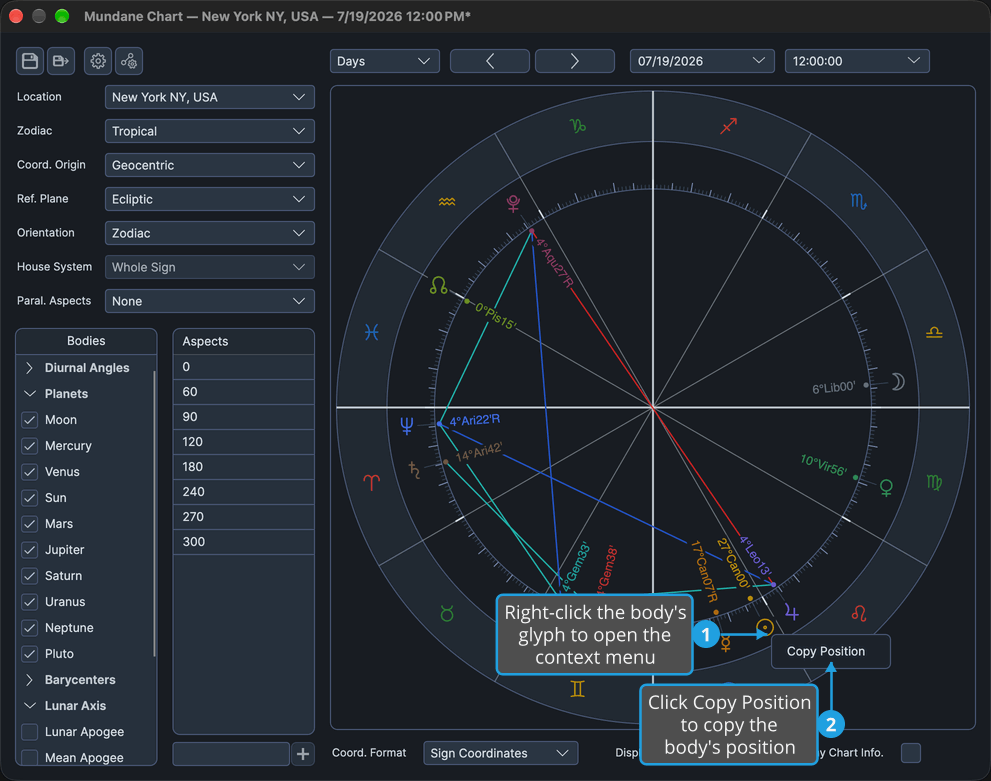
The clipboard holds the body's position, written in the chart's coordinate format and naming the moment it was calculated for, ready to paste elsewhere. On a chart with two point sets, the text also names the point's role, such as natal or directed.
On macOS you can also Control-click the glyph to open the menu, except on a transiting body of a Mundane or Transit chart: there, pressing with Control held starts a Control-drag instead (see Drag a Body to an Aspect), so right-click it. On a keyboard with a menu key, pressing it opens the menu for the mark under the pointer.
Copy an Aspect's Description
To copy a text description of an aspect drawn on the wheel, in a chart window whose wheel draws aspect chords:
- Right-click the aspect's chord on the chart wheel.
- Click Copy Description in the menu.
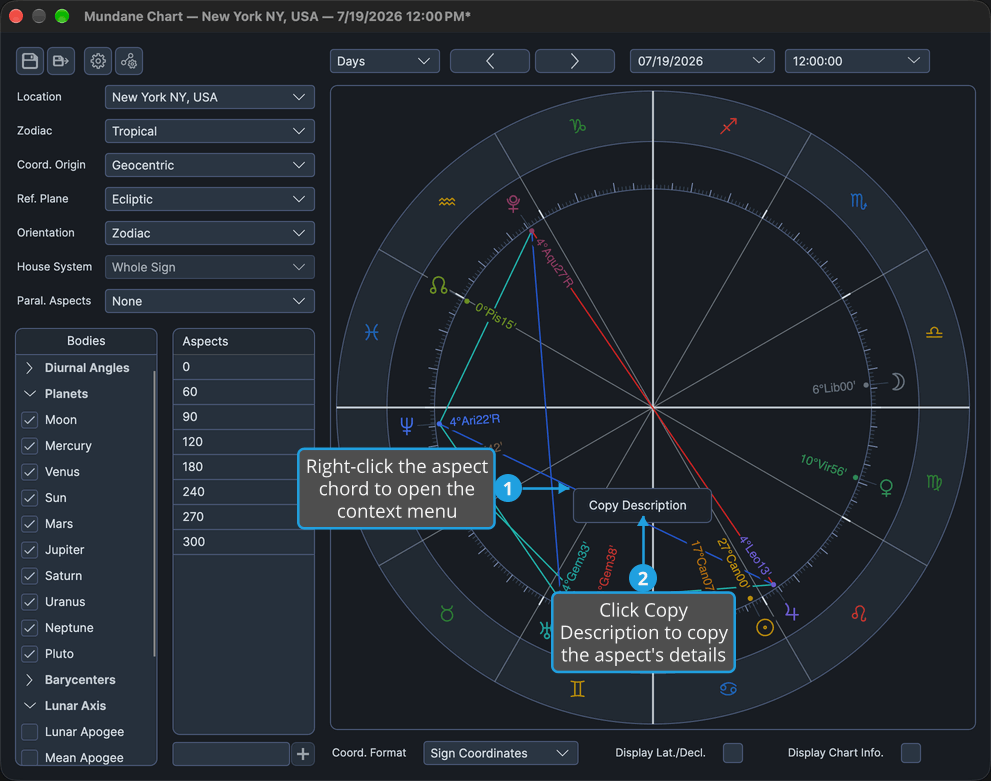
The clipboard holds a description of the aspect: the two points, the aspect and its values, ready to paste elsewhere. The Primary Directions chart's wheel draws no aspect chords of its own, so it offers no chord to right-click.
Menu Items
The menu opens at the pointer, and what it offers depends on the mark you right-click. No menu opens while a body is being dragged.
Body Glyph
| Menu Item | What It Copies |
|---|---|
| Copy Position | The body's position in the chart's coordinate format, naming the moment it was calculated for and, on a chart with two point sets, the point's role |
Every chart type offers this menu.
Aspect Chord
| Menu Item | What It Copies |
|---|---|
| Copy Description | A description of the aspect: the two points, the aspect and its values |
Every chart type except the Primary Directions chart offers this menu.
Sign, House or Cusp
Signs, houses and cusps open no menu.
Related Topics
- Chart Wheel: the body glyphs and aspect chords the menu opens on.
- Chart Display Options: the coordinate format a copied position is written in.