New Chart
Start a fresh chart of the kind you need, already prepared with your preferred defaults. Choose the chart type from the Charts menu, or click that chart type's button on the main toolbar, and the chart window opens ready to adjust.
Compass has one command for each chart type: Mundane, Natal and Transit, then Primary Directions, Solar Arc Directions and Secondary Progressions. Each window opens with the Chart Settings defaults for its type, and its bodies and aspect angles come from that chart type's default presets. Any number of chart windows can be open at once.
On macOS the Charts menu sits in the menu bar at the top of the screen.
The chart commands become available once Compass has finished loading its saved settings, presets and reference data at startup.
Open a New Mundane Chart
- Click Charts in the menu bar.
- Click Mundane Chart.
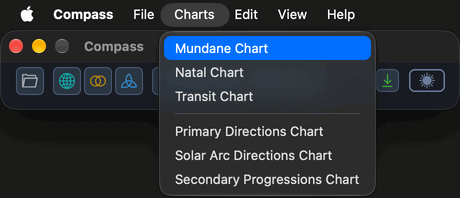
A new Mundane chart window opens at the Chart Settings default location, at the present moment in that location's time zone, with the Mundane chart type's default body and aspect presets.
In place of both steps, click the Mundane Chart button on the main toolbar.
Open a New Natal Chart
- Click Charts in the menu bar.
- Click Natal Chart.
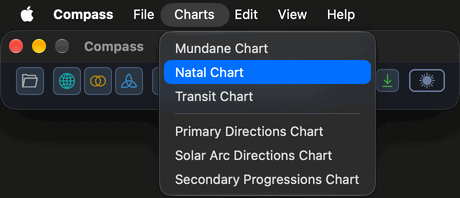
A new Natal chart window opens at the default natal record's birth moment, in the Chart Settings default frame, with the Natal chart type's default body and aspect presets.
In place of both steps, click the Natal Chart button on the main toolbar.
Open a New Transit Chart
- Click Charts in the menu bar.
- Click Transit Chart.
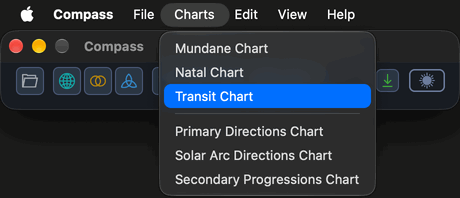
A new Transit chart window opens with its transiting moment at the Chart Settings default location, at the present moment in that location's time zone. It is set against a built-in default natal record and uses the Transit chart type's default body and aspect presets.
In place of both steps, click the Transit Chart button on the main toolbar.
Open a New Primary Directions Chart
- Click Charts in the menu bar.
- Click Primary Directions Chart.
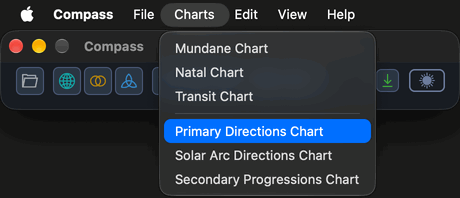
A new Primary Directions chart window opens at the default natal record's birth moment, under the Primary Directions Defaults in Chart Settings, with its promissor, significator and aspect default presets. An empty directions list sits beside the wheel, so the window opens wider than a Mundane, Natal or Transit chart window.
In place of both steps, click the Primary Directions Chart button on the main toolbar.
Open a New Solar Arc Directions Chart
- Click Charts in the menu bar.
- Click Solar Arc Directions Chart.
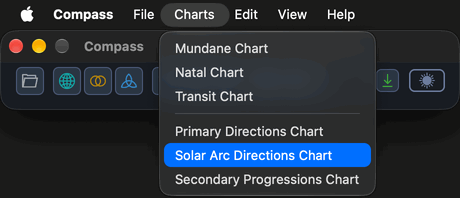
A new Solar Arc Directions chart window opens for the default natal record, with its directed date at the present moment in the record's time zone. It uses the Solar Arc Directions Defaults in Chart Settings and its directed, natal and aspect default presets, and an empty directions list sits beside the wheel, so the window opens wider than a Mundane, Natal or Transit chart window.
In place of both steps, click the Solar Arc Directions Chart button on the main toolbar.
Open a New Secondary Progressions Chart
- Click Charts in the menu bar.
- Click Secondary Progressions Chart.
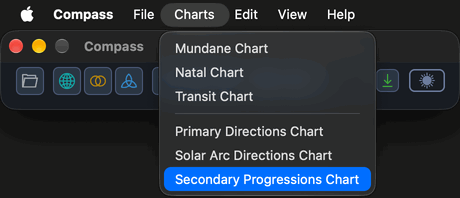
A new Secondary Progressions chart window opens for the default natal record, with its progressed date at the present moment in the record's time zone. It uses the Secondary Progressions Defaults in Chart Settings and its progressed, natal and aspect default presets, and an empty directions list sits beside the wheel, so the window opens wider than a Mundane, Natal or Transit chart window.
In place of both steps, click the Secondary Progressions Chart button on the main toolbar.
Related Topics
- Mundane Chart, Natal Chart and Transit Chart: what each of these chart types shows.
- Primary Directions Chart, Solar Arc Directions Chart and Secondary Progressions Chart: the three technique charts.
- General Chart Defaults: the default location, frame and display settings new charts open with.
- Primary Directions Defaults, Solar Arc Directions Defaults and Secondary Progressions Defaults: the defaults each technique chart opens with.
- Chart Bodies Presets and Chart Aspects Presets: choose which preset a new chart's lists open with.
- Open Chart File: reopen a chart you saved earlier.
- Main Toolbar and Menu Bar: where the chart commands sit.
- Open a Chart from Aquila and Open a Chart from Cygnus: other ways a chart window opens.