Primary Directions Chart Configuration
The settings panel of a Primary Directions Chart is where you set up whose chart is directed, how, and which points are carried to which. On the Natal Data tab you select the natal record and the frame. On the Directions tab you choose the technique settings. On the Promissors & Aspects and Significators tabs you choose the two body lists and the cycle angles.
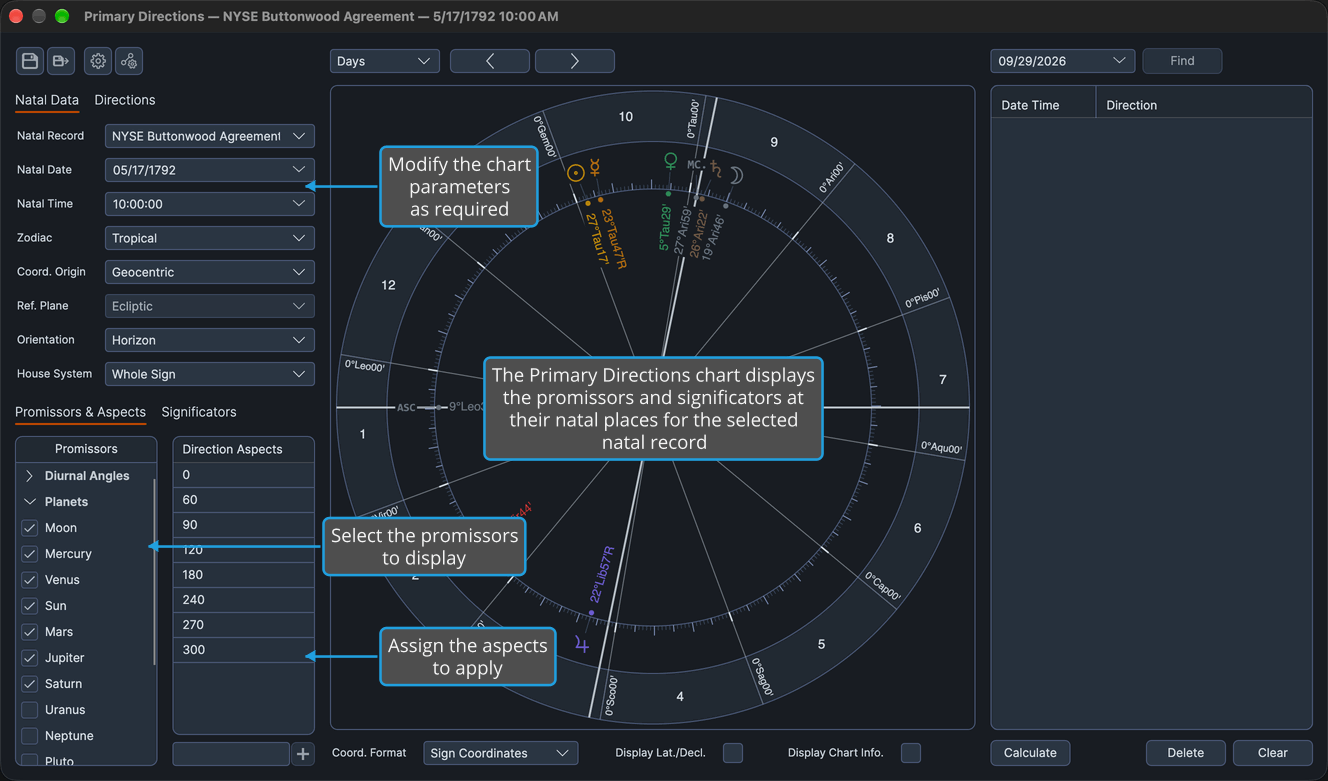
Settings Panel Tabs
The panel holds two tab pairs. The upper pair sizes itself to the content of the selected tab, and the lower pair shares the rest of the panel's height.
| Pair | Tab | Contents |
|---|---|---|
| Upper | Natal Data | The Natal Record, Natal Date and Natal Time rows, then the five frame rows |
| Upper | Directions | The Method, Frame, Latitude, Converse, Key, Rate, Year and Max Years rows |
| Lower | Promissors & Aspects | The Promissors list beside the Direction Aspects grid |
| Lower | Significators | The Significators list, the target points |
Natal Data Tab
The Natal Data tab holds the natal record the chart is directed from, with its Natal Date and Natal Time, and the five frame rows: Zodiac, Coord. Origin, Ref. Plane, Orientation and House System. On this chart three of the frame rows are set apart from the other chart types:
- Coord. Origin offers Geocentric and Topocentric only.
- Ref. Plane is disabled and stays at Ecliptic.
- Orientation opens at the Primary Directions orientation default set in Primary Directions Defaults.
The natal data rows work as they do on a natal chart, described in Natal Chart Configuration. The frame rows are described in Chart Frame.
Choose the Natal Record
Choose whose birth chart the chart directs. The record must already be in the Natal Records database; you add records in the Natal Records Editor.
- Click the Natal Data tab.
- Select the record from the Natal Record drop-down.
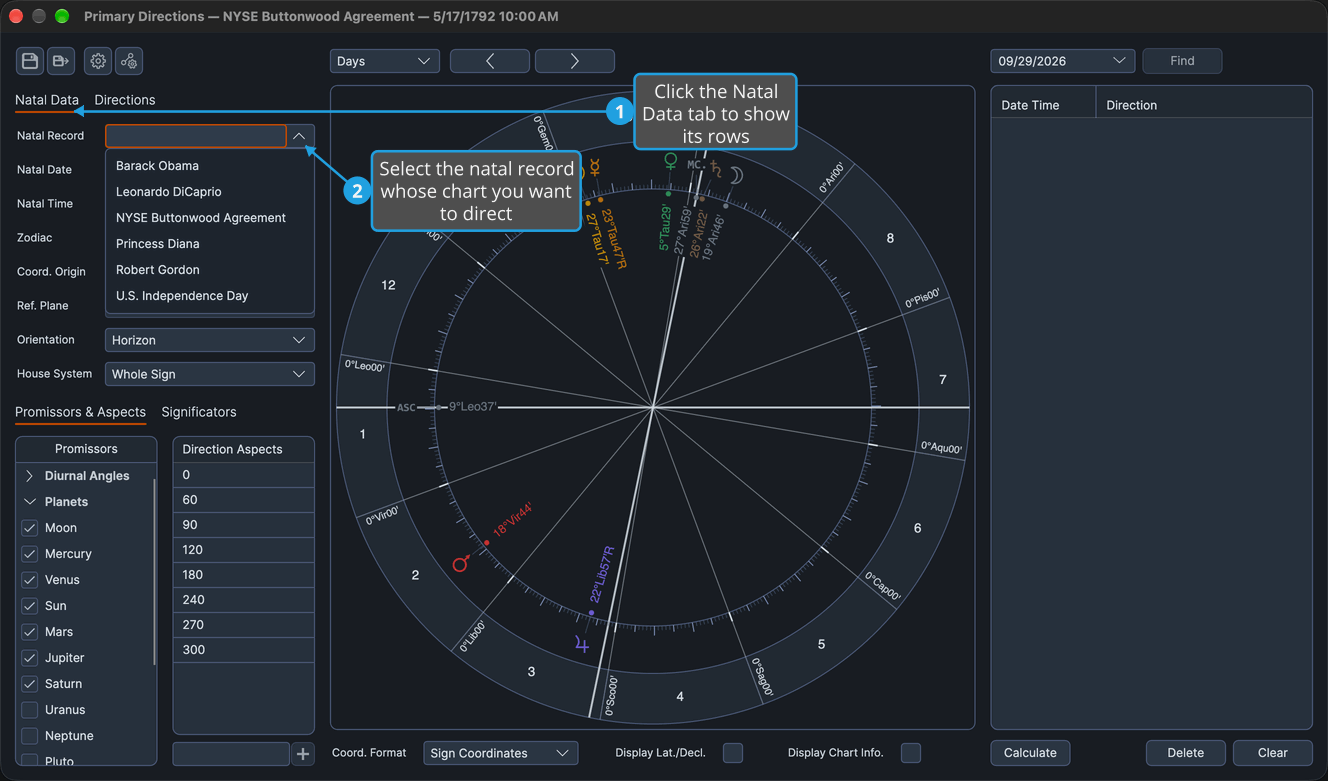
The Natal Record drop-down is searchable. Once its list is open, typing part of a name narrows the list, and clicking a record chooses it.
The wheel recasts for the chosen record's birth moment and place, and every listed direction re-dates.
Rectify a Birth Time
Try a corrected birth date or time. This is the rectification use of the chart, and it leaves the stored natal record unchanged.
- Click the Natal Data tab.
- Click the Natal Date field to select its whole value.
- Type the date.
- Click the Natal Time field to select its whole value.
- Type the time and press Enter to commit it.
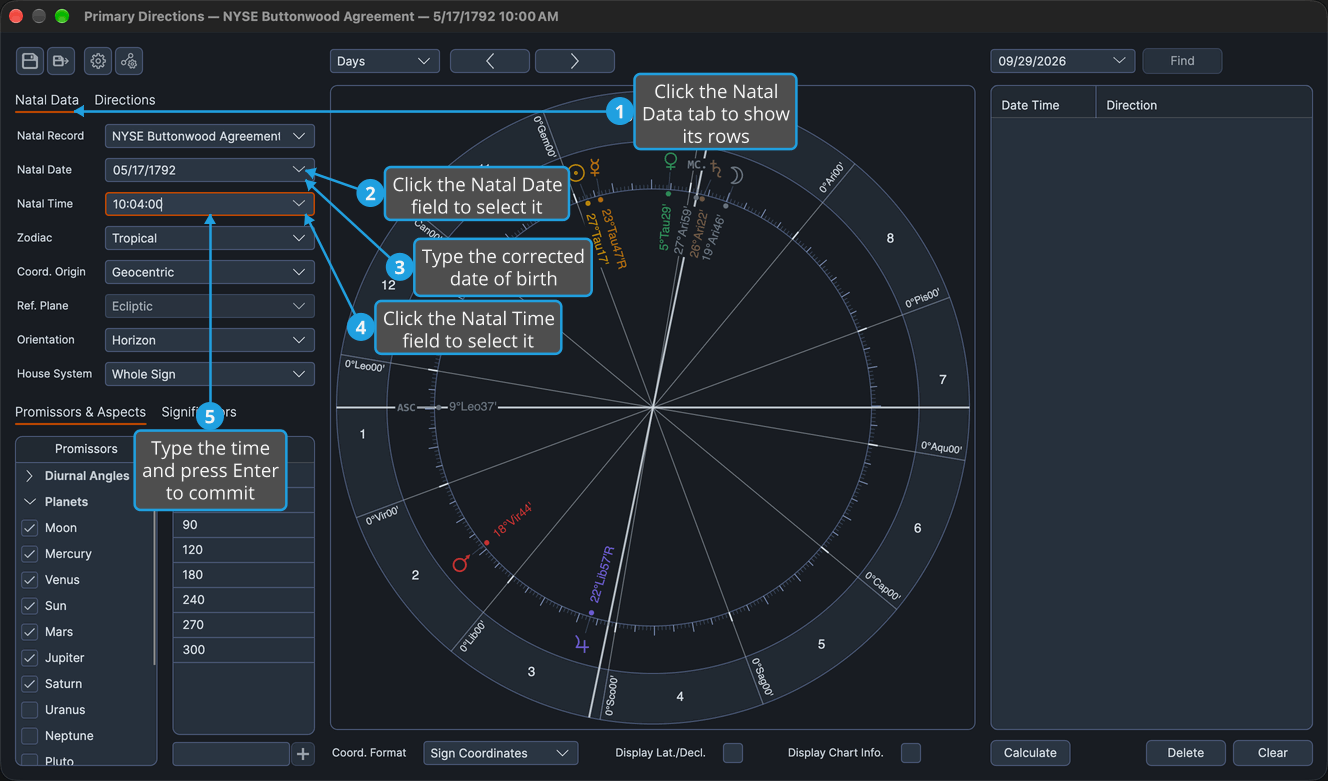
The wheel recasts for the edited moment and every listed direction re-dates. A list filled by Calculate stays armed and recalculates as well; see Calculate Directions.
On this chart the chevrons of the time band step the birth moment too, and four minutes of birth time move a primary direction by about a year. See Chart Time Navigation.
Directions Tab
The Directions tab holds the settings that decide how each direction is solved and dated. The Method, Frame, Latitude, Converse, Key and Rate rows are described in Primary Direction Settings, the Year row in Year Reckoning and the Max Years row in Max Years.
Promissors, Significators and Aspects
The lower tab pair chooses the points the chart carries, the points they are carried to, and the cycle angles of the directions. The promissors are the carried points; the significators are the target points.
| Control | Tab | Ships With |
|---|---|---|
| Promissors | Promissors & Aspects | The Moon -> Saturn preset, the seven classical planets |
| Direction Aspects | Promissors & Aspects | The 102 Ptolemaic (Major Aspects) preset |
| Significators | Significators | The Luminaries & Angles preset: Sun, Moon, Ascendant and Medium Coeli |
A point selected in both lists is plotted once on the wheel.
The two lists work as every chart's body lists do; see Chart Bodies Selection and Chart Bodies Presets. The angles in the Direction Aspects grid are exact and decide where a drag can snap; to edit them, see Chart Aspect Angles and Chart Aspects Presets.