Chart Display Defaults
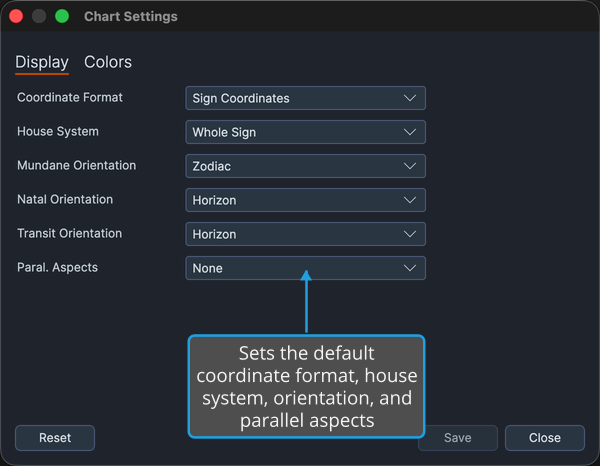
The Display tab of the Chart Settings window sets the display and frame defaults that new charts open with: the coordinate format, the house system, the default orientation for each chart type, and the default parallel-aspect display. Setting these once means new charts open the way you prefer without adjusting every chart by hand.
The Display tab is the default tab of the Chart Settings window, so it is already showing when you open Chart Settings. Every field shows its current default, so change only the settings you want to adjust:
- Coordinate Format and House System govern how positions are formatted and which house division new charts open with.
- The Mundane Orientation, Natal Orientation, and Transit Orientation dropdowns set the wheel orientation each chart type is cast with by default.
- Paral. Aspects determines whether and how new charts show parallel aspects.
Coordinate Format
The Coordinate Format dropdown chooses how a body's position reads throughout new charts:
| Option | Description |
|---|---|
| Sign Coordinates | Positions read as a sign, degree, and minute, such as 15°Leo37'. |
| Cycle Angles | Positions read as a decimal angle around the full cycle, such as 135.61667°. |
House System
The House System dropdown chooses the house division new charts open with. The available options are:
- None
- Alcabitus
- Campanus
- Equal (Ascendant)
- Koch
- Morinus
- Placidus
- Porphyry
- Regiomontanus
- Topocentric (Polich/Page)
- Vehlow Equal
- Whole Sign
Default orientation per chart type
Each chart type has its own default orientation, set with the Mundane Orientation, Natal Orientation, and Transit Orientation dropdowns. Every one of the three offers the same two orientations:
- Horizon
- Zodiac
Parallel Aspects display
The Paral. Aspects dropdown sets whether and how new charts display parallel aspects:
| Option | Description |
|---|---|
| None | New charts show no parallel aspects. |
| All | New charts show both parallels and contraparallels. |
| Parallels | New charts show parallels only. |
| Contraparallels | New charts show contraparallels only. |
The orbs and chord colors of the parallel and contraparallel aspects themselves are set on the Parallel Aspect Settings tab of the per-type Aspect Settings window.
Save your changes
To make your display defaults take effect for new charts, save them:
- Click the Save button.