Locations Editor
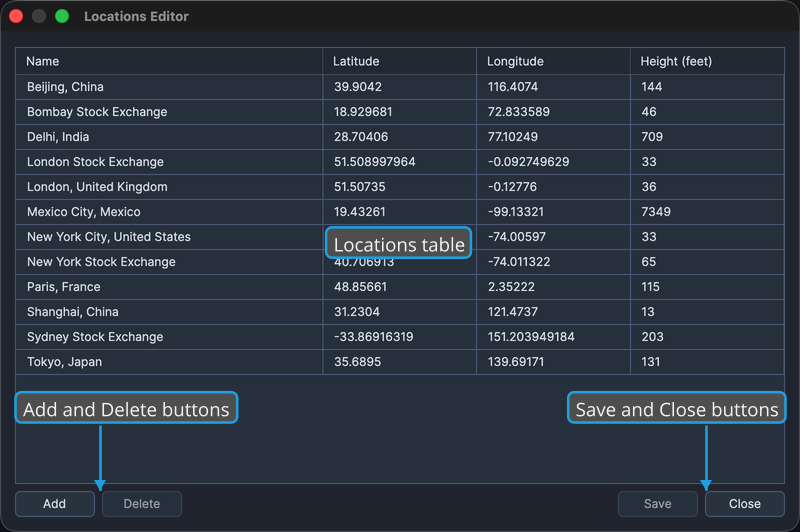
The Locations Editor is a window for managing the shared library of saved locations that studies and default settings draw from. You edit locations in place in a table with Name, Latitude, Longitude, and Height columns, and use the buttons along the bottom to add, delete, save, and close.
Opening the Editor
To open the Locations Editor:
- Click Edit → Locations on the menu bar.
You can also click the Locations editor button on the toolbar.
Location Columns
Each location row has the following columns:
| Column | Description |
|---|---|
| Name | A descriptive name for the location, such as "New York, NY." Locations are sorted alphabetically by name when you save. |
| Latitude | Geographic latitude in decimal degrees, from -90.0 to +90.0, with positive values north. |
| Longitude | Geographic longitude in decimal degrees, from -180.0 to +180.0, with positive values east. |
| Height (feet) | Elevation above mean sea level in feet, where 0.0 is sea level and negative values are below sea level. |
Editing a Location
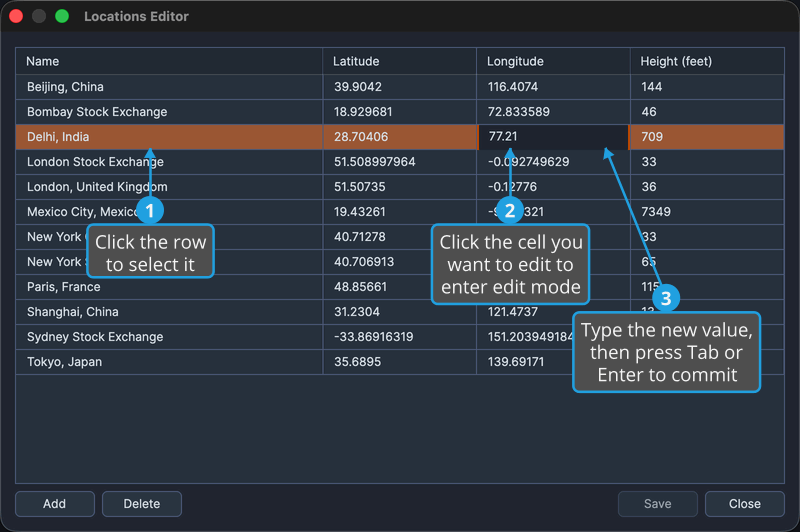
To change a location's values:
- Click the row to select it.
- Click the cell you want to edit so the cell enters edit mode.
- Type the new value, then press Tab to commit and move to the next cell, or press Enter to commit in place.
Adding a Location
To add a new location:
- Click the Add button.
A new, empty row is added and selected, ready for you to edit its cells.
Deleting Locations
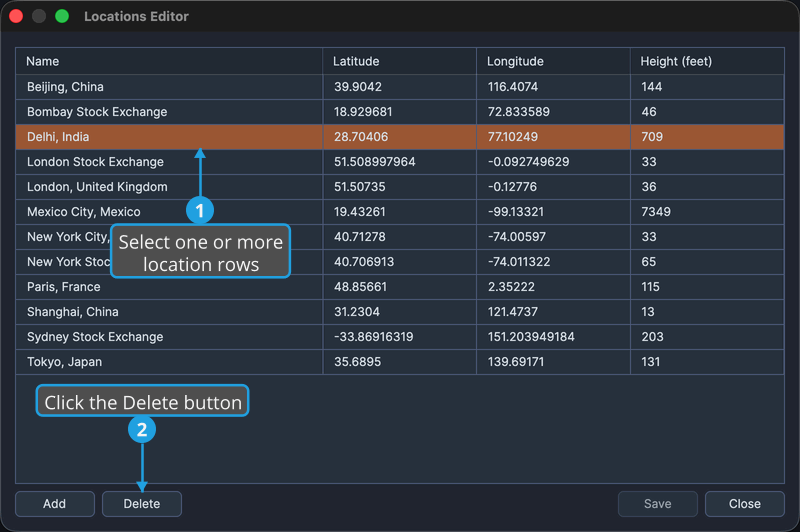
To remove one or more locations:
- Select one or more location rows.
- Click the Delete button.
- Confirm the deletion in the Confirmation Request dialog.
For details on the confirmation prompt, see Confirm on the Confirmation Request Dialog.
Saving Your Changes
To save the location collection:
- Click the Save button.
Your locations are validated, sorted by name, and saved to shared storage.
Closing the Editor
To close the Locations Editor:
- Click the Close button.
If you have unsaved changes, Ephy prompts you to save them first. See Save from the Unsaved Changes Prompt.