Delete Study
Deleting a study removes it from the workspace. Ephy asks you to confirm first, so you do not lose a study by accident. After you confirm, the study is removed and the previous study in the list becomes selected.
Deleting a Study
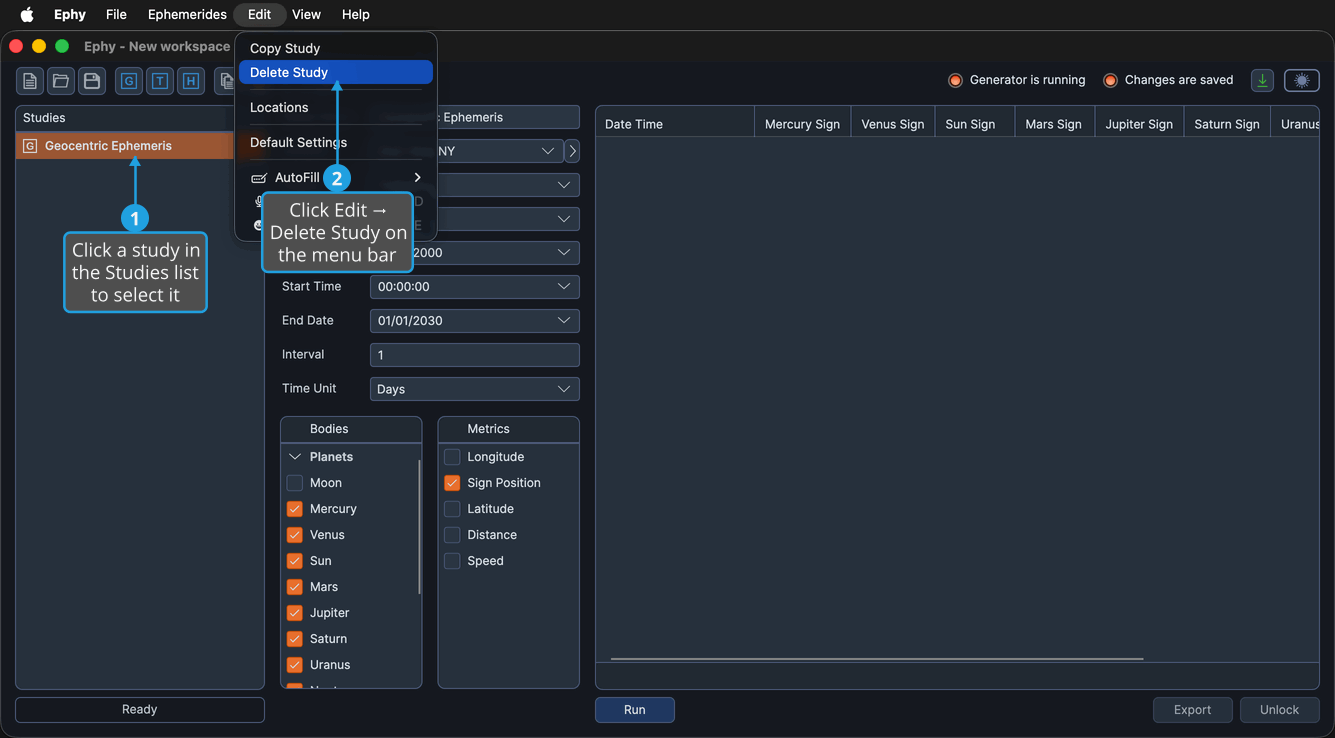
To delete a study:
- Click a study in the Studies list to select it.
- Click Edit → Delete Study on the menu bar.
- Confirm the deletion in the Confirmation Request dialog (see below).
You can also delete the selected study by clicking the Delete study button on the toolbar, right-clicking the study and choosing Delete, or pressing the Delete key.
The Confirmation Request Dialog
Before carrying out a destructive or state-changing action, such as deleting a study, Ephy shows the Confirmation Request dialog. It asks you to approve or decline the action so nothing is changed unless you agree. This same dialog appears when you delete a location or unlock a study to clear its records.
Confirm on the Confirmation Request Dialog
Approves the action so it proceeds. The dialog closes and the study (or other item) is removed or changed.
- Click the Yes button in the Confirmation Request dialog.
Cancel on the Confirmation Request Dialog
Declines the action so nothing changes. The dialog closes and the study, location, or records are left untouched.
- Click the No button in the Confirmation Request dialog.